Opening a Ticket
Overview
This article provides guidance on collecting logs and other relevant information when submitting a support ticket for Netwrix Access Analyzer (NAA).
Instructions
Follow the steps below to gather the necessary logs and details required for troubleshooting your NAA instance.
Logs
The default installation directory for Netwrix Access Analyzer is:
C:\Program Files\STEALTHbits\Access Information Center
NOTE: This location could be custom set. If you are unsure where the installation directory is, open
services.mscand view the properties for the Netwrix Access Information Center service. The Path to executable field points to the Access Information Center (AIC) installation directory.
-
Navigate to the following path to collect the NAA Console logs:
%SAInstallDir%\SADatabase\Logs\Application -
Gather the Published Reports logs from the following path:
%SAInstallDir%\SADatabase\Logs\Web -
Collect the job logs using one of the following methods:
-
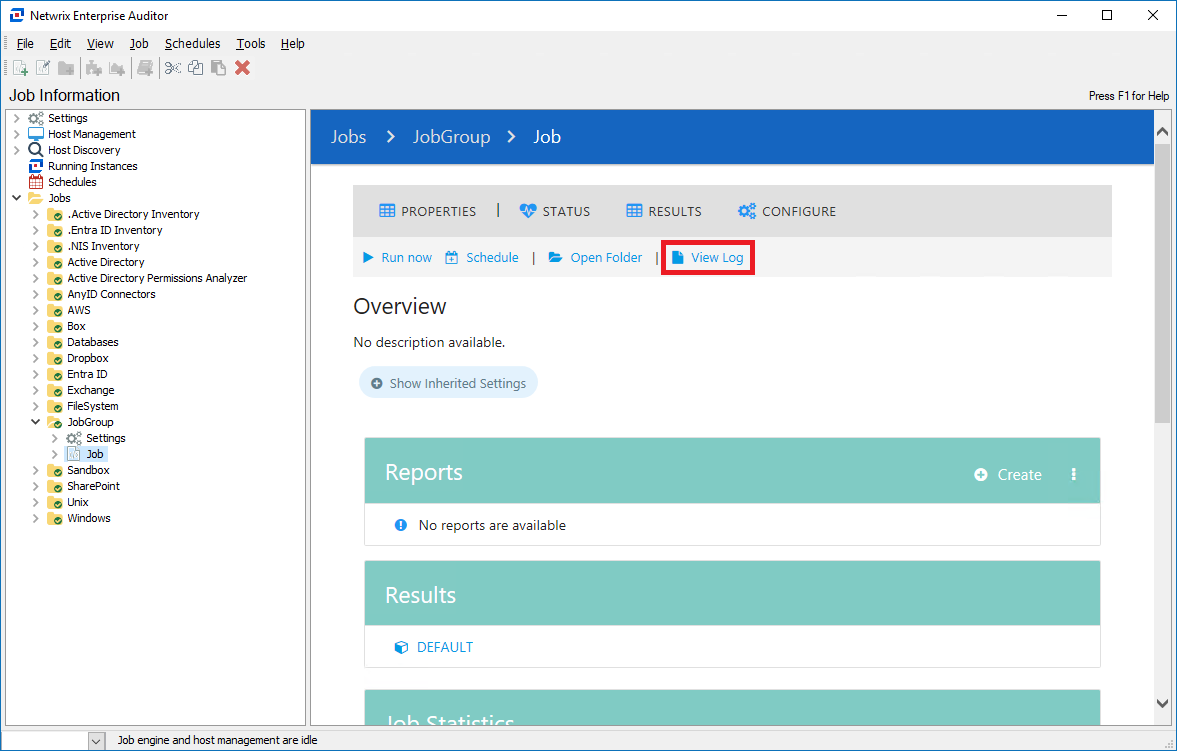
On the job home page, click View Log, and save the log file.
-
Locate the job logs directly in the file system using the following path:
%SAInstallDir%\Jobs\%GROUP%\%JOB%\OUTPUTNOTE: Replace
%GROUP%and%JOB%with the appropriate values. For example, to locate logs for the1-AD_Scanjob, use the following path:%SAInstallDir%\Jobs\GROUP_.Active Directory Inventory\JOB_1-AD_Scan\OUTPUT -
In the Navigation Pane, right-click the job and select Export. In the new window, specify the components to export and proceed with the export.
-
Messages Table
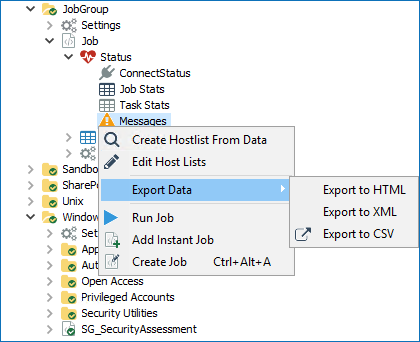
To export job errors and warnings from the Messages table, navigate to %JOB% > Status > Messages in the Navigation Pane, right-click Messages, and select Export > Export to XML.
Product Build Number
IMPORTANT: Identifying your current NAA build helps determine whether the issue has already been addressed in a newer version.
To identify the product build number, navigate to Help > About in the top toolbar.