Adding or Replacing Configuration and Compliance Report Templates
Overview
Netwrix Change Tracker uses two types of templates:
- Configuration templates, which define the file, folder, and registry monitoring policy.
- Compliance report templates, which map to CIS Benchmarks and score devices against a hardened build standard.
This article describes how to upload a new template of either type, overwrite an existing default template, and assign the template to a device group.
Instructions
Configuration Template
-
Go to Settings > Policy Templates, then click Upload Templates.
-
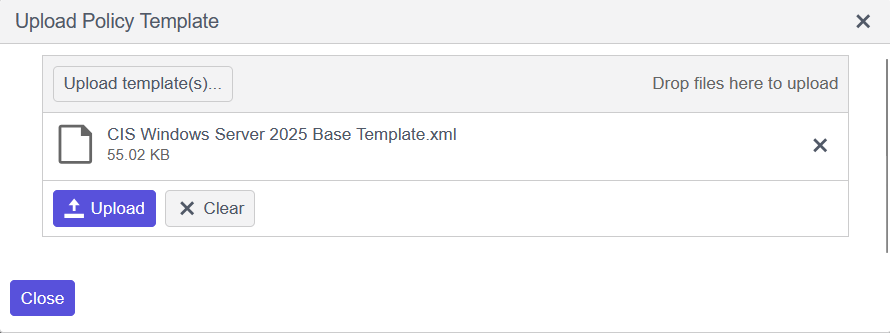
Browse your local files and select the template you want to upload.
For example,
CIS Windows Server 2025 Base Template.
Replacing a Default Template
Uploading a new template with the same name overwrites the existing template already present in the system.
Not Replacing a Default Template
- Click Upload files.
- Go to Settings > Groups.
- Select the group of devices and click Policy Templates.
- Delete the Default Template.
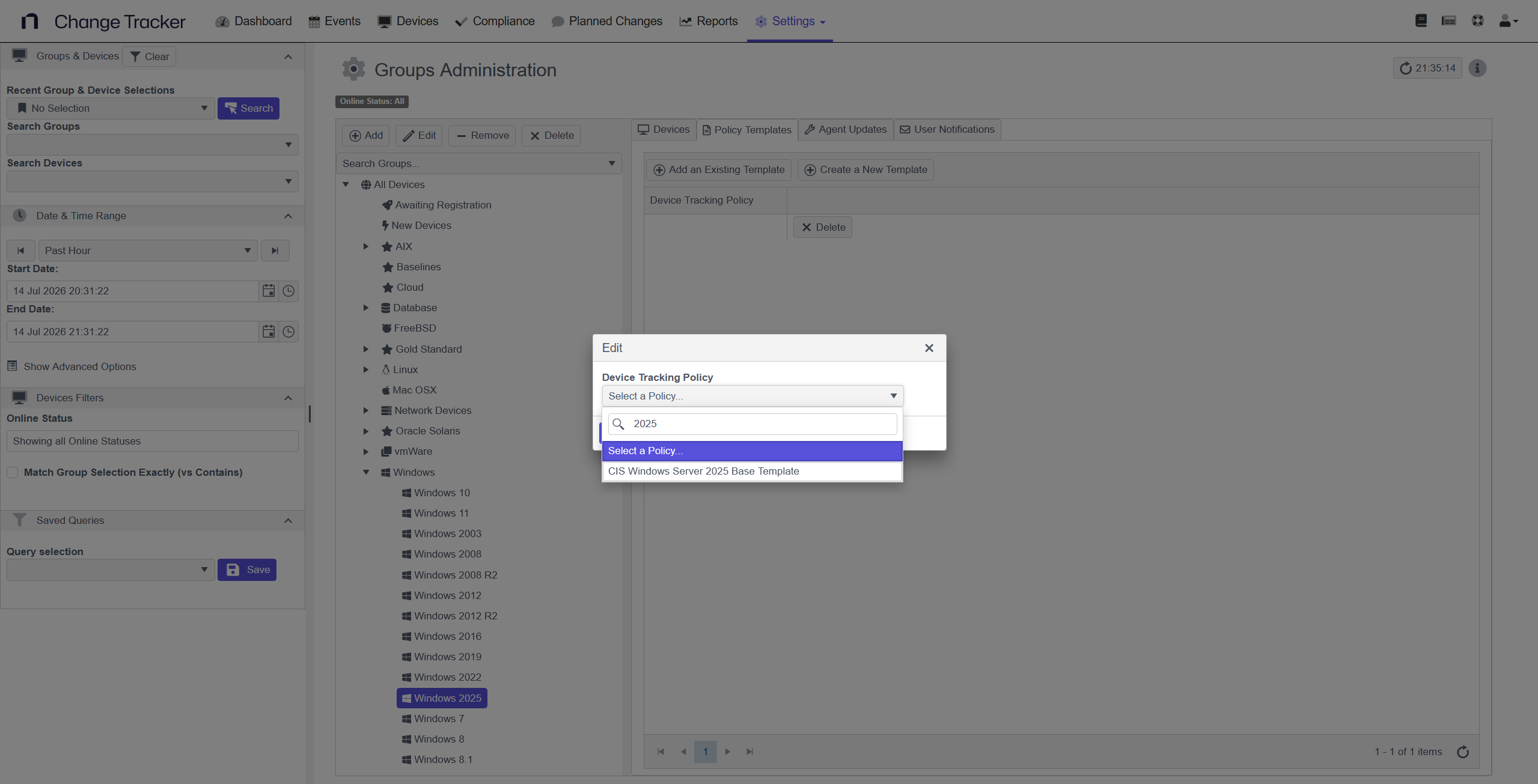
- Click Add an Existing Template.
- In the pop-up window, select the template you uploaded and click Update.
Compliance Report Template
-
Go to Settings > Policy Templates, then click Upload Templates.
-
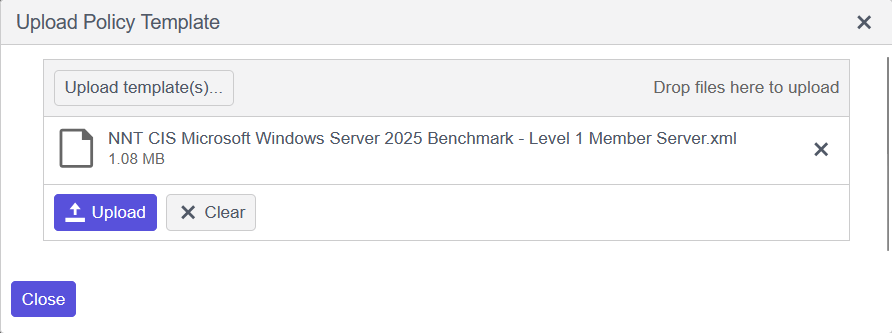
Browse your local files and select the template you want to upload.
For example,
NNT CIS Microsoft Windows Server 2025 Benchmark - Level 1 Member Server.
Replacing a Default Template
Uploading a new template with the same name overwrites the existing template already present in the system.
Not Replacing a Default Template
- Click Upload files.
- Go to Reports > Actions > Add Compliance Report.
- Go to Query Settings, then select the device group and template.
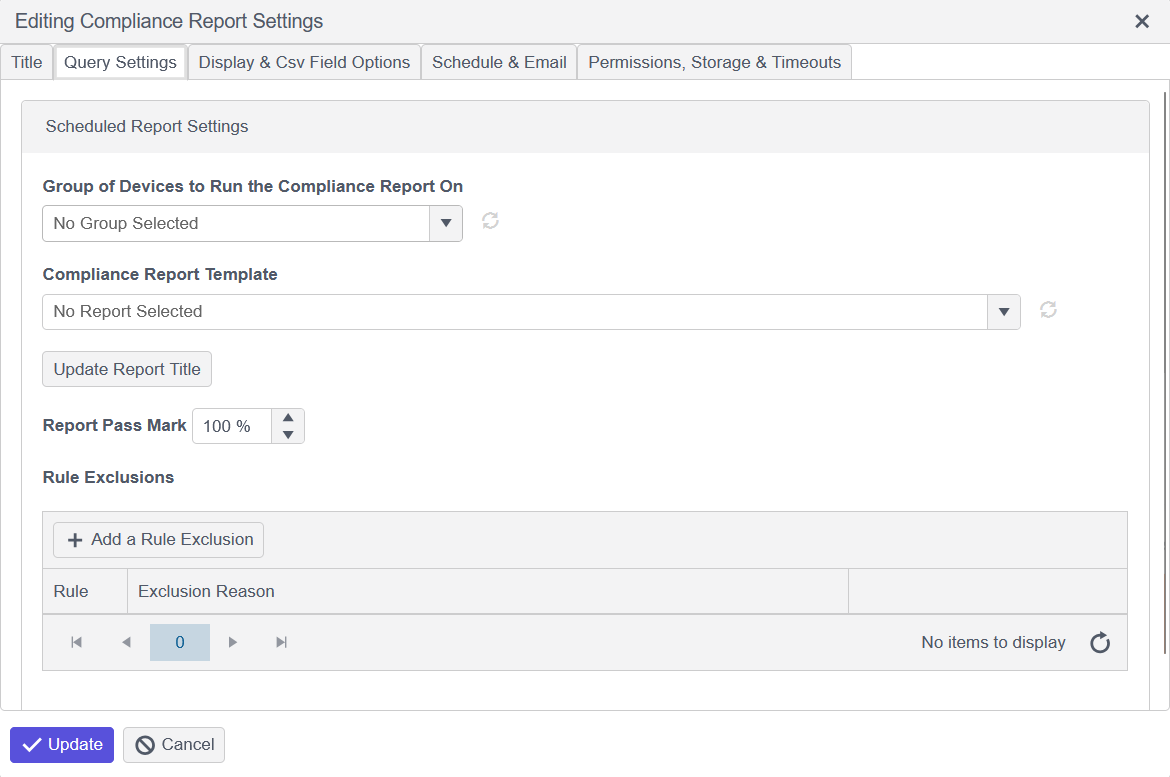
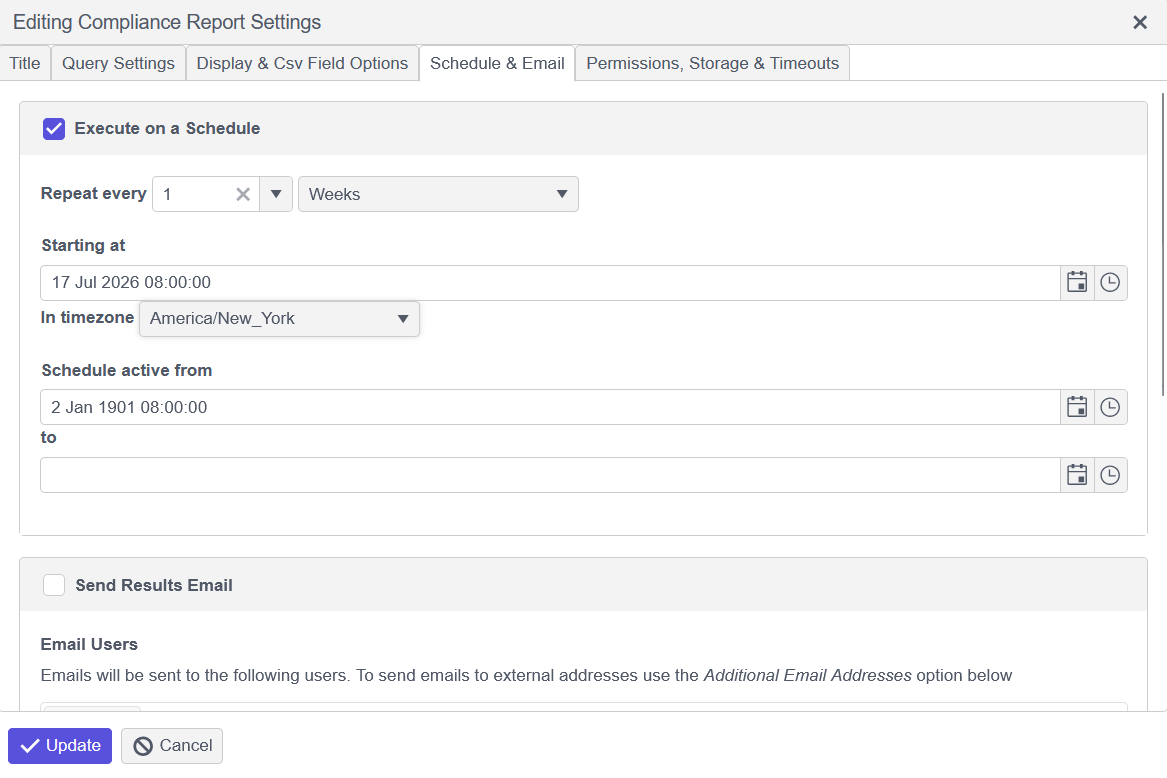
- Go to Schedule & Email and configure the preferred settings. See the sample below.