Changing the Admin Password for MongoDB
Overview
If authentication is enabled in MongoDB and the admin password is lost, use this procedure to reset it.
IMPORTANT: You must log on to the server hosting MongoDB to complete this procedure.
Instructions
-
Stop the MongoDB service using
services.mscorsc stop MongoDB. -
Disable MongoDB authentication:
- Navigate to
C:\Program Files\NNT Change Tracker Suite\Gen7\MongoDB\bin. - Edit the
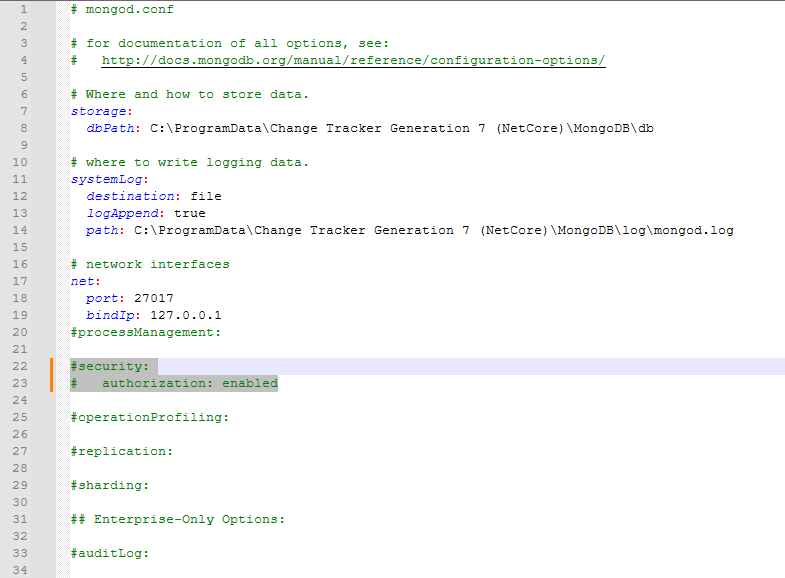
mongod.cfgfile. - Comment each line out using the
#symbol except forlogpath,dbpath,net,port,bindIp, andstorageEngine.
- Navigate to
-
Start the MongoDB service using
services.mscorsc start MongoDB. -
Open the Mongo shell by running the following program:
C:\Program Files\NNT Change Tracker Suite\Gen7\MongoDB\bin\mongosh.exe.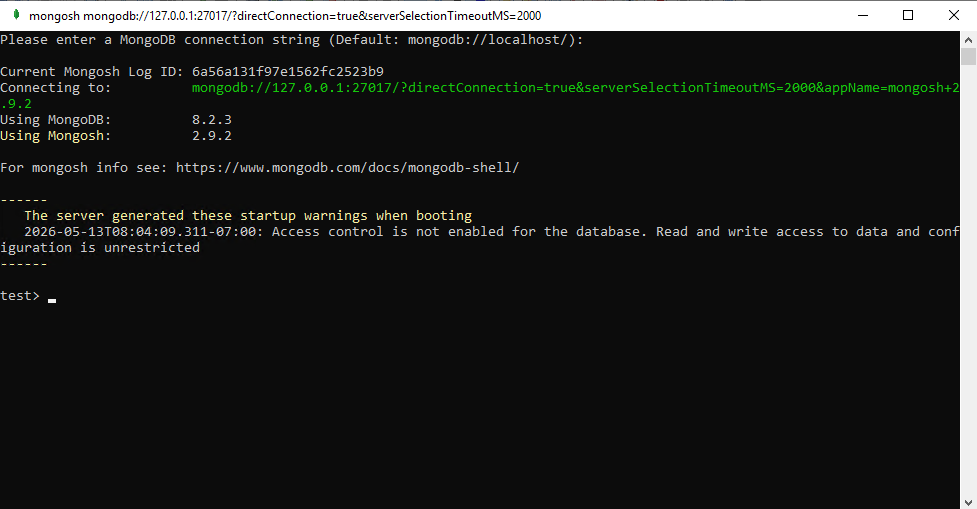
-
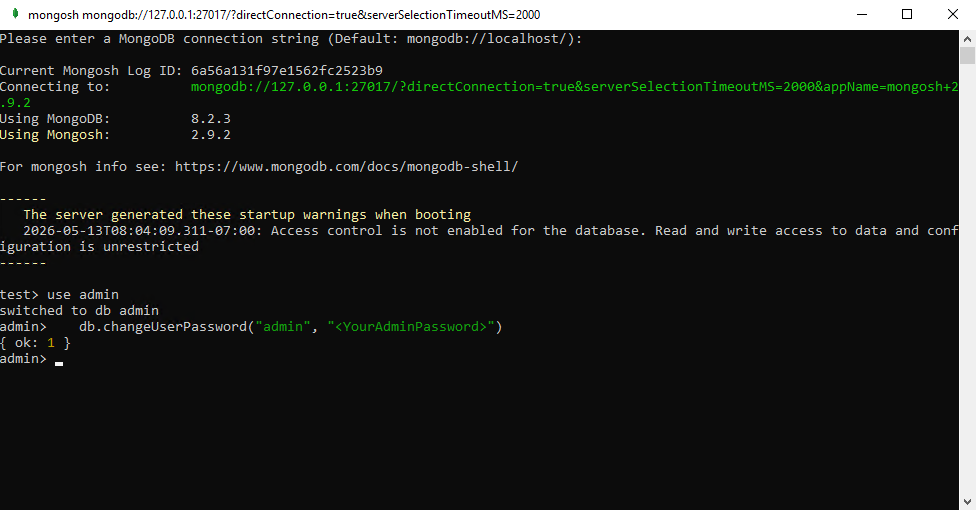
Enter the following commands in the Mongo shell, in order:
use admindb.changeUserPassword("admin", "<YourAdminPassword>")NOTE: Replace
<YourAdminPassword>with the new password you wish to use.Changing the password returns you to a new line without an output.
-
Close the
mongosh.exewindow and stop the MongoDB service in Task Manager. -
Re-enable MongoDB authentication:
-
Navigate to
C:\Program Files\NNT Change Tracker Suite\Gen7\MongoDB\bin. -
In the
mongod.cfgfile, remove all#symbols from each of the lines. Save the changes.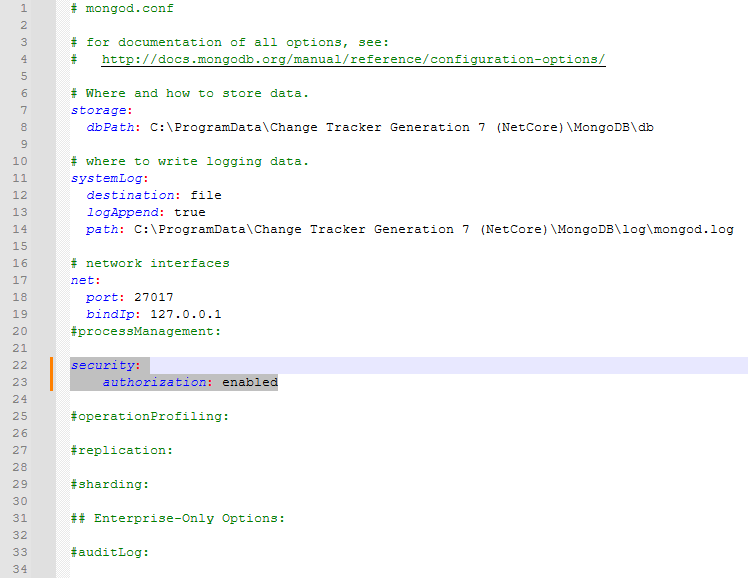
-
-
Start the MongoDB service using
services.mscorsc start MongoDB. -
Open Command Prompt and verify your Mongo logon using your authentication command. The following is an example:
"C:\Program Files\NNT Change Tracker Suite\Gen7\MongoDB\bin\mongosh.exe" --ssl --sslCAFile C:\mongo.crt --host 192.168.1.X --port 27017 -u admin -p <YourAdminPassword> --authenticationDatabase admin --sslAllowInvalidCertificatesNOTE: The IP address and password parameters must reflect the IP of the server hosting MongoDB and the new password entered in the preceding command.