Synchronizing Term Sets using the conceptTermStorageManager
Synchronize term set structures between two SharePoint instances via the conceptTermStoreManager using the steps listed in this article
Procedure
- Navigate to
C:\inetpub\wwwroot\conceptQS\bin\conceptTermStoreManager.exe - Run the
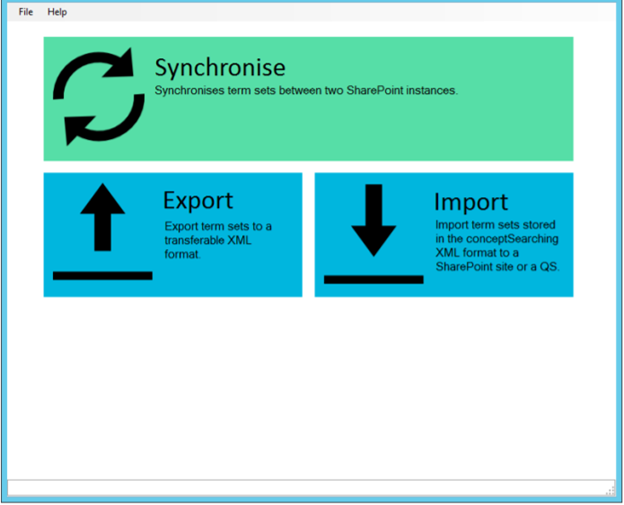
conceptTermStoreManager.exeand observe the following screen: - Click the Synchronise box
- Enter the Source SharePoint farm and Destination SharePoint farm URLs
- Provide credentials that have access to the Term Store
- Click Next
- Check the boxes for each desired term set
- Use the drop down box to select an action
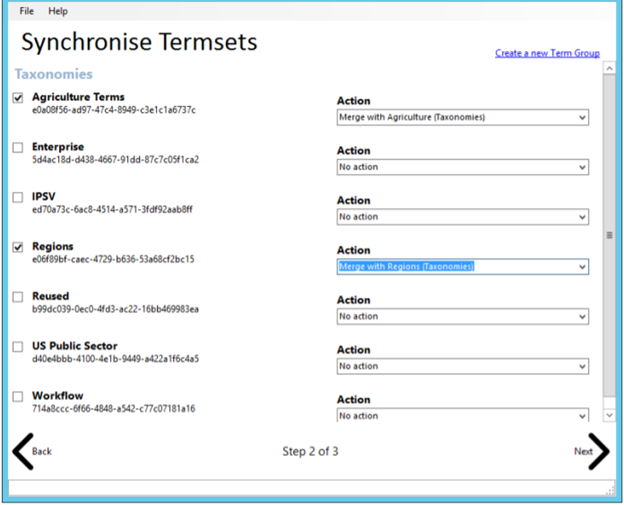
- In this example, the Regions term set will be merged into the existing term sets in the Taxonomies term group
- Click Next
- Review the summary on the final page
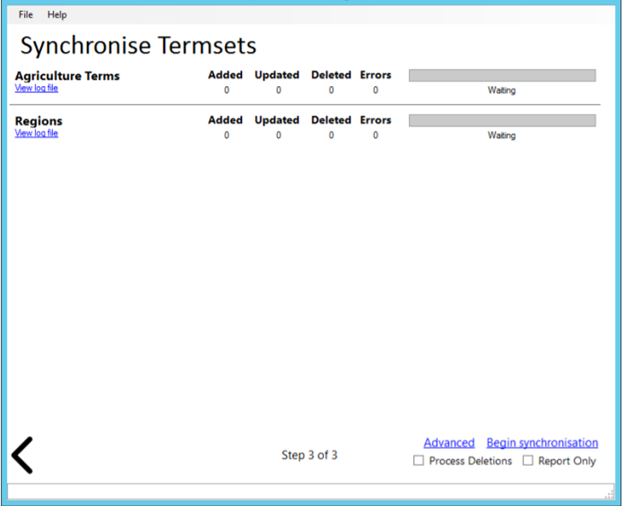
- If you wish to ensure terms not found in the source are removed from the destination (Matching GUID), check the Process Deletions box
- If you wish to prevent any changes from occurring in the destination, check the Report Only box
- Any changes that would have been made to term sets will be logged to the individual term sets logs, which are visible by clicking the View Log File link.
- Optional advanced options can be found by clicking the Advanced button.
- Click Begin Synchronisation