Configure a Default Container for Creating New Objects
Applies To
Directory Manager 11
Overview
Netwrix Directory Manager (formerly GroupID) allows administrators to configure a default container for creating new objects, such as groups, users, contacts, and mailboxes. You can control whether users can select a different container, enforce the default container, or hide the container selection entirely. This flexibility helps ensure that new objects are created in the correct location according to your organization's policies.
Instructions
Access Portal Design Settings
-
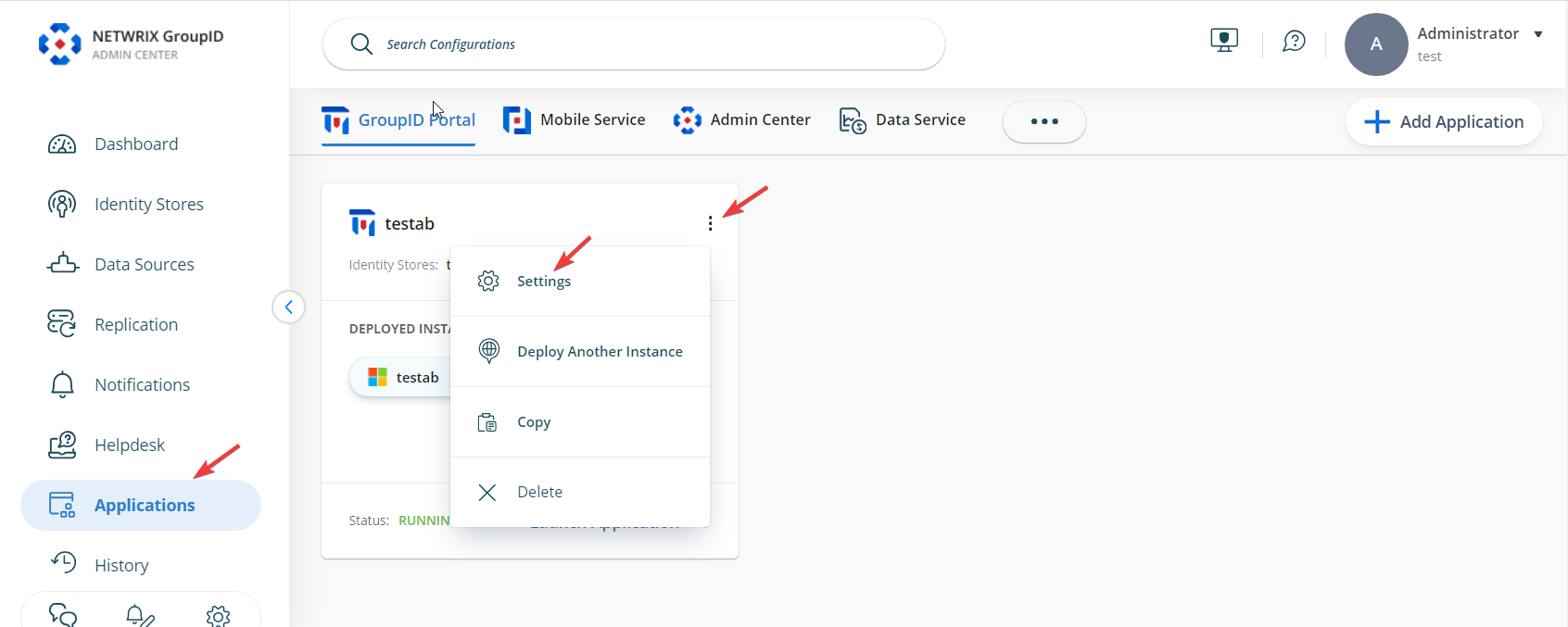
In the Directory Manager Admin Center, select Applications.
-
Under Directory Manager Portal, select the three-dot icon for your portal and click Settings.
-
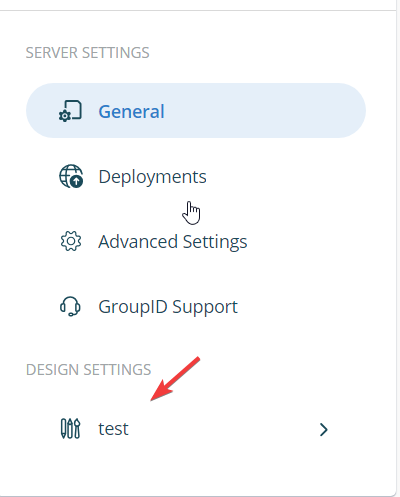
On the Server Settings tab, under Design Settings, select your portal.
-
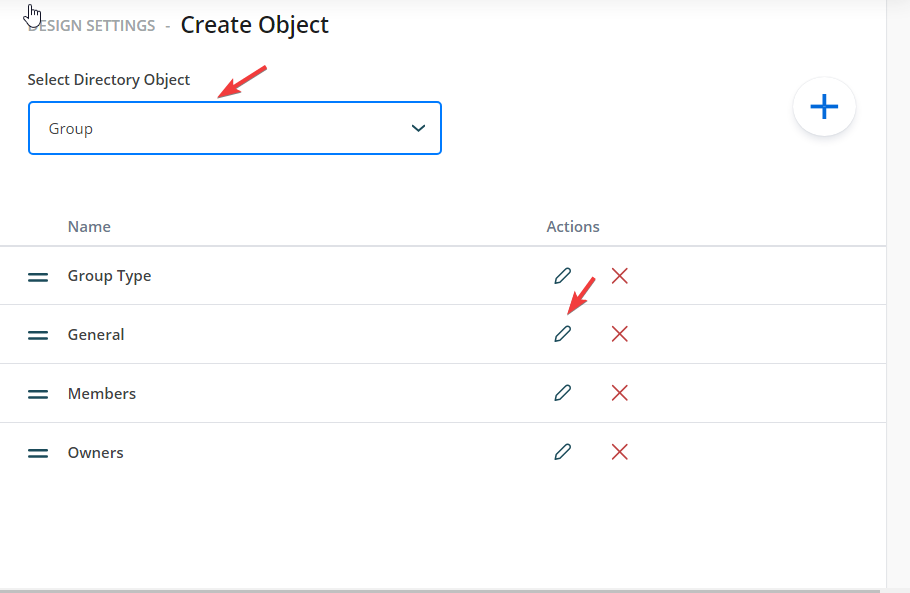
Click the Create Object tab to customize the Object Creation wizard.
-
In the Select Directory Object drop-down list, select the object type for which you want to set a default container (for example, Group).
-
In the Name list, select General and click Edit.
-
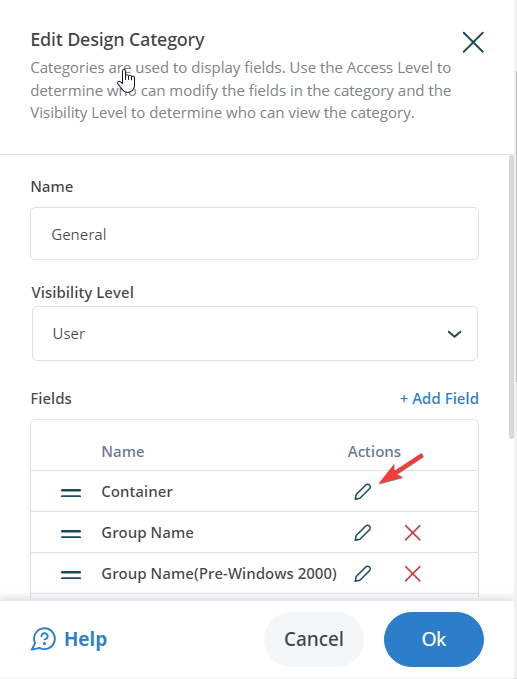
In the Edit Category dialog box, select Container in the Fields area and click Edit.
-
In the Edit Field dialog box, click Advanced options.
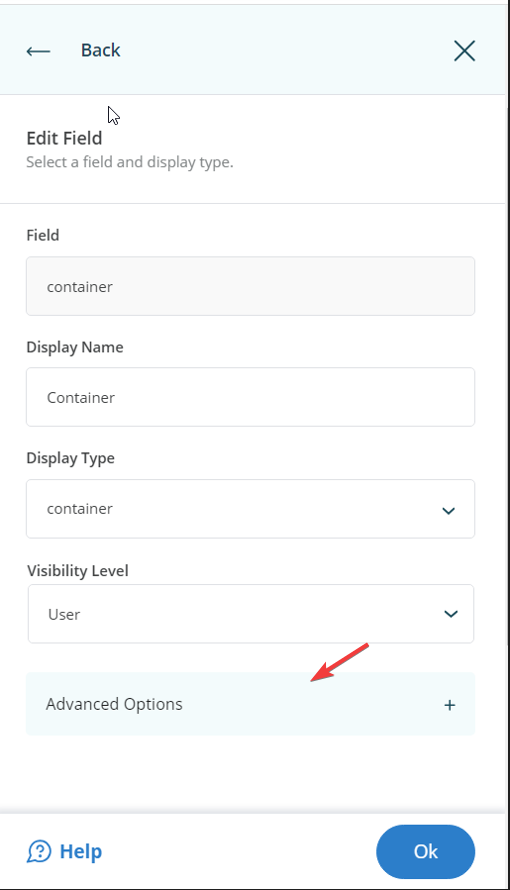
Configure Default Container Options
-
Specify a default container while allowing users to change it.
-
In the Default Value box, enter the distinguished name of the container you want to set as default.
-
Click OK and Save your changes.
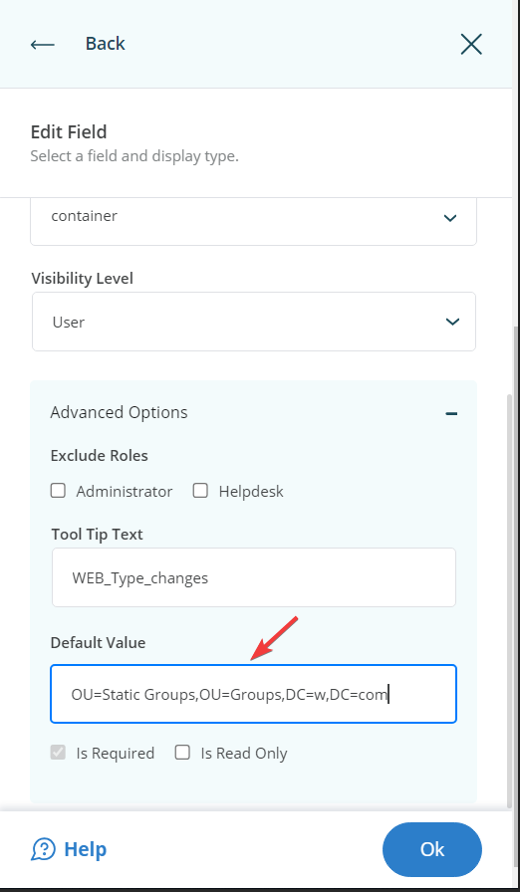
Expected Result: On the Create Group wizard in the User portal, the specified container is selected by default, but users can click Browse to select another container.

Enforce a Default Container and Disable Container Selection
-
In the Edit Field dialog box, specify a default container and select the Is Read Only check box.
-
Click OK and Save your changes.

Expected Result: On the Create Group wizard, the specified container is displayed as the default, and the Container field is disabled. Users can only create new groups in the default container.

Enforce a Default Container and Hide Container Selection
-
In the Edit Field dialog box, use the Visibility Role option to select which user roles can see the Container field. Only the selected role and roles with a higher priority value will see the field. All roles with a lower priority value will not see or change the default container.
-
Click OK to save your changes.
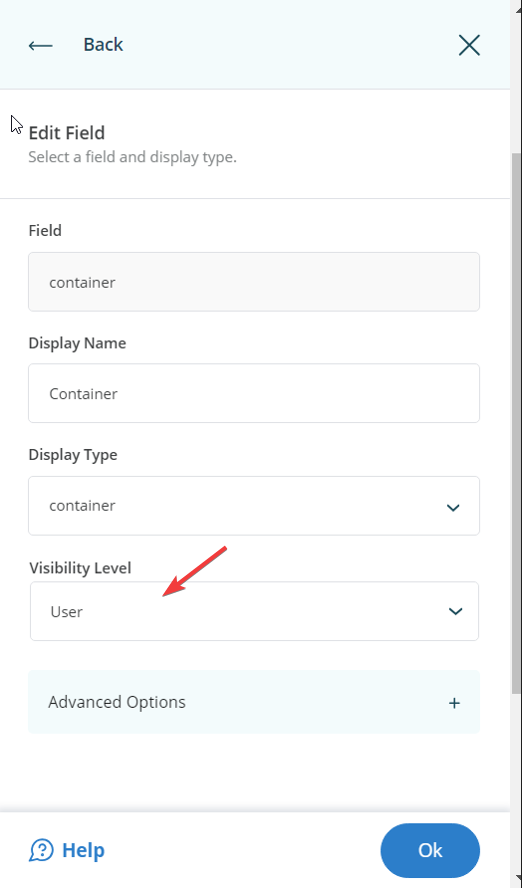
Expected Result: On the Create Group wizard in the Self-Service portal, the Container field is hidden, and users create groups without knowing the container being used.

NOTE: If you hide the Container field for any role, you must provide a default value for this field. Otherwise, those roles will not be able to create groups.