How to Enforce Group Type as Distribution or Security v10
Applies To
- Netwrix Directory Manager 10
Overview
This article explains how you can enforce the Group Type as Distribution in the Self-Service portal of Netwrix Directory Manager. Netwrix Directory Manager allows you to configure object creation settings, including customizing the Create wizard, defining default values, and setting visibility rules based on user roles. By customizing the Create Group wizard, you can restrict users to creating only distribution groups, ensuring consistent group types across the directory.
Instructions
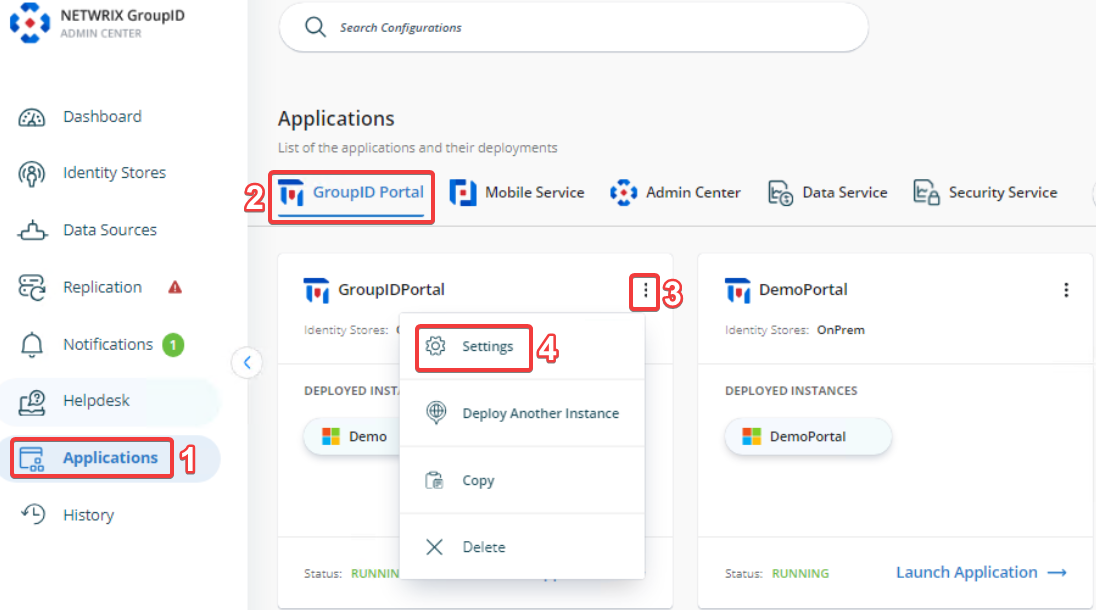
- In the Directory Manager Admin Center, go to Applications > Directory Manager Portals and locate the required portal.
- Once you have chosen the required portal, click the three-dot icon on the portal then click Settings.
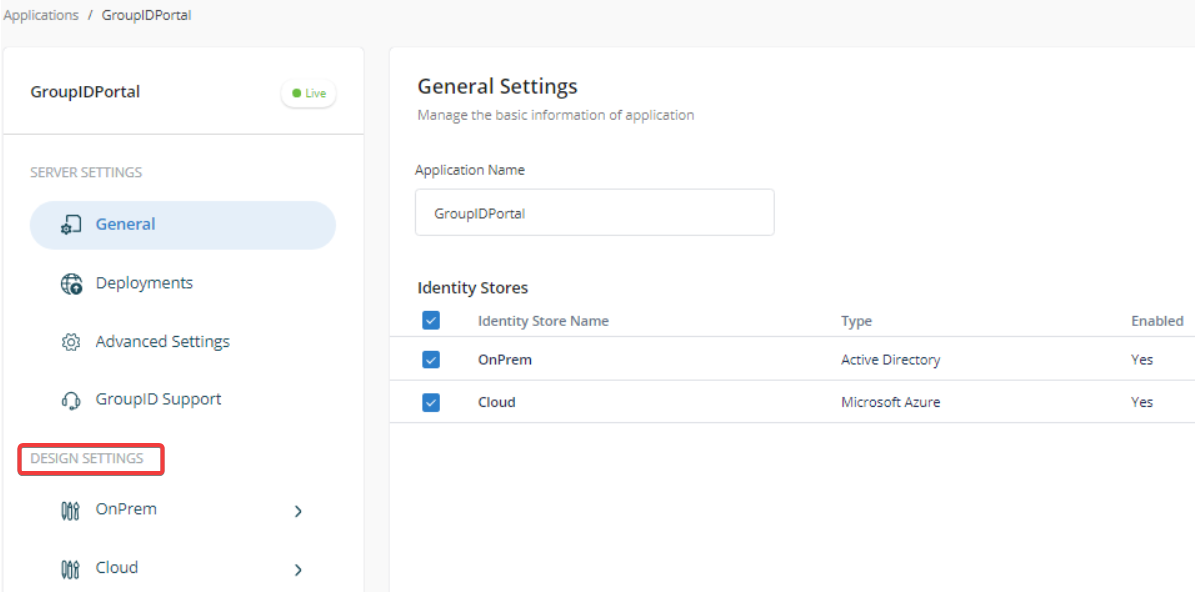
- Under Application Settings, select an identity store from the Design Settings section.
- Click the Create Object tab.
- In the Select Directory Object list, choose Group.
- In the Name list, select General and click Edit.
- In the Edit Category dialog box, select Group Type from the Fields list and click Edit.
- In the Edit Field dialog box, click Advanced Options.
- From the Default Value dropdown, select
Distribution. - To restrict changes to this setting, do one of the following:
- Select the Is Read Only checkbox.
- Or set the Visibility Role to
Never.
- To enforce the setting for a specific role (for example,
Role C), set the visibility level to a role with a higher priority thanRole C. Roles with equal or lower priority will not be able to change the group type. - Click OK to close the dialog boxes and save your changes.
After saving your changes, the Group Type field will default to Distribution in the Self-Service portal, and users will not be able to change it. This ensures that all newly created groups are distribution lists only.