Identify Similar Groups in the Directory
Applies To
Netwrix Directory Manager 11
Overview
As your organization grows, your directory may contain multiple groups that serve the same or similar purposes. These duplicate or overlapping groups can create unnecessary complexity and make directory management more difficult. Identifying similar groups helps you reduce redundancy and maintain a clean, well-organized directory.
Instructions
Netwrix Directory Manager enables you to compare groups for similarity based on the following criteria:
- Group type
- Membership
For example, if you have a distribution group (Group A) with three members (A1, A2, and A3), Directory Manager compares the membership of all distribution groups in the directory to find those with the same members as Group A. The Self-Service portal displays these similar groups. The more members two groups share, the stronger the similarity match.
Steps to View Similar Groups
- Log in to the Directory Manager application.
- Click Groups in the left pane.
- On the My Groups page, click the display name of a group to view which groups in the directory are similar to it.
- On the group properties page, click the Similar Groups tab.
- Directory Manager displays up to six groups that are most similar to the selected group. Similarity is determined by both group type and membership.
NOTE: Netwrix Directory Manager only displays up to six similar groups, even if more exist in the directory. The similarity ranking is based on group type and the number of shared members.
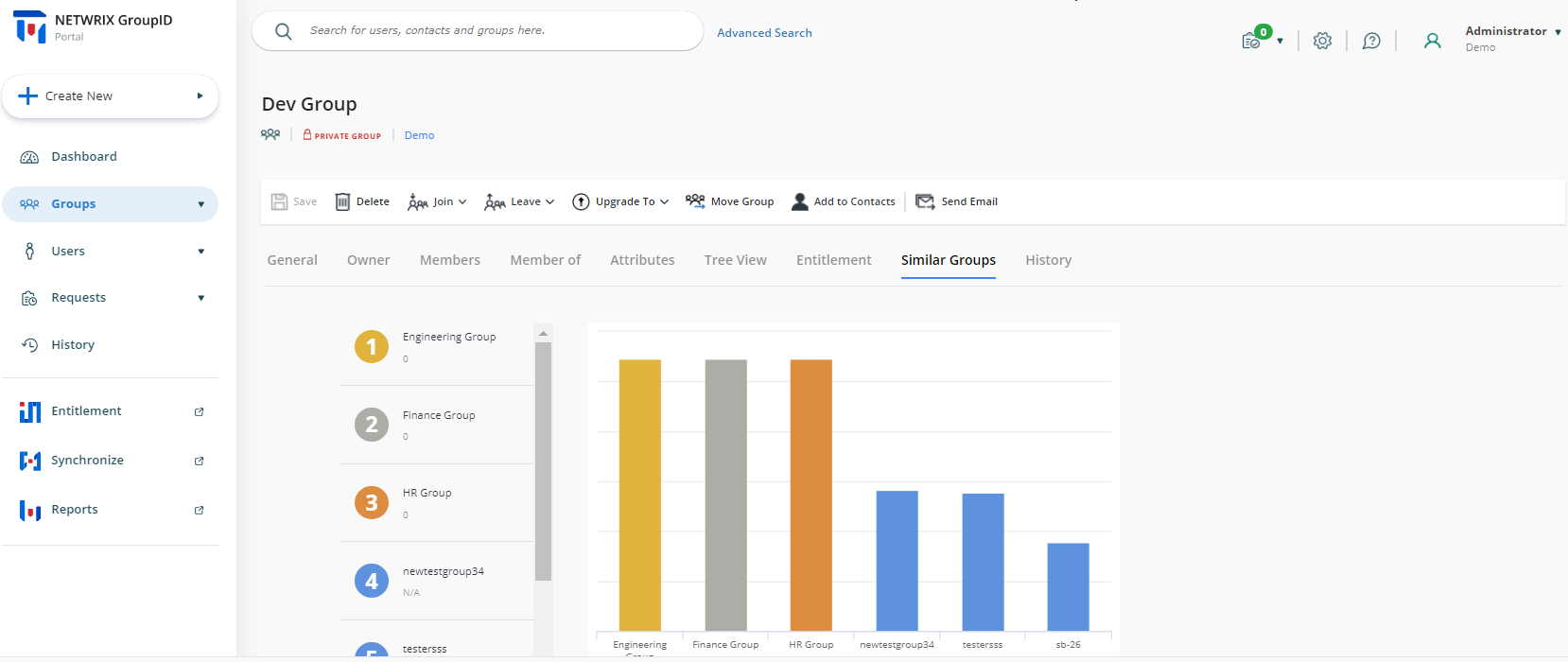
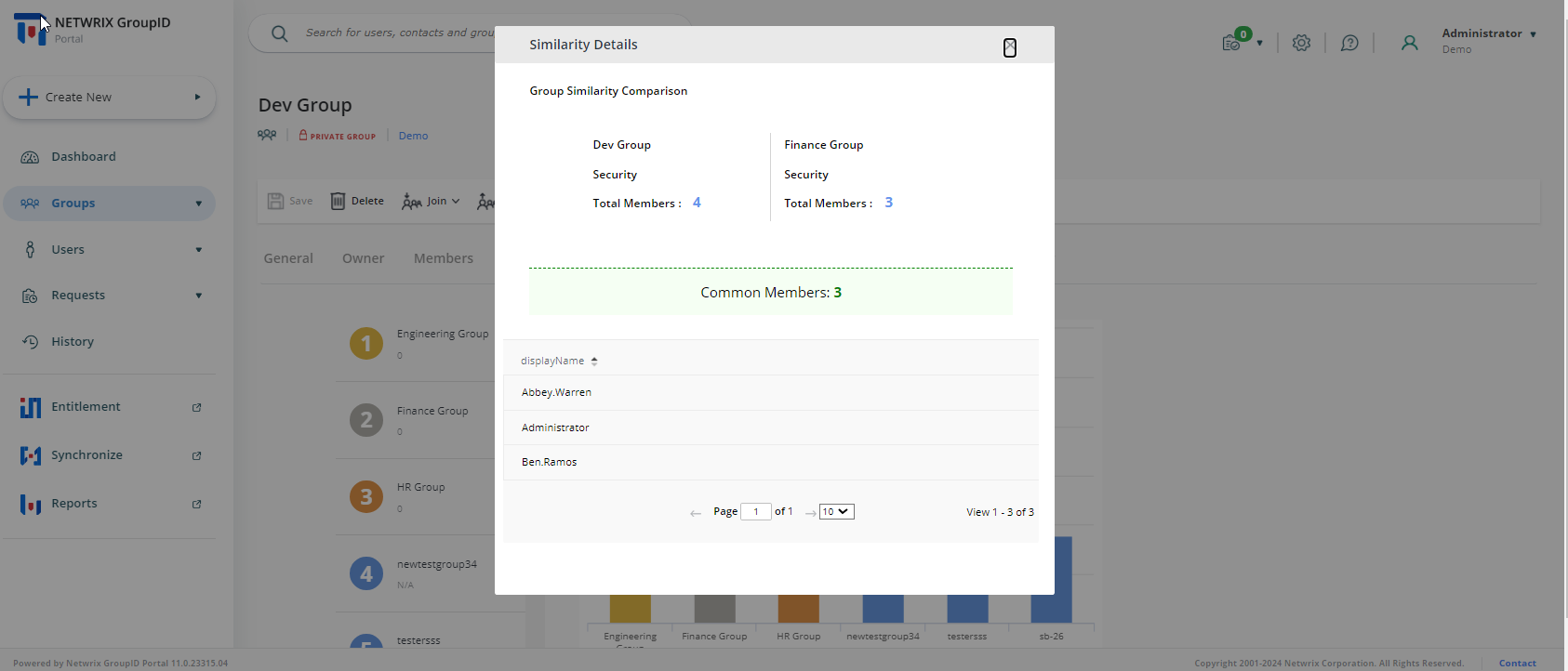
- Click a bar for a group to view similarity details.
- The Similarity Details dialog box displays the common type and common members that both groups have.