Set Delivery Restrictions on Dynasty Groups
Applies To
Directory Manager 11
Overview
Netwrix Directory Manager (formerly GroupID) allows you to set delivery restrictions on Dynasty groups, which are Smart Groups that create and manage other Smart Groups using directory information. Dynasties help manage large distribution lists by creating hierarchical group structures. You can restrict or allow specific users or groups to send emails to a Dynasty by configuring delivery restrictions in the group properties.
Instructions
Prerequisite Settings to Enable
-
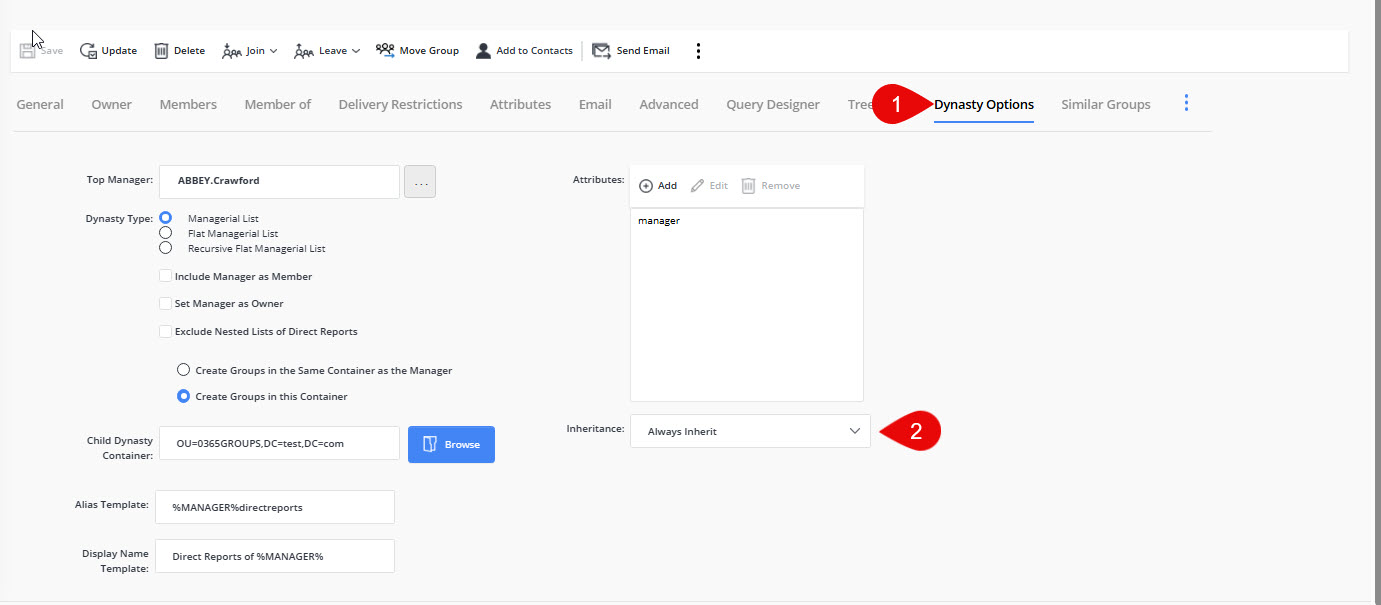
On the Dynasty Properties, click the Dynasty Options tab.
-
In Dynasty Options, make sure the Always Inherit option is selected.
-
Go to the Admin Center and open the settings of the identity store.
-
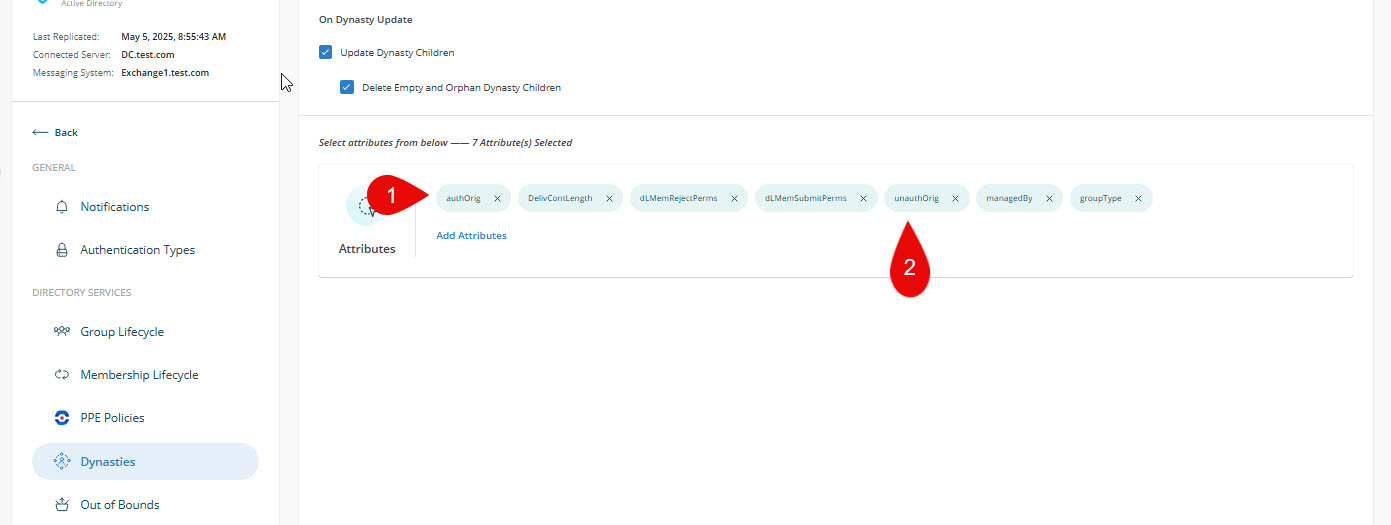
Click the Configurations tab, then click the Dynasties tab.
-
Make sure authOrig and unauthOrig are present under Selected Attributes. These attributes control authentication and are required to apply restrictions or rules to Dynasties.
Set Delivery Restrictions on a Dynasty Group
-
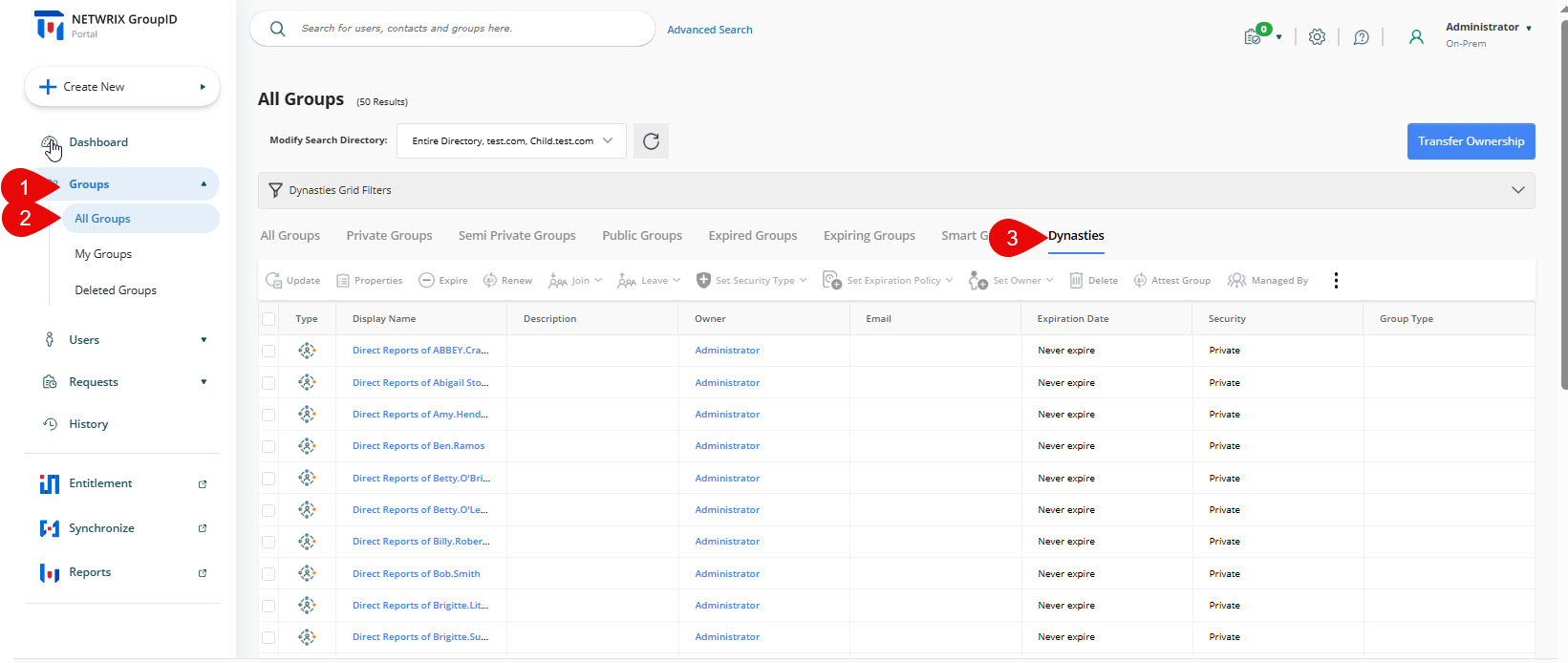
In the Directory Manager application, expand Groups > All Groups > Dynasties.
-
Select the Dynasty group you want to set delivery restrictions for (for example, "Direct Reports of Abbey.Crawford") and go to its Properties.
-
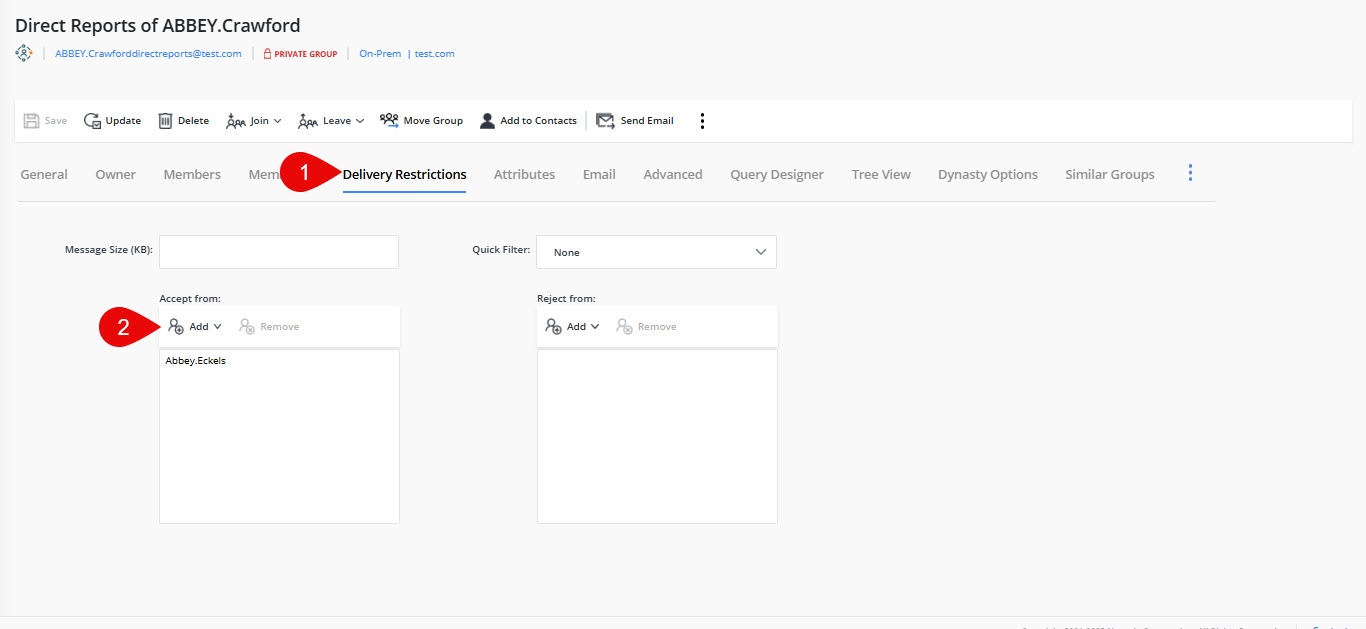
Click the Delivery Restriction tab. You will see three types of filters that control who can and cannot send email messages to the group:
- Quick Filter (default filter)
- Accept Messages (to allow all or specific users/groups to send emails to the Dynasty)
- Reject Messages (to restrict specific users/groups from sending emails to the Dynasty)
-
In the Accept Messages section, click Add and add any user or group who should be allowed to send emails to the Dynasty.
-
After adding the user or group, click Save.