Hide Reports, Entitlements, and Synchronize Tabs in the User Portal
Applies To
Netwrix Directory Manager 11
Overview
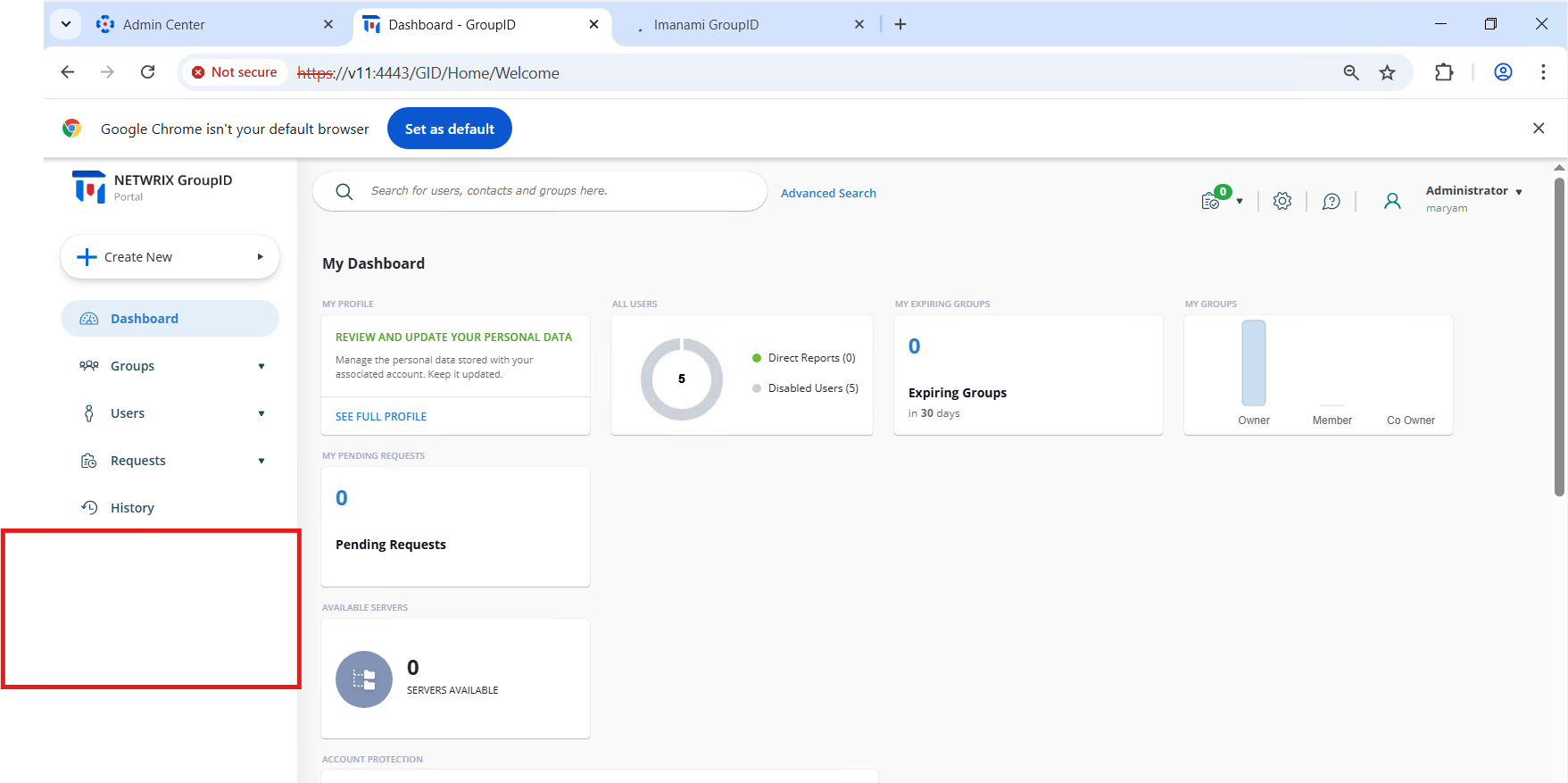
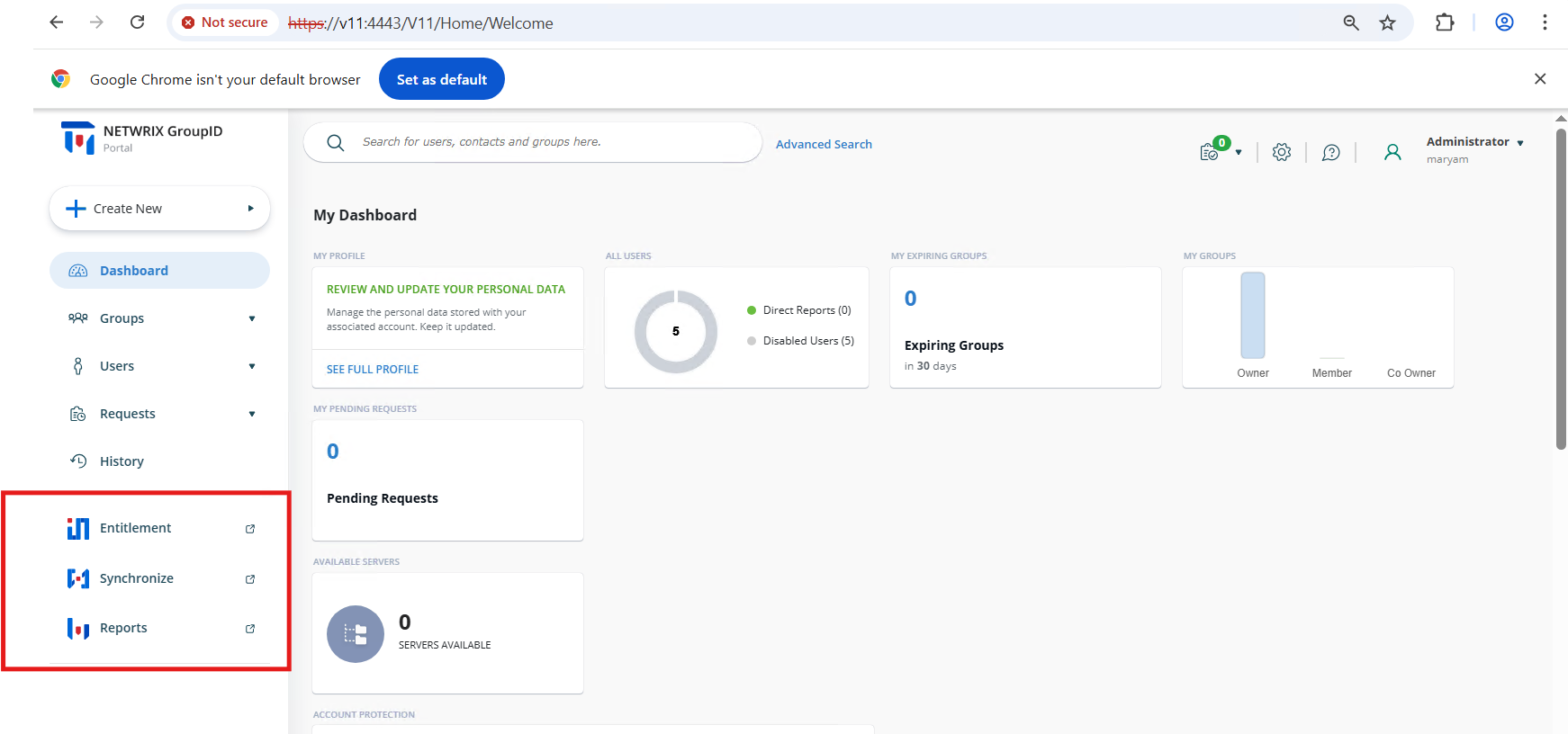
By default, the Synchronize, Reports, and Entitlements tabs appear on the navigation bar in the Netwrix Directory Manager User Portal. You can control which users see these tabs by adjusting their access level settings. Restricting access ensures that only users with the appropriate roles can view or use these options.
Instructions
Hide the Reports, Entitlements, and Synchronize Tabs
- Go to the Admin Center.
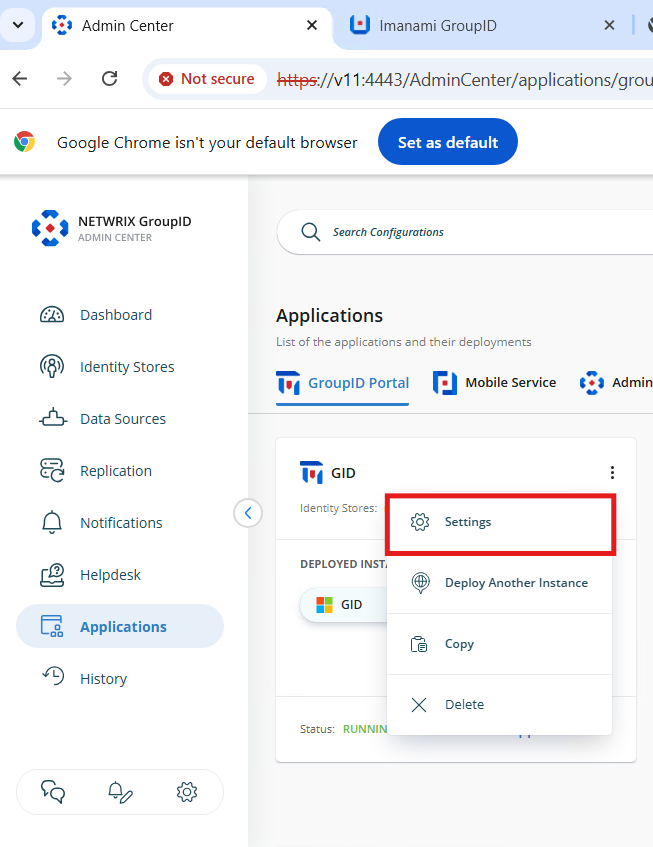
- Navigate to Applications.
- Open the Settings for the portal you want to apply the changes to.
- Go to Design Settings and expand Identity Store.
- Select Navigation Bar.
- Click the Dropdown List and select External Links.
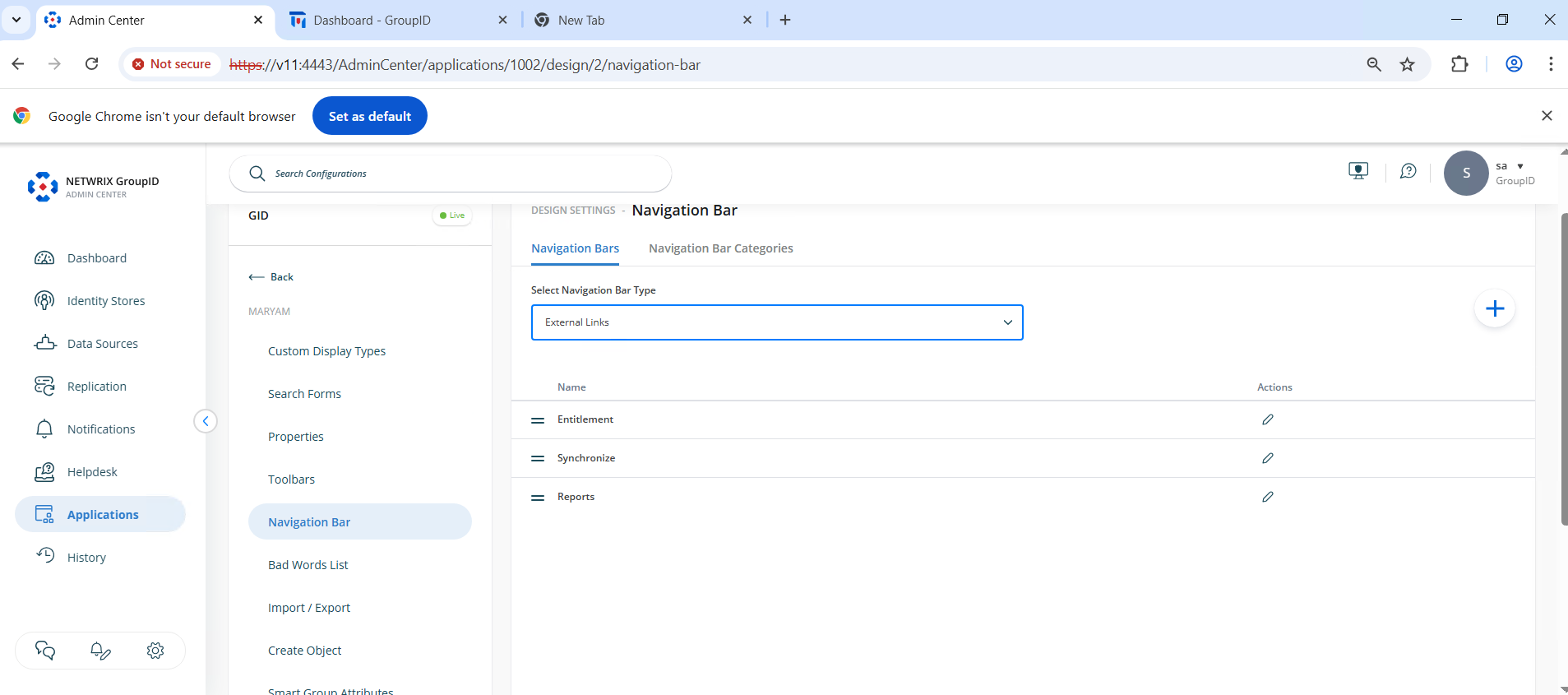
- Edit Entitlements.
- In the Access Level list, select a security role:
- The Entitlements link will be visible to users of this role and any roles with a higher priority.
- To hide the link from all users, select Never.
- To allow only Administrators to see it, select Administrator (users in roles below Administrator will not have access).
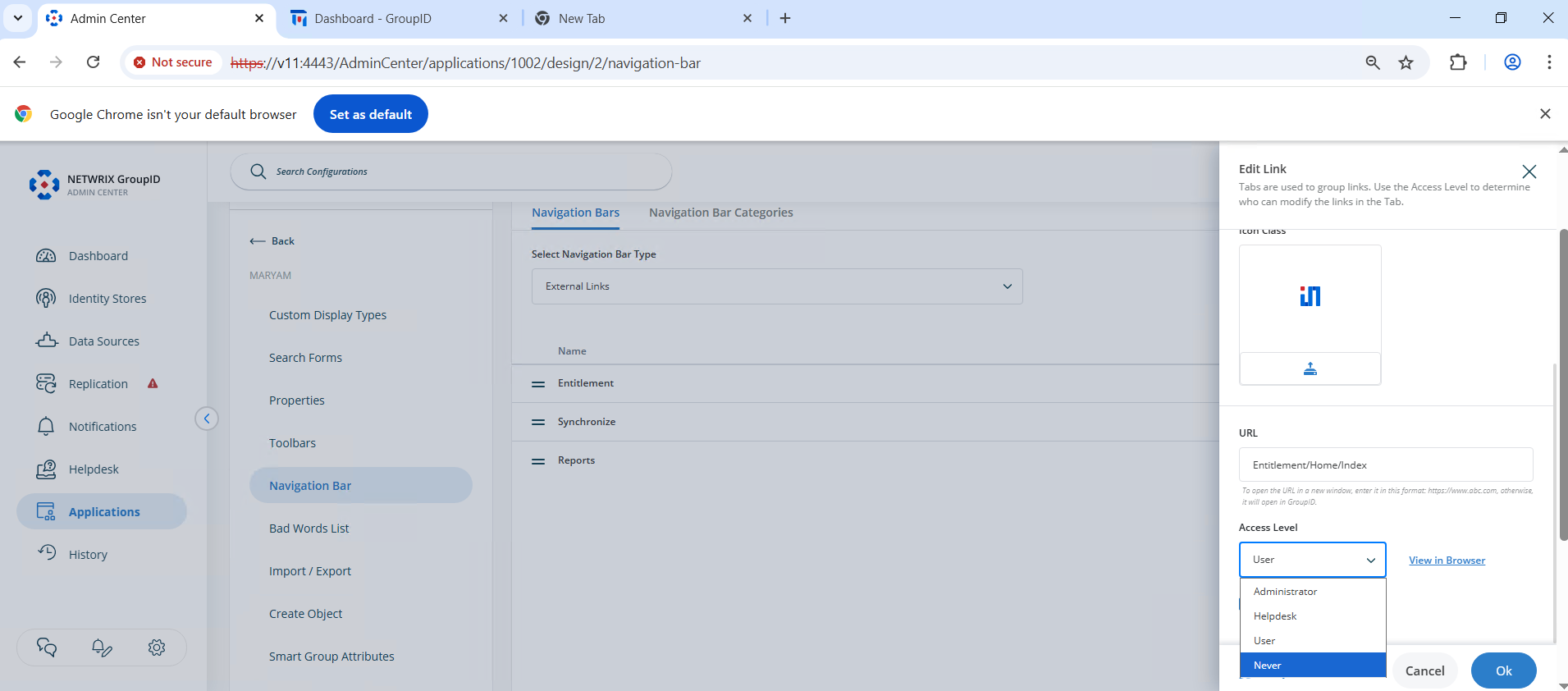
- Click OK to save the changes.
- Log in to the Netwrix Directory Manager Portal to verify the changes.
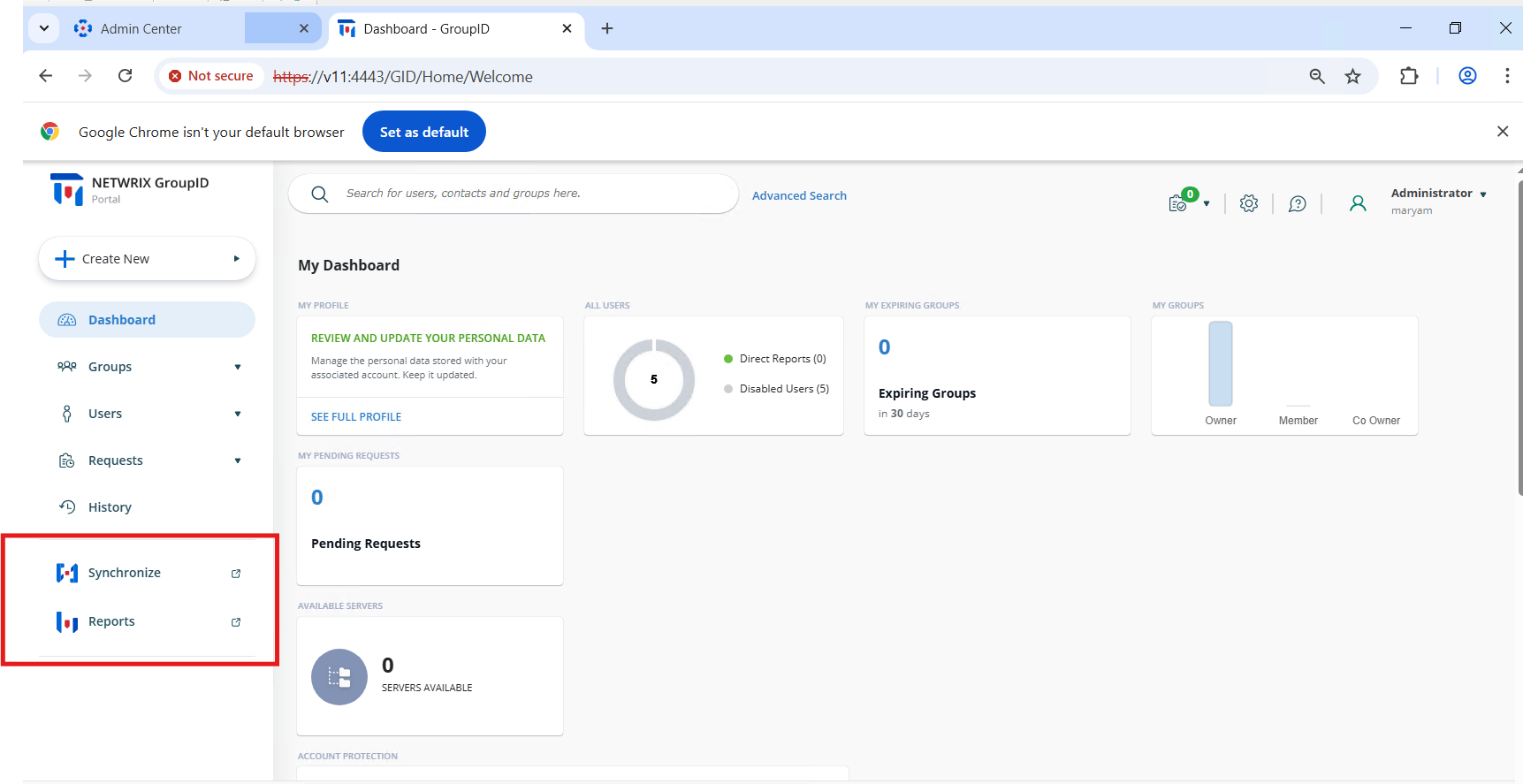
- Repeat these steps for the Reports and Synchronize tabs. Edit each tab individually and set the Access Level as required.
- Once configured, users without the required access level will no longer see the Reports, Entitlements, and Synchronize tabs in the portal.