How to Set 'Semi-Private' as the Default Security Type in v10
Applies To
Netwrix Directory Manager 10 – Self-Service
Overview
By default, users can select from multiple security types when creating a group in the Self-Service portal. You may want to set Semi Private: Owner Must Approve as the default security type in the Create Group wizard, while still allowing users to choose another option or enforce the default for all users.
Instructions
-
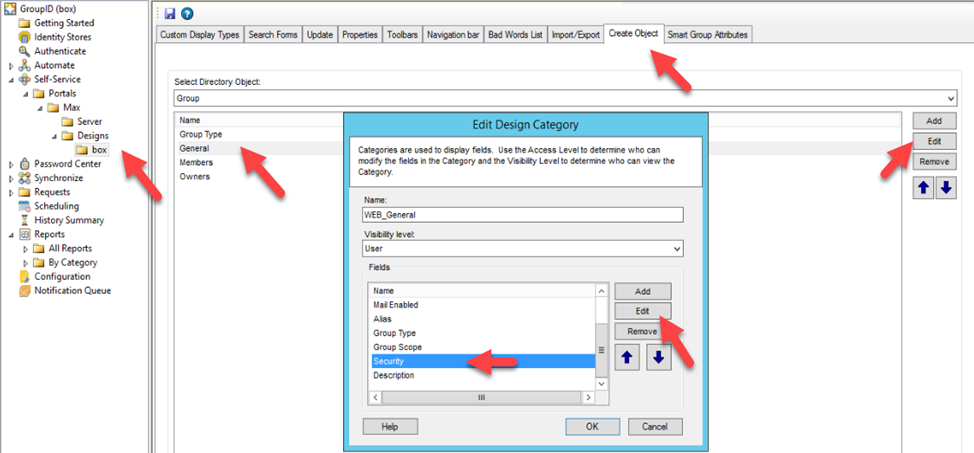
In the Directory Manager Management Console, navigate to Self-Service > Portals > [Required portal] > Designs > [Required identity store].
-
On the Create Object tab, select Group from the Select Directory Object drop-down list.
-
In the Name list, select General and click Edit.
-
In the Edit Design Category dialog box, select Security and click Edit.
-
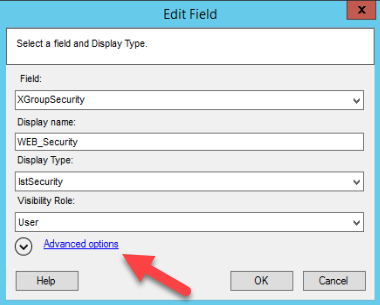
In the Edit Field dialog box, click the Advanced options link.
-
Select
Semi Private: Owner Must Approvefrom the Default Value drop-down list.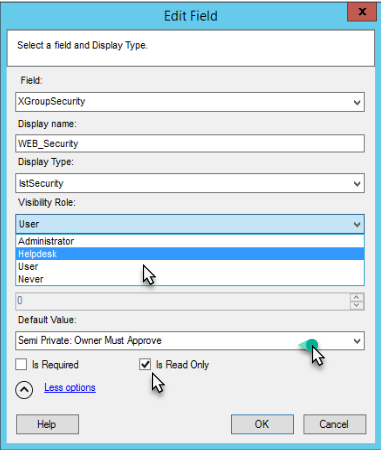
-
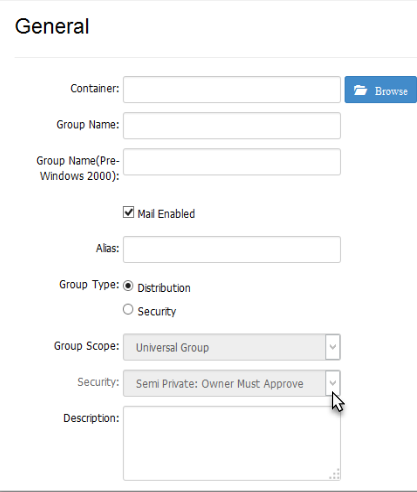
Optional: To enforce the semi-private security type, select the Is Read-Only check box. This will disable the Security drop-down list in the Create Group wizard, displaying only the default value.
-
Optional: To hide the Security drop-down list from a specific role, select the desired role (such as Administrator or Helpdesk) from the Visibility Role drop-down list. The Security drop-down list will be visible to users of the selected role and roles with a higher priority value, and hidden from all roles with a lower priority value.
-
Click OK to close the dialog boxes and save your changes.