Bulk Export and Sort All Smart Groups and Dynasties
Applies To
Netwrix Directory Manager 11
Overview
This article explains how you can export all managed groups and Dynasties from Netwrix Directory Manager to a CSV file and sort them by group type using the Directory Manager Management Shell. This process is useful for analyzing and managing large numbers of groups in your directory.
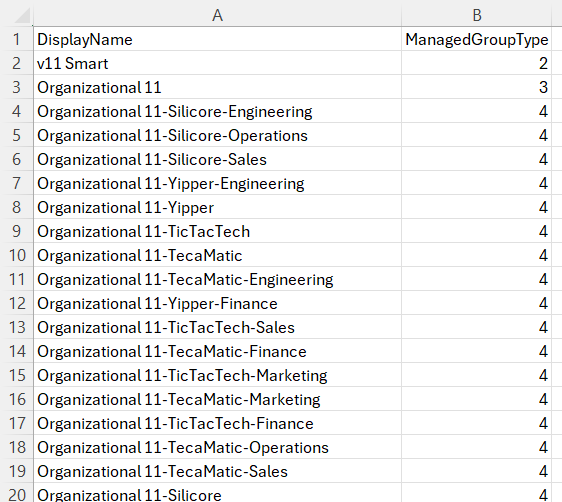
The ManagedGroupType attribute identifies the type of each group and returns the following values:
1= Non-managed group2= Smart Group3= Parent Dynasty4= Middle Dynasty5= Leaf Dynasty6= Password Expiry SmartGroup
Instructions
- Launch the Directory Manager Management Shell.
- Log in to the Management Shell with your service account.
- Run the following cmdlet to retrieve Smart Groups and Dynasties, sort them by
ManagedGroupType, and export them to a CSV file:
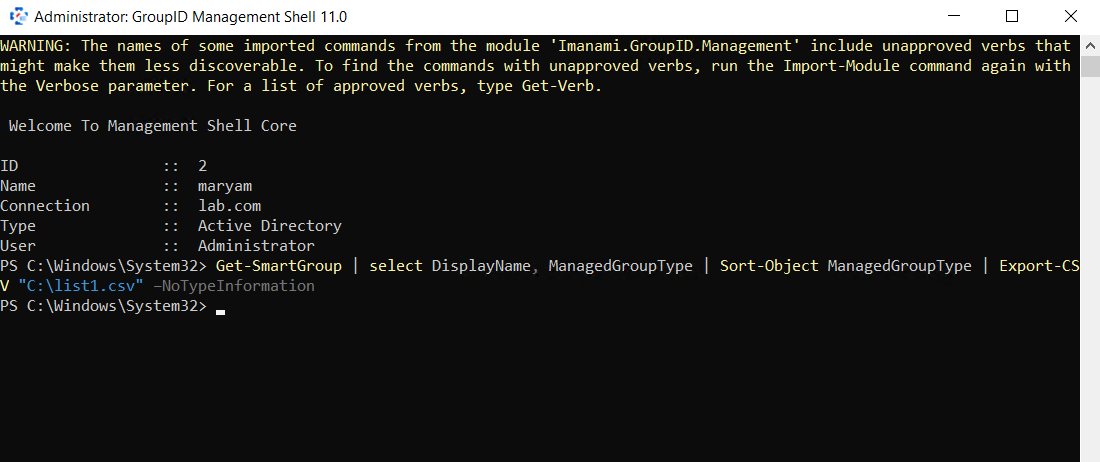
Get-SmartGroup | select DisplayName, ManagedGroupType | Sort-Object ManagedGroupType | Export-CSV "C:\list.csv" –NoTypeInformation
- The above cmdlet will:
- Retrieve all managed groups using
Get-SmartGroup. - Select the
DisplayNameandManagedGroupTypeattributes. - Sort the results in ascending order based on the
ManagedGroupTypeattribute. - Export the sorted list to a CSV file named list.csv at
C:\list.csv.
- Retrieve all managed groups using
NOTE: You can change the export directory by updating the file path in the cmdlet (for example,
D:\exports\list.csv).
- To retrieve additional details, you can append more attributes to the cmdlet. Example attributes include:
smartGroupTypeexpirationmanagedBywhenCreatedUPNcriteriaSearchContainerSearchContainersScopeListIdentityShouldReturnCollectionMaxItemsToDisplayObjectTypeLdapFilterSmartFilter