Generating a Report on Users Who Never Logged On
Applies To
Netwrix Directory Manager 11
Overview
This article provides step-by-step instructions for generating a report on users who have never logged on using the Netwrix Directory Manager Reports module. This report is useful for auditing, cleaning up unused accounts, or ensuring compliance.
Instructions
-
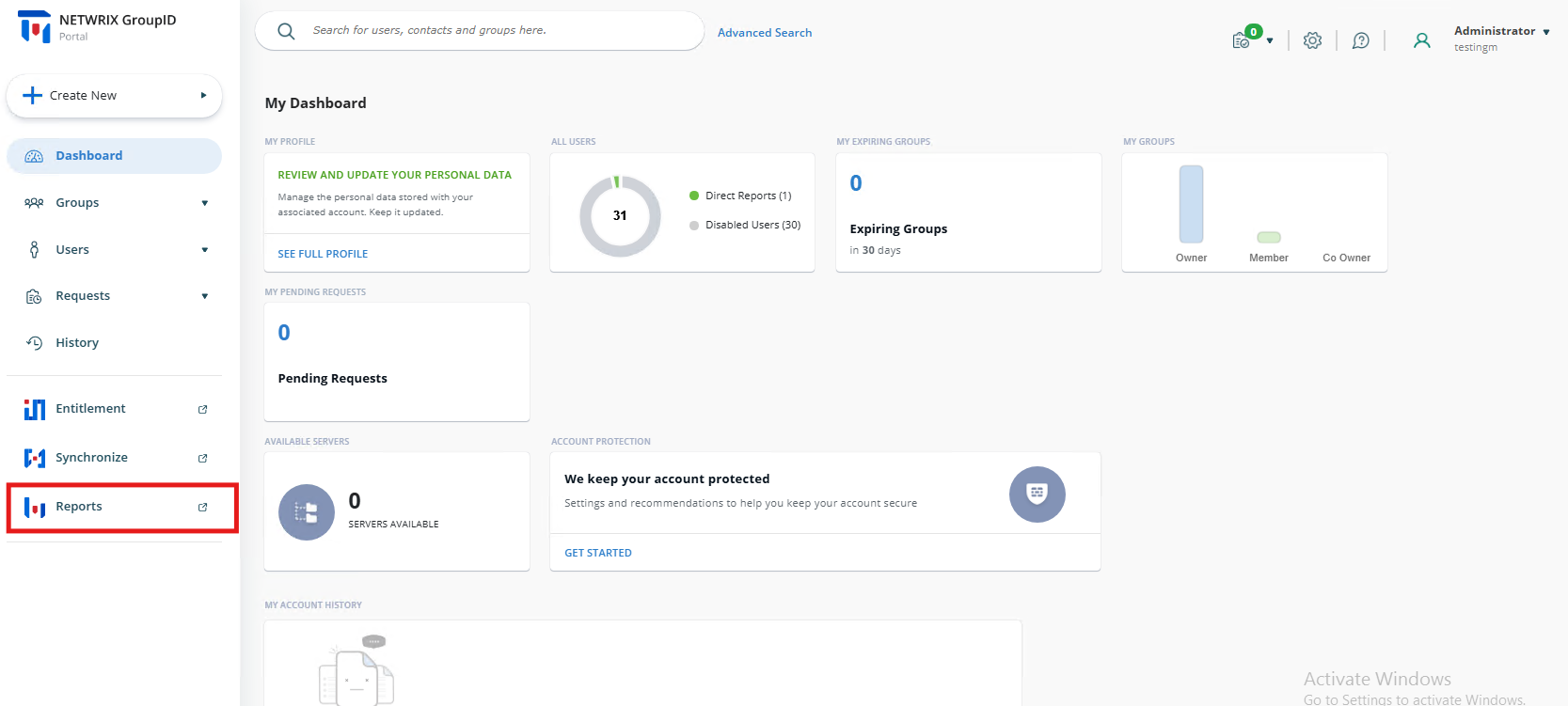
Navigate to the Application Portal and click Reports.
-
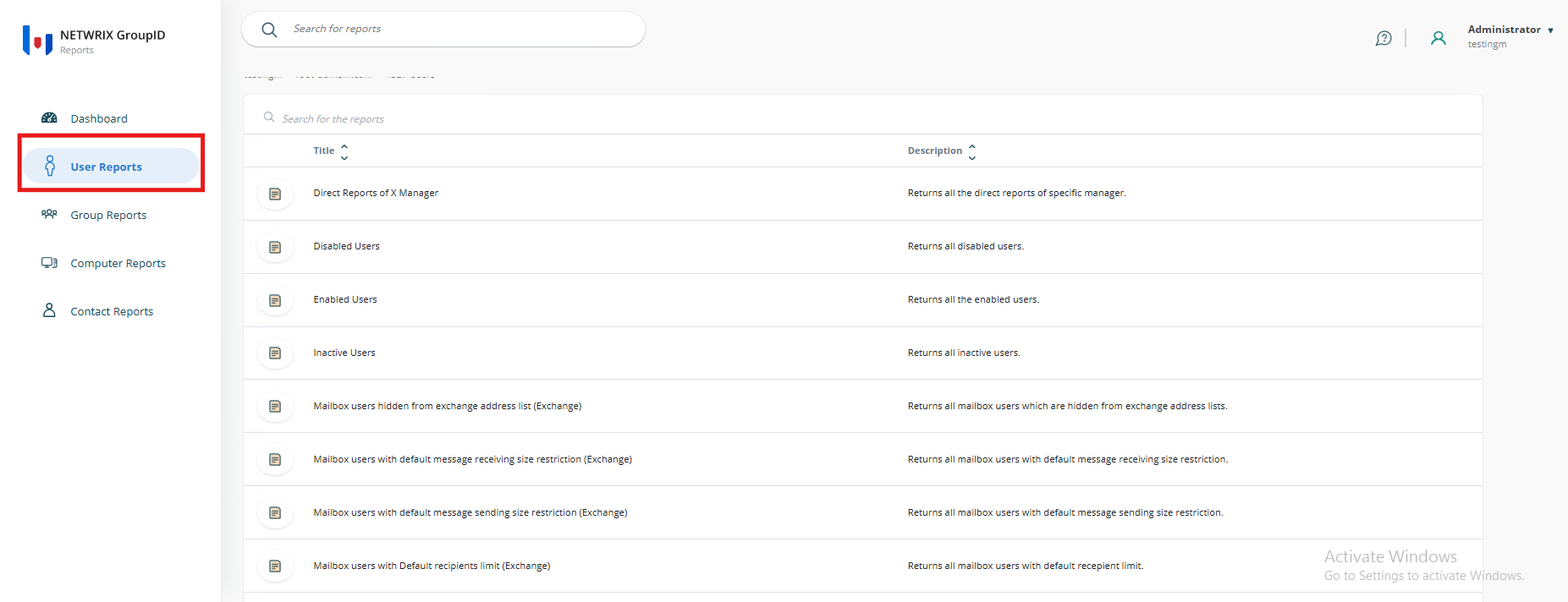
In the new tab that opens, click User Reports.
-
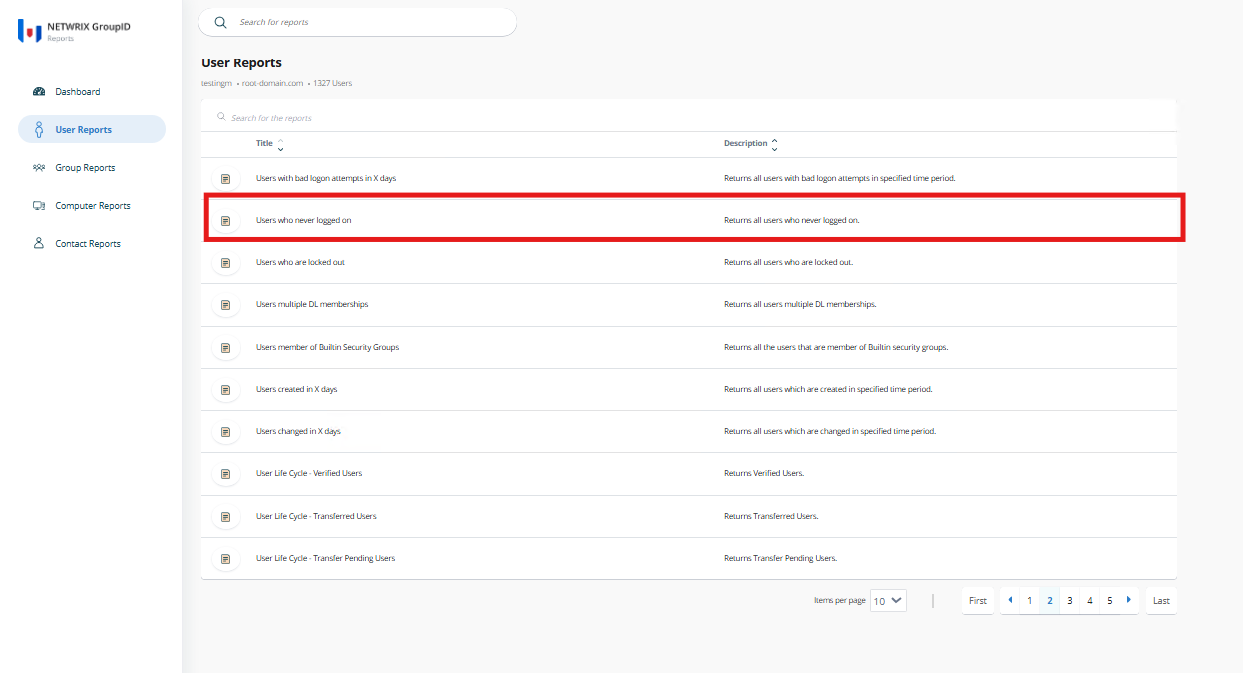
Sort the reports by clicking the Title column. Locate the report titled Users Who Never Logged On on the second page and click it.
-
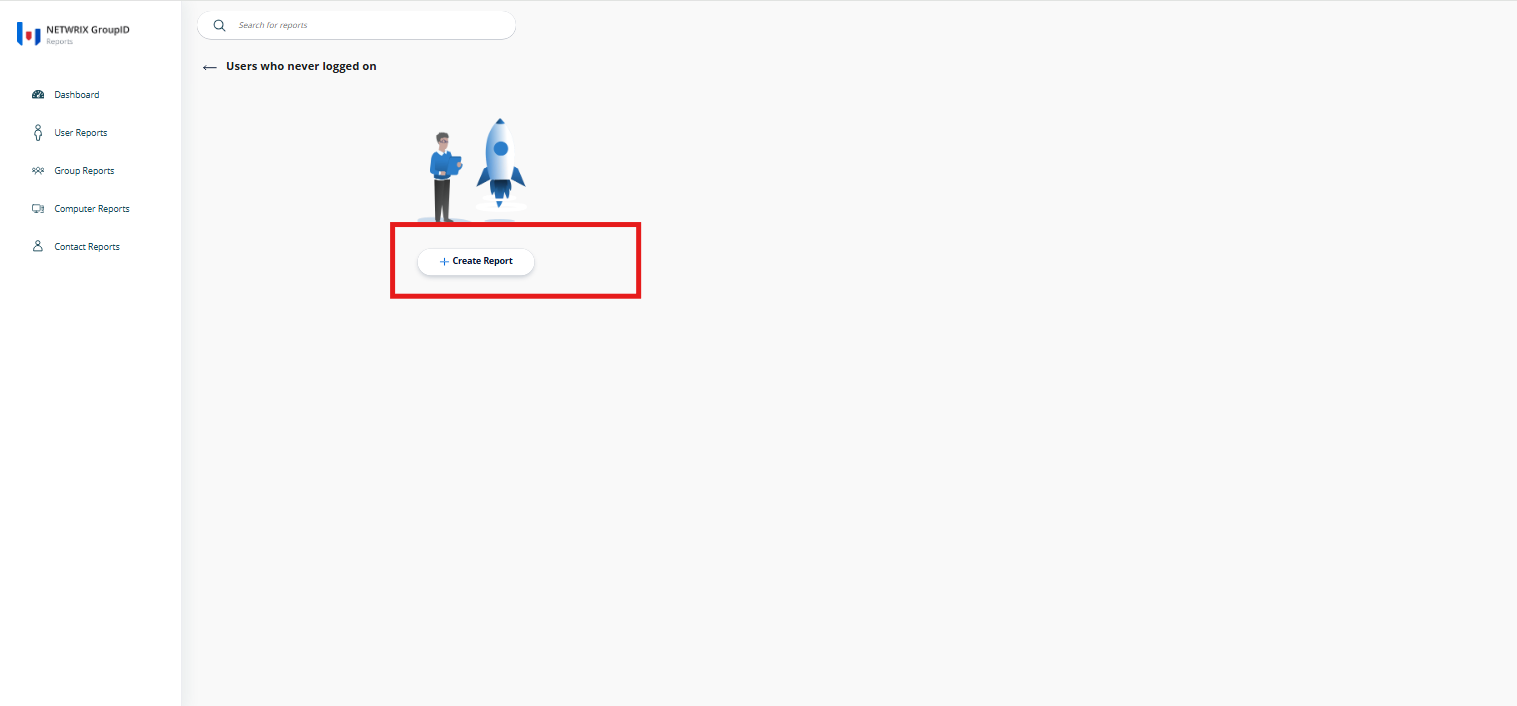
Click Create Report.
-
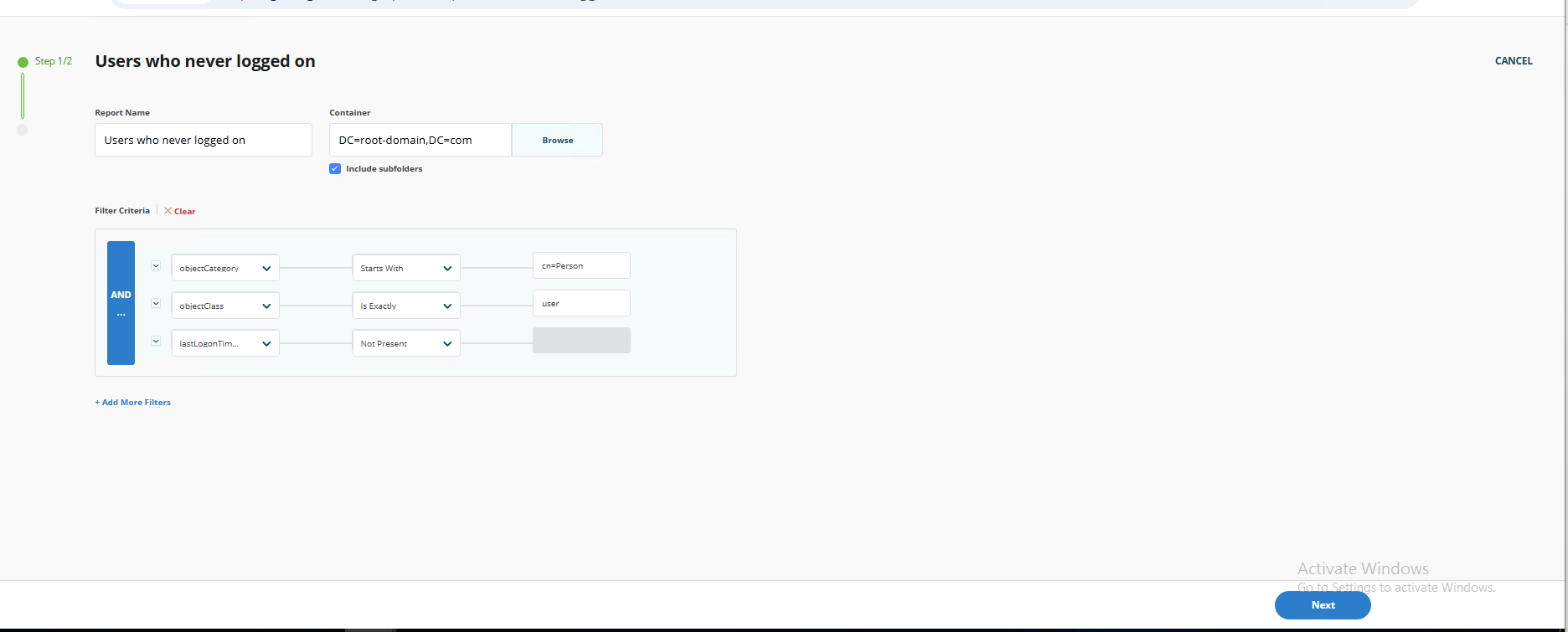
On the Create Report page, configure the following settings:
- Report Name: Enter a descriptive name, such as "Users Who Never Logged On.""
- Container: Select a specific container in Active Directory by clicking Browse to open the directory tree.
- Include Subfolders: Enable this option to include all sub-containers within the selected directory.
- Filter Criteria:
objectCategory– Starts With –cn=Person: Ensures only user objects classified as Person are included.objectClass– Is Exactly –user: Ensures the report only includes user objects.lastLogonTimeStamp– Not Present: Captures accounts that have never logged in.
Use the Add More Filters option for additional criteria.
-
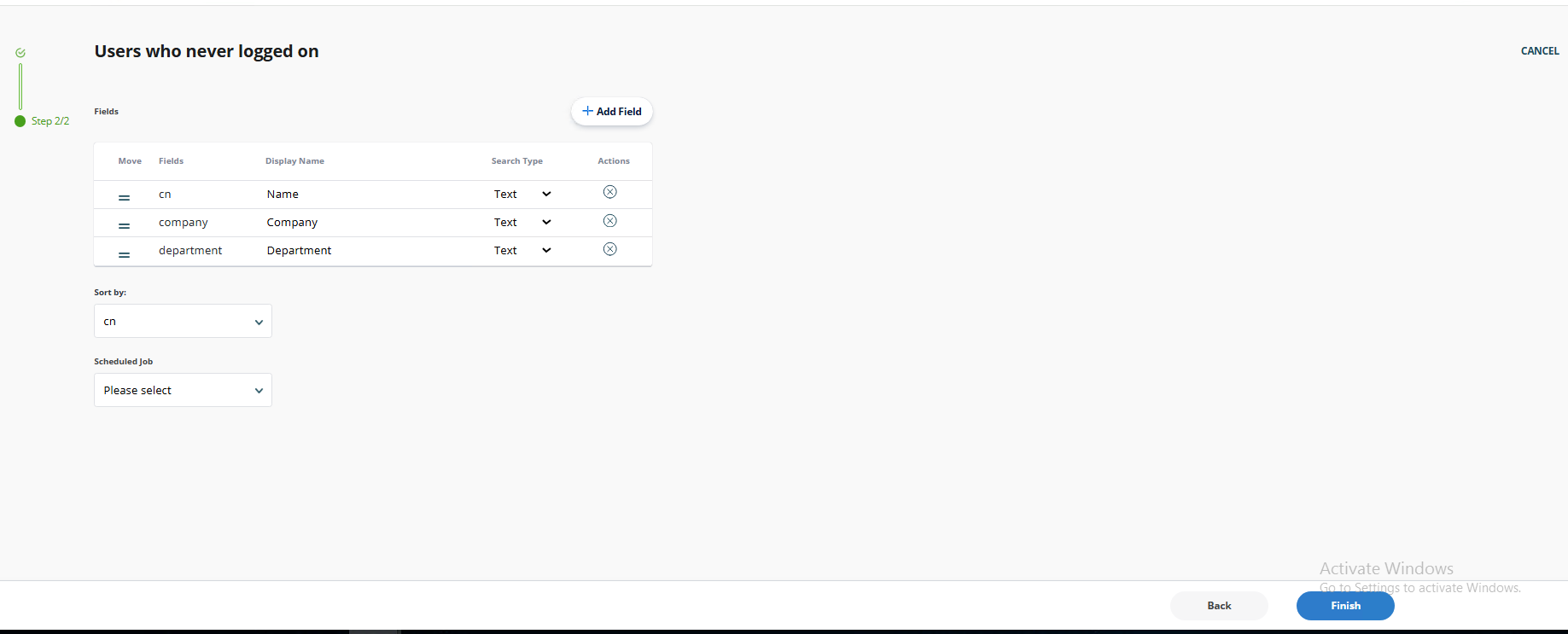
Customize the report output by selecting the fields to display:
- Use the Add Field button to add or remove fields.
- Available fields include:
cn (Common Name)– Displayed as Namecompany– Displayed as Companydepartment– Displayed as Department
- Adjust the Search Type (for example, Text) for data display preferences.
- Rearrange fields using the Move icon or remove them using the X button under Actions.
-
Set the Sort By field to
cn(Common Name) for sorting results. -
Optionally, schedule the report generation by selecting a predefined job from the dropdown menu in the Scheduled Job section.
-
Click Finish to complete the report generation process.
Viewing and Managing the Report
After clicking Finish, the report results will display all users who have never logged into their accounts.
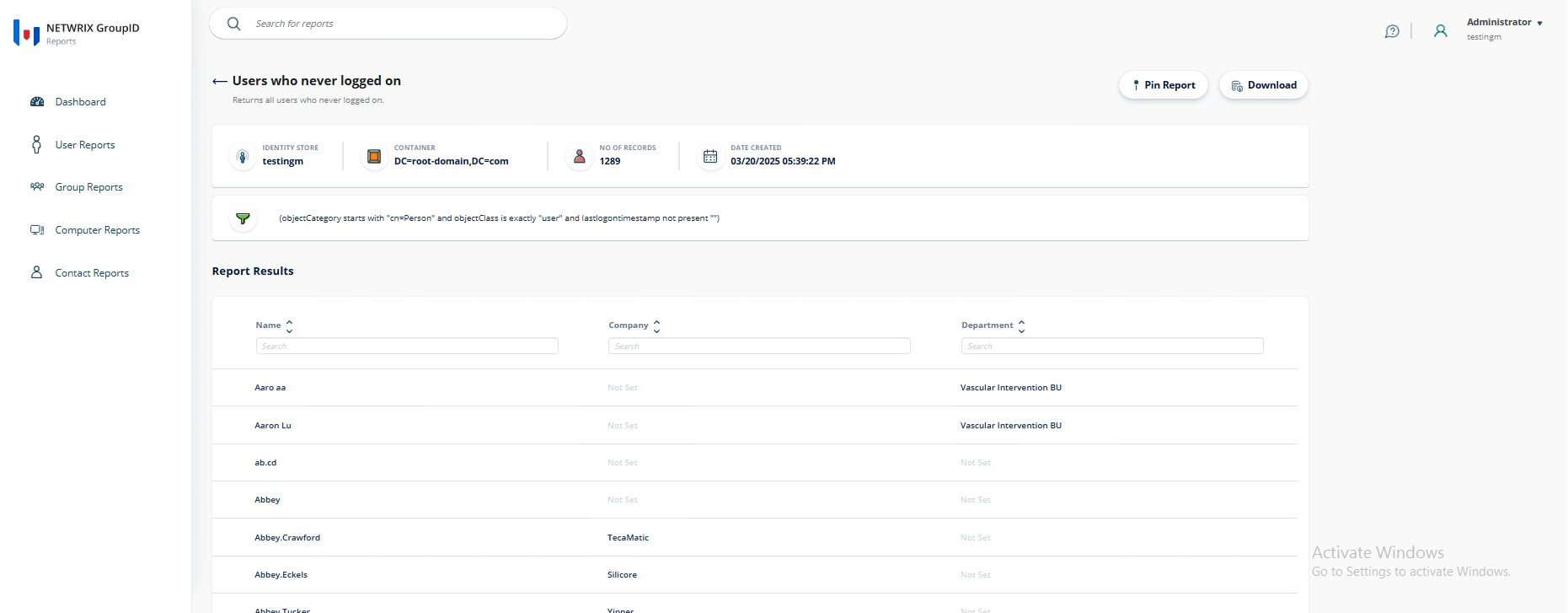
Additional actions you can perform include:
- Pin Report: Pin the report for quick access on the dashboard.
- Download: Export the report in formats such as HTML, MS Excel, or PDF.