How to View Roles Assigned to a User v10
Applies To
Netwrix Directory Manager 10
Overview
Netwrix Directory Manager allows you to assign security roles to users in an identity store, controlling their access and permissions. Knowing which roles are assigned to each user is important for effective access management and security.
This article explains how to quickly view a user's assigned security roles in an identity store for any Netwrix Directory Manager client.
Directory Manager Clients
You can check a user's security role assignment for the following Netwrix Directory Manager clients:
- Automate
- Management Shell
- Netwrix Directory Manager Mobile app
- All Self-Service and Password Centre portals created using Netwrix Directory Manager
Instructions
- In the Netwrix Directory Manager Management Console, click the Identity Stores node.
- On the Identity Stores tab, double-click an identity store to open its properties.
- On the Security Roles tab, click Get Security Roles to view the roles assigned to a user in the selected Netwrix Directory Manager client.
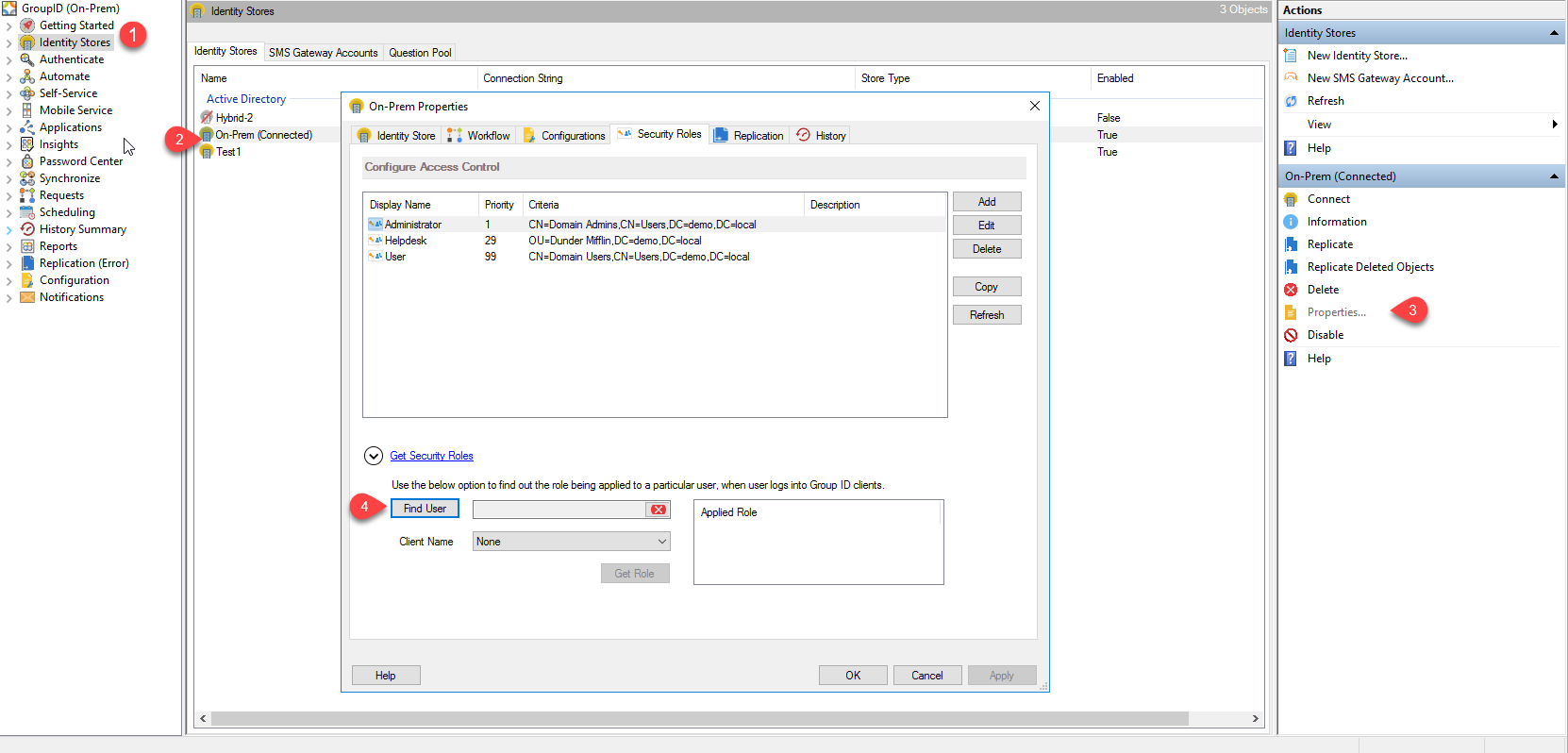
- Click the Find User button to specify the user you want to check the role for.
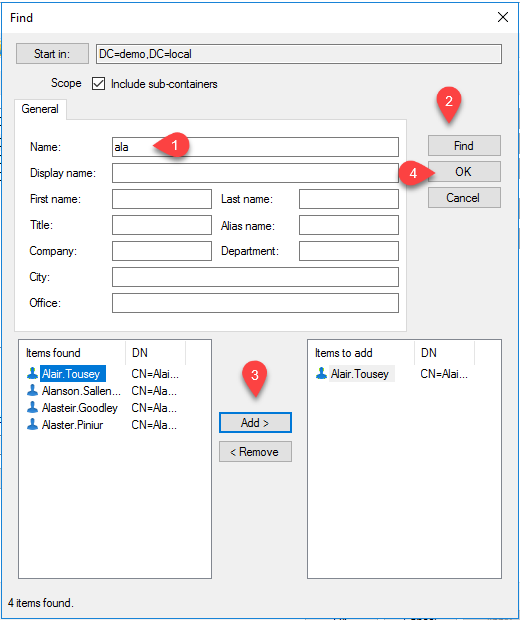
- The Find dialog box is displayed, where you can search for and select the required user. You can use the Delete icon to remove the selected user and specify another one.
- In the Client Name list, select a Netwrix Directory Manager client to view the user’s role for that client. To see the user’s role in a specific portal, select the relevant Self-Service portal. To view the user’s highest privileged role in Netwrix Directory Manager, select
None.
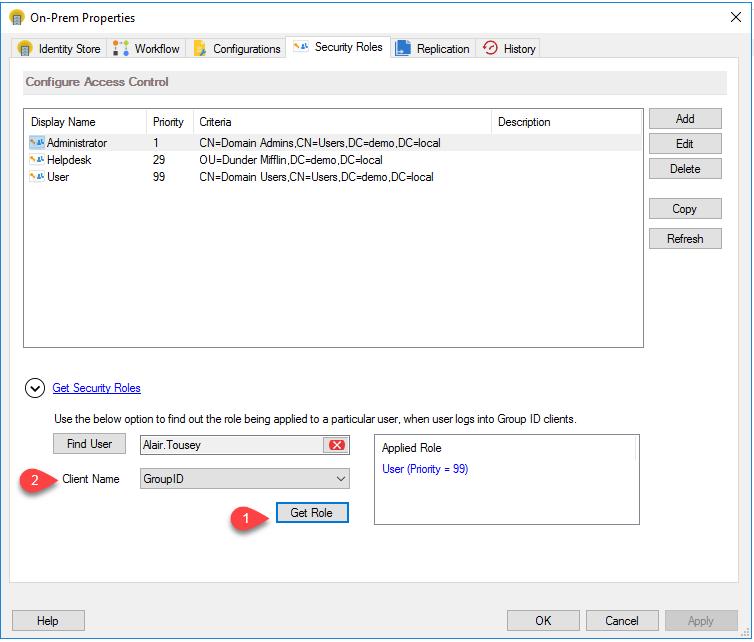
- Click the Get Role button. The Applied Role area shows the user role for the selected client along with role priority. For
None, the highest privileged role of the user is displayed, regardless of any client.