How to Export the List of Computers, Users, or Devices
Overview
This article explains how to export the list of computers, users, or devices from the console. You can perform a manual export or schedule an export, and the exported lists are accessible from the Exported Entities section.
note
For large exports, Endpoint Protector schedules the export as a backend task to improve performance. The console reports the results when the task completes. Large exports can take significant time to complete — plan accordingly.
Instructions
Manual Export
- Open the Endpoint Protector console and navigate to the Device Control section.
- Select Computers, Users, or Devices.
- Click Choose action and select Export list of...
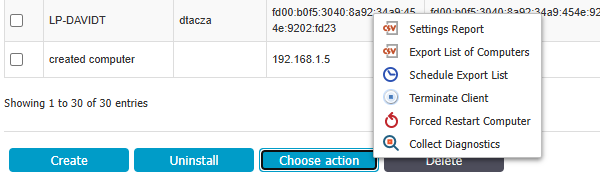
- A banner appears at the top of the page indicating where the export file can be found.
- On the List of exports page, navigate to System Maintenance > Exported Entities.
- In the Actions menu, you can download or delete the exported list.
Scheduled Export
- Open the Endpoint Protector console and navigate to the Device Control section.
- Select Computers, Users, or Devices.
- Click Choose action and select Schedule export list.
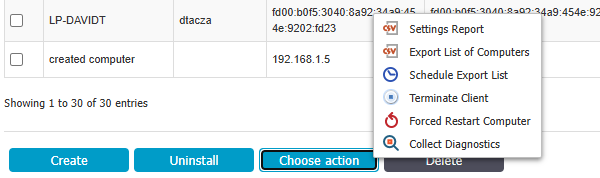
- Select the frequency and start date for the export. Click Schedule.
- A banner appears at the top of the page confirming that the export has been scheduled.
- On the List of exports page, navigate to System Maintenance > Exported Entities.
- In the Actions menu, you can download or delete the exported list.