How to Block WhatsApp Application from Launching
Overview
This article explains how to block and prevent the WhatsApp application from opening on Windows and macOS computers by configuring an Applications Denylist in the Content Aware Protection policy of Netwrix Endpoint Protector.
For the full reference, see Applications in the Denylists documentation.
Instructions
- Navigate to the Applications Denylist configuration page.
- For Windows operating systems:
- In the Application & CLI Command box, enter
WhatsApp.exe. - In the Parameters box, enter
*. - Click Add to Content.
- Verify that
WhatsApp.exe *appears in the List of Application & CLI Command box on the right.
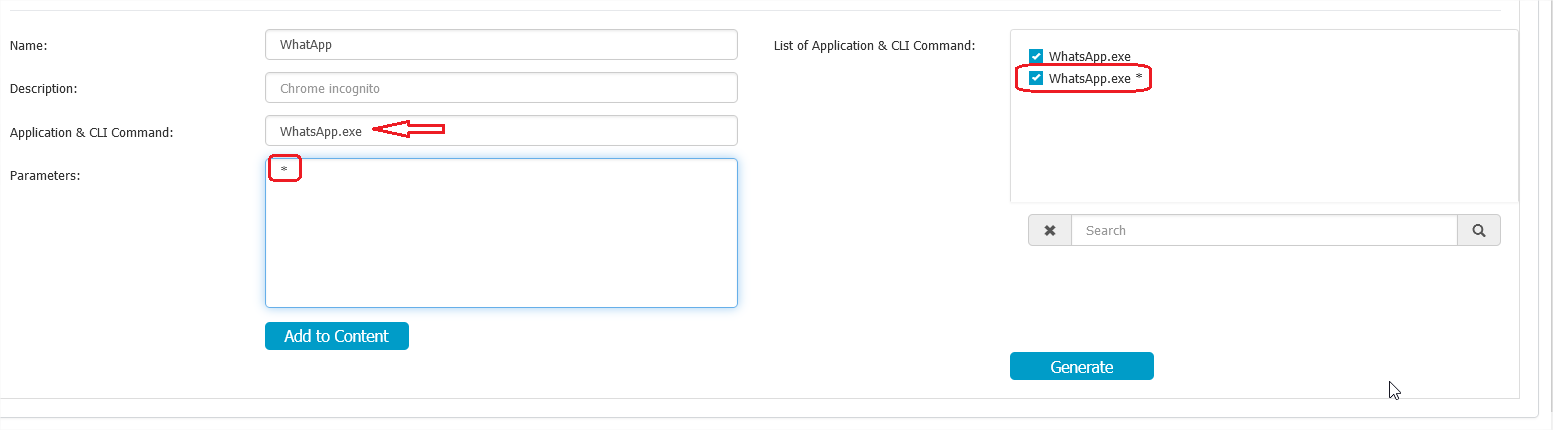
- In the Application & CLI Command box, enter
- For macOS operating systems:
- In the Application & CLI Command box, enter
WhatsAppDesktop. - In the Parameters box, enter
*. - Click Add to Content.
- Verify that
WhatsAppDesktop *appears in the List of Application & CLI Command box on the right.
- In the Application & CLI Command box, enter
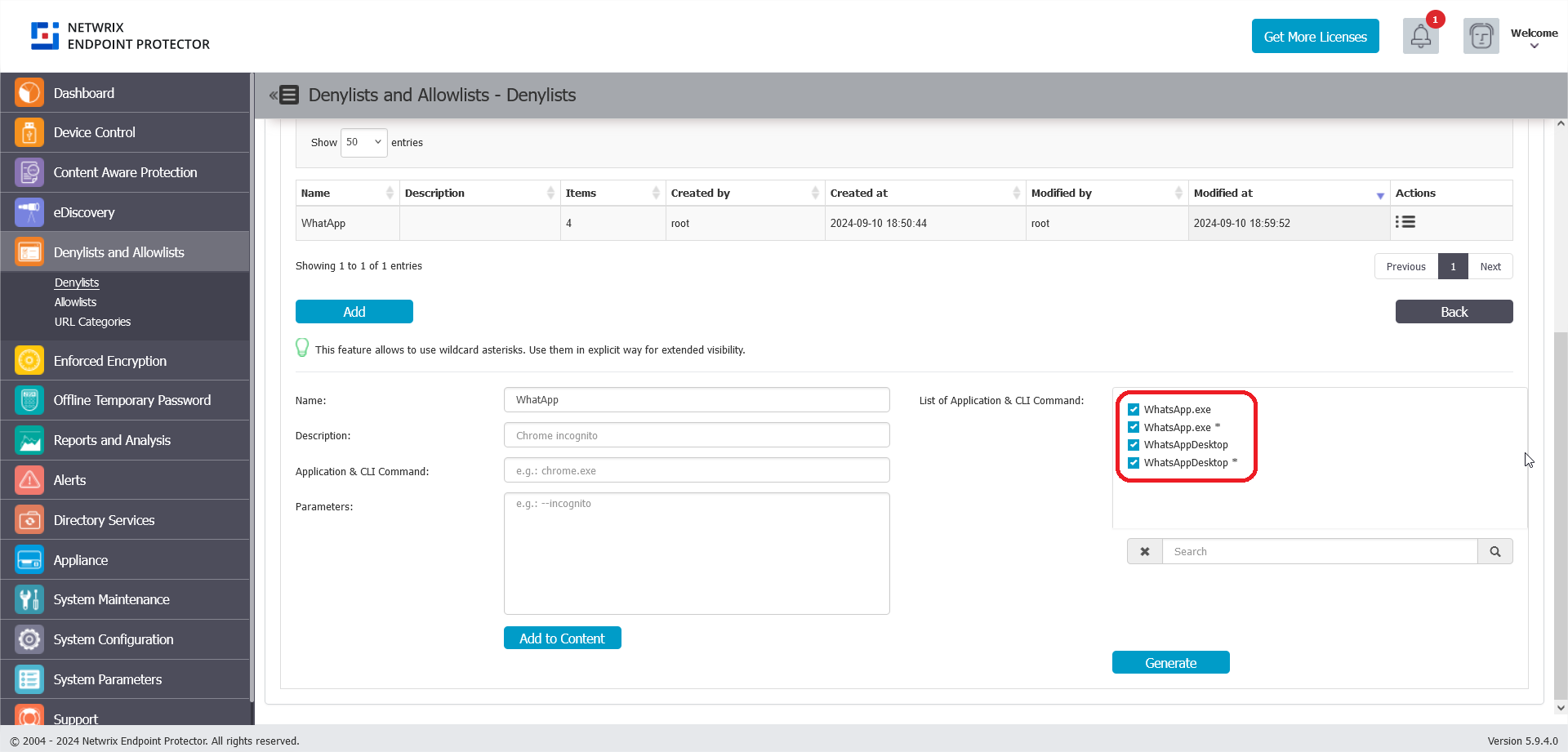
- Select all entries by checking their checkboxes, then click Generate.
- The final result should display the denylist entries as shown below.
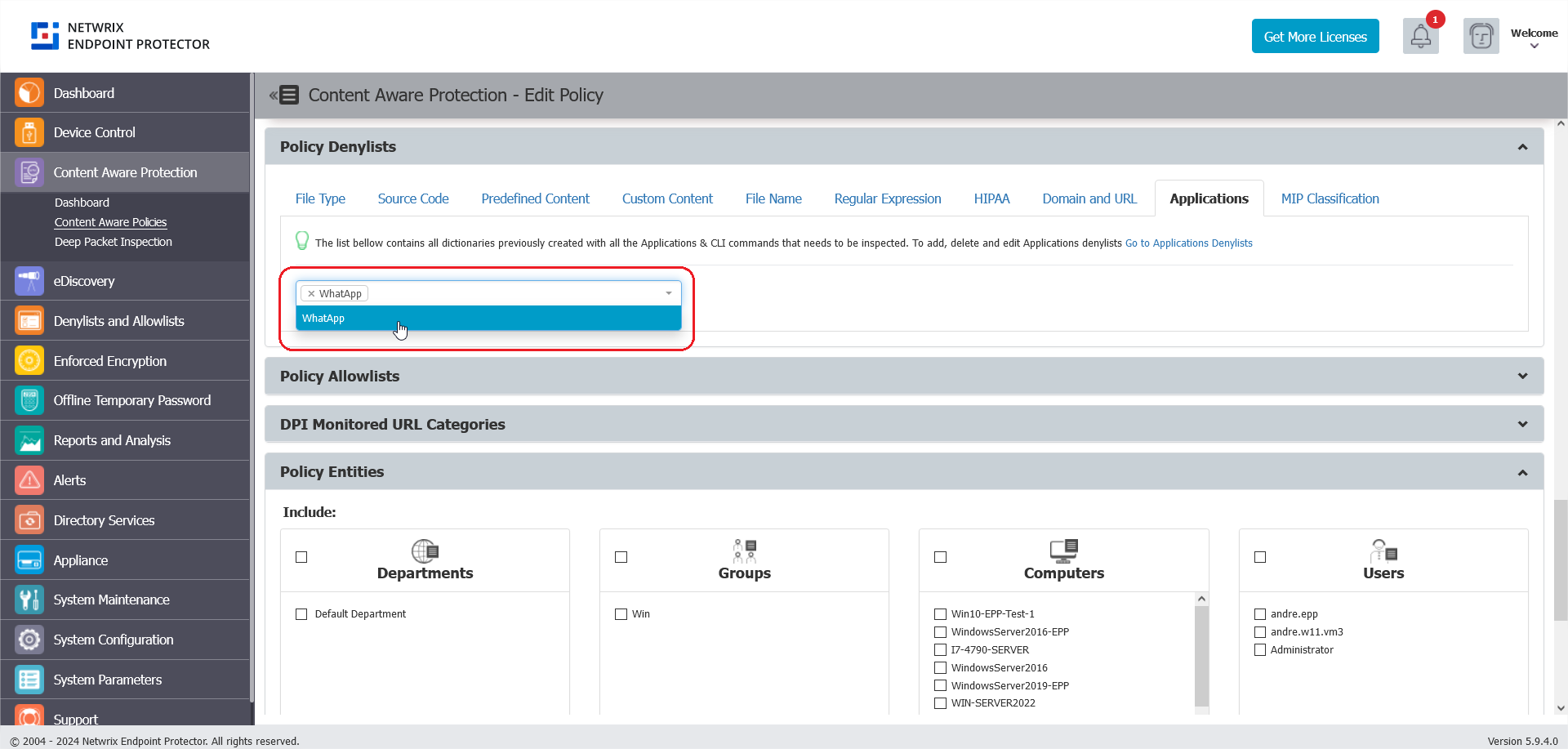
- Under Policy Denylists > Applications in the Content Aware Protection policy, select the application list you created.
- Save the policy and update the policies on the endpoint computers. Ensure you assign the policy to the target computers.
- Attempt to open the WhatsApp Desktop application to confirm it is blocked.
note
The Applications Denylist matches on the application name and, optionally, the command-line arguments used to launch it. Using the wildcard * in the Parameters field, as in these steps, blocks the application regardless of the arguments used to launch it. The Endpoint Protector Client has limited visibility into launches from PowerShell, PowerShell ISE, and basic command-line operations on macOS and Linux — see Applications for details.