How to Block Source Code Using OCR
Overview
This article explains how to block source code in images by enabling Optical Character Recognition (OCR) and configuring a Content Aware Protection policy. Use these steps to prevent the transfer or upload of images containing source code.
Instructions
Enabling OCR
Follow these steps to enable OCR to allow the system to detect source code in images:
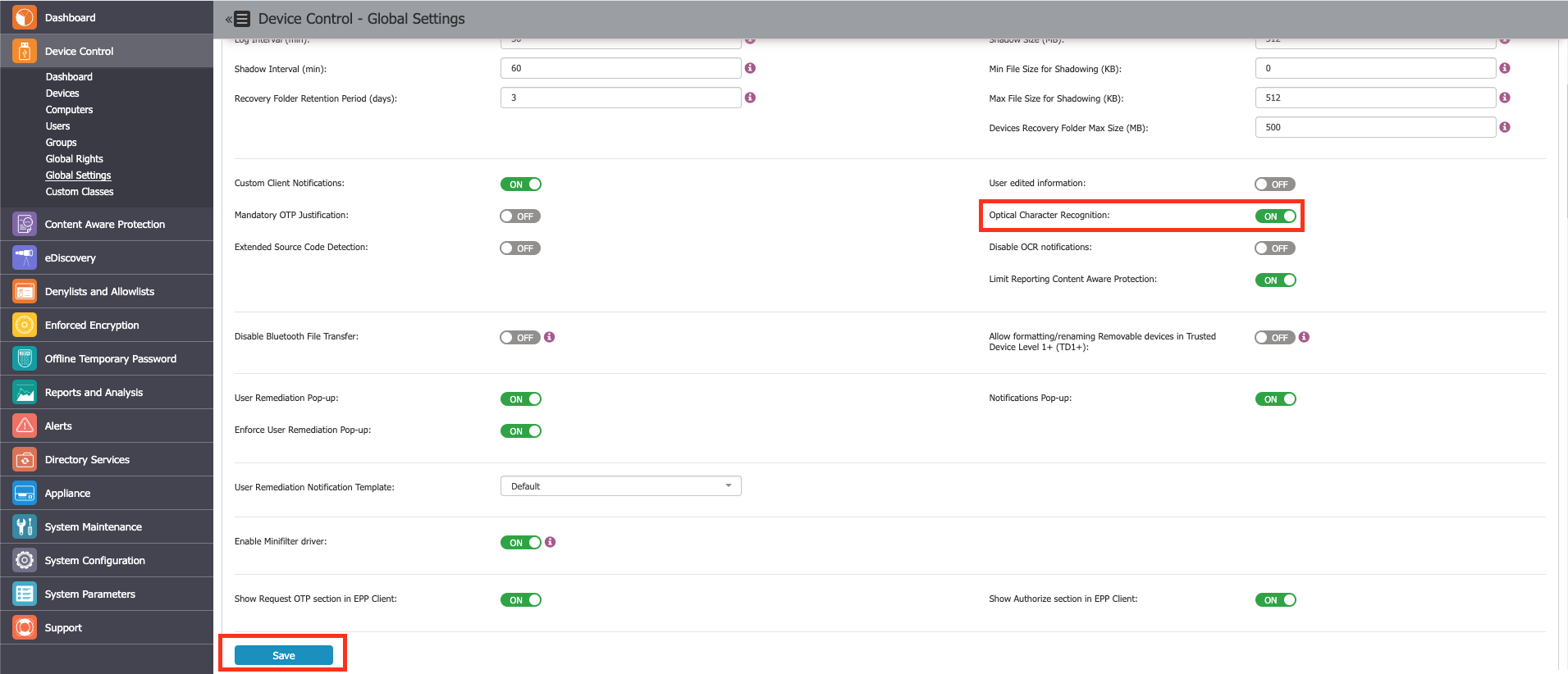
- In Endpoint Protector, navigate to Device Control > Global Settings.
- Enable the OCR option.
- Click Save to apply the settings.
Creating a Content Aware Protection Policy for Source Code
Follow these steps to create a custom policy to block or report source code detected in images:
- In Endpoint Protector, navigate to Content Aware Protection.
- Select the operating system type, enter a policy name, and choose the action and type for the policy.
- Choose all relevant exit points.
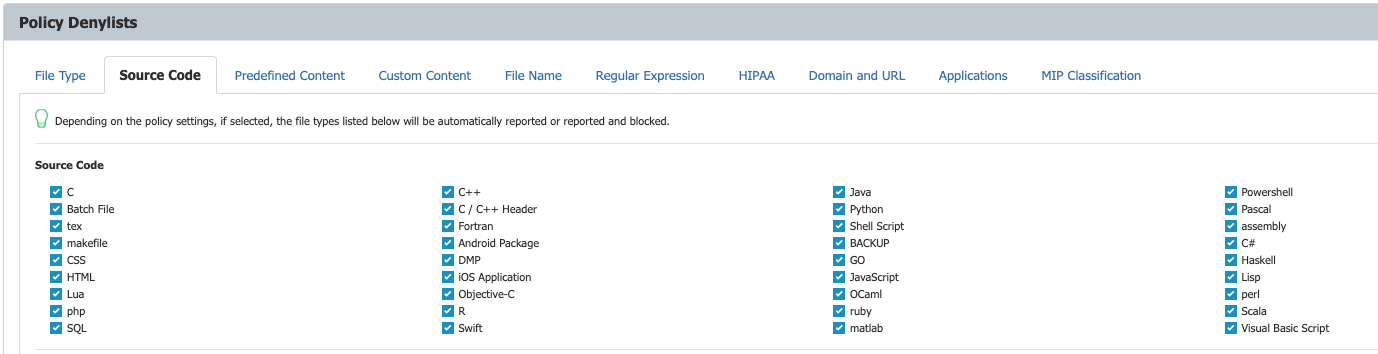
- Select only the relevant source code types.
- Select the computers and/or users to which the policy should apply.
- Click Save to create the policy.
- The system will now block or report source code found in transferred or uploaded images according to the policy settings.