Checking the Client Version Installed on Your Computer
Overview
This article explains how to check the version of the client installed on your computer. You can view the version directly from your computer or through the management console.
Instructions
You can use either of the following options to check the installed client version:
-
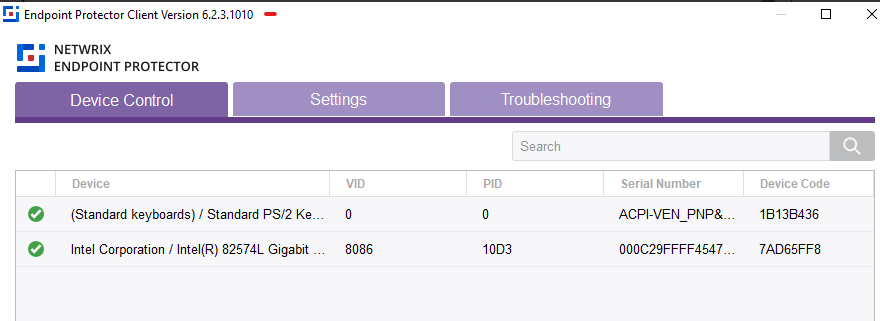
Click the client icon in the system tray to view the installed version directly on your computer.
-
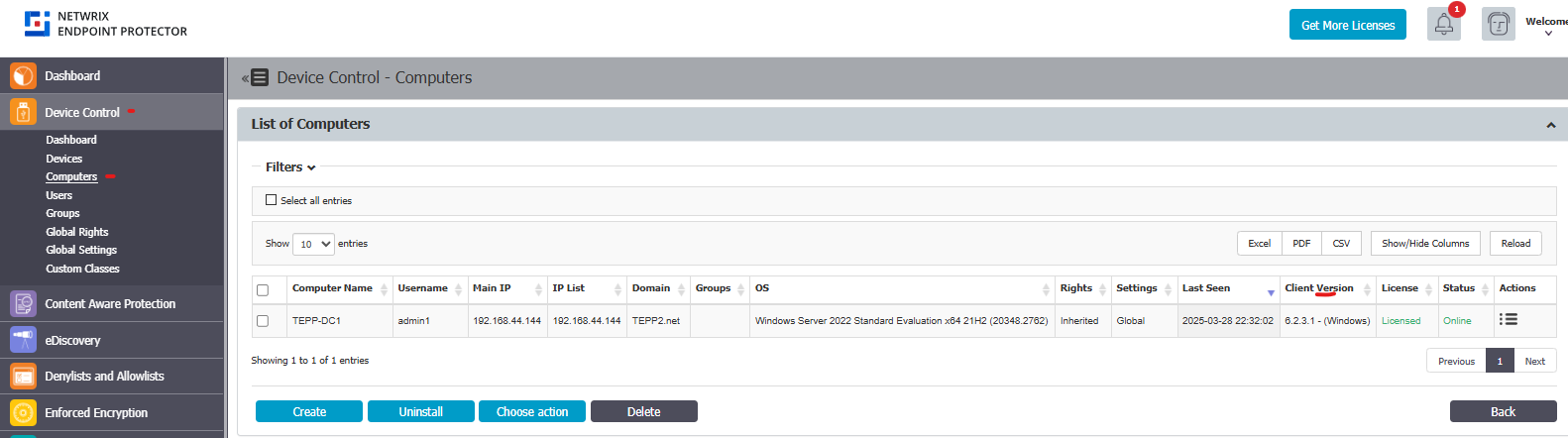
Open the Endpoint Protector Management Console and go to Device Control > Computers. Check the Client Version column to see the version installed on each computer.
Understanding the Displayed Version
The system tray icon and the Client Version column show the client's raw internal build number, not a release name. Older releases identified themselves only by a release version number (for example, 5.9.4.3 Hotfix 1) in documentation, while each platform's installed package used its own internal build number:
| Release Version | Windows Client Build | macOS Client Build | Linux Client Build |
|---|---|---|---|
| 5.9.4.1 and older | 6.2.4.xxxx and older | 3.0.4.xxxx and older | 2.4.4.xxxx and older |
| 5.9.4.3 Hotfix 1 | 6.2.5.3000 | 3.0.5.3000 | 2.4.5.1002 |
| 2511 and later | YYMM.1.C.B (for example, 2511.1.1.0) | YYMM.2.C.B (for example, 2511.2.1.0) | YYMM.3.C.B (for example, 2511.3.1.0) |
Starting with the 2511 release, Endpoint Protector adopted a unified versioning scheme applied consistently across the Server and all Clients, where YYMM is the release year and month. For the full format breakdown, see Unified EPP Clients and Server Versioning.
Related Links
- Client Upgrade Management — covers the same release-to-build mapping in the context of upgrading clients during a server migration.