Deploying the Windows Agent
Overview
This article describes how to deploy the Netwrix Endpoint Protector Windows agent manually, silently with msiexec, or through Group Policy.
For the full reference, see Agent Installation and Agent Install Parameters in the Agent documentation. For deploying via Active Directory Group Policy without an MSI transform, see Client Upgrade Management and Active Directory.
IMPORTANT: Netwrix recommends setting
WSIPto the server's fully qualified domain name (FQDN) instead of an IP address. Clients configured with an FQDN keep working when the server moves to a new IP address, for example after a migration.
All three methods install the same agent. Choose the method that fits the size of your environment and the deployment tools you already use:
- Manual installation: suits a small number of clients or testing.
- Silent installation with
msiexec: installs without user interaction, so you can use it in scripts or in any deployment tool that can run a command line. - Group Policy: installs the agent on every computer in the scope of a Group Policy Object, so you can use it when you manage endpoints through Active Directory.
Instructions
Manual Installation
To install the Netwrix Endpoint Protector Agent on a small number of clients or for testing, download the MSI package from the Netwrix Endpoint Protector Console and run it. The installer name follows this convention, where \<VERSION_INFO\> is the agent version and \<ENDPOINT_PROTECTOR_SERVER_ADDRESS\> is the server FQDN (recommended) or IP address:
EPPClientSetup.<VERSION_INFO>._x86_64_[a=<ENDPOINT_PROTECTOR_SERVER_ADDRESS>].msi
Example installer:
EPPClientSetup.6.2.2.1006_x86_64_[a=epp.example.com].msi
NOTE: This does not apply to the Netwrix Endpoint Protector Hotfix, because the server patch did not include agents. To download the agents, go to Security Advisory ADV-2024-002 ⸱ Netwrix 🡥 and download the required agents.
Silent Installation
You can install the Netwrix Endpoint Protector Windows agent silently by using msiexec and specifying the options required for your environment. In the following examples, replace EPPClient.msi with the name of the MSI being used.
msiexec Options and Installer Properties
The examples combine standard Windows msiexec options with Endpoint Protector installer properties.
The following options are standard msiexec options that work with any MSI package:
| Option | Description |
|---|---|
/i | Installs the specified MSI package |
/qn | Runs the installation silently, with no user interface |
To suppress a restart or write an installation log, you can also add the standard options /norestart or /l*v "<log-path>". See How to Deploy the Client Using SCCM or msiexec for an example.
The following properties are specific to the Endpoint Protector agent. Set them as PROPERTY=value after the msiexec options:
| Property | Description |
|---|---|
WSIP | The Endpoint Protector server FQDN (recommended) or IP address |
DEPT_CODE | The department code to assign to the computer |
PROXYSETTINGSRBGPROP | Selects the proxy mode; ManualProxy uses the agent's own proxy settings |
PROXYIP, PROXYPORT | The IP address and port of the proxy server |
Advanced Installations customers requiring further options should see the Appendix for the full list of properties that can be specified.
Basic Installation
To install the agent with the defaults and the Endpoint Protector server at epp.example.com, use the following:
msiexec /i "C:\EPPClient.msi" /qn WSIP=epp.example.com
Installation with Non-Default Department
Use the same as the basic installation and specify your department code using the DEPT_CODE property:
msiexec /i "C:\EPPClient.msi" /qn WSIP=epp.example.com DEPT_CODE=depfin
Installation with Agent-Specific Proxy Settings
To install the agent with a proxy that does not require authentication, use the PROXYSETTINGSRBGPROP, PROXYIP, and PROXYPORT options along with the basic installation. The following will set the agent's proxy to 10.0.0.10:8080:
msiexec /i "C:\EPPClient.msi" /qn WSIP=epp.example.com PROXYSETTINGSRBGPROP=ManualProxy PROXYIP=10.0.0.10 PROXYPORT=8080
Deploying the Agent via Group Policy
To deploy the agent through Group Policy, edit the MSI directly, or create an MSI transform file and update the specific properties in the transform. The following sections use a transform.
Create the Transform
-
Download the Orca MSI (or your preferred MSI editing software; these instructions use Orca).
NOTE: Orca can be installed from the Windows SDK and selecting the MSI options.
-
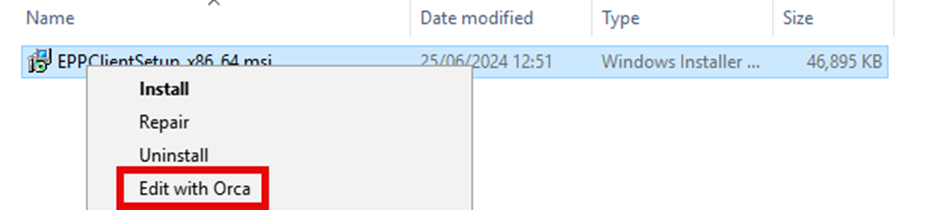
Right-click on the
EPPClientSetupMSI and select Edit with Orca.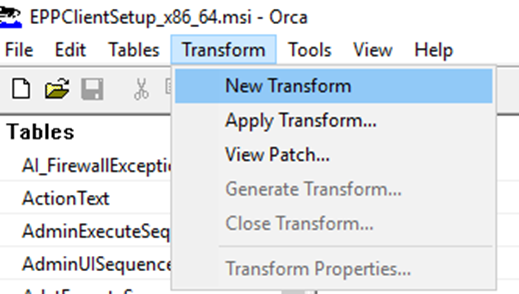
-
Click on Transform > New Transform.
-
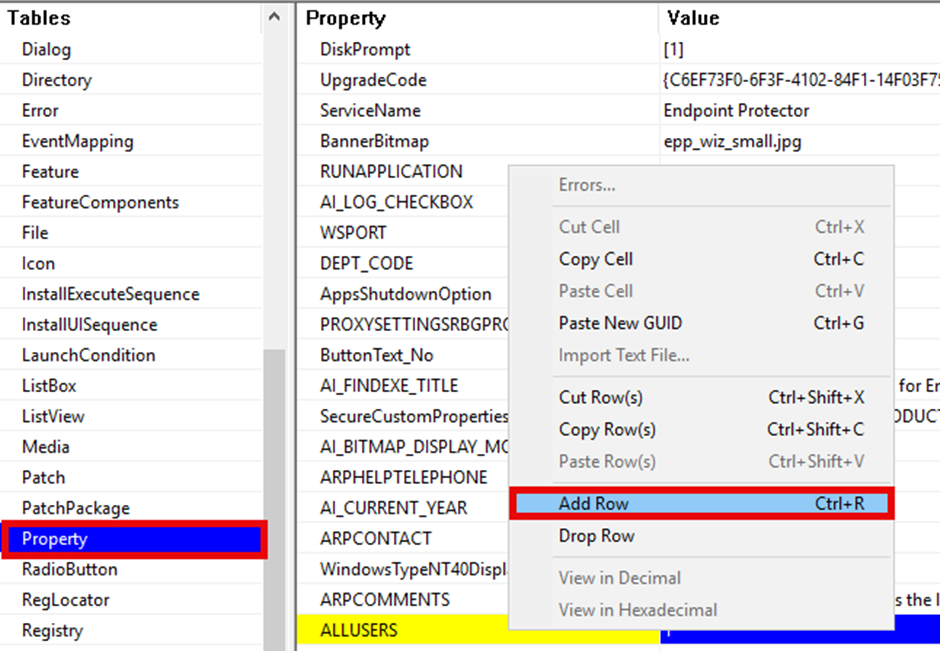
Find and open the Property table.
-
Right click in the table and select Add Row.
-
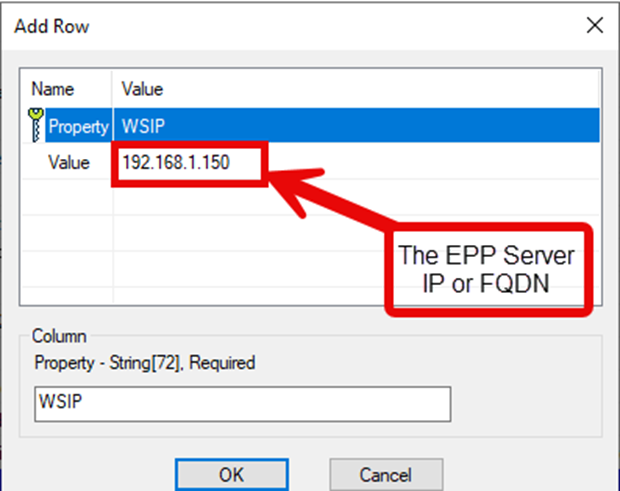
In the popup box, input WSIP as the property, and then add your Endpoint Protector server's FQDN (recommended) or IP address as the value.
-
Click Ok.
-
Optional: If there are more properties that need changing or adding, such as not using the default department code, refer to the Appendix for the list of properties and change them all in the Properties table.
-
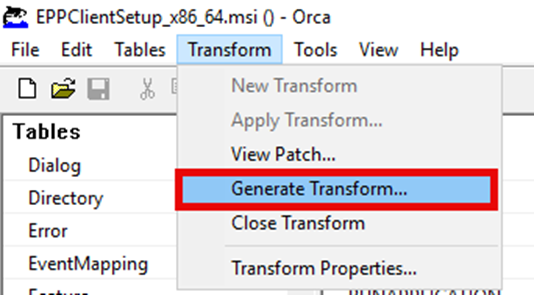
Click on Transform.
-
Click on Generate Transform.
-
In the open box, save your transform.
-
Ensure the packages are placed on a network share that is accessible to all clients that need to install it.
Deploy the MSI with the Transform
-
Open Group Policy Management Console.
-
Find or create a new group policy for the deployment.
-
Right click on the group policy object and select Edit…
-
Expand Computer Configuration / Policies / Software Settings.
-
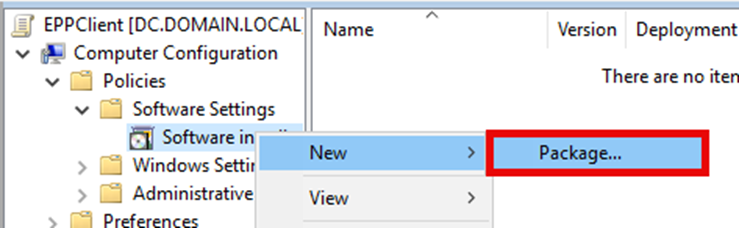
Right-click Software Installation and select New > Package.
-
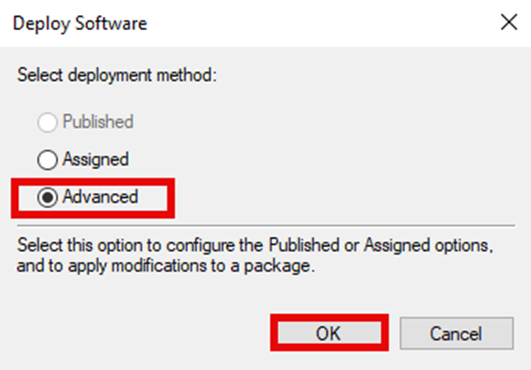
Select the Advanced option on the Deploy Software dialog box.
-
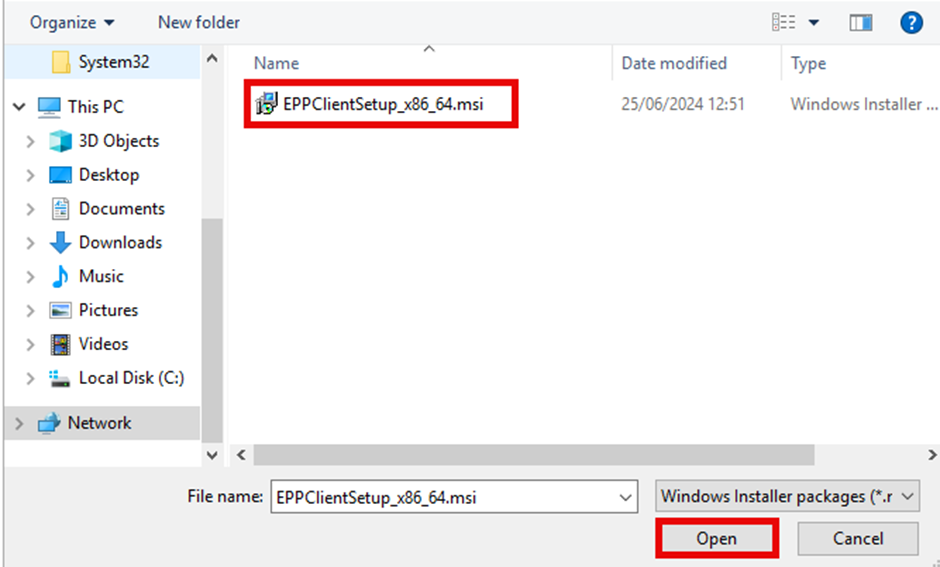
Browse to the network share where you placed the installer and the transform.
-
Select the
EPPClientSetupMSI file and click Open. -
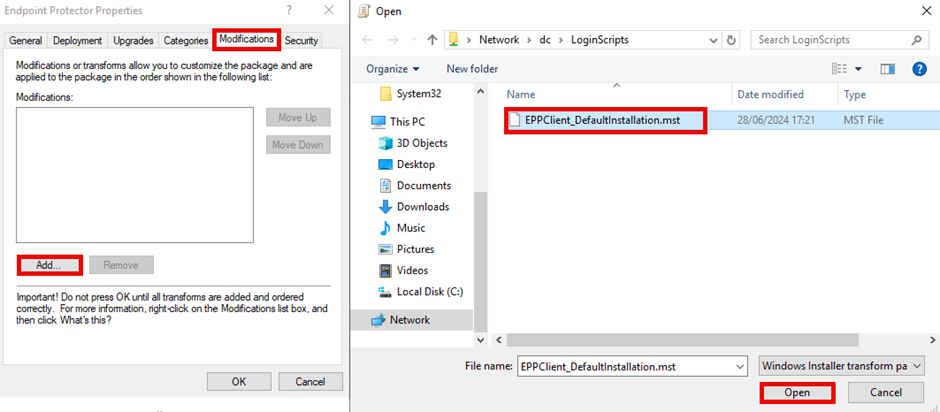
In the new window, select the Modifications tab.
-
Click Add and browse to your saved transform file on the network share.
-
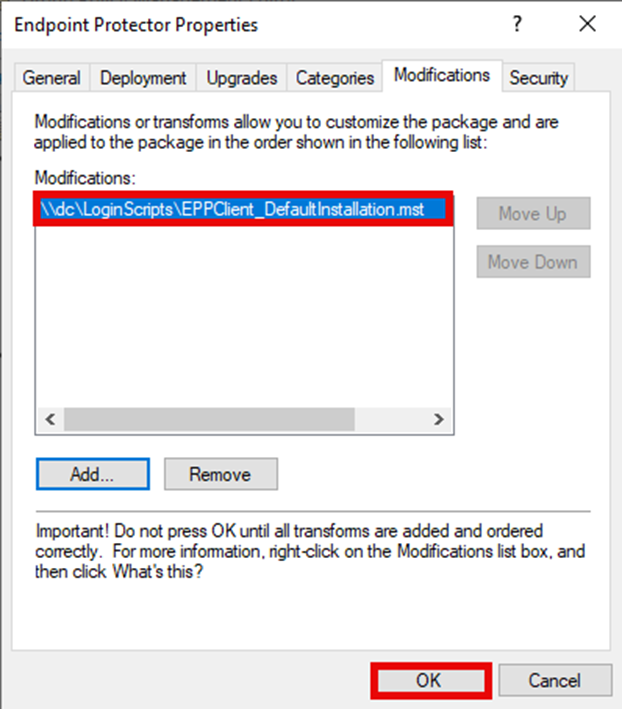
Select the transform file and click Ok.
-
Click Ok.
Appendix
A full list of properties that can be specified in the installer can be found in this table.
| Property | Example Values | Description |
|---|---|---|
| WSIP | EPPServer.domain.local | The FQDN (recommended) or IP address of your Endpoint Protector server. If this is not specified, then the value of [a=XXX] from the name of the installer is used for new installations. For existing installations, the registry is used |
| WSPORT | 443 | The port on which the Endpoint Protector server is listening for agents. Default value: 443 |
| DEPT_CODE | Defdep | The department code to assign the computers. Default value: defep |
| PROXYSETTINGSRBGPROP | SystemProxy | Whether to use the System settings for proxy or to use the agent's own proxy configuration. Default: SystemProxy Allowed values: ManualProxy, SystemProxy |
| PROXYIP | 192.168.1.200 | The IP Address of the proxy server. This is only used when PROXYSETTINGSRBGPROP is set to ManualProxy |
| PROXYPORT | 8080 | The port to use for the proxy server. This is only used when PROXYSETTINGSRBGPROP is set to ManualProxy |
| AUTHCHECKBOXPROP | 1 | Enable this to use Authentication on the proxy. Allowed values: 0 (Disabled), 1 (Enabled) |
| AUTHUSR | ProxyUser | The username for the user that will authenticate to the proxy |
| AUTHPASS | P@ssw0rd123 | The password for the user that will authenticate to the proxy |
| INSTALL_NOTES_EXT | 1 | Installs the Lotus Notes Add-on. Default value: 1 (Install) Allowed values: 1 (Install), 0 (Do not install) |
| INSTALL_OUTLOOK_EXT | 1 | Installs the Outlook Add-on. Default value: 1 (Install) Allowed values: 1 (Install), 0 (Do not install) |
| IPV6MAPPING | 1 | Maps IPv6 addresses to IPv4 |
| SUPPRESSRD | 1 | Suppresses FileRead/FileDelete events for network share and removable devices |
| DISABLECAP | 1 | Disables loading of Content Aware Protection (CAP) drivers. When enabled, CAP does not work |
NOTE: Starting with the 2511 Client release, the
IPV6MAPPING,SUPPRESSRD, andDISABLECAPinstall parameters persist across EPP Client upgrades.