Applying an Offline Patch or Upgrade
Overview
This article explains how to apply an offline patch or upgrade to Endpoint Protector (EPP) when the appliance does not have direct internet access or when you need to control the timing and process of software updates. The instructions include preparing your environment, safely applying the patch, and verifying the update.
The Offline Patch Uploader is the only available update method. Netwrix dropped Live Update starting with the 5.9.4.2 release, and it remains unavailable on the current 2509+ image-based platform. For the full reference, see Server Update in the System Configuration documentation.
To stay informed about future version releases, visit the Netwrix Community Endpoint Protector page and click the Subscribe button.
IMPORTANT: If you are migrating a 5.x server to the current image-based platform (2611, using the 2608 base image and the 2611 Offline Patch) rather than applying a routine patch, follow the EPP Server Migration & Upgrade Guide instead. It covers the mandatory intermediate upgrade to 5.9.4.2 and the full migration sequence in detail.
Instructions
Step 1 — Prepare for the Upgrade
- Before applying any update, create a snapshot of your Endpoint Protector Appliance virtual machine (VM, AWS, Azure, or GCP) as a best practice.
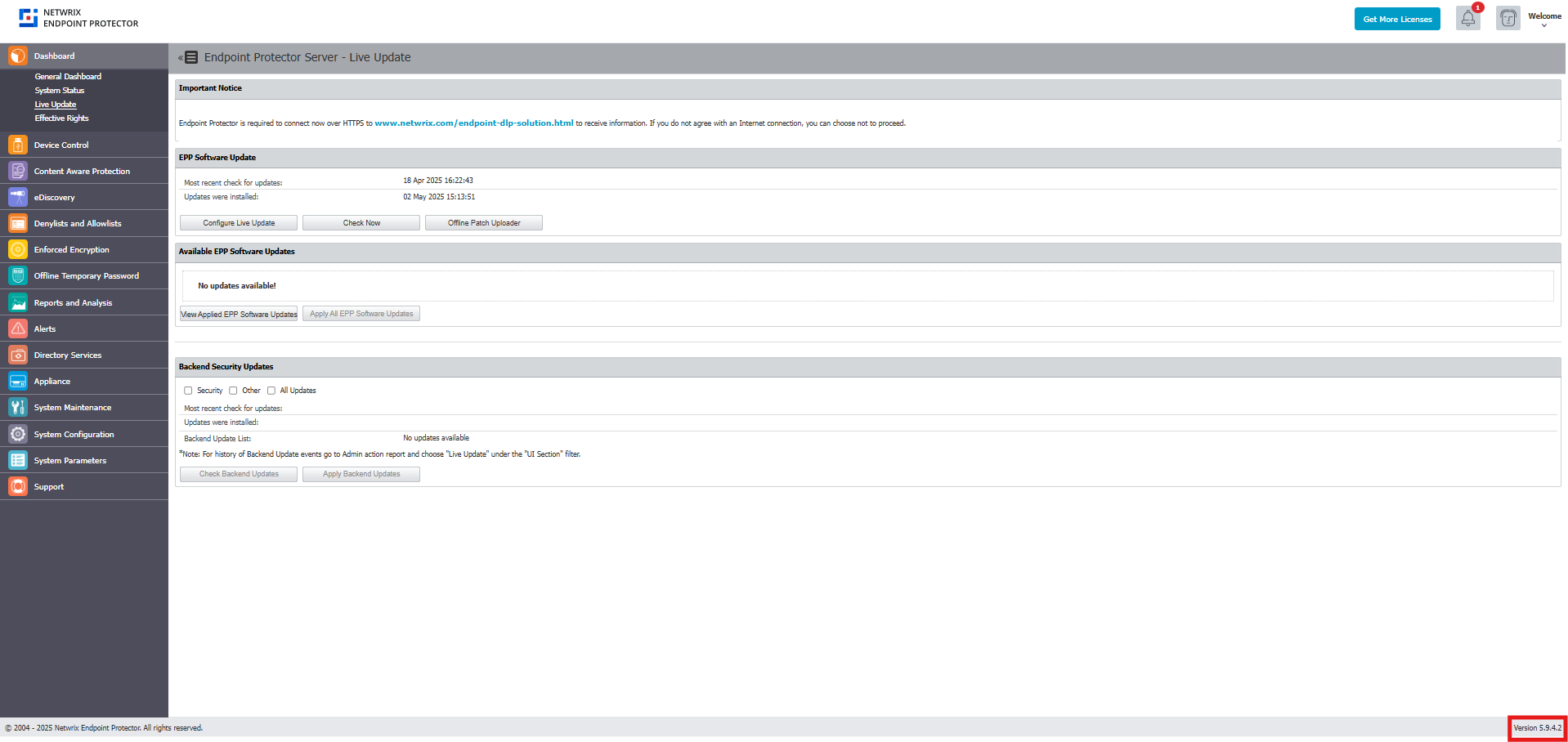
- Confirm your current EPP server version. You can find the version in the lower right corner of the console interface.
Step 2 — Obtain the Offline Patch
All offline patches are available from the My Products portal on netwrix.com. Sign in and download the offline patch file matching your current server version and the version you want to upgrade to.
NOTE: See the EPP Server Migration & Upgrade Guide to verify which upgrade patches are available for your current version. If the patch you need is missing from the My Products portal, contact Netwrix Support for assistance.
Step 3 — Apply the Offline Patch
- Open a web browser and access the EPP console's web interface.
- Log in with an account that has administrator privileges.
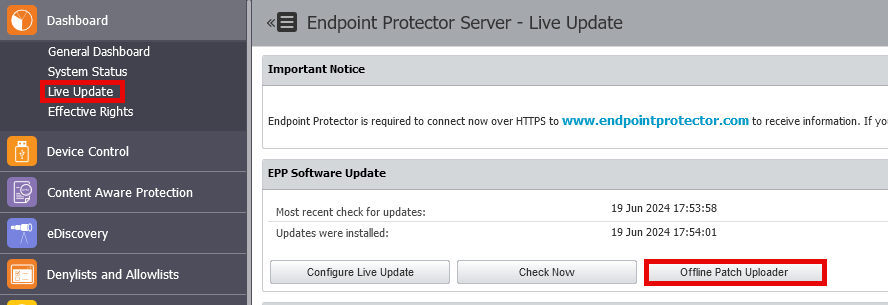
- Navigate to Dashboard > Live Update > Offline Patch Uploader.
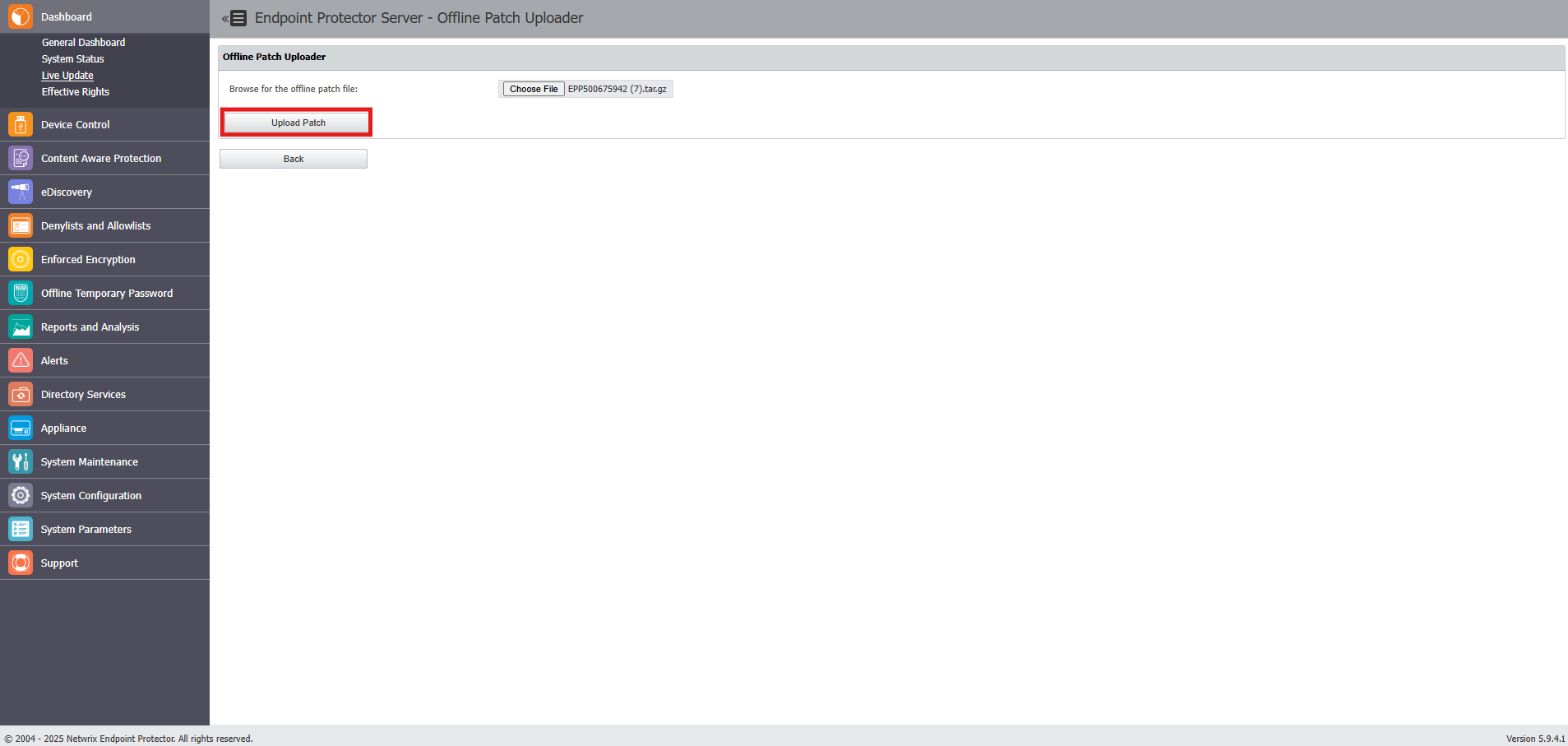
- Select Choose File. Browse for the downloaded or provided offline patch file and click Upload Patch.
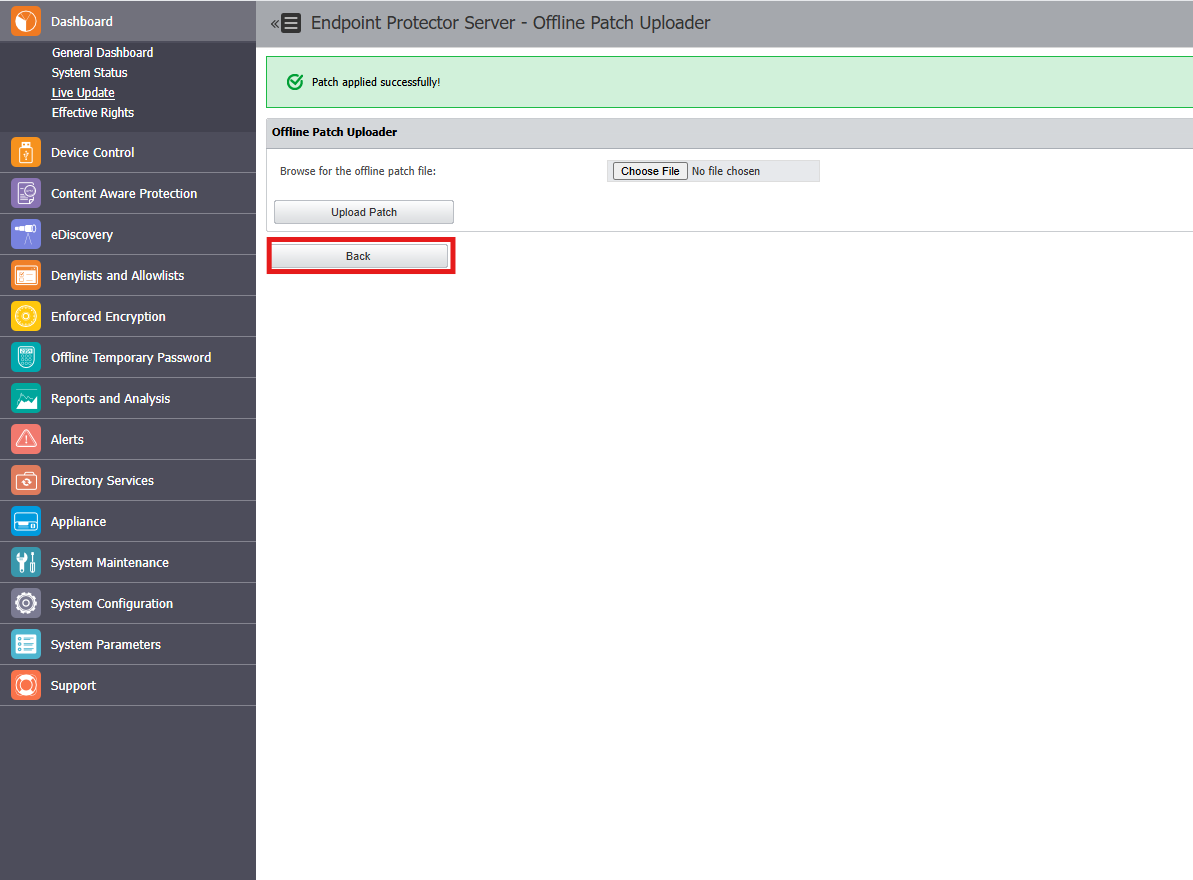
- Wait for a green confirmation message stating Patch applied successfully! to appear above the Offline Patch Uploader section.
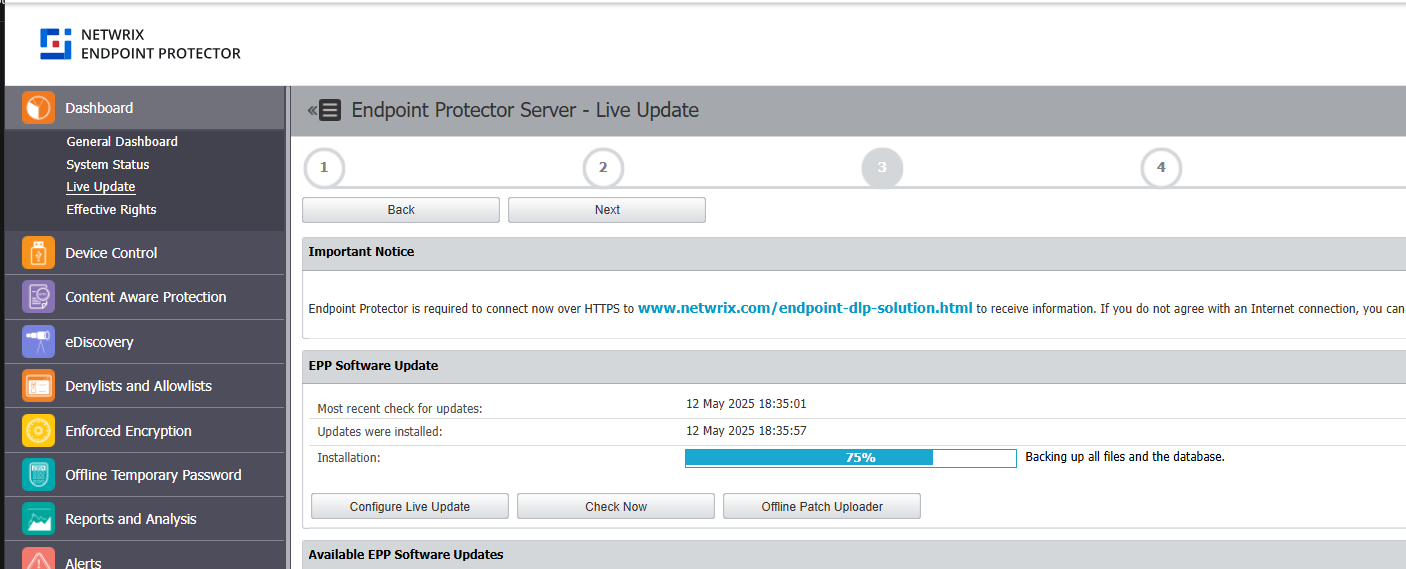
- Remain on the page and monitor the upgrade progress at Dashboard > Live Update. The progress bar should reach 100%, usually within 5–10 minutes, depending on your database size.
- After the upgrade completes, refresh your browser and verify the updated server version in the bottom right corner of the console interface.
- If you need to apply additional offline patches, repeat steps 4–7. Offline patches are incremental, like the Live Update functionality. You must apply them one at a time to correctly upgrade the server and avoid issues.
NOTE: There may be a delay between a new general availability (GA) release and the availability of an offline patch for the new server version.