Install GlobalSign and DigiCert Root Certificates on Windows
Overview
This article explains how to install GlobalSign and DigiCert root certificates on Windows. These certificates may be required if you encounter digital signature errors when installing the Netwrix Endpoint Protector Client. The following error messages may populate:
- "A digitally signed driver is required"
- "Microsoft Defender SmartScreen prevented an unrecognized app from starting"
Installing the correct root certificates ensures that Windows recognizes the digital signatures used by Netwrix Endpoint Protector components.
This same underlying issue — Windows 11 requiring the full DigiCert certificate chain to trust Netwrix-signed binaries — can also surface after installation as a policy synchronization failure, especially in air-gapped or offline environments where Windows can't automatically fetch missing chain certificates. If the EPP Client installs successfully but later shows "Policies update failed!" on Windows 11, see Policies Update Fails on Windows 11 EPP Client (Code Signature Verification Error) for the full certificate chain (including intermediate and timestamping certificates) and thumbprints to import.
Instructions
- To verify if the required GlobalSign root certificate is present, navigate to
Program Files\Cososys\EPPNotifier.exe. - Right-click EPPNotifier.exe and select Properties.
- Navigate to the Digital Signatures tab and select the certificate then click Details.
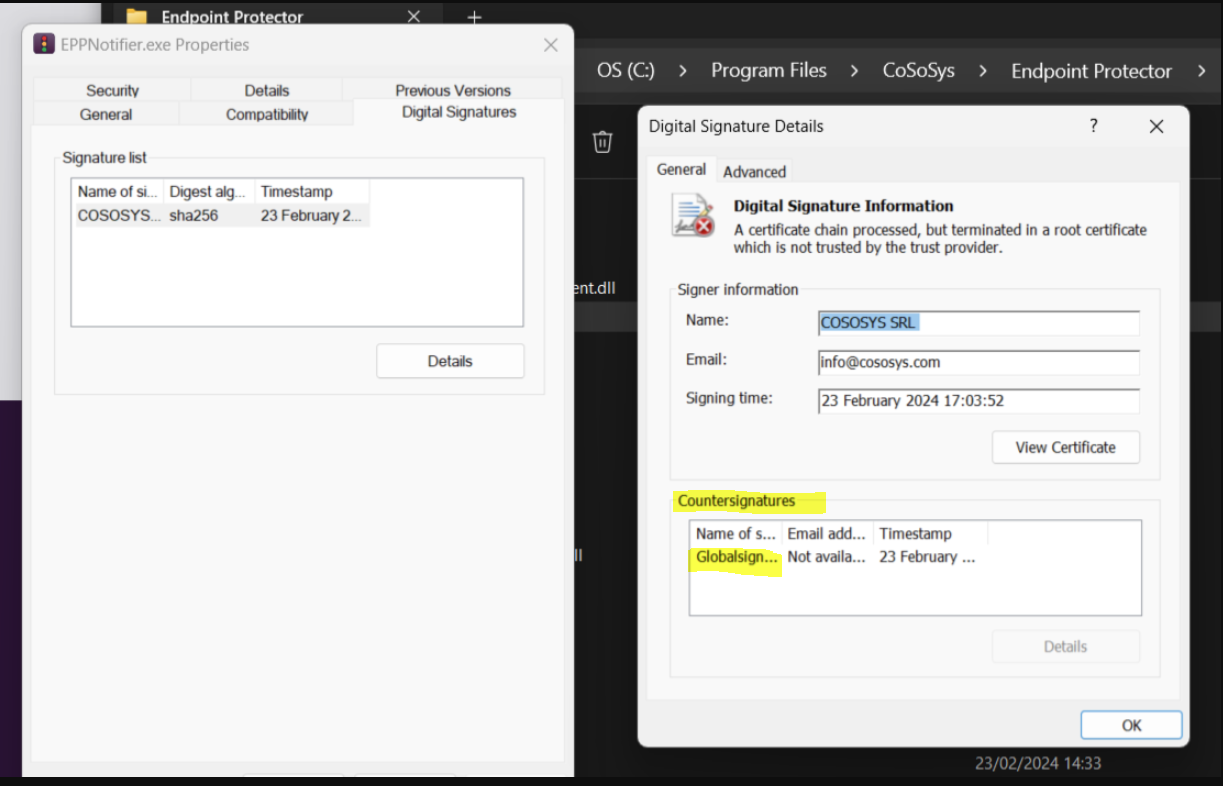
- If the GlobalSign root certificate is missing, download it from the official GlobalSign website:
GlobalSign Root Certificates ⸱ GlobalSign ↗️
https://support.globalsign.com/ca-certificates/root-certificates/globalsign-root-certificates - Search for the certificate named GlobalSign Root R3 then download and install it in the Trusted Root Certification Authorities store.
- If required, check for the GlobalSign Code Signing Root R45 certificate in the certificate store:
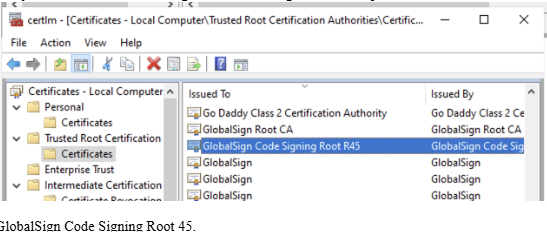
- For digital signature time-stamping, ensure the DigiCert Assured ID Root CA certificate (valid until 10 November 2031, thumbprint
0563B8630D62D75ABBC8AB1E4BDFB5A899B24D43) is trusted. Download it from:
DigiCert Root Certificates ⸱ DigiCert ↗️
https://www.digicert.com/kb/digicert-root-certificates.htm
Related Links
- GlobalSign Root Certificates ⸱ GlobalSign ↗️
https://support.globalsign.com/ca-certificates/root-certificates/globalsign-root-certificates - DigiCert Root Certificates ⸱ DigiCert ↗️
https://www.digicert.com/kb/digicert-root-certificates.htm