Remotely Activating and Collecting Client Logs from the Server Interface
Overview
This article explains how to remotely enable debug logging on an endpoint machine and collect client logs from the server interface, without requiring input or knowledge from the endpoint user.
This procedure uses the Automatic Logging method (the Collect diagnostics action), which is the optimal way to gather logs since it requires no action from the end user. For the full Debug Logging reference, see Debug Logging in the Global Settings documentation.
If the EPP Client cannot communicate with the EPP Server at all, this remote method is not available. Use the diagnostic collection script instead, or the manual terminal-based alternative as a last resort: Manually Activating Debugging Logs on Windows or Manually Generating Logs for Mac Endpoint Protector Agents via Terminal.
Instructions
-
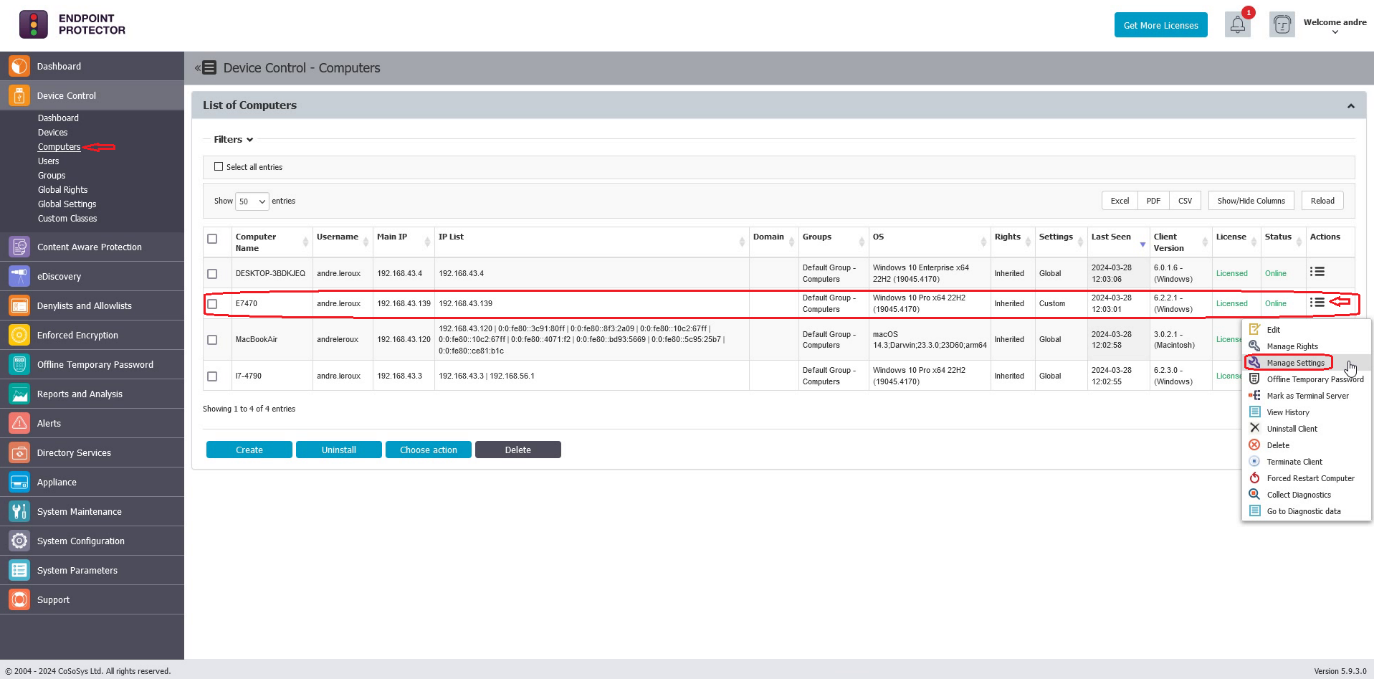
In the Endpoint Protector Console, navigate to Device Control > Computers, then select the target computer and click Manage Settings.
-
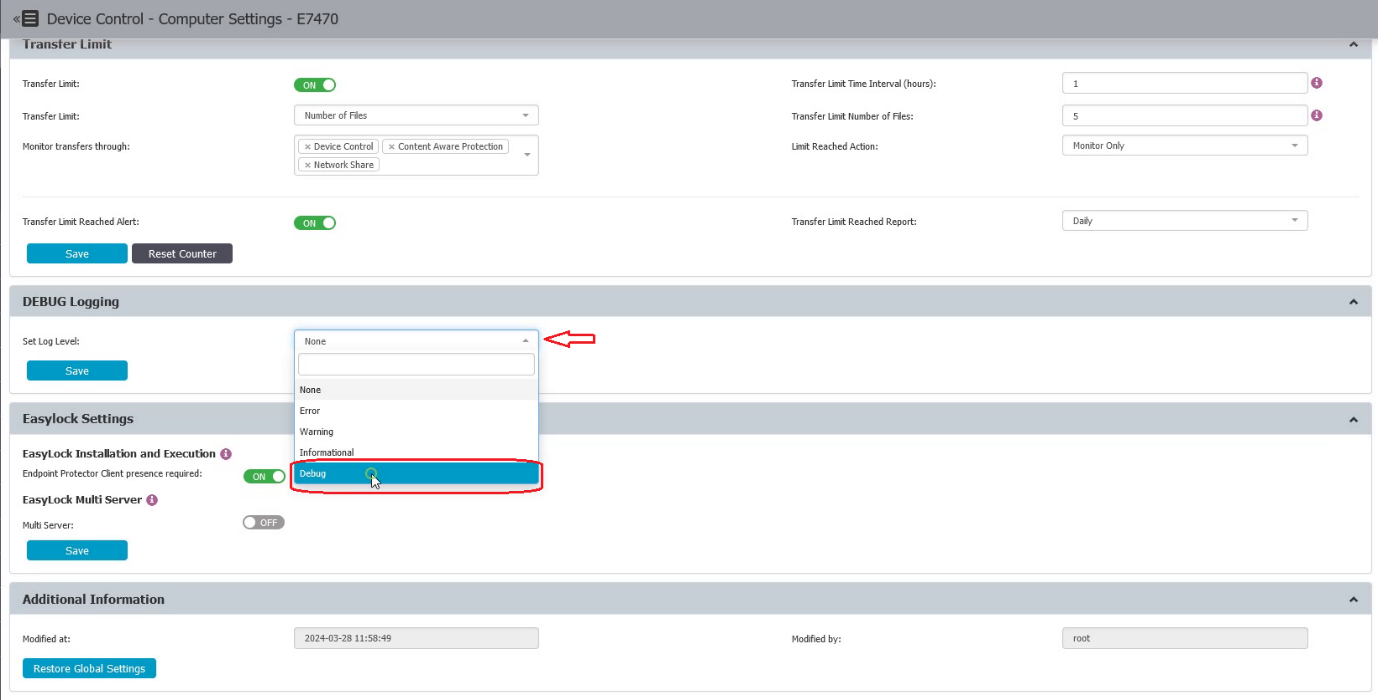
Scroll down to Debug Logging, then click the Set Log Level drop-down menu and select Debug.
-
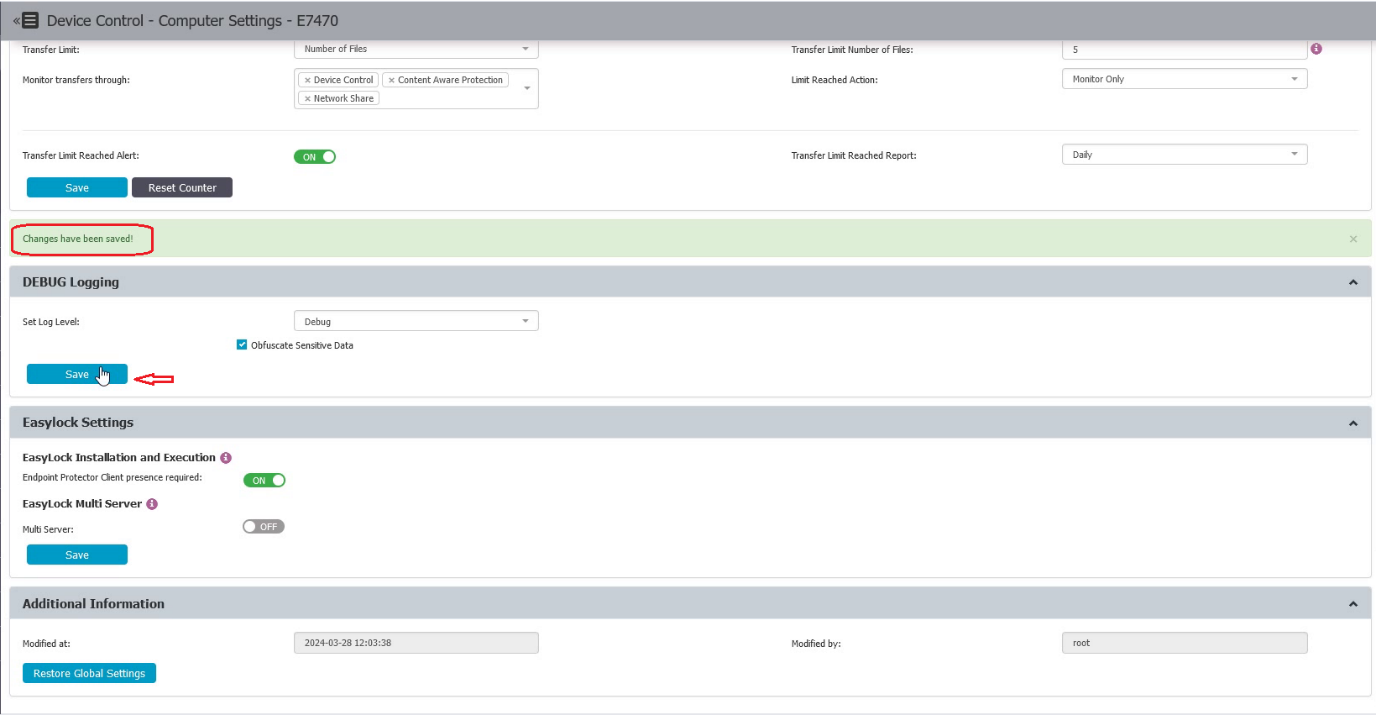
After selecting Debug, click Save and wait for the green notification confirming that the changes have been saved.
-
On the computer, refresh the policies and reproduce the issue.
-
Return to the computer listed under Device Control > Computers and click Collect diagnostics.
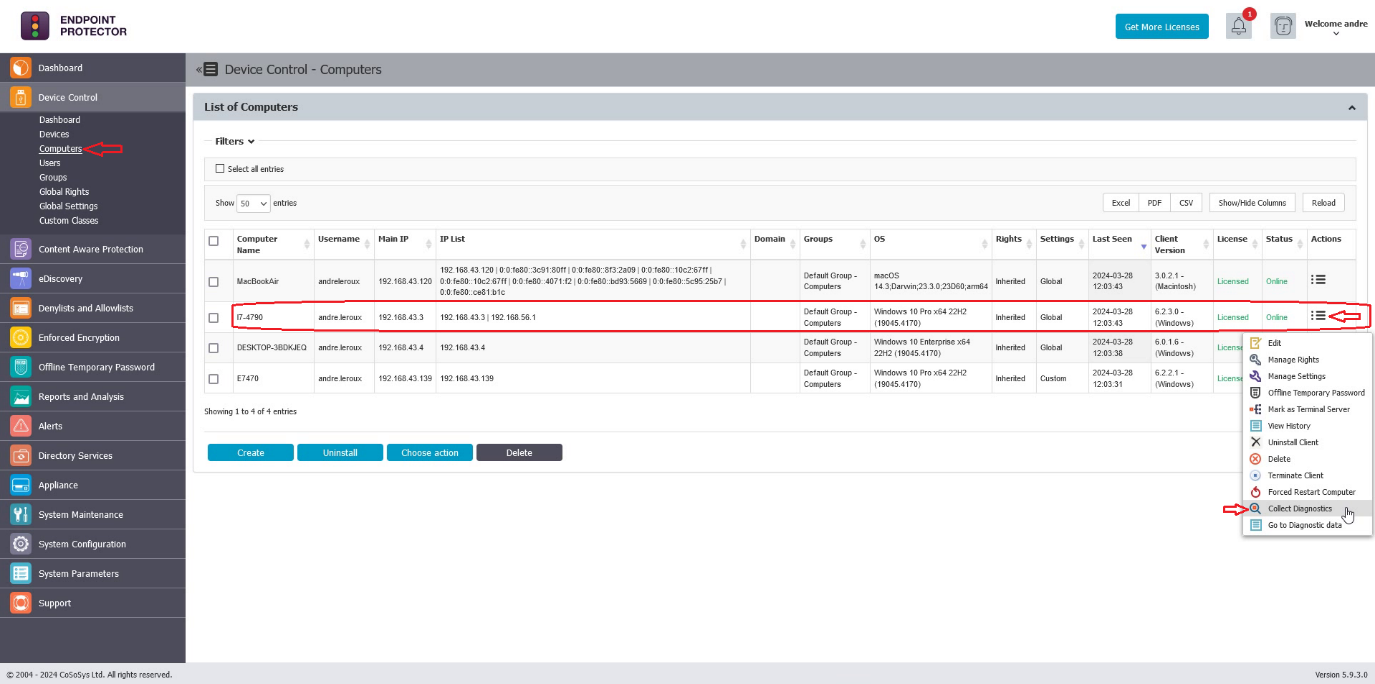
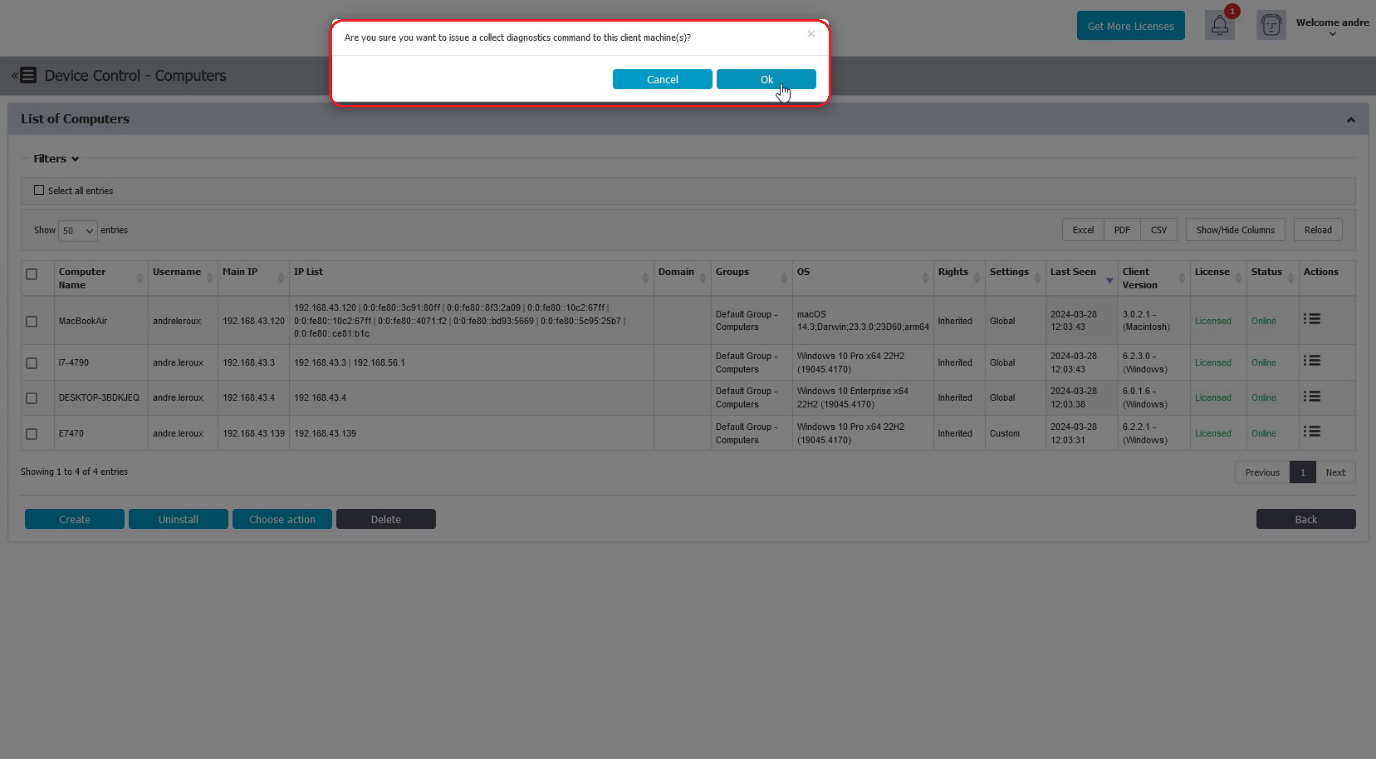
The server sends the logs to Reports and Analysis > Logs Report.
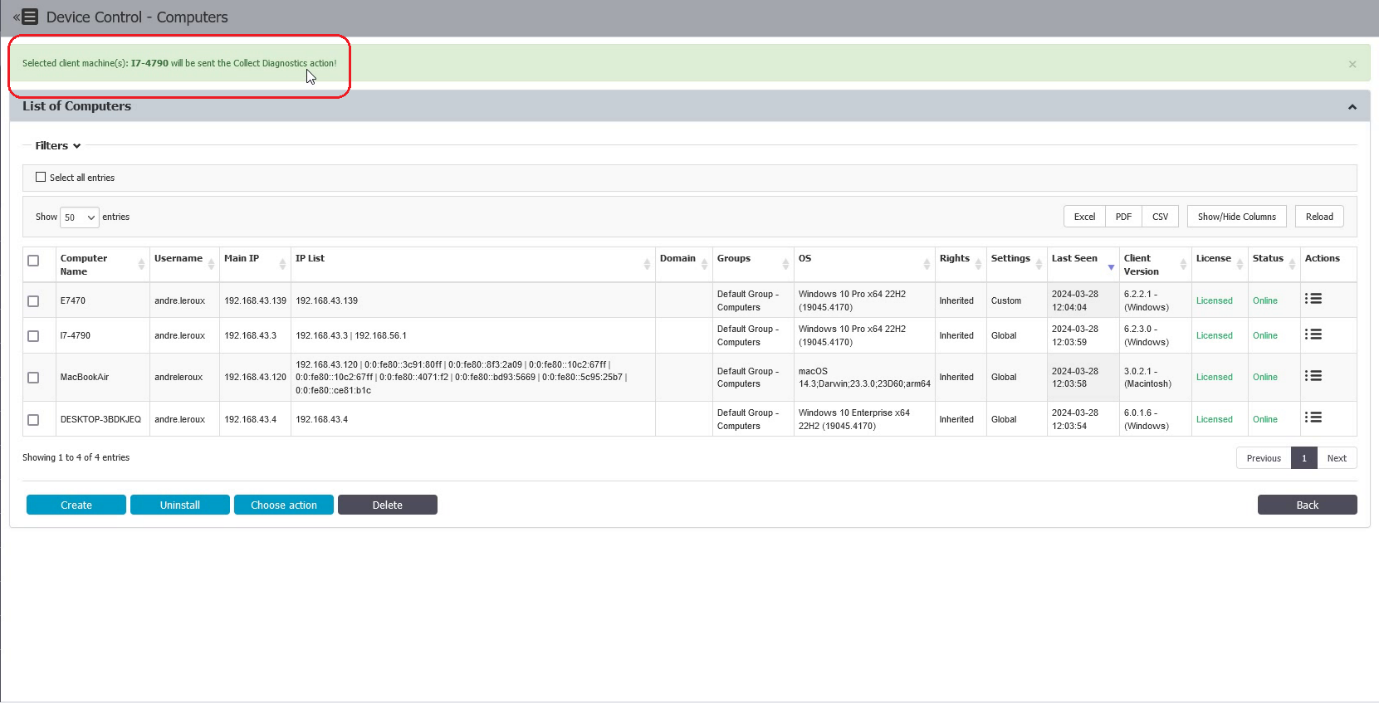
-
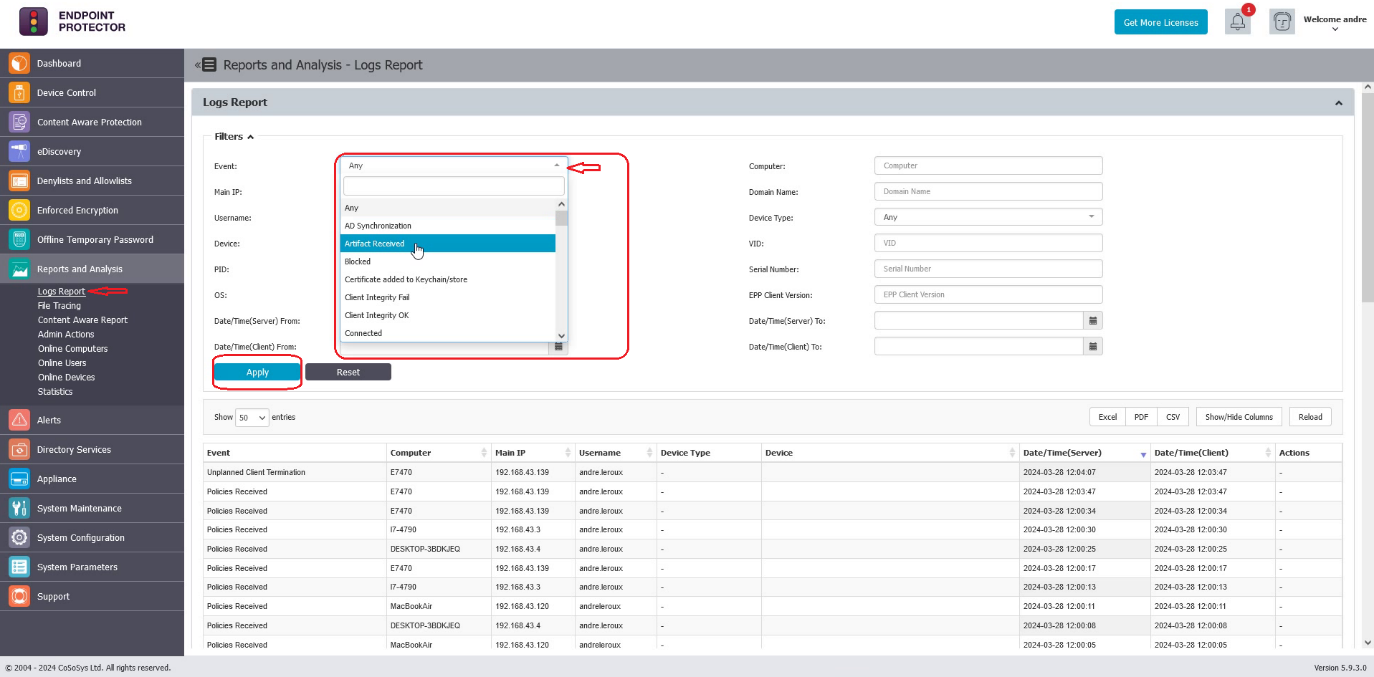
Navigate to Reports and Analysis > Logs Report.
-
Expand the filters. Click the Event drop-down menu, then select Artifact Received and click Apply.
-
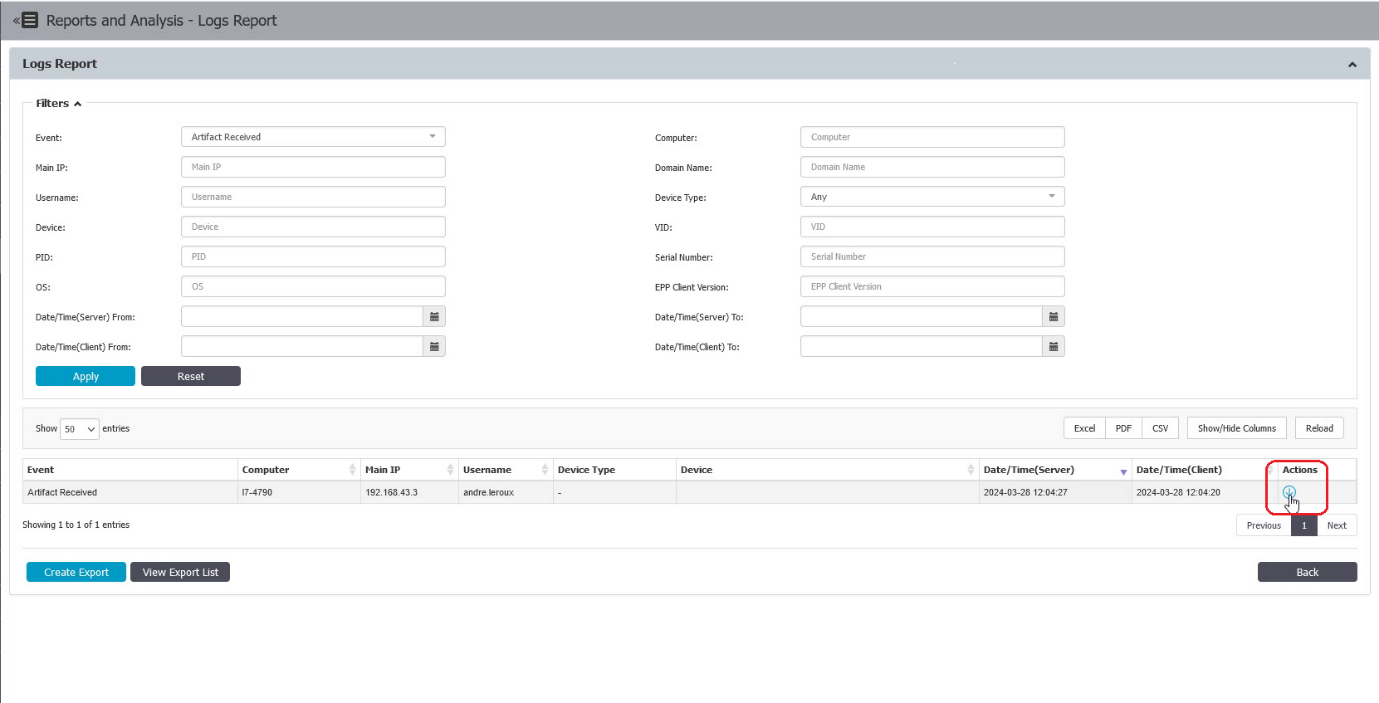
Under the events, locate the uploaded artifact or client logs and click Download.
NOTE: The artifact may not be available for immediate download and may display a "File not found" error. It can take 20–30 minutes before the file is ready to download.
-
Once the client logs are downloaded, submit them to Netwrix Technical Support as needed.