How to Upgrade When "Apply Updates" Button Is Grayed Out
Overview
This article explains how to upgrade from Endpoint Protector Server v5.8.0.0 to v5.8.1.0 when the Apply Updates button is grayed out after selecting available Endpoint Protector (EPP) software updates.
This article applies to the Live Update feature, which Netwrix discontinued starting with EPP Server version 2509. If you're running EPP Server 2509 or later, this workaround doesn't apply — Live Update no longer exists on this platform, and the Offline Patch Uploader is the only available update method. See Applying an Offline Patch or Upgrade for the current procedure.
Instructions
-
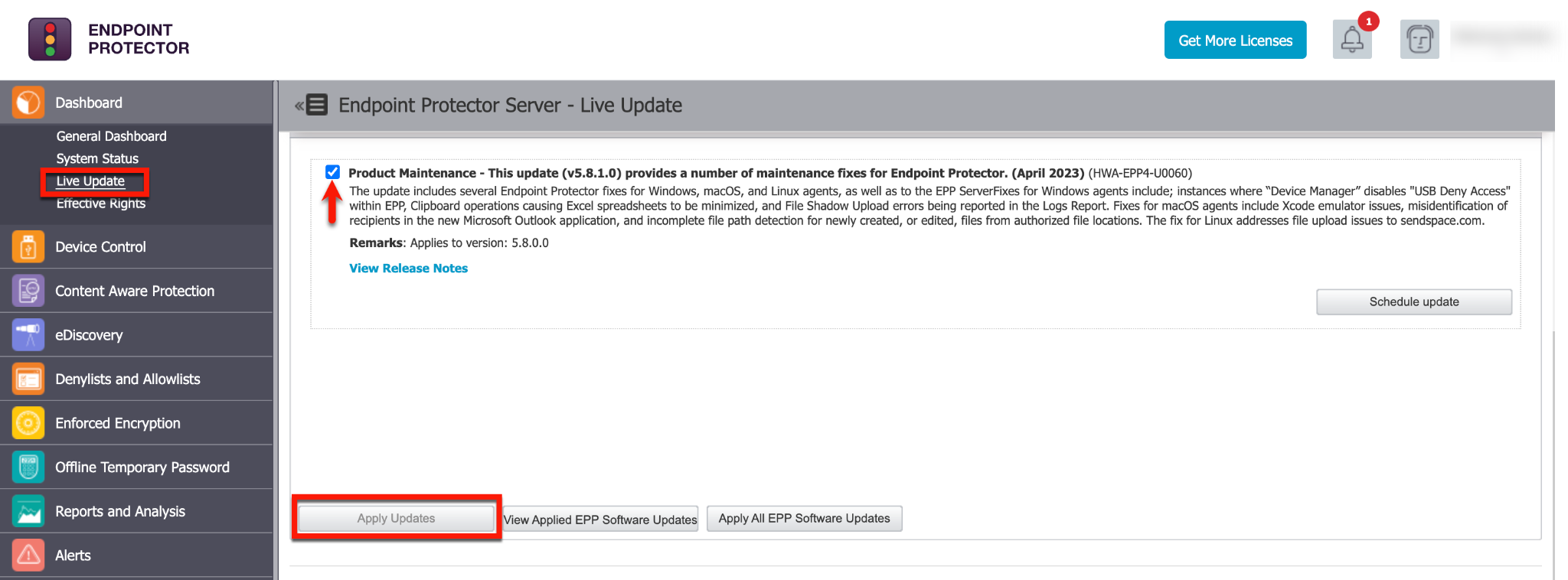
Select the available EPP software updates. If the Apply Updates button is grayed out, continue with the following steps.
-
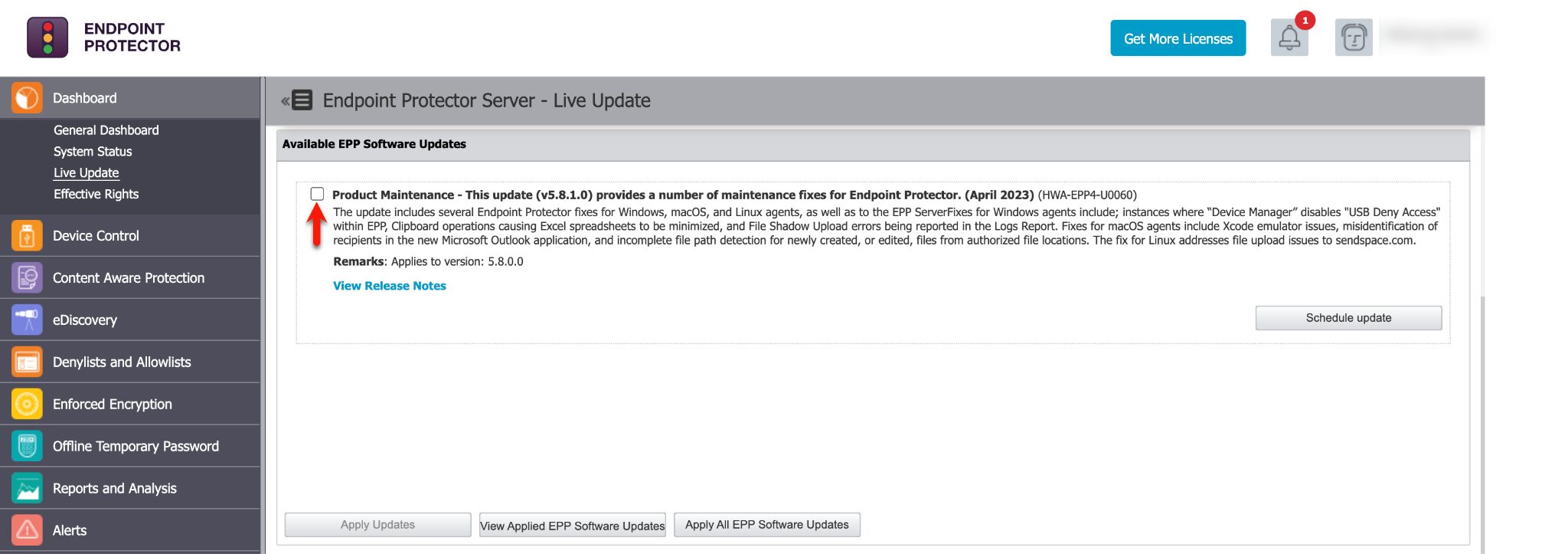
Uncheck the checkbox next to the patch update.
-
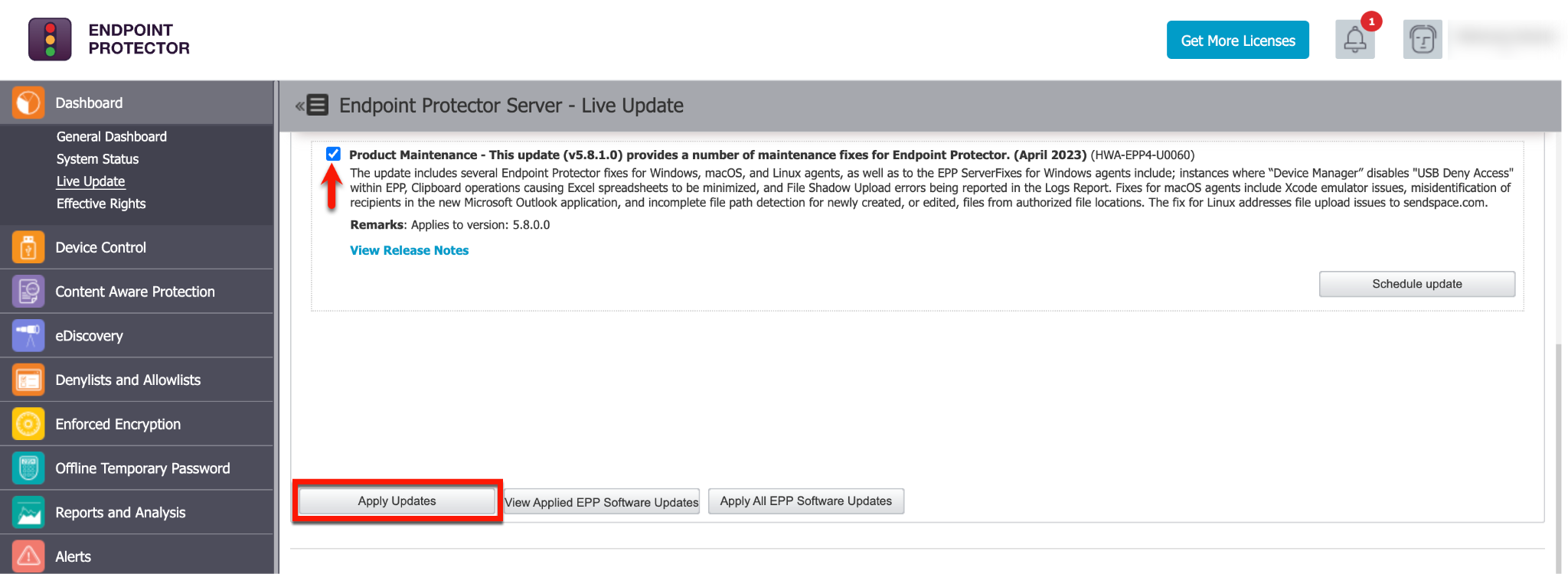
Check the box again to activate the patch update.
-
Click the checkbox directly to activate the Apply Updates button.
-
If you are a hosted customer, use the Apply All EPP Software Updates button.
-
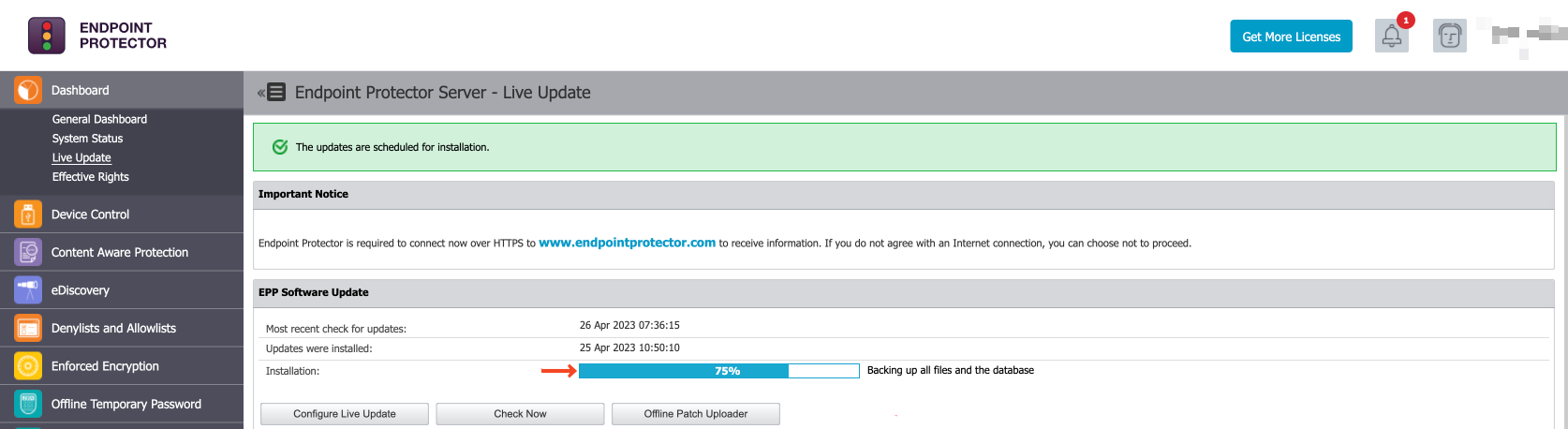
Click Apply Updates to begin the download.
-
Refresh the page. The new version of the server will be displayed in the bottom right corner.
Starting with version 5.9.4.2, all older Endpoint Protector servers can be upgraded with a cumulative patch.