How to create a redirection for the Password Manager web portal
Question
You want users to access Password Manager by browsing to the server root (for example, http://<servername>) instead of http://<servername>/pm. How can you redirect users to the Password Manager website?
Answer
You can redirect users to the Password Manager self-service portal using one of these options:
Option 1. Modify the default iisstart.htm
Change the iisstart.htm file in the root folder of the Default Web Site. Note that you will not be able to see the default IIS page after this change.
- Locate
iisstart.htm(by default atC:\inetpub\wwwroot), right-click it and select Edit. - Replace the existing text in the file with the following HTML:
<html> <head> <meta http-equiv="Refresh" content="0; url=http://%servername%/pm" /> </head> </html>
- Save changes to the file.
Option 2. Use the HTTP Redirect feature of IIS
Refer to the IIS documentation for additional information: http://www.iis.net/configreference/system.webserver/httpredirect

Perform the following steps:
- In the left pane of IIS Manager navigate to the website that contains the Password Manager virtual directory (by default “PM”).
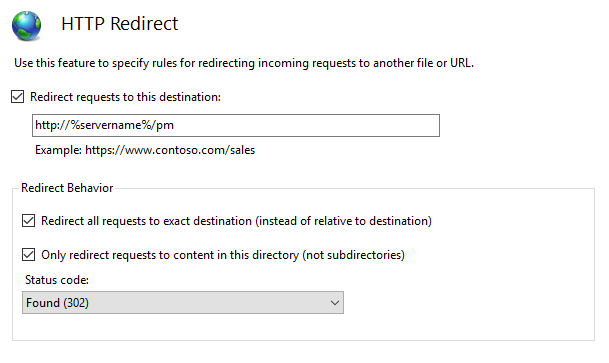
- In the central pane, double-click the HTTP Redirect icon under the IIS category.
- Check the Redirect requests to this destination checkbox and enter the URL to redirect to (for example,
http://%servername%/pm). - Check the Redirect all requests to exact destination (instead of relative to destination) checkbox.
- Check the Only redirect requests to content of this directory (not subdirectories) checkbox.
- Set Status code to Found (302).
- Click Apply in the right pane.
Option 3. Use URL Rewrite rules
Download and install the URL Rewrite module from: http://www.iis.net/downloads/microsoft/url-rewrite

After installing the URL Rewrite module, perform these steps:
- In the left pane of IIS Manager navigate to the website that contains the Password Manager virtual directory (by default “PM”).
- In the central pane, double-click the URL Rewrite icon under the IIS category.
- Click Add rule(s)… in the right pane.
- Select Blank rule under Inbound rules and click OK.
- Enter a Name for the rule.
- In the Match URL area:
a. Select Requested URL: Matches the pattern and Using: Regular expressions in the dropdown lists.
b. Enter the following Pattern:^$.
c. Check the Ignore case checkbox. - In the Action area:
a. Select Action: Redirect from the dropdown list.
b. Enter the Redirect URL (for example,http://%servername%/pm).
c. Check the Append query string checkbox.
d. Select Redirect type: Permanent (301) from the dropdown list. - Click Apply and then click Back to Rules. The configured rule should now be listed.
- Restart IIS by running the
iisresetcommand in Command Prompt run as administrator.
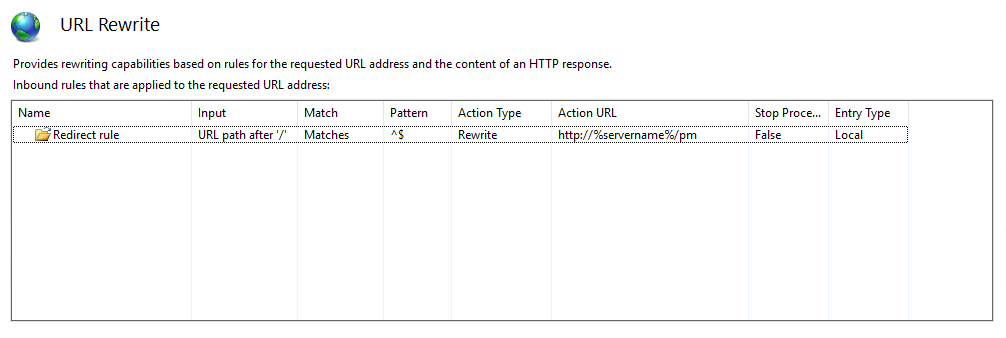
These steps allow the self-service portal to be accessible via the short URL http://<servername> instead of http://<servername>/pm.
NOTE: If you want to make the self-service portal accessible from an external network, create a DNS alias (CNAME) for the Password Manager self-service portal address. See the Microsoft documentation for details: https://learn.microsoft.com/en-us/windows-server/networking/core-network-guide/cncg/server-certs/create-an-alias-cname-record-in-dns-for-web1