How to configure Google Drive for Crawling
To authenticate to your Google Workspace (formerly known as G Suite) domain to perform crawling, Netwrix uses the OAuth 2.0 protocol. Data in individual and shared Drives will be accessed using the Google Drive API. You will need to create a service account and authorize it to access data on behalf of the user.
To configure Google Workspace for crawling, you should take the following steps (explained later in detail):
In the Google Cloud Platform web console
- Create a new project.
- Create a new service account.
- Create a service account key (JSON, save a copy for the data source configuration).
- Enable domain-wide delegation for the service account (write down the Client ID).
- Enable the Google Drive API and the Admin SDK API.
In the Google Workspace Admin Console
- Authorize service account to access the Google Drive API
NOTE: Google administrative interfaces tend to change over time, so if you cannot configure Google Drive for crawling using as described in this article, refer to the following guide for instructions on creating OAuth 2.0 service accounts: Using OAuth 2.0 for Server to Server Applications
Configure Google Workspace for crawling
Step 1. Create a new project
- Log in to the Google Cloud Platform web console: https://console.cloud.google.com/ as a Google Workspace administrator.
- Click Select a project. In the Select a project dialog, click New Project:

- In the dialog, specify the following:
- Project name — NetwrixPermissionAnalyzer.
- IMPORTANT! Provide a meaningful name for your project without spaces. Pay attention to the Project ID below and make sure it is identifiable for you since you cannot edit it later.

- IMPORTANT! Provide a meaningful name for your project without spaces. Pay attention to the Project ID below and make sure it is identifiable for you since you cannot edit it later.
- Organization — provide your organization's domain.
- Location — provide your parent organization or folder.
- Project name — NetwrixPermissionAnalyzer.
- Click Create.
Step 2. Create a new service account
- Click the Google Cloud Platform icon.
- Navigate to IAM & Admin → Service Accounts.
- Click Create Service Account:
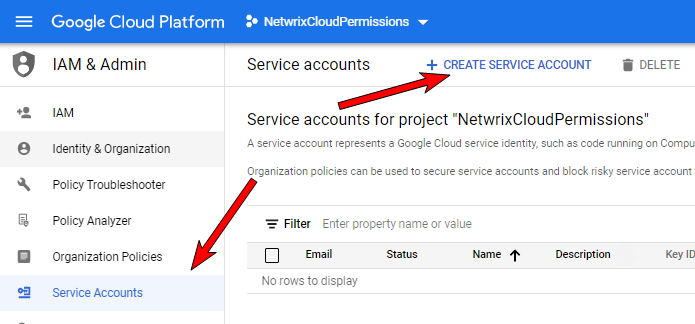
- In the Create service account dialog, provide the Service account details:
- Service account name — new service account name. For example, Netwrix Permission Analyzer Service Account.
- Service account ID — is set automatically.
- Service account description — description if needed.
- Click Done.
Step 4. Create a service account key
- On the Service accounts page, click the newly created service account.
- In your account configuration wizard, go to the Keys tab.
- Expand the Add Key list and select Create new key option.
- In the Create private key for [Service account name] dialog, select
JSONformat. - The key will be downloaded automatically. Save the file to a known location as it will be required later.
NOTE: Your new public / private keypair is generated and downloaded to your machine. Store it securely. If you lose this keypair, you will need to generate a new one.
Step 5. Delegate domain-wide authority to the service account
- Go back to your service account Details tab.
- Expand Show Domain-Wide Delegation and tick the Enable G Suite Domain-wide Delegation checkbox.
- Provide a product name. For example, NetwrixPermissionAnalyzer (if you have already configured a service account, Google ignores this step).
- Click Save.
- Once completed, make sure that Domain-wide delegation is enabled for the account.
- Click the View Client ID link.

- Copy the Client ID, you will need it later.
Step 6. Enable the Google Drive API and Admin SDK API
- Click the Google Cloud Platform icon to go back to the home page.
- Navigate to APIs & Services on the left, and select the Dashboard menu.
- Click Enable APIs and Services at the top.
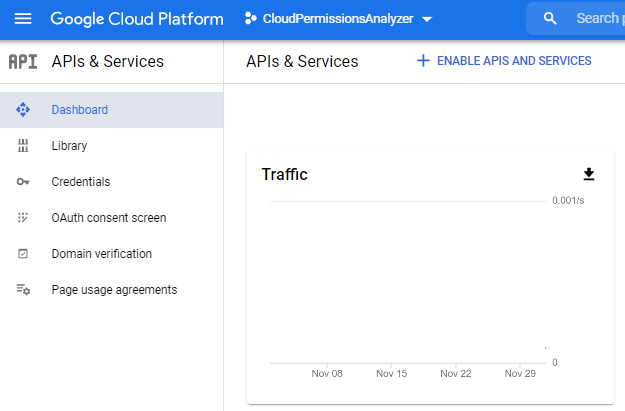
NOTE: If you already have any enabled APIs and/or Services in your project, skip this step and proceed with the instructions below.
-
Search for Google Drive API and click Enable (or Manage if you have this API in your project).
-
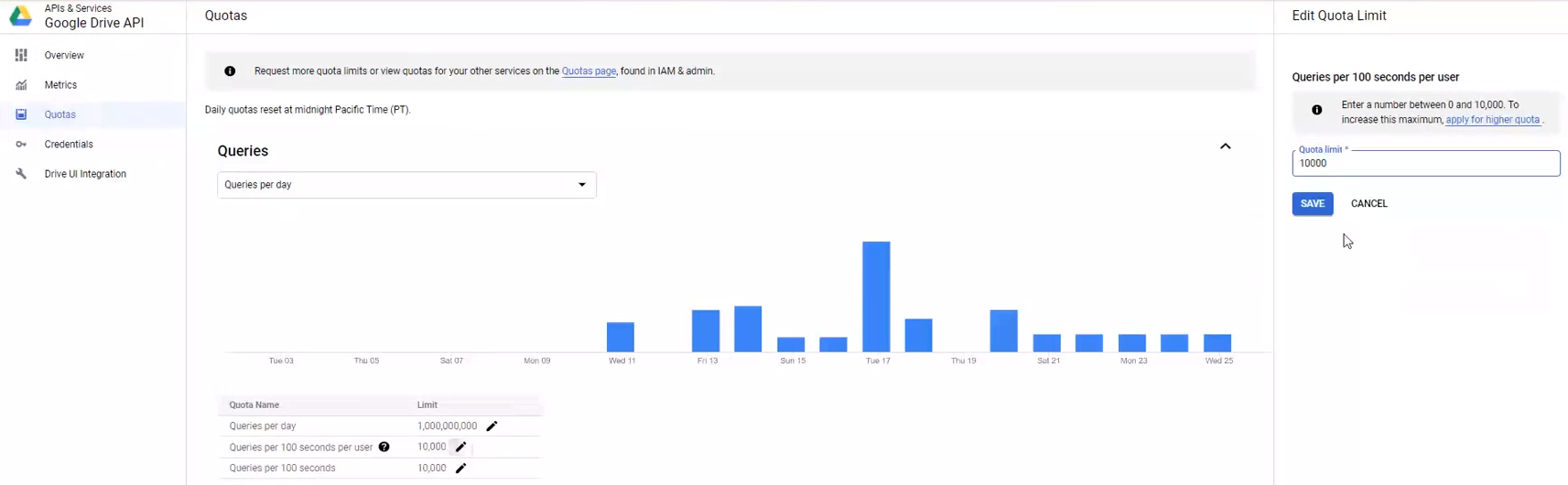
If you are going to process large amounts of data, Netwrix recommends you set quotas for this API (OPTIONAL):
- On the Google Drive API page, select the Quotas menu on the left.
- Expand queries by clicking the expand icon on the right.
- Find the Queries per 100 seconds per user line and click the edit icon to edit.
- Set the quota limit to
"10,000"and save your changes.
-
IMPORTANT! Go back to APIs & Services → Dashboard and repeat steps 2 - 3 to enable the Admin SDK API. If you have this API in your project, skip this step, and proceed.
Step 7. Configure domain-wide delegation to a new API client
- Switch to the Google Workspace Admin Console: https://admin.google.com/
- Navigate to Security → API Controls → Domain-wide delegation.
- On the API controls page, click Manage domain-wide delegation at the bottom.
- Click Add new to add a new API client.
- In the Add a new client ID dialog, provide the ID you copied earlier (see the corresponding step).
- Then, specify necessary scopes in the OAuth scopes field. These can be:
https://www.googleapis.com/auth/drive.readonly,
https://www.googleapis.com/auth/admin.directory.domain.readonly,
https://www.googleapis.com/auth/admin.directory.user.readonly,
https://www.googleapis.com/auth/admin.directory.group.readonly
NOTE: For your convenience, the scopes are listed as comma-delimited. Google splits them accordingly, so you can paste the whole list to a field right from this article.
- Click Authorize. Wait for Google to recognize the scopes and then click Authorize again to apply.
What is next:
- Log in to Netwrix Cloud Permission Analyzer.
- Read the Get Started section. Click Continue.
- In the Google Drive connection settings, provide the Google Drive administrator account under which you logged in to the Google Cloud Platform web console.
- Click Import JSON file with Google service account settings and select the file you downloaded on step 4.
- IMPORTANT! Configure scope – add your shared and/or personal Google Drives to the list. You can use a wildcard (
*) if you want to crawl all drives in your Google Drive.
NOTE: By default, Netwrix Cloud Permission Analyzer collects Google Drive data once a day. If you modify your Google Drive configuration and save your changes, the product initiates data collection automatically.