NetWrix Password Manager service account
Since this software is used to change/reset passwords and unlock Active Directory (AD) user accounts, the service account must have sufficient permissions to perform these operations. We recommend using an account that is a member of the Domain Administrators group and the local Administrators group on the computer where the product is installed.
If you do not want to use a Domain Administrator account, on the computer where NetWrix Password Manager is installed, create an account with the following rights and permissions.
- On the machine where the Password Manager service is installed:
- Full access to the NetWrix Password Manager installation directory (Allow Full control security permissions)
- Full access to the registry key
HKLM\Software\Wow6432Node\NetWrix Password Manager(Wow6432Node only for x64 OS) (Allow Full control security permissions) - The Logon as a service right (added to Local policies > User rights assignment > Logon as a service policy)
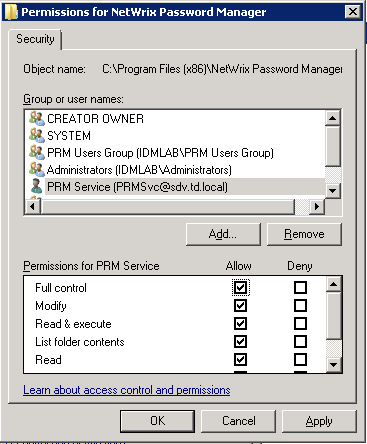
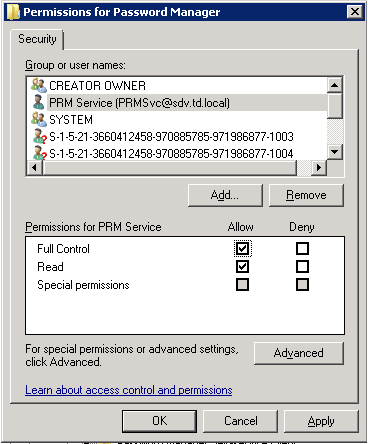

Alternatively, you can add the service account to the local Administrators group.
- In Active Directory the service account should have the following rights for all managed accounts:
- Change Password
- Reset Password
- Read Account Restrictions
- Write Account Restrictions
- Read lockoutTime
- Write lockoutTime
- Read pwdLastSet
- Write pwdLastSet
To grant these rights to the service account in AD, do the following:
- Navigate to Start > Administrative Tools > Active Directory Users and Computers.
- Select View from the main menu and make sure that the Advanced Features option is selected.

- In the left pane, right-click the managed domain node and select Properties from the pop-up menu.
- Open the Security tab and click the Advanced button.
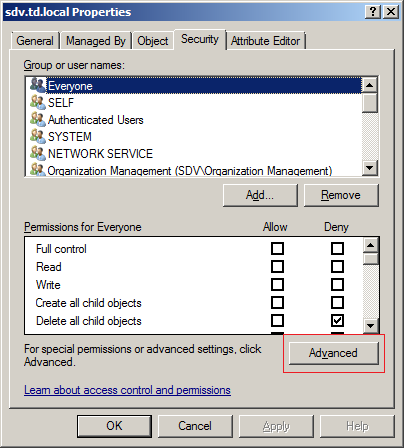
- In the Advanced Security Settings dialog, in the Permissions tab, click the Add button.
- Select the account you want to use as the service account and click OK.
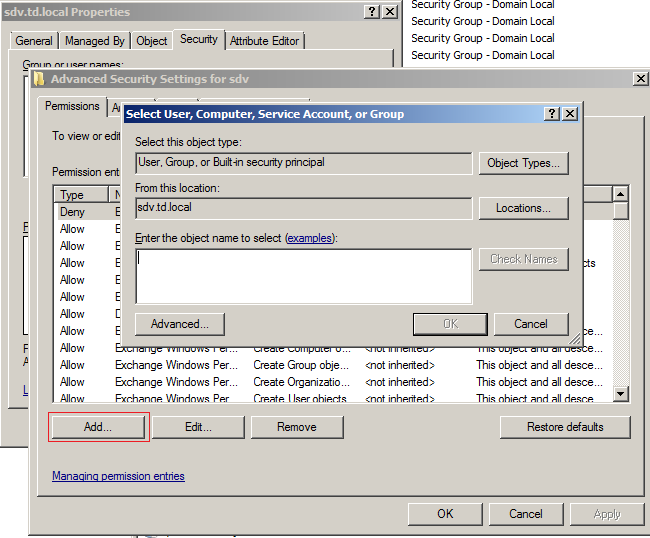
- In the Permission dialog that opens after you have specified an account, in the Object tab, under Apply to, select
Descendant User objectsfrom the drop-down list. - Select the following check boxes in the Allow column:
- Reset Password
- Change Password
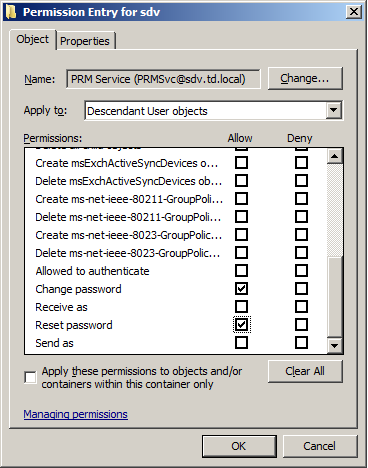
- In the Properties tab, under Apply to, select
Descendant User objectsfrom the drop-down list. - Select the following check boxes in the Allow column:
- Write Account Restrictions
- Read Account Restrictions
- Read lockoutTime
- Write lockoutTime
- Write pwdLastSet
- Read pwdLastSet
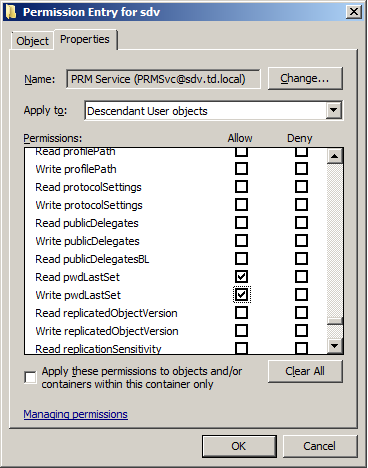
- Click OK to save the changes.
NOTE. A less privileged service account is not able to unlock and reset passwords for protected domain groups (domain admins, enterprise admins, etc.) because of the AdminSDHolder access control mechanism.
AdminSDHolder is a container inside Active Directory that maintains a master list of permissions for objects that are members of privileged groups in Active Directory. Access control prevents access of non-privileged accounts to this container.
Below are some of the protected groups that cannot be handled without domain admin rights:
- Administrators
- Domain Admins
- Enterprise Admins
- Schema Admins
- Domain Controllers
- Server Operators
More information about it here: http://blogs.technet.com/b/askds/archive/2009/05/07/five-common-questions-about-adminsdholder-and-sdprop.aspx