Password Manager Requirements
Password Manager is a 32-bit web application based on Microsoft IIS.
Server requirements
Password Manager server requires:
- Windows XP SP3 or above
- Windows Installer 3.1 or above
- .NET Framework 3.5 SP1 (on Server OS is provided as a server feature that needs to be enabled)
- Microsoft Internet Explorer 6.0 or above / Mozilla Firefox 2.0 or above / Apple Safari 2.0 or above / Google Chrome 4.0 or above
- IIS 6.0 or above (Web Server role in Server OS)
Within the IIS role it requires the following features enabled:
- ASP extension
- ASP.NET extension
- IIS 6 Metabase Compatibility
- Windows authentication
- Static content
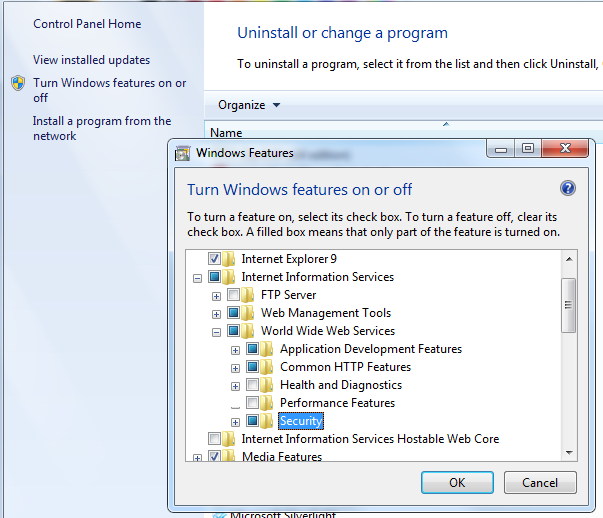
Enable required IIS features on client OS (Windows Vista, 7, 8, 8.1, 10)
To enable these modules on the client OS, perform the following steps:
- Open Programs and Features (Control Panel - Programs and Features).
- Enable Turn Windows features on or off.
- Open the following node: Internet Information Services (IIS) - Web Management Tools - IIS6 Management Compatibility.
- Enable IIS6 Metabase Compatibility item.
- Open the following node: Internet Information Services (IIS) - World Wide Web Services - Security.
- Enable Windows Authentication item.
- Open the following node: Internet Information Services (IIS) - World Wide Web Services - Application Development Features.
- Enable ASP and ASP.NET (3.5).
- Open the following node: Internet Information Services (IIS) - World Wide Web Services - Common HTTP Features.
- Select Static content.
- Click OK.
Enable required IIS features on Windows Server 2008 and 2008 R2
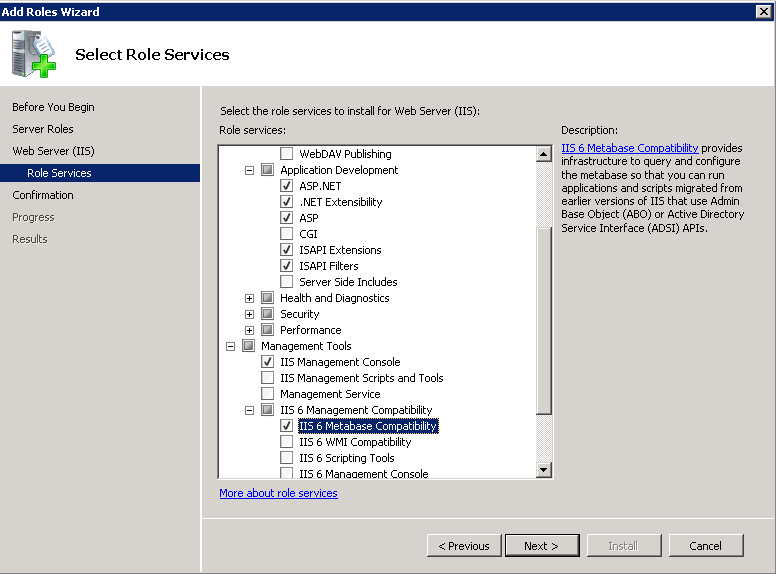
To enable these features on Windows Server 2008 and 2008R2, perform the following steps:
- From Server Manager, select Roles - Web Server (IIS) in the left pane.
- In the right-hand pane scroll to Role Services and click Add Role Services.
- Expand Management Tools - IIS6 Management Compatibility node and enable IIS6 Metabase Compatibility.
- Expand Application Development node and enable ASP and ASP.NET extensions, confirm installation of all depending services.
- Expand Security node and enable Windows Authentication.
- Expand Common HTTP features and enable Static content.
- Click Next and then click Install.
Enable required IIS features on Windows Server 2012 and 2012 R2
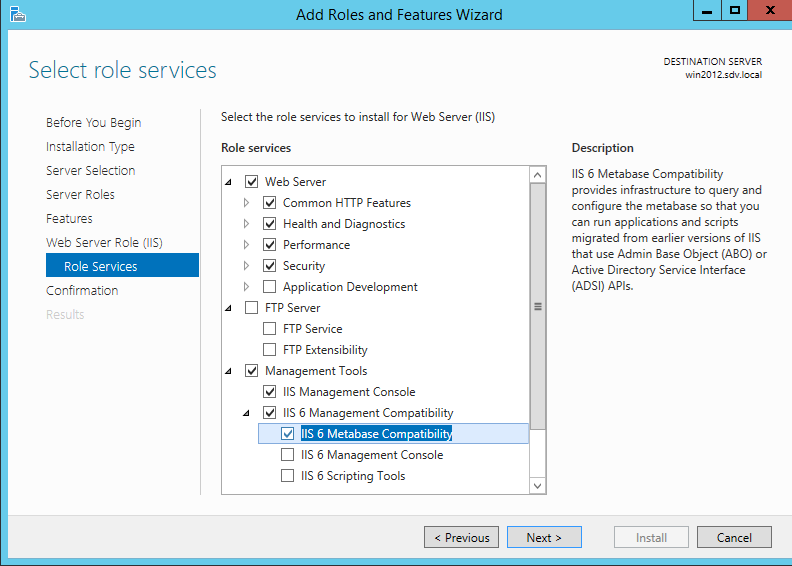
To enable these features on Windows Server 2012 and 2012R2, perform the following steps:
- From Server Manager, select Manage - Add Roles and Features at the top right.
- Select the Role-based installation option, select the current server from the list.
- In the left pane select Web Server Role (IIS) - Role services node.
- Expand Management Tools - IIS6 Management Compatibility node and enable IIS6 Metabase Compatibility.
- Expand Application Development node and enable ASP and ASP.NET 3.5 extensions, confirm installation of all depending services.
- Expand Security node and enable Windows Authentication.
- Expand Common HTTP features and enable Static content.
- Click Next and then click Install.