Apply a New License
Overview
This article outlines how to apply a new license to the Netwrix Privilege Secure Access Management server.
Instructions
Netwrix Privilege Secure Access Management comes with a 30-day trial license. Once this trial has expired, a new license key file will need to be imported.
-
Log in to the Netwrix Privilege Secure Access Management web application as an account with the Administrator role.
-
In Netwrix Privilege Secure Access Management 3.5 or earlier, the built-in Admin account may be used.
IMPORTANT: The
Domainfield must be set to<none>in order to log in with the built-in Admin account. -
In Netwrix Privilege Secure Access Management 3.7 or later, a local user with the Administrator role may be used.
-
-
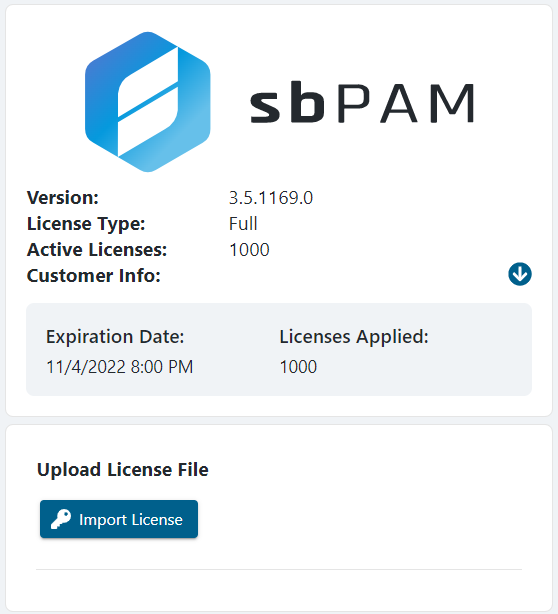
Click your account name in the upper-right corner of the page, and then click About SbPAM to open the page to update the product's license.
IMPORTANT: If a new license key file is needed, then please contact your Netwrix Account Manager.

-
Click Import License. A Windows file dialog opens. Navigate to the location of the new license key file, select it, and click Open. The license is imported, and the displayed license information is updated.
Alternate Instructions (PowerShell)
- Open an elevated PowerShell window.
- Modify the following PowerShell script so that the second line contains the correct local path for your license file:
Add-Type -AssemblyName System.Web
$licenseFilePath = "path to license file" ## Change to match the local path to the license file
$license = Get-Content $licenseFilePath
$encoded = [System.Web.HttpUtility]::UrlEncode($license)
$sbpamURI = "http://localhost:6501"
Invoke-RestMethod -Method POST -URI "$($sbpamURI)/api/v1/LicenseInfo?License=$encoded"
- Copy and paste the modified script into PowerShell and execute it. Your license should now be imported into Netwrix Privilege Secure Access Management.