Set Up ESET HIPS Rules to Allow Threat Prevention SI Agent Hook
Question
How to set up ESET HIPS rules to allow Threat Prevention SI Agent hook?
Answer
-
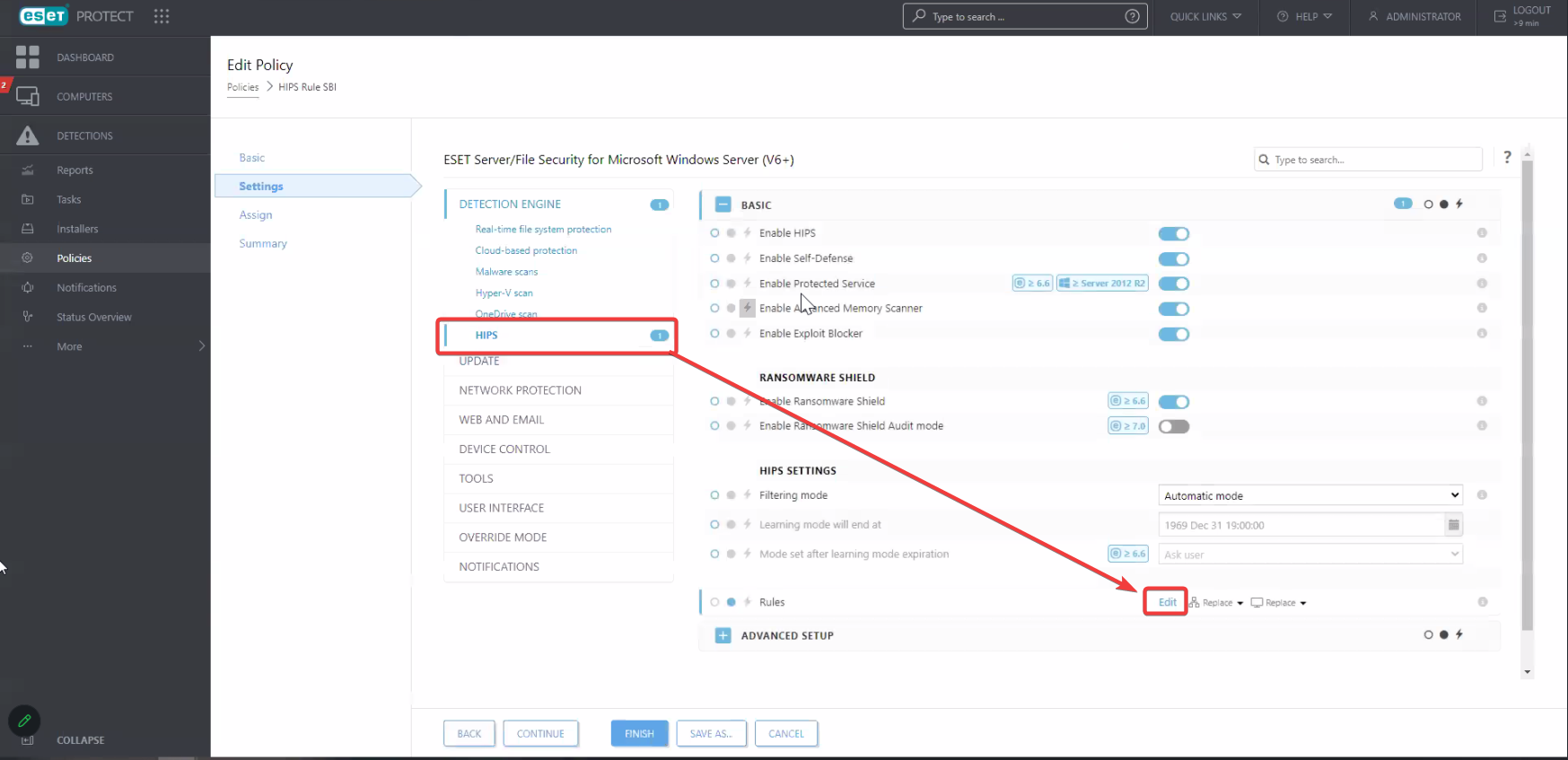
In the left pane of your ESET PROTECT Web Console, select Policies. Select the Detection Engine tab > HIPS.
-
Under the Rules section, click Edit.
-
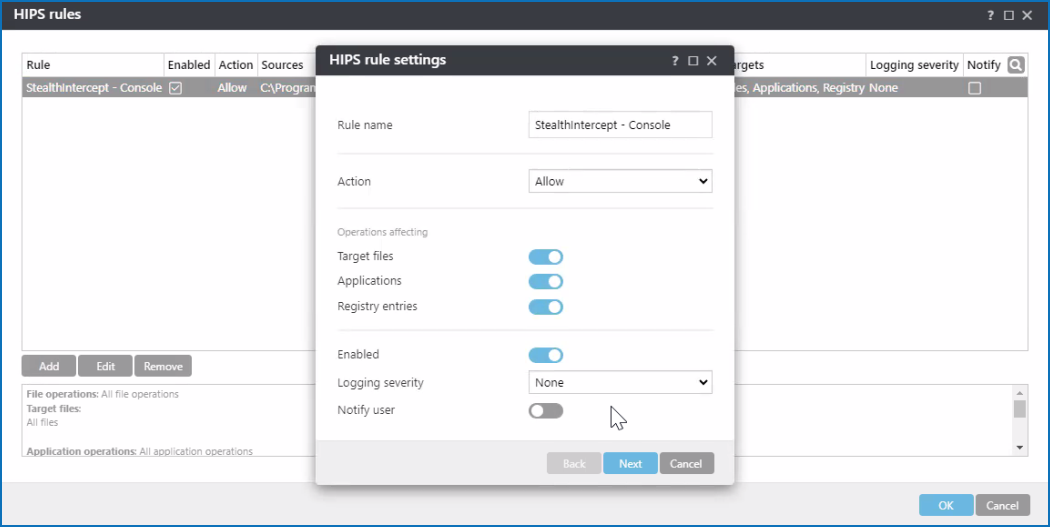
In the HIPS Rules window, click Add.
-
Specify the Rule name, select Allow for the Action type, and proceed by clicking Next.
-
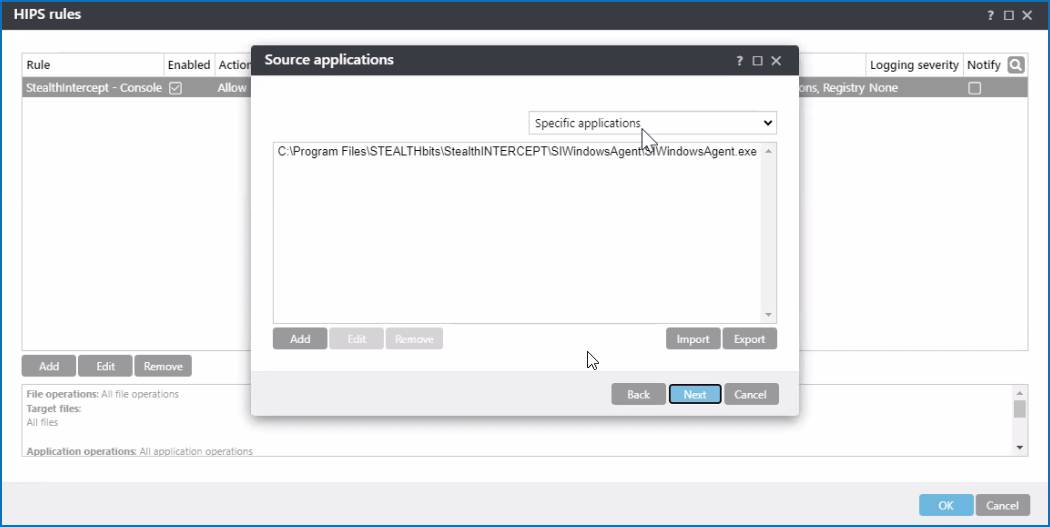
Select Specific applications in the dropdown list, and click Add to add the path to
SIWindowsAgent.exe. Refer to the following code block for a default path:C:\Program Files\STEALTHbits\StealthINTERCEPT\SIWindowsAgent\Proceed to the next step by clicking Next.
-
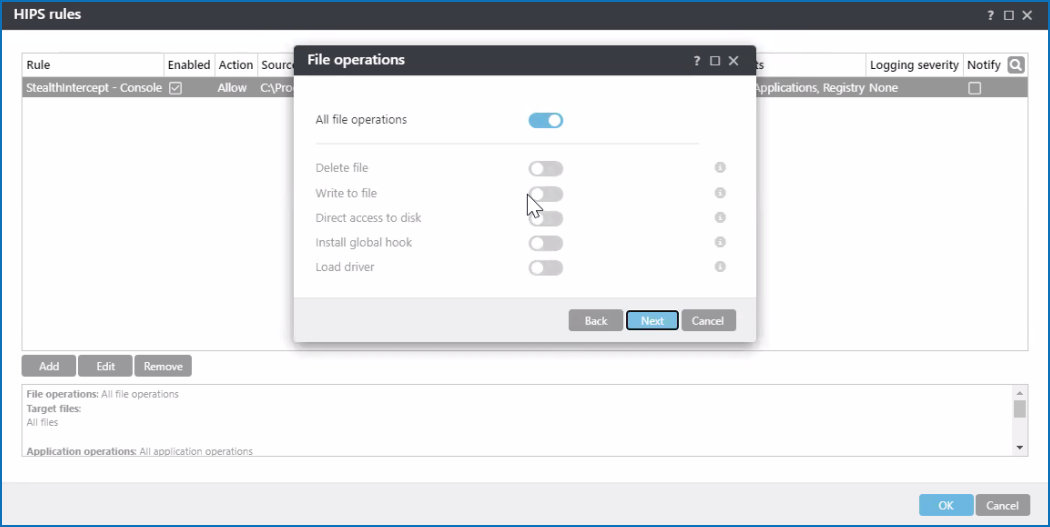
Switch the All file operations switch to the on position, and proceed by clicking Next. Click OK to save changes.
-
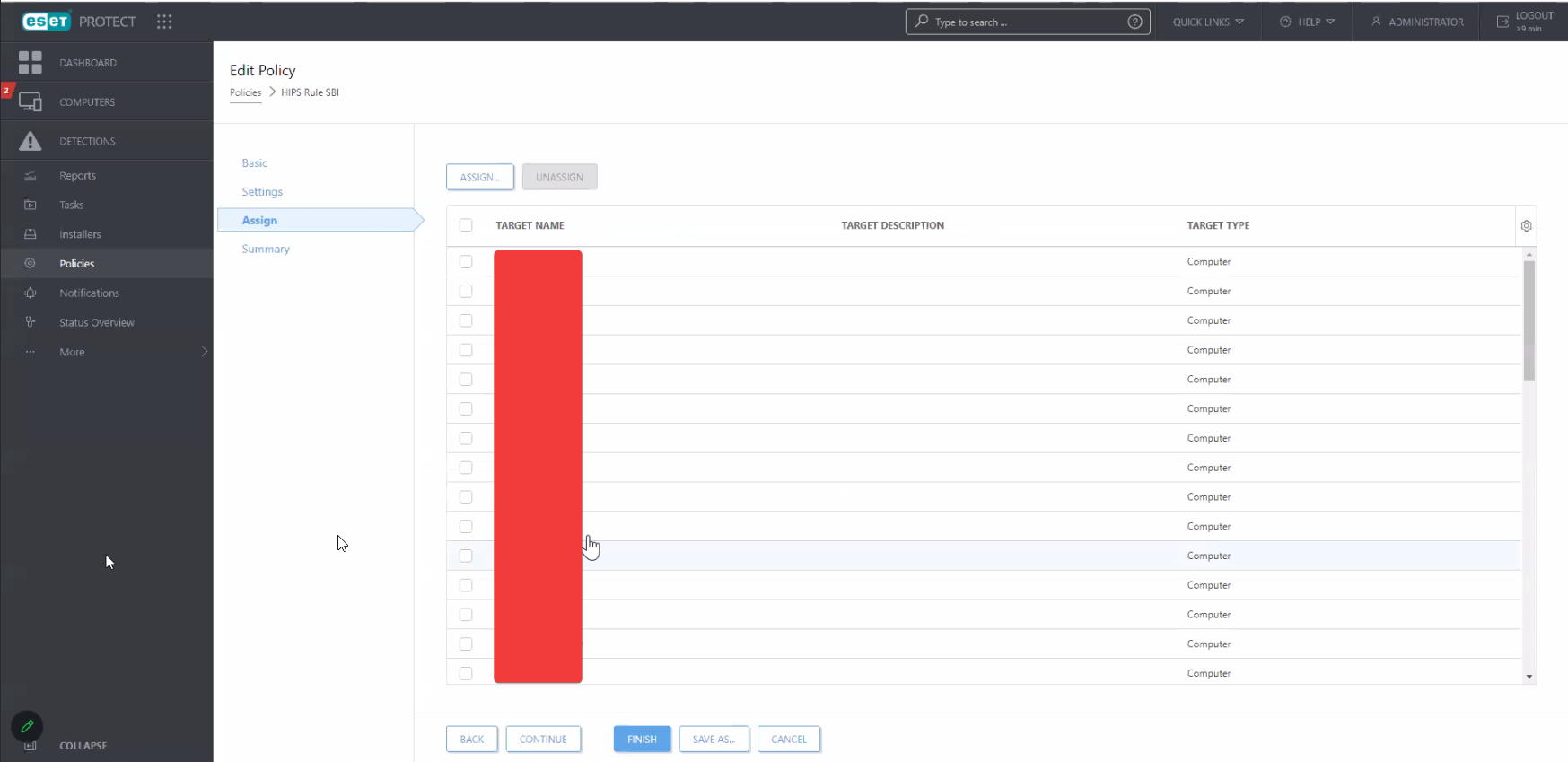
Once the configuration steps are completed, proceed to the Assign tab. Assign the new rule to corresponding systems.
-
The rule should become visible in your ESET host. Refer to the Advanced Setup menu > HIPS tab > Basic section > Rules tab.
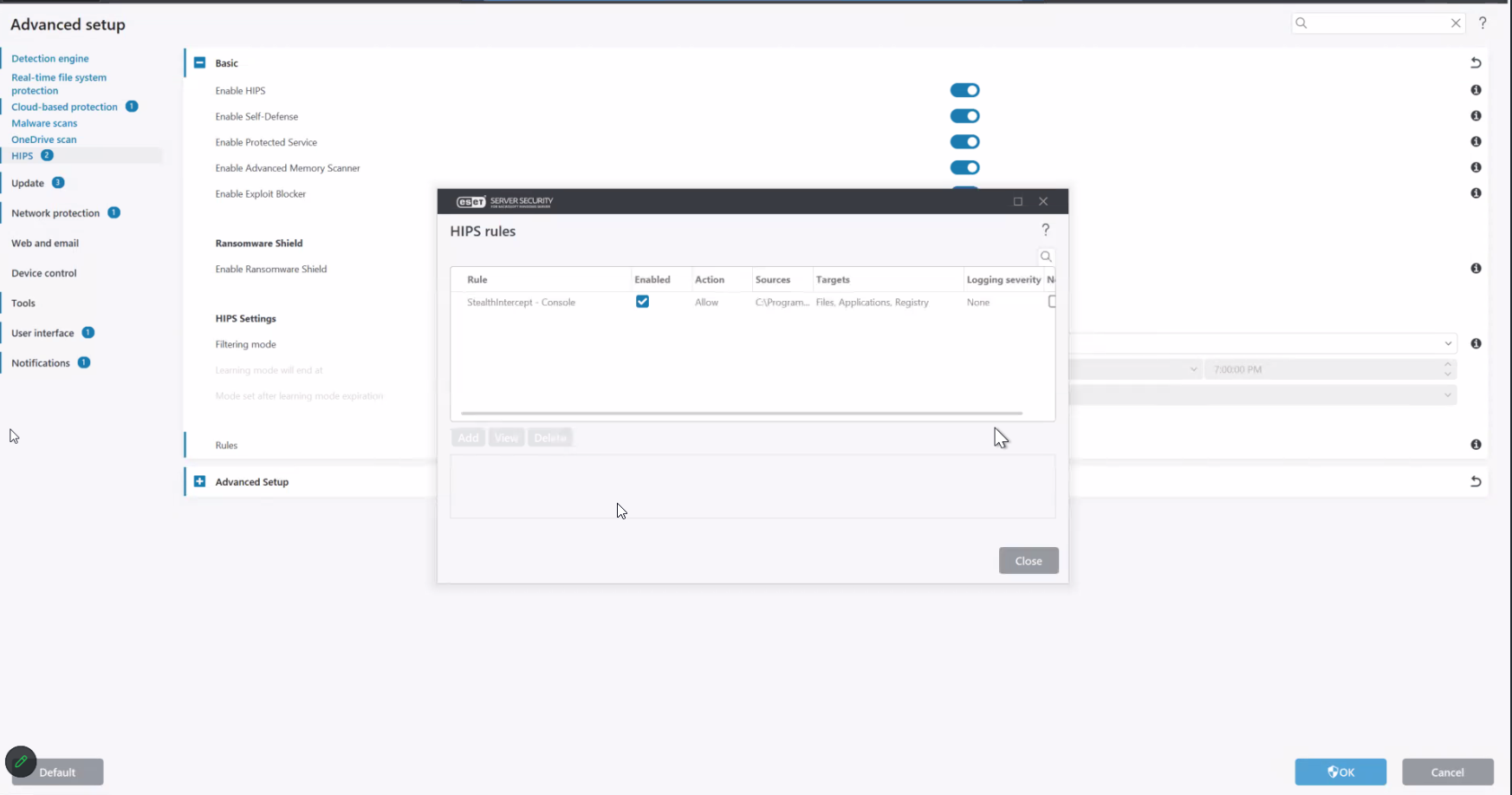
NOTE: Once the rule is applied, SI Agent should be restarted.