PPS Properties Page
The Password Policy Server (PPS) is the Password Policy Enforcer component that checks passwords and responds to queries from the Password Policy Client. PPS properties are global settings that apply to all Password Policy Enforcer policies. See the Password Policy Client topic for additional information. If you choose any of the options that log PPE Events, the events are viewable in Windows Event Viewer. See the View Event Logs in Windows Event Viewer topic for additional information.
Complete the following steps to open the PPS Properties page:
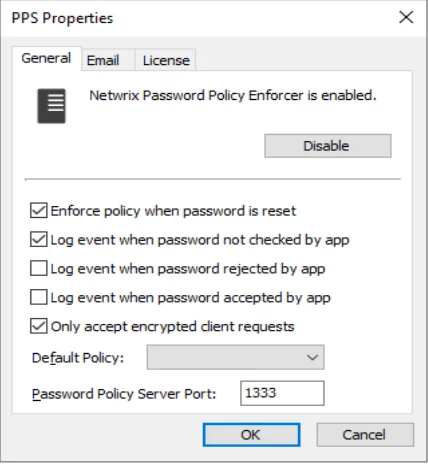
Step 1 – Click the Password Policy Server item to display the Password Policy Server view.
Step 2 – Click PPS Properties in the right pane of the management console.
Step 3 – Click the Disable/Enable button to disable or enable Password Policy Enforcer.
General Tab
The General tab provides options to enable or disable policy enforcement and log events.
-
Enforce policy when password is reset — Check this box if Password Policy Enforcer should enforce the password policy when a password is reset.
- If this option isn't selected, administrators and helpdesk operators won't have to comply with the password policy when resetting a user's password, or creating a new user account.
- This option doesn't change the behavior of the Minimum Age rule, as this rule is never enforced during a reset.
- The History rule is only enforced during a reset if this checkbox is selected, and the Enforce this rule when a password is reset checkbox is selected in the History Rule Properties page. See the Rules topic for additional information.
-
Log event when password not checked by app— Check this box if Password Policy Enforcer should add an entry to the Windows Application Event Log whenever it accepts a password without checking it. This may occur if:
- Password Policy Enforcer is disabled
- The policy assigned to a user is disabled
- No policy is assigned to a user or an error occurs when determining the assigned policy, and a Default Policy isn't specified
- A password is reset, and the Enforce policy when password is reset checkbox isn't selected
-
Log event when password rejected by app— Check this box if Password Policy Enforcer should add an entry to the Windows Application Event Log whenever it rejects a password. The logged event includes the following:
-
Username
-
Source (client or server)
-
The rules the password didn't comply with.
notePassword Policy Enforcer doesn't send passwords or password hashes over the network, even when logging rejections by the Password Policy Client.
Most Password Policy Enforcer rules are enforced by both the Password Policy Client and Password Policy Server. If the Password Policy Enforcer Client is installed, then it will often reject a non-compliant password before Windows sends it to the domain controller. The following limitations apply when a password is rejected by the Password Policy Client:
-
An event is only logged if the Password Policy Enforcer Client version is 9.0 or later.
If a password is rejected by an earlier client version, then no event is logged. If a password is rejected by the Password Policy Server, then an event is logged irrespective of the client version.
-
The logged event may not show all the rules the password didn't comply with because some rules are only enforced by the Password Policy Server.
For example, a password that doesn't comply with the Length, Complexity, and Compromised rules would only show the Length and Complexity rules in the event when rejected by the Password Policy Enforcer Client because the Compromised rule is only enforced by the server.
If the Password Policy Enforcer Client isn't installed, then the server logs the event with all three rules because the server enforces all these rules. See the Rules topic for additional information.
-
Client rejections may not be logged, or they may be logged more than once if the Password Policy Client and Password Policy Server can't communicate reliably.
-
-
Log event when password accepted by app— Check this box if Password Policy Enforcer should add an entry to the Windows Application Event Log whenever it accepts a password. The logged event includes the username.
-
Only accept encrypted client requests — Check this box if Password Policy Enforcer should only accept encrypted requests from the Password Policy Client, Netwrix Password Reset, Password Policy Enforcer/Web. See the Password Policy Client topic and the Netwrix Password Reset and Web topic for additional information.
-
Client requests don't contain passwords or password hashes, and they weren't encrypted prior to Password Reset and Web V9.0.
-
Select this option if you aren't using the Password Reset/Web V8.x Password Policy Client, Password Reset V3.x, or PPE/Web V7.x (or earlier). Password Policy Enforcer accepts both encrypted and unencrypted requests if this option isn't selected.
noteFor versions v9.x and above, this option is selected by default.
-
Choose a password policy from the Default Policy dropdown list. Users must comply with the default policy if no other policy is assigned to them. See the Managing Policies topic for additional information. Using Password Policy Enforcer without a default policy isn't recommended, as it may leave some passwords unchecked.
Exempt Users from a Password Policy
Complete the following steps to exempt some users from having to comply with the password policy when a default policy is specified.
Step 1 – Create a new policy for these users.
Step 2 – Leave all the rules disabled for this policy.
Step 3 – Assign this policy to the users who don't have to comply with any Password Policy Enforcer rules.
Refer to the Managing Policies topic for a diagrammatic representation of Password Policy Enforcer's policy selection algorithm, or use the Test Policies page to quickly determine which policy Password Policy Enforcer enforces for a particular user. See the Managing Policies topic for additional information.
If Password Policy Enforcer has only one policy and that policy is also the default policy, then Password Policy Enforcer enforces the policy for all users.
The Password Policy Client and Password Policy Server communicate over UDP port 1333 by default. If you need to change the default port, then enter the new port number in the Password Policy Server Port text box. Setting the port number to zero stops Password Policy Enforcer from accepting client requests. If you change the port number, then you must also:
- Restart all the Password Policy Server computers.
- Configure the Password Policy Client to use the new port.
Disabling and Enabling Password Policy Enforcer
You can disable Password Policy Enforcer to stop checking new passwords for compliance with the password policy.
Complete the following steps to disable Password Policy Enforcer.
Step 1 – Click the Password Policy Server item to display the Password Policy Server view.
Step 2 – Click PPS Properties in the right pane of the management console.
Step 3 – Click Disable.
Step 4 – Click Yes to confirm, then click OK.
Step 5 – Click OK to close the PPS Properties page.
The Password Policy Server icon in the left pane of the management console displays a red X when Password Policy Enforcer isn't checking passwords.
Complete the following steps to re-enable Password Policy Enforcer.
Step 1 – Click the Password Policy Server item to display the Password Policy Server view.
Step 2 – Click PPS Properties in the right pane of the management console.
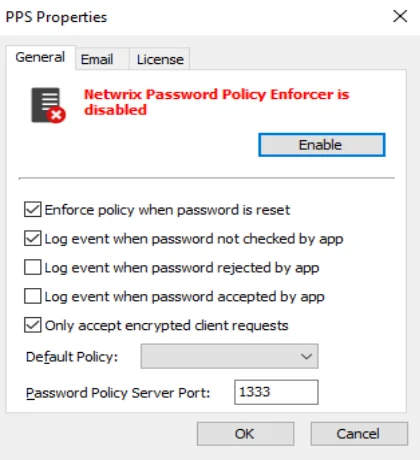
Step 3 – Click Enable, then click OK.
Step 4 – Click OK to close the PPS Properties page.
Password Policy Enforcer is disabled or enabled immediately, but if the management console is connected to a domain configuration, Active Directory propagates the change to other domain controllers with a short delay. See the Connect to a Configuration topic for additional information. A user's password history may be updated even when Password Policy Enforcer is disabled. See the Rules topic for additional information.
Email Tab
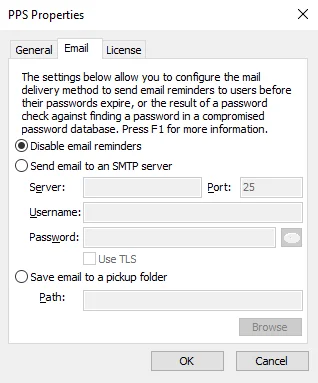
Use the Email tab to configure the e-mail delivery options.
-
Disable email reminders – Select this option if you prefer not to receive email reminders.
-
Send email to an SMTP server – Select this option if you want receive email reminders.
-
Server – Provide the server address.
-
Port – Provide the number of the port you are using.
-
Username – Provide your username.
-
Password – Provide your password.
- Use TLS – Select this checkbox if you want to use TLS email encryption.
-
-
Save email to a pickup folder – Select this option if you want to have a backup copy of the sent email.
- Path – Click Browse and select the path to the pickup folder.
License Tab
The License tab shows the status of your license.
Click the License tab to display your Password Policy Enforcer license details.
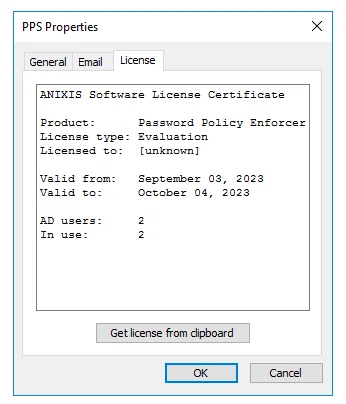
Step 1 – Receive a license key from Netwrix Support after purchasing the Netwrix Password Policy Enforcer.
If you haven't yet purchased the product, you can contact Netwrix Support to obtain it.
Step 2 – Copy the license certificate to the clipboard.
Step 3 – Click Get license from clipboard button.
The license file has been imported.
View Event Logs in Windows Event Viewer
Complete the following steps to view events logs in Windows Event Viewer.
Step 1 – Open Windows Event Viewer.
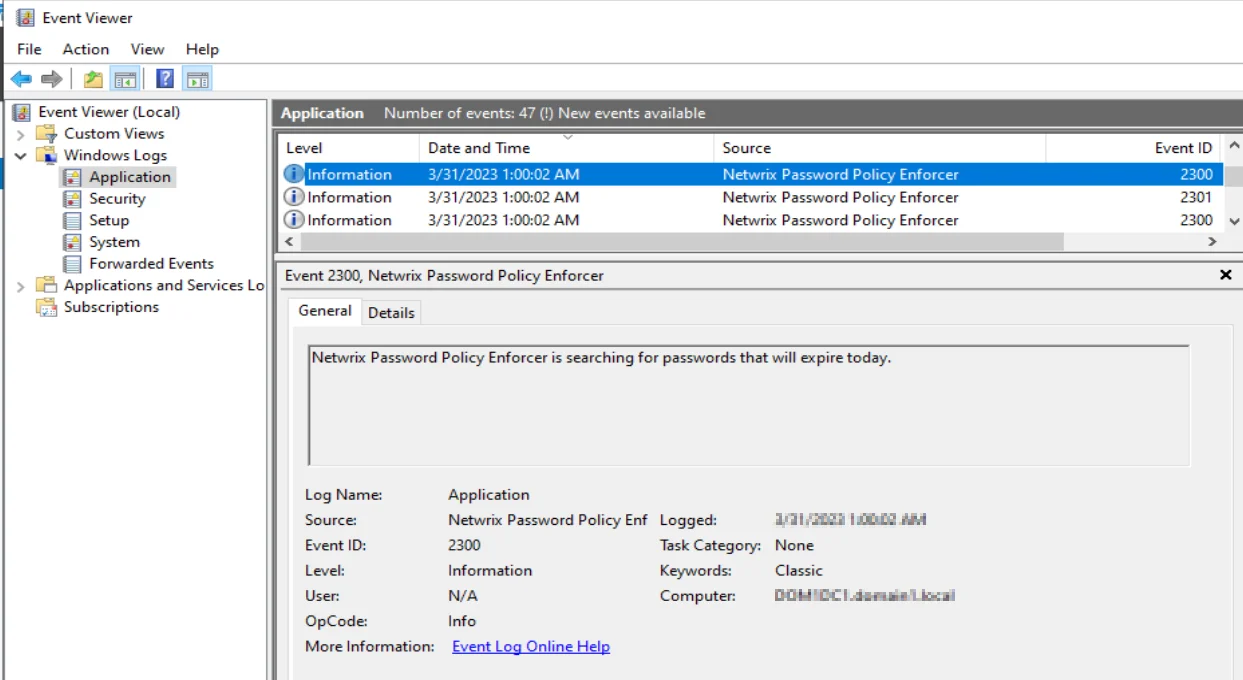
Step 2 – Navigate to Windows Logs > Application.
Step 3 – In the Application list, select a Netwrix Password Policy Enforcer event under the Source column.
The General tab shows details for the selected event. The Details tab shows...
View Log Properties
To view Log Properties, navigate to the Actions menu and select Properties.
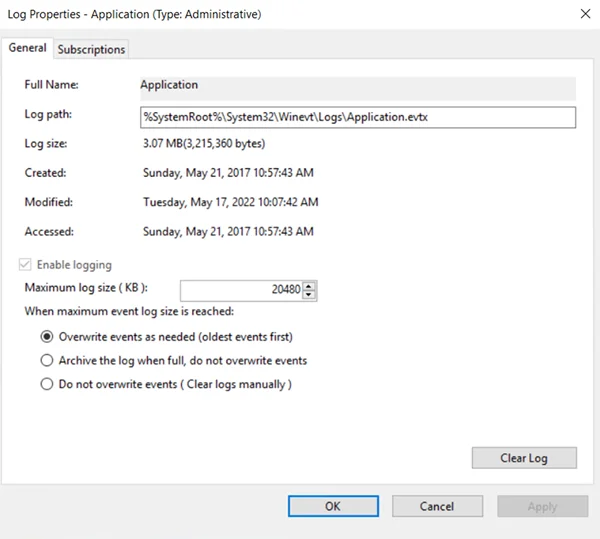
The Log Properties window displays. You can configure settings for this log from this window.