Support Tools
Use the Support Tools page to create a Configuration Report that you can send to Netwrix Support, or to directly edit Password Policy Enforcer's configuration settings.
Configuration Report
Create a Configuration Report and e-mail it to Netwrix Support if Password Policy Enforcer isn't working as expected. The Configuration Report helps Netwrix Support diagnose the problem.
Complete the following steps to create a Configuration Report.
Step 1 – Click the Password Policy Server item to display the Password Policy Server view.
Step 2 – Click Support Tools in the right pane of the management console.
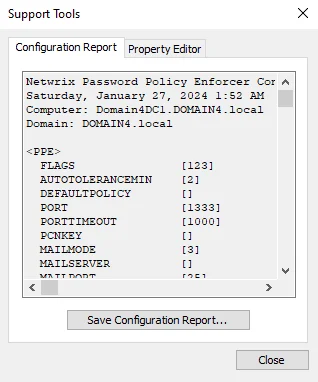
Step 3 – Click Save Configuration Report...
Step 4 – Enter a file name, then click Save.
Create Configuration Report as Text or HTML for Auditors
Password Policy Enforcer 10.2 doesn't support exporting reports. However, you can export Password Policy Enforcer's domain configuration with the following command:
ldifde -f PPE10.1.txt -d "CN=Password Policy Enforcer 10.0,CN=System,DC=netwrix,DC=net" -l url,wWWHomePage
Change the domain name in the command to match your domain. User, group, and OU assignments aren't valid in the new domain and must be updated after the import. Do this from the PPE Management Console in the Policy Properties page for each policy. See the Assigning Policies topic for additional information. You must also import your license into the new domain from the About tab on the PPS Properties page.
Complete the following steps to edit the edit the PPE10.1.txt file .
Step 1 – Open the PPE10.1.txt file in a text editor.
Step 2 – Replace changetype: add with changetype: modify
Step 3 – Add the line replace: wWWHomePage above the line starting with wWWHomePage:
Step 4 – Add a line with just a "-" (hyphen) character below the line starting with wWWHomePage:
Step 5 – Add the line replace: url above the line starting with url::
Step 6 – Add a "-" hyphen near the end of the file, below the last line in the URL attribute
Step 7 – Open ADSIEdit or AD Users and Computers in the target domain and clear the URL and www wWWHomePage attributes for the Password Policy Enforcer configuration object (CN=Password Policy Enforcer 10.0,CN=System).
Step 8 – Import configuration with the following command:
ldifde -i -f PPE10.1.txt
Check URL and wWWHomePage attributes in ADSIEdit or AD Users and Computers before opening PPE Management Console to ensure that configuration has been maintained.
Property Editor Tab
Use the Property Editor to directly edit the Password Policy Enforcer configuration. You should only use the Property Editor if instructed to by Netwrix Support.
Only configure the settings on the Property Editor tab if instructed to do so by Netwrix Support.
Complete the following steps to open and configure the Property Editor.
Step 1 – Click the Password Policy Server item to display the Password Policy Server view.
Step 2 – Click Support Tools in the right pane of the management console.
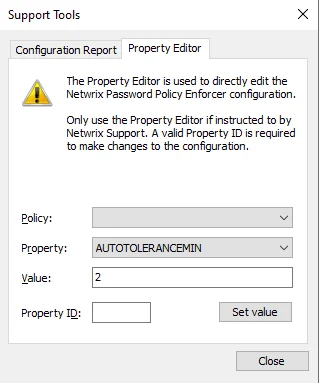
Step 3 – Click the Property Editor tab.
Step 4 – Select the policy you want from the dropdown list.
Step 5 – Select property from the dropdown list.
Step 6 – Enter a value directly related to the Property ID.
Step 7 – Provide a valid Property ID to make changes in the configuration.
Step 8 – Click Set value.
Step 9 – Click Close to save the updates.