HIBP Updater
You can configure Password Policy Enforcer to use the Have I Been Pwnd (HIBP) database. The Netwrix website hosts a copy of this database. The HIBP database contains a list of the hashes of known compromised passwords. For password change operations, you can configure the application to reject passwords with a hash that matches a hash in the HIBP database. See the Password Policy Enforcer Compromised Password Check topic for HIBP database information and configuration options.
You must first deploy the HIBP database to a server or workstation that has an internet connection and can retrieve and format the file. After you format the database, you can distribute the HIBP database to your domain controllers so the Password Policy Enforcer server can check passwords against the HIBP database.
Considerations When Deploying the HIBP Database
Before deploying the HIBP database, consider the pros and cons of each deployment location.
- The HIBP database takes up additional space (approximately 13 GB, but subject to change) on the machine where you copy it
- Checking passwords against the HIBP database doesn't require a network connection to the application server
Installation and Configuration
Installing the Password Policy Enforcer Configuration Console also installs the HIBP Updater.
Only run this from one server.
Step 1 – To access the HIBP Updater, navigate to the installation location:
*...\Program Files\Password Policy Enforcer\HIBP*
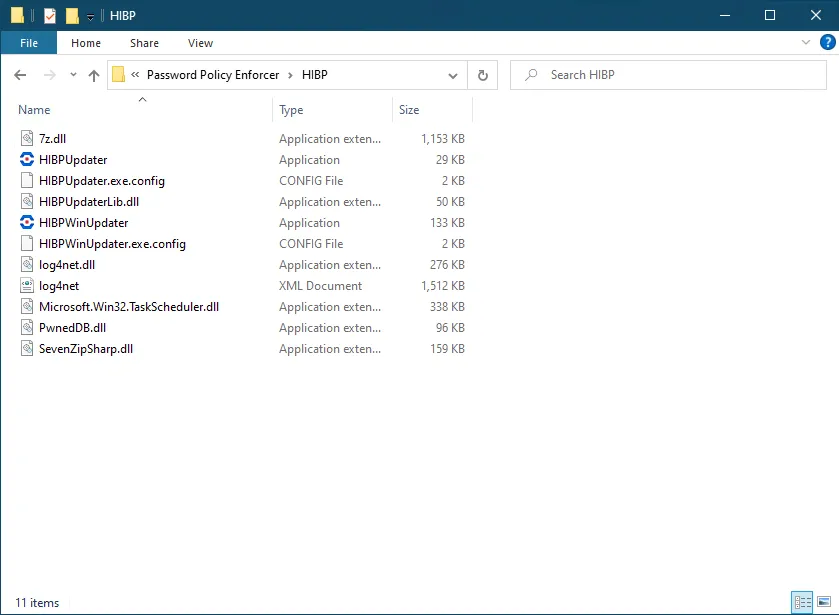
Step 2 – Click HIBPWINUpdater.
Passwords Hash Database
Password Policy Enforcer uses the Passwords Hash database to check if users’ new and pending password (i.e. during a password reset) matches the hash of a compromised password from a data breach.
First-time configuration of this window requires downloading the HIBP database from the Netwrix website.
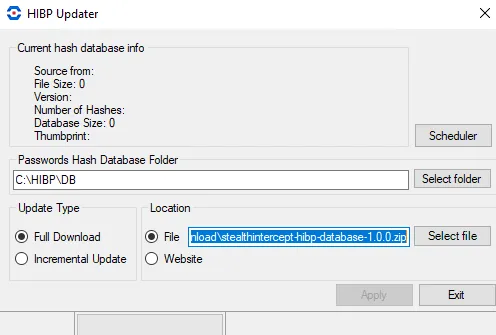
Run the initial database update during non-office hours. Due to the size of the hash file, this download consumes significant CPU and time.
- Passwords Hash Database Folder – Central location of the Pwned database on the application server. The default path is:
…\HIBP\DB
-
Update Type:
-
Full Download – Download all data from the HIBP database hosted on the Netwrix website
-
Incremental Update – Download updates from the HIBP database hosted on the Netwrix website instead of downloading the full HIBP database. This option becomes available after a full download of the HIBP database completes.
noteOnly the full HIBP database file that you download from the Netwrix website has version information. You can obtain that full HIBP database file using the Website option. Alternately, you can obtain the HIBP database outside of the application by downloading it directly from the Netwrix website using an FTP connection:
- https://releases.netwrix.com/resources/stealthintercept/stealthintercept-hibp-database-1.0.0.zip
- https://releases.netwrix.com/resources/stealthintercept/stealthintercept-hibp-database-1.0.0.zip.sha256.txt
Then use the File option to enable incremental updates.
-
-
Location:
- File – If the application server doesn't have internet access, you can manually download the HIBP database and select the File radio button to browse to your local copy of the database
- Web Site – This option points to the Netwrix website that hosts a copy of the latest HIBP database. This is the default option and the preferred method if the application server has internet access.
-
Apply:
- If you select Website, clicking Apply downloads the HIBP database from the Netwrix website and then processes the database for use by the application
- If you select File, clicking Apply processes the local copy of the (manually obtained) database for use by the application
Hash File Replication
Password Policy Enforcer doesn't distribute hash file updates to other computers, but you can use the Windows Distributed File System to ensure that all domain controllers have the latest hash files. Copy the hash files into the Sysvol share on one domain controller, and the Distributed File System will copy the files into the Sysvol share of all other domain controllers. Configure the Compromised rule to read the files from:
\127.0.0.1\sysvol\your.domain\filename.db
See the Compromised Rule topic for additional information.
This path only works if the computer has a Sysvol share. This won't be the case if you use a workstation for policy testing, or if you use Password Policy Enforcer to enforce local policies. If you use Password Policy Enforcer for local policies and want all computers to receive hash file updates, then use the Sysvol share for file replication and a script or scheduled task to copy the file to a local folder.
Read hash files only from a local disk. Using shared hash files degrades performance, and could jeopardize security.
Scheduler
Password Policy Enforcer administrators can use the Scheduler in the HIBP Updater to automate retrieving and preparing the HIBP dataset. The Scheduler uses Microsoft Task Scheduler to run the process.
How to Schedule a Task
Step 1 – Click Scheduler in the HIBP Updater.
Step 2 – Click Add Schedule. An Edit Schedule window appears. It looks similar to the HIBP Updater window.
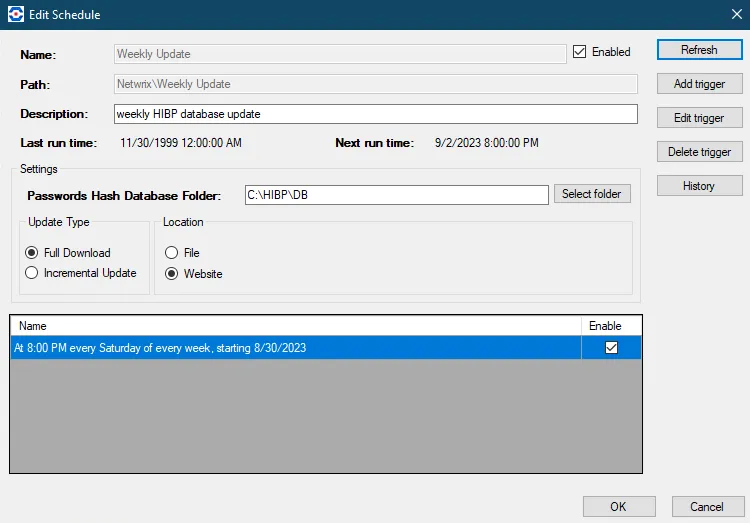
Step 3 – Enter the Name and Description of the schedule.
Step 4 – Select Add Trigger to add the interval at which you want the schedule to run.
- You can add as many triggers as you want to a schedule.
Step 5 – Select the Update Type and Location to get the update.
Step 6 – After you set up your schedule, click OK to save it.
The HIBP Updater updates the HIBP database according to the schedule.
Schedule List
The Schedule List window shows the names, run times, next run times, and whether each schedule is enabled.

Use this window to Add, Edit, or Delete schedules for the HIBP Updater.