PPEWeb Downloads DLL File When Using Web GUI
Symptom
When you attempt to load a page, Netwrix Password Policy Enforcer Web downloads PPEWeb.dll instead.
Cause
The IIS server role does not include Internet Server API (ISAPI) Extensions, and the ISAPI and CGI Restrictions feature in IIS Manager does not list PPEWeb.dll as an allowed entry.
Resolution
Enable ISAPI Extensions
- Open Server Manager on the server hosting IIS:
- Press Windows Key + R.
- Type
servermanagerin the open field and click OK.
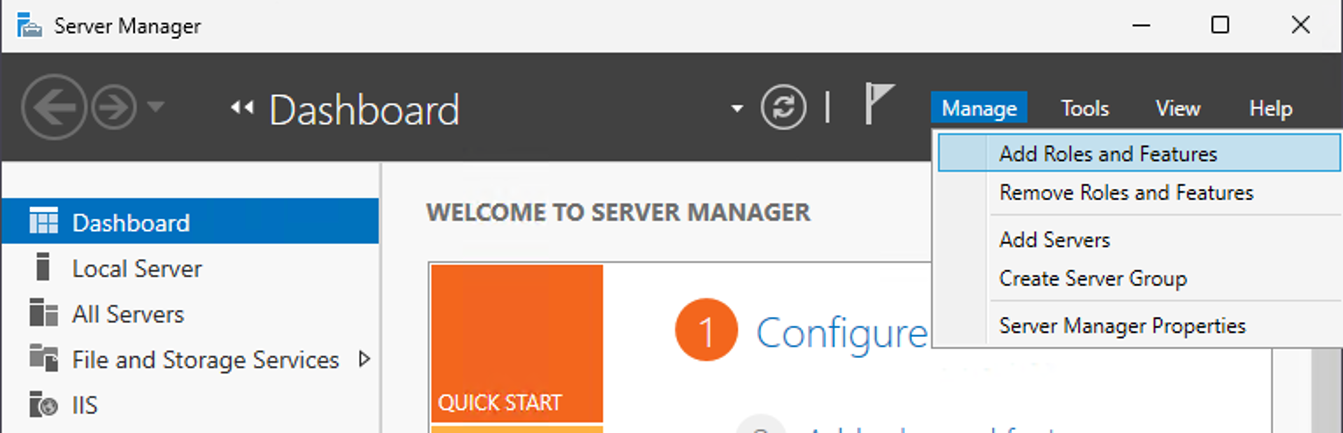
- In Server Manager click Manage, then click Add Roles and Features, which opens the Add Roles and Features Wizard.
- In Before You Begin, Installation Type, and Server Selection, accept the defaults and click Next.
- On Server Roles, expand Web Server (IIS) > Web Server > Application Development and select ISAPI Extensions.
- Complete the wizard to install. If IIS already includes ISAPI Extensions, continue to the next step.
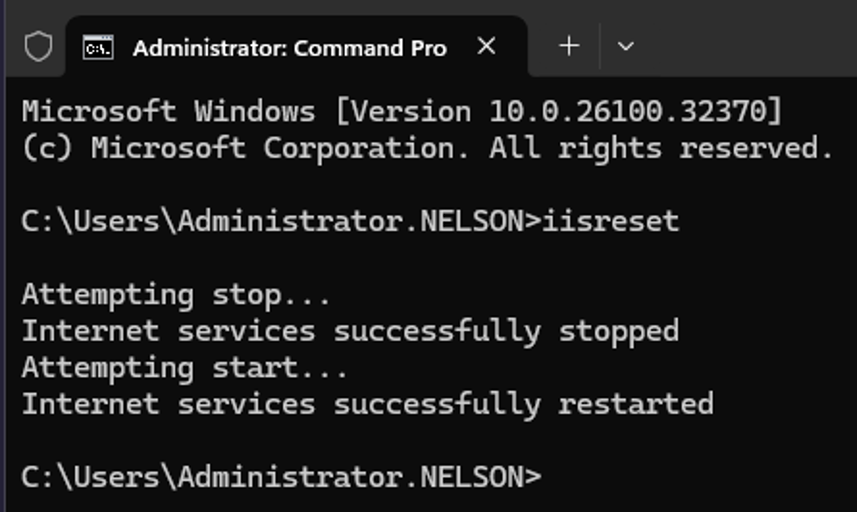
- Close IIS Manager if it is open, then run
iisresetfrom a command prompt.
Allow PPEWeb.dll in ISAPI and CGI Restrictions
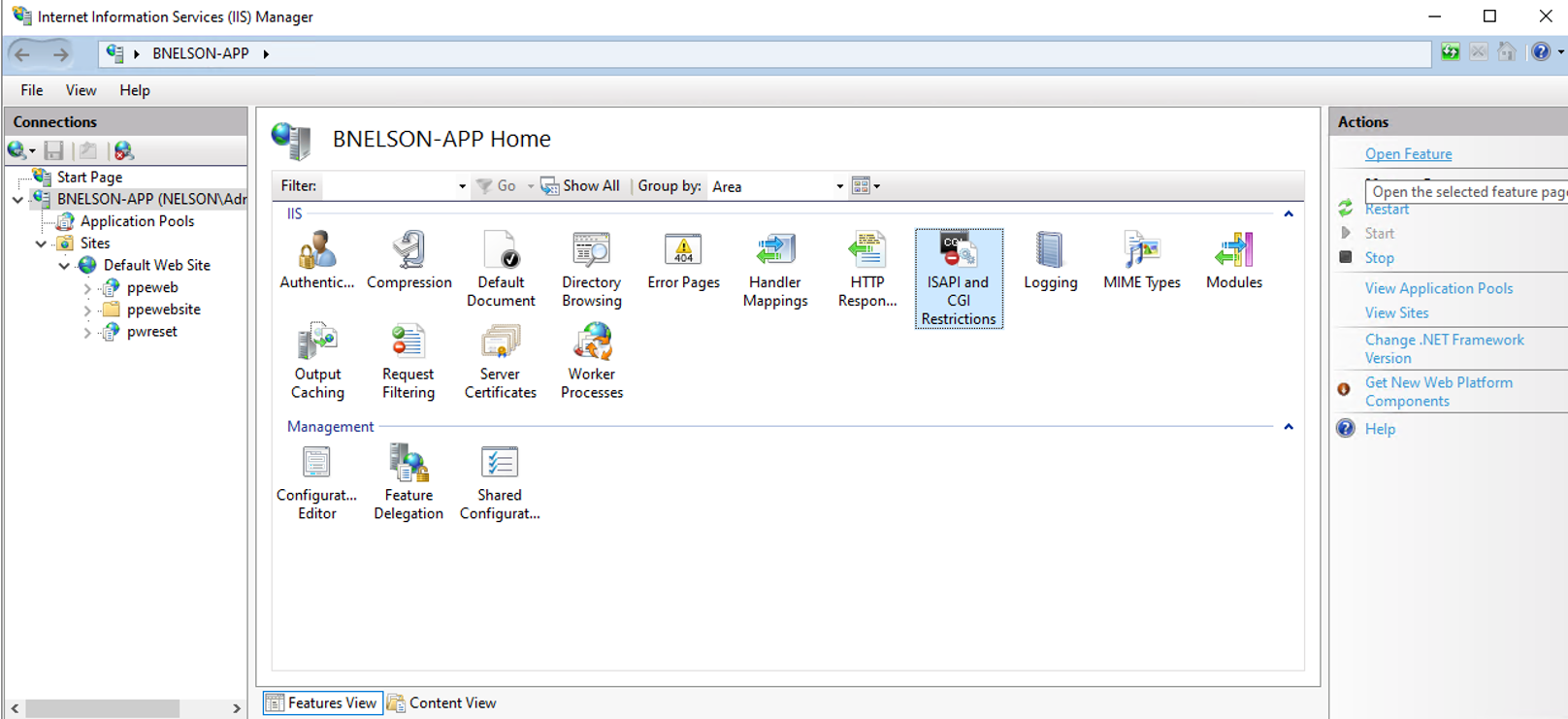
- Open IIS Manager and navigate to the server name in the Connections pane. In Features View, select ISAPI and CGI Restrictions.
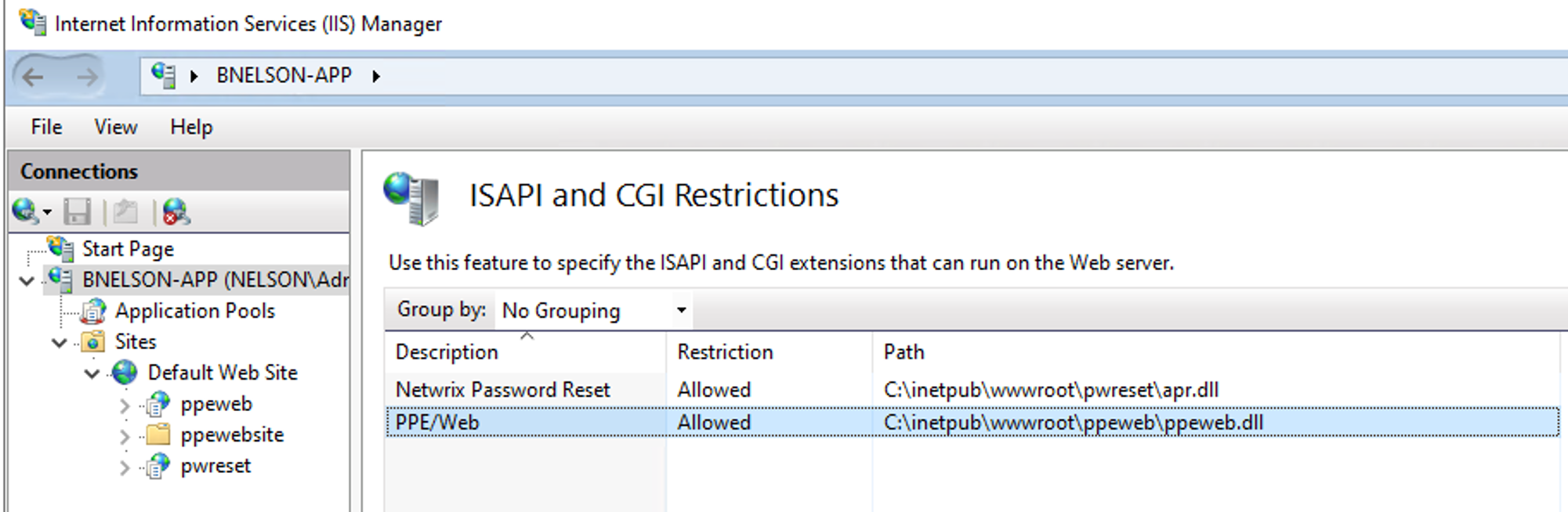
- In ISAPI and CGI Restrictions, locate PPEWeb. Set the restriction to Allowed and set the path to
PPEWeb.dll.
- If
PPEWeb.dlldoes not appear in the list, use Add or Edit in the Actions pane. Enter the path toPPEWeb.dll, add a description to identify the entry, and select Allow extension path to execute.
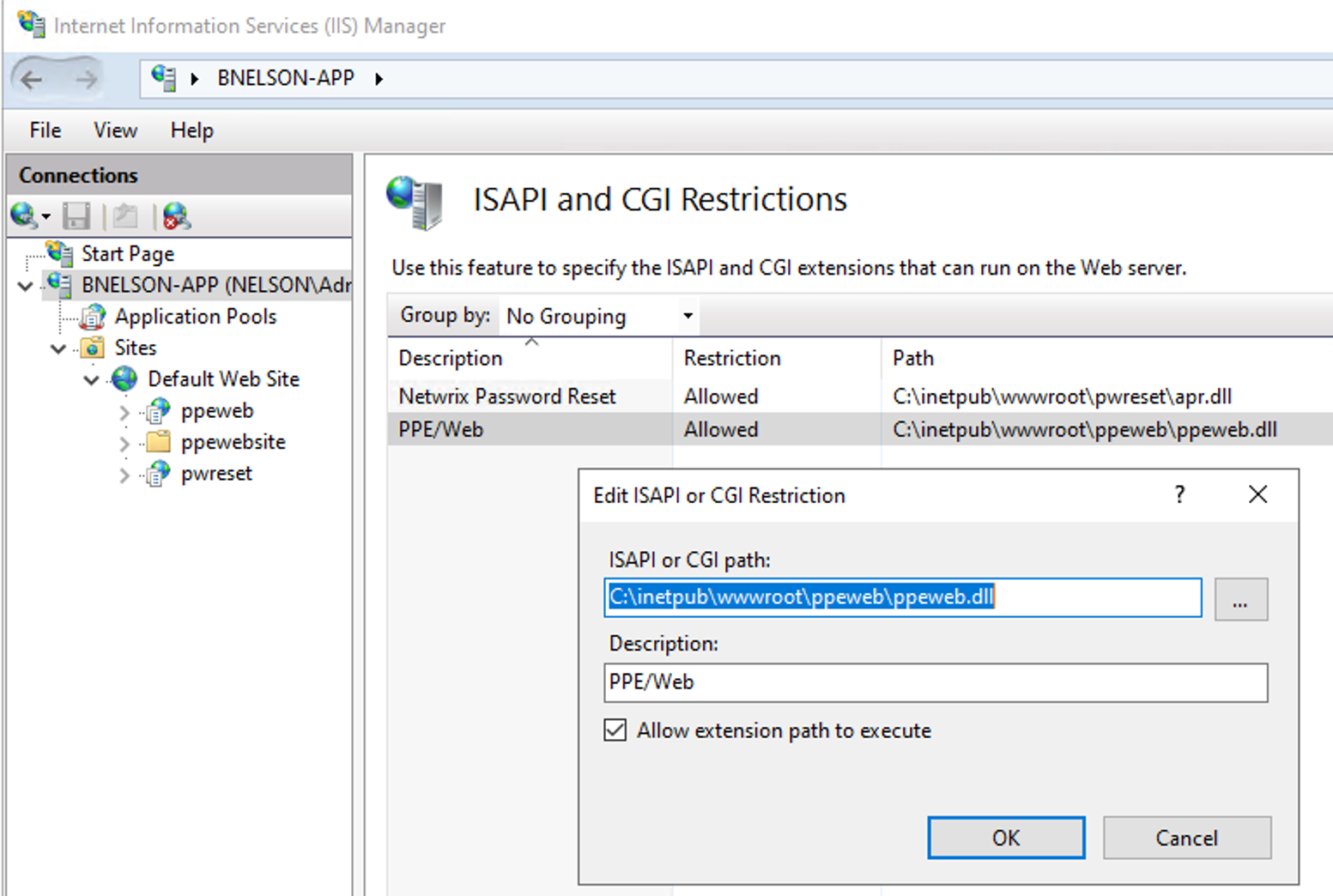
- Close IIS Manager and run
iisresetfrom a command prompt.
Verify the Fix
- Clear the browser cache.
- Verify that clicking Change Password in the web GUI loads the change password page instead of downloading
PPEWeb.dll.