Messages
The Password Policy Client displays customizable messages when users change their password. You can customize these messages from the Messages tab.
- Open the PPE Configuration Console.
- Click the name of a policy in the policy list.
- Select the Messages tab.
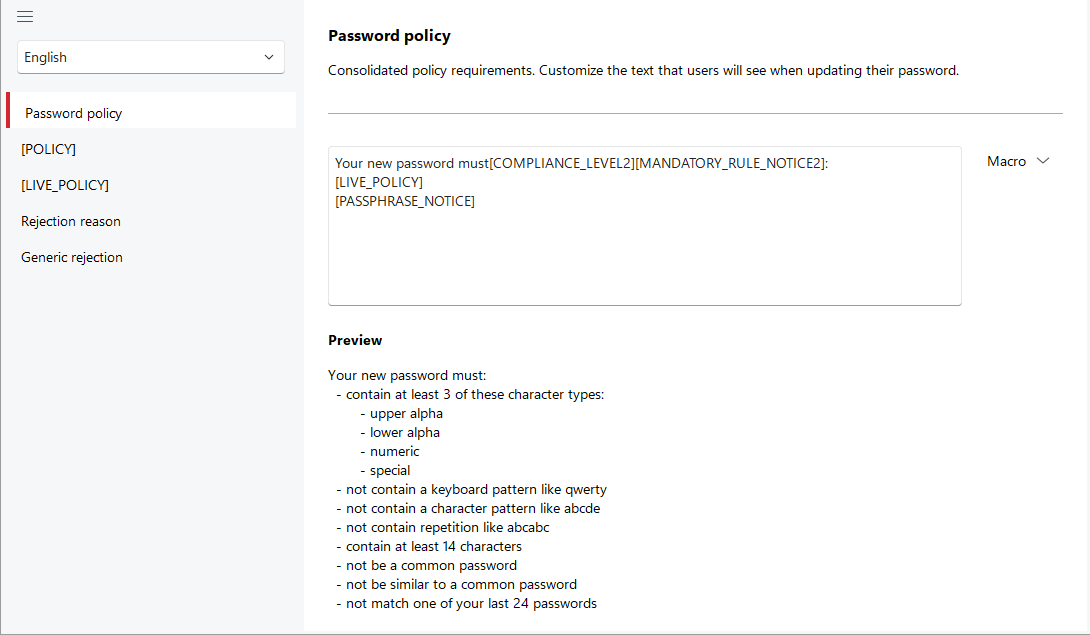
Password Policy Enforcer (PPE) automatically generates messages in English from the policy settings, but you can define messages in other languages by selecting a different language from the language dropdown in the left pane. You can also override the generated English messages by selecting English in the language dropdown.
You don't need to create a new policy for each language. Selecting a language from the language dropdown only changes the language you are editing, not the language for the policy. To configure multiple languages for a policy, select a language, make your edits, and then select another language and repeat. PPE uses the user's Windows settings to decide which language to display.
The left pane also contains a list of templates and macros. Select one of these items to edit it in the right pane.
Message templates
The Password Policy Client displays three messages to users. Password Policy Enforcer builds these messages from message templates, macros, and rule inserts (the text a rule adds to a macro). There are three message templates:
- PPE uses the Password policy template for the message that users see while they change their password. This message explains the password policy. It can also display a "live" policy to show users which rules their password complies with as they type.
- PPE uses the Rejection reason template for the message it shows when it rejects a password. This message tells users which rules their password doesn't comply with.
- PPE also uses the Generic rejection template when it rejects a password, but only if it doesn't know the rejection reason. This most commonly happens when a Windows password policy rejects the password. This message doesn't tell users which rules their password doesn't comply with.
Password policy template
When you select Password policy in the left pane, you see a multiline text box with the template in the right pane, a Preview below it, and a Macro dropdown on the right.

The default password policy template includes several macros in square brackets. The most important is [LIVE_POLICY]. PPE populates this macro with a list of rules that the password must comply with. An icon beside each line indicates if the new password complies with the rule. The icons update automatically as the user types to give them constant feedback. If you prefer a static policy message without the icons, then change [LIVE_POLICY] to [POLICY]. You must use Password Policy Client 10.2 or later for live policies.
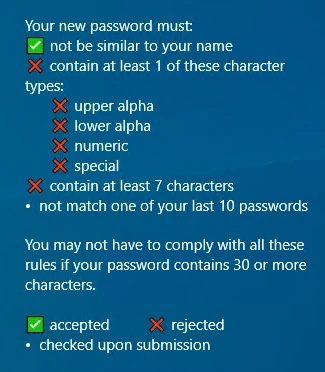
PPE shows the other macros in the default message only when the policy configuration requires them. Leave them for now and replace them with your own text later if necessary.
The Preview section shows you the message built from the template, macros, and rule inserts for this policy. You must click Save in the upper-right corner to update the preview.
You can insert macros into the policy message template by positioning the text cursor where you want the macro, then selecting the name of the macro from the Macro dropdown.
Rejection reason template
The Rejection reason template editor also has a multiline text box for the template, but no preview. The default message text includes only one macro, [REASON]. PPE populates this macro with the list of rules that the password doesn't comply with. PPE generates the reason text for each rule from the policy settings, but you can override the default rule insert text by entering your own text in the relevant text box below the template text box. See the tip in Message macros for how to format rule inserts.

The Dictionary rule inserts only one line into the [REASON] macro by default, even if the password matches a word in both dictionary files. If you enter different text in the Dictionary > Main and Secondary dictionary text boxes, the rule inserts the text for whichever file contains the matching word. If the word appears in both files, the rule inserts both lines.
Generic rejection template
The Generic rejection template editor has only a multiline text box for the template. You can't include any macros in this template.

Message macros
Select [POLICY] or [LIVE_POLICY] in the left pane to edit the rule inserts for these macros. In the right pane, enter the text you want the respective rules to insert. The [LIVE_POLICY] editor has three additional text boxes below the rule inserts. Use these text boxes to define the legend text for the three icons in the live policy.

Rule inserts should generally begin with two spaces, a hyphen, and a space. This sequence isn't mandatory, but PPE recognizes it and displays it as either a bullet point or a compliance icon. If the insert doesn't begin with this character sequence, then PPE adds the text to the macro without any decoration.
You can insert a line break in a rule insert with \n.