Filter Editor
Use the Filter Editor to create complex filters, filters for hidden columns, or to save and open regularly used filters. Press CTRL + F to open the Filter Editor, or click the Filter Editor button in the lower right corner of the Data Console.
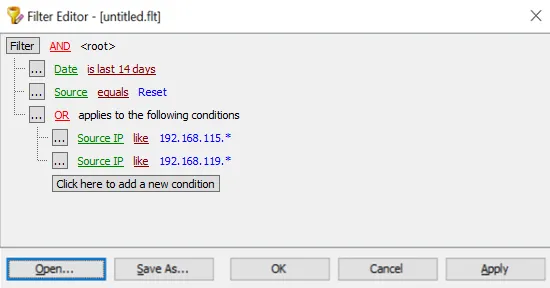
A filter may contain several conditions. Conditions start with a column name, followed by an operator, and sometimes a value. The Filter Editor shows column names in green, operators in maroon, and values in blue.
A filter also contains a root node and optionally one or more groups. These include Boolean operators in the filter. The Filter Editor shows Boolean operators in red. Grouped conditions are indented.
The filter in the image contains the root node, one group, and four conditions. It shows all reset requests in the last fourteen days originating from IP addresses starting with 192.168.115 or 192.168.119.
Click the Click here to add a new condition button to add a new condition to the filter. Click the ellipsis button on the left of each line to add or remove conditions and groups. Click column names, operators, and values to edit them. Most can be selected from a list. Values can also contain the ? and * wildcard characters.
Click Save As... to save a filter to a file, or Open... to use a saved filter. Click OK to close the Filter Editor and apply the filter.
Some columns are hidden in the Data Console. You can use the Filter Editor to create filters for these columns. For example, the filter in the image below shows all users with an NPR v1 enrollment record.
