SAML Application for Dropbox
SAML Configuration Example for Dropbox
This chapter explains how to configure the SAML application for Dropbox. It is assumed that Configuration of SAML has already been activated in the Server Manager.
- Log in as administrator at the Dropbox
- Open the Admin Console
 s
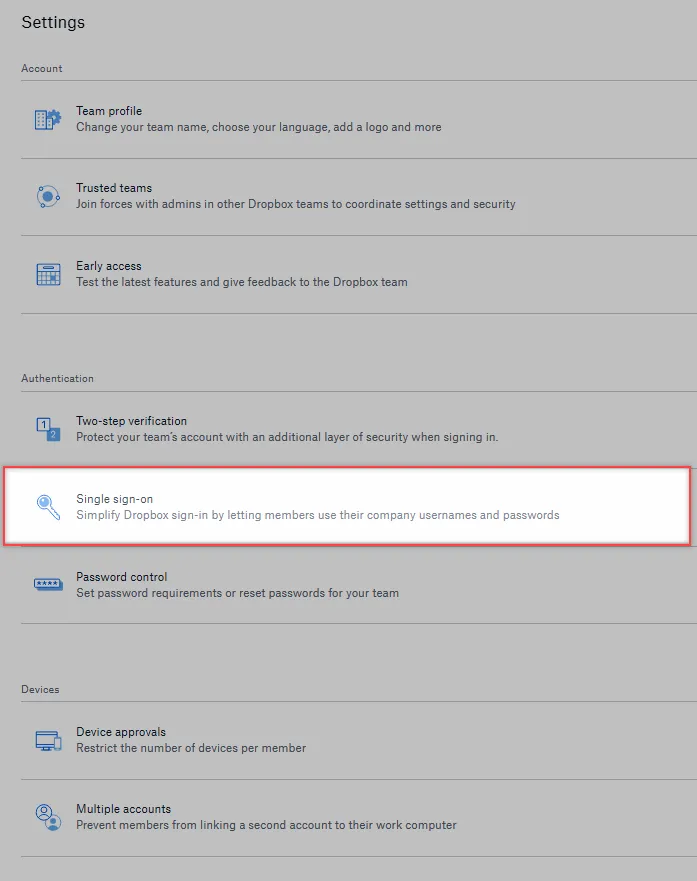
- Open Settings

- Single Sign On
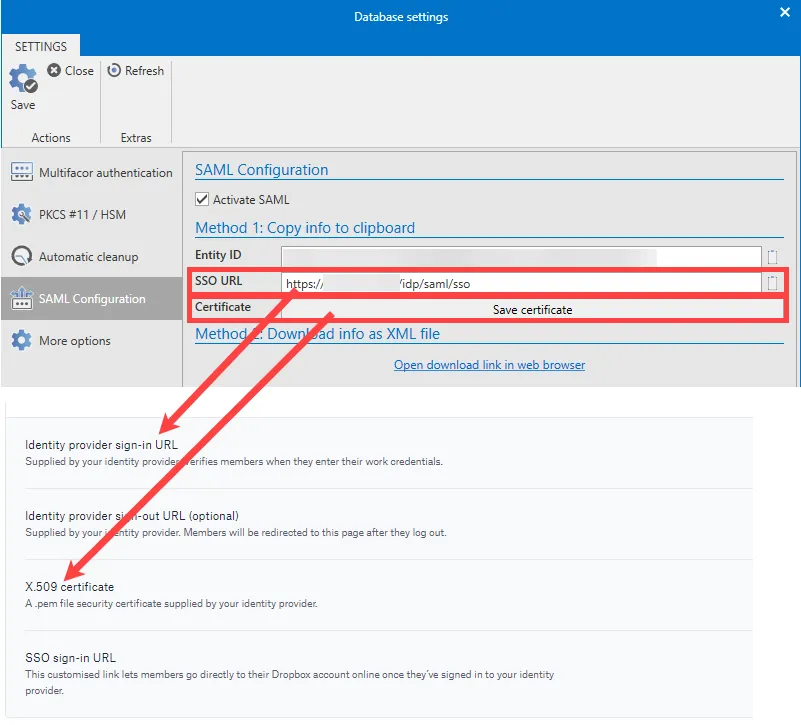
- This is where the data SSO URL and the certificate from the Server Manager must be deposited.
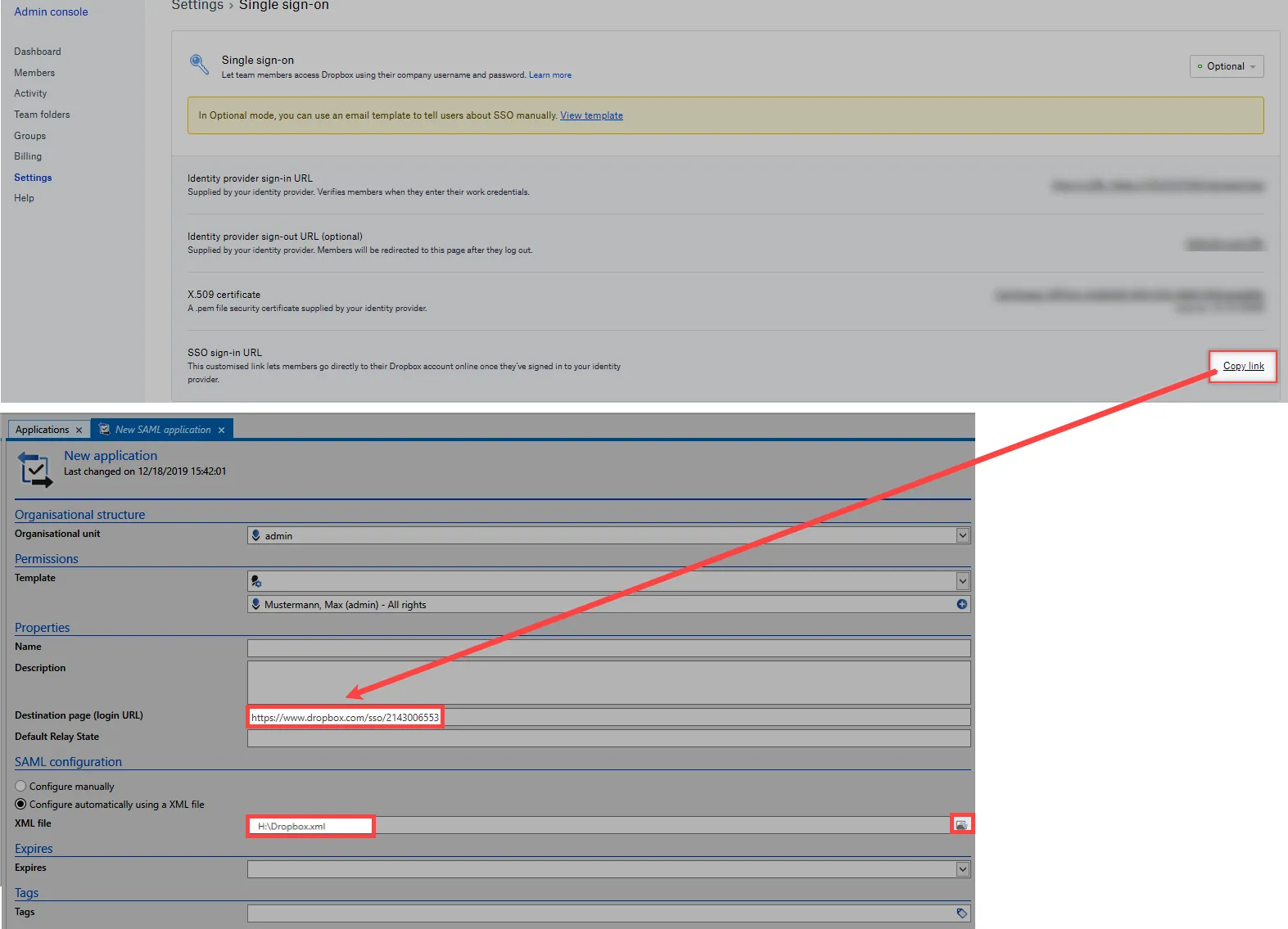
- In the Advanced view, a new SAML application must be created in the Applications module.
- Then the target page (login URL) and the XML file must be stored in the application.
The XML file must look like this.
- The application can now be executed via the Basic view.