Microsoft Entra ID connection
More and more companies use cloud services. Therefore, also the management of users is outsourced. Instead of a classic Active Directory via LDAP, an Entra ID is used more often. Netwrix Password Secure integrates the possibility to bring in users and roles from Azure. To use users and roles from multiple Entra IDs, you can create multiple profiles.
Introduction
Why Entra ID?
More and more companies use cloud services. Therefore, also the management of users is outsourced. Instead of a classic Active Directory via LDAP, an Entra ID is used more often. Netwrix Password Secure integrates the possibility to bring in users and roles from Azure. To use users and roles from multiple Entra IDs, you can create multiple profiles.
Remember, In order to use Azure login with the windows application, WebView2 from Microsoft must be installed on the client device.
Differences to the LDAP connection
The connection to the Entra ID differs in one special point from the connection to a conventional Active Directory. While Netwrix Password Secure queries the users, groups, and roles actively from the conventional AD, the Entra ID is pushing them automatically to our server. For this a so-called SCIM service is used.
To login to Netwrix Password Secure, after entering the username a popup opens for the authentication with the entered Microsoft account. Here, a possible configured second factor is also requested. The authentication is handled via the Open ID Connect protocol.
Linking Entra ID
Below you will find instructions on how to connect Entra ID to Netwrix Password Secure. In the Azure portal, go to the management page of your Microsoft Entra ID. Use an account with administrative permissions for this. During this, login to Netwrix Password Secure with an account that has the user right "Display organisational structure module", "Can manage Entra ID profiles", and "Can create new Entra ID profiles" enabled.
Setup
New enterprise application
Login to the Azure portal and go to the management page of your Microsoft Entra ID.
NOTE: You need an account with administrative permissions
- Write down your "Tenant ID" shown in the Azure console or by using PowerShell:
Connect-AzureAD
- Navigate in your Entra ID to "Enterprise applications"
- Add an own application, that is not listed in the Azure Gallery – in our example, we name it "Netwrix Password Secure"
NOTE: A key feature of Netwrix Password Secure is, that it is self-hosted by our customers. However, to be listed in Azure Gallery, a SaaS model is required. Therefore, Netwrix Password Secure is not available in the Azure Gallery.
- When the application was created successfully, you are redirected to it automatically
- Write down the "Application ID"
- In the navigation, click "Users and groups"
- Add the Users and groups that should be available to Netwrix Password Secure
CAUTION: The import of Azure groups as Netwrix Password Secure roles is only possible if you have booked the Azure package Entra ID Premium P1!
- Navigate to the "Provisioning" page
- Configure the Provisioning Mode to "Automatic"
Netwrix Password Secure Entra ID configuration
NOTE: Your Netwrix Password Secure user need the following permissions:
- Display organisational structure module
- Can manage Azure AD profiles
- Can create new Azure AD profiles
- Navigate to the module "Organisational structure"
- In the toolbar, click on "Manage profiles" in the category "Entra ID"
- Create the profile with your information
- Insert the
Tenant IDand theApplication ID - As soon as the profile has been saved, a popup opens for generating a token
- Choose a desired expiration date (max. 10 years) and click "Generate token"
- Write down the values of the fields "Tenant URL" and "Secret Token"
Azure provisioning configuration
Fill the fields "Tenant URL" and "Secret Token" with the information provided by Netwrix Password Secure Click "Test Connection" When the test has been successful, click on "Save" at the top of the page Back on the "Provisioning" page, click "Start provisioning" In the settings of the provisioning, check if "Provisioning Status" is set to "On" All allocated users and groups are created in Netwrix Password Secure now
NOTE: Azure´s default provisioning interval is 40 Minutes. So it may some time until the users and roles are shown in Netwrix Password Secure.
CAUTION: Please note that Azure establishes the connection to Netwrix Password Secure. For this, the client URL must be accessible from an external network / provisioning agent and any used SSL certificate must be valid! If the users are not created in Netwrix Password Secure, consult the Azure Enterprise Application Provisioning log for more information.
Azure login configuration
To enable the Azure login for your users, a few more steps are required:
- Navigate to the Overview page of your Entra ID
- Navigate to "App registrations"
- If no application is displayed, click "All applications"
- Click on "Netwrix Netwrix Password Secure" and navigate to "Authentication"
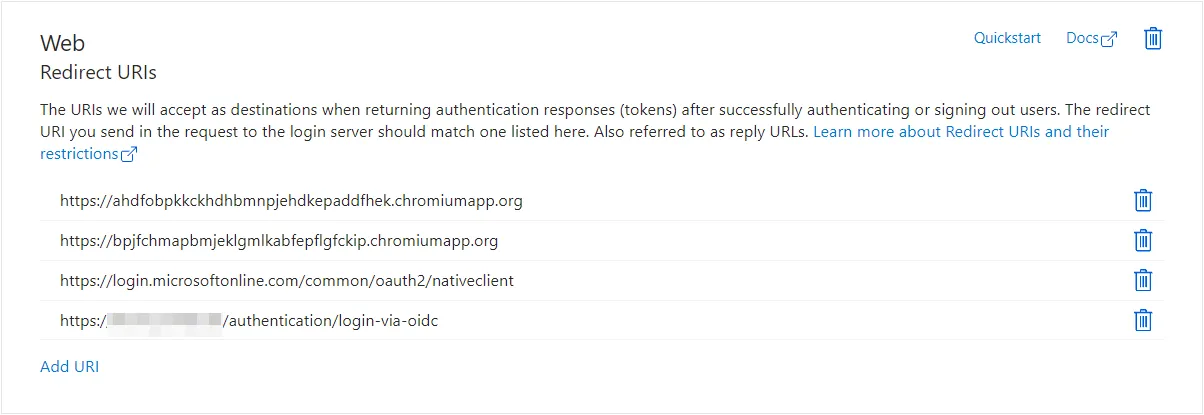
- Click on "Add a platform", select "Web" and configure the required URIs:
| Client | URI |
|---|---|
| Web Application | https://Web Application_URL/authentication/login-via-oidc |
| Advanced view & Autofill | https://login.microsoftonline.com/common/oauth2/nativeclient |
| Google Chrome Extension | https://bpjfchmapbmjeklgmlkabfepflgfckip.chromiumapp.org |
| Microsoft Edge Extension | https://ahdfobpkkckhdhbmnpjehdkepaddfhek.chromiumapp.org |
| Firefox Extension | https://28c91153e2d5b36394cfb1543c897e447d0f1017.extensions.allizom.org |
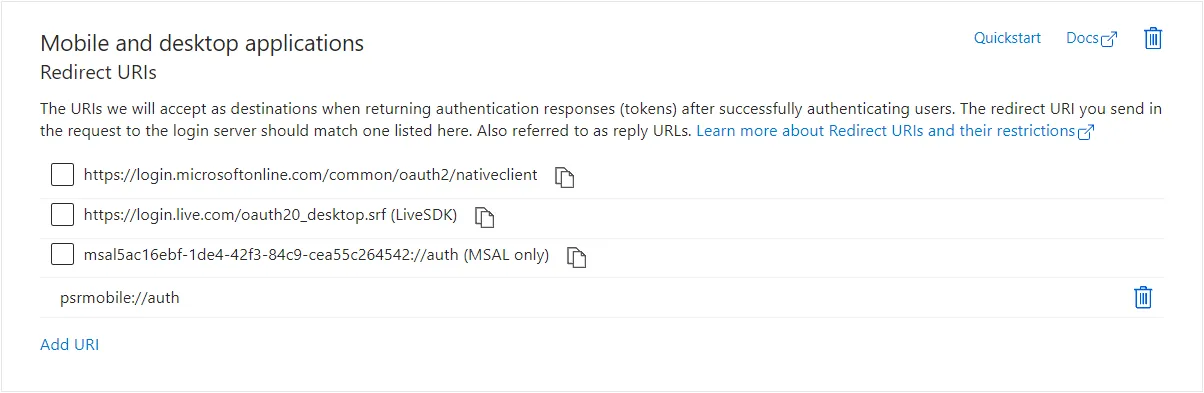
Click on "Add a platform", select "Mobile & desktop applications" and configure the required mobile-app URI:
| Client | URI |
|---|---|
| iOS & Android | psrmobile://auth |
Create client secret
Navigate to your Netwrix Netwrix Password Secure App registration -> Certificates & secrets -> Client secret
Create a client secret:
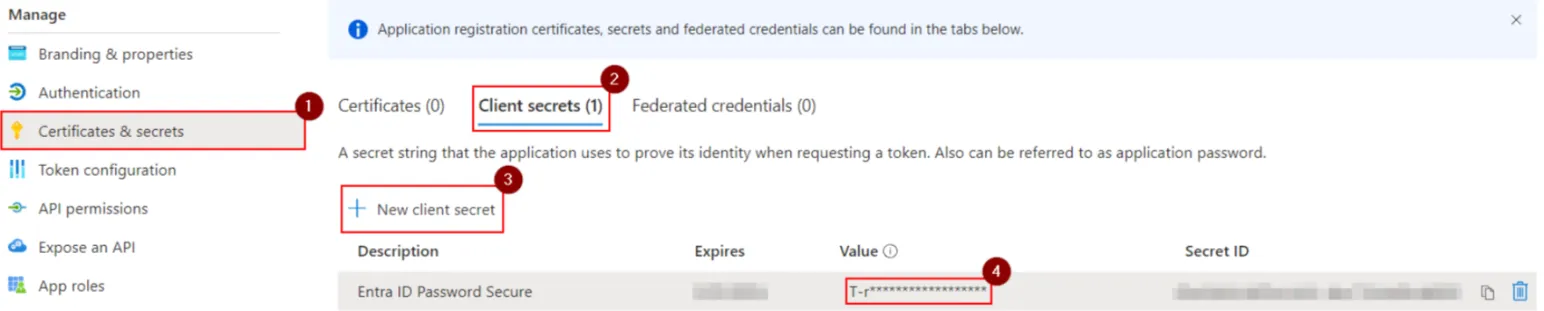
Copy it over to the Netwrix Password Secure Entra ID profile:

Set API permissions
Finally, the API permissions for the Azure API have to be set, so the login to can be performed successfully.
- Navigate to "API permissions" and click "Add a permission"
- Select "Microsoft Graph" and then "Delegated permissions"
- Set the checkboxes for "openid" and "profile" just under "OpenId permissions"
- Click on "Add permissions"
- Click on "Grant admin consent for YOUR_AD_NAME"