Logging
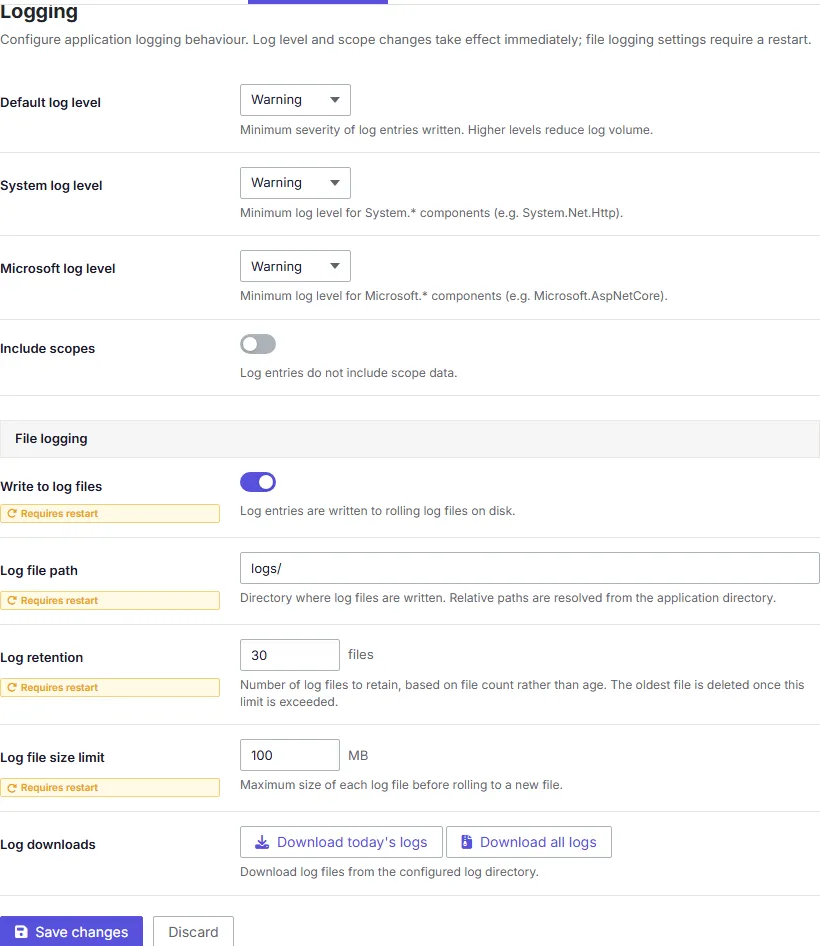
The Logging screen controls how much detail PingCastle Enterprise writes to its logs and where it stores those logs.
Changes to these settings take effect within about 30 seconds, without a restart.
Log levels
Three settings control log verbosity for different parts of the application:
- Default log level — The verbosity for application code that doesn't fall under the System log level or Microsoft log level categories.
- System log level — The verbosity for ASP.NET Core system components, such as request routing and middleware.
- Microsoft log level — The verbosity for Microsoft framework components that PingCastle Enterprise depends on.
Each log level accepts one of the standard severity values, from most to least verbose: Trace, Debug, Information, Warning, Error, Critical, and None. For example, setting Default log level to Warning means PingCastle Enterprise only logs warnings, errors, and critical events from its own code, filtering out routine informational messages.
File logging
- File logging enabled — Turns on writing logs to disk, in addition to any other logging PingCastle Enterprise performs.
- Include scopes — Adds contextual data, such as the request ID or user session, to each log entry. Turn this on when you need to trace a sequence of related log entries back to a single request, for example while troubleshooting an intermittent error.
- Log file path — The folder where PingCastle Enterprise writes log files.
- Log retention days — How many daily log files PingCastle Enterprise keeps before deleting the oldest one.
- Log file size limit (MB) — The maximum size a single log file can reach before PingCastle Enterprise rolls over to a new file.
For example, if you set Log retention days to 14, PingCastle Enterprise keeps the last 14 daily log files and removes anything older each time it rolls over to a new day.
Downloading logs
- Download today's log — Downloads a .zip file of the current day's log files.
- Download all logs — Downloads a .zip file of all retained log files.
Both downloads include Enterprise application logs and Entra Scanner microservice (CloudAPI) logs.