Provisioning
Most settings on this page take effect within about 30 seconds, without a restart. A few settings require a restart, which PingCastle Enterprise schedules automatically.
SCIM provisioning overview
PingCastle Enterprise exposes a System for Cross-domain Identity Management (SCIM) 2.0 endpoint at /api/SCIM that external identity providers can use to provision and deprovision user accounts automatically. Instead of creating and removing PingCastle Enterprise accounts manually, you connect your identity provider to this endpoint so it keeps user accounts in sync.
For example, when you assign a user to the group your identity provider uses for PingCastle Enterprise access, the identity provider creates a matching account through the SCIM endpoint. When you remove that user from the group, the identity provider deactivates or deletes the account, depending on how you configure the deprovisioning behavior in the identity provider.
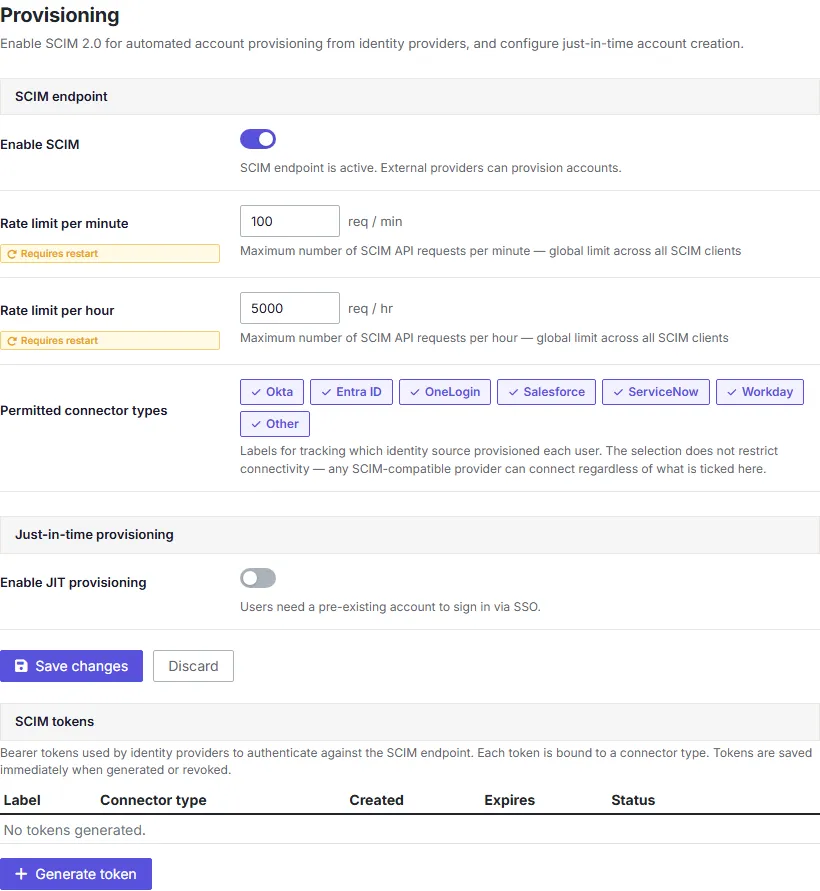
Enabling SCIM and generating a token
Your identity provider needs a bearer token to authenticate to the SCIM endpoint. Generate one from the Provisioning screen.
To enable SCIM and generate a token:
- Go to Configuration > Settings > Provisioning.
- Turn on SCIM Enabled.
- Click Generate Token.
- In the dialog, enter a label to identify the token (for example,
Okta production) and select a connector type. - Copy the token.
The token doesn't expire. Because a compromised token stays valid indefinitely, revoke and regenerate it immediately if you suspect it has been exposed, and rotate it periodically as part of your organization's credential management practices.

PingCastle Enterprise displays the token only once. If you close the dialog without copying it, generate a new token — you can't retrieve the original value again.
Recommended IdP configuration
Configure your identity provider with the token and the /api/SCIM base URL. Most identity providers also ask you to define a userName strategy, which determines how the identity provider matches an incoming SCIM user to a PingCastle Enterprise account. Netwrix recommends the following settings:
- Base URL:
/api/SCIM. - userName strategy: Use the email field as the matching attribute.
- Deprovisioning action: Delete the account rather than deactivate it. Deletion removes access immediately and reduces the risk that someone reactivates or otherwise misuses a stale account.
Refer to your identity provider's SCIM documentation for how to configure these settings.
Connector type as a reference label
When you generate a token, the connector type field (for example, Okta, Entra ID, or OneLogin) is for your own reference only. It helps you remember which identity provider each token belongs to when you're managing multiple tokens. Selecting a connector type doesn't change how the SCIM connector behaves — PingCastle Enterprise processes all SCIM requests the same way regardless of which connector type you select.
If your identity provider isn't in the list, select Other or any connector type. It's only for reference.
Restricting SCIM requests
Two settings control how PingCastle Enterprise limits SCIM traffic:
- SCIM RateLimitPerMinute and SCIM RateLimitPerHour limit how many SCIM requests PingCastle Enterprise accepts over each time window.
- SCIM AllowedConnectorTypesCsv restricts which connector types administrators can select when generating new tokens.
Just-in-time provisioning
Just-in-time (JIT) provisioning creates a PingCastle Enterprise account automatically the first time a user signs in through SAML or OpenID Connect (OIDC), instead of requiring an administrator to create the account in advance.
Turn on JIT Enabled to use this behavior. It's enabled by default.
A JIT-provisioned account has no permissions when PingCastle Enterprise creates it. An administrator must assign claims-based or direct user permissions before the account can access any domains or Entra tenants. See Authorization for how to assign permissions.