Security
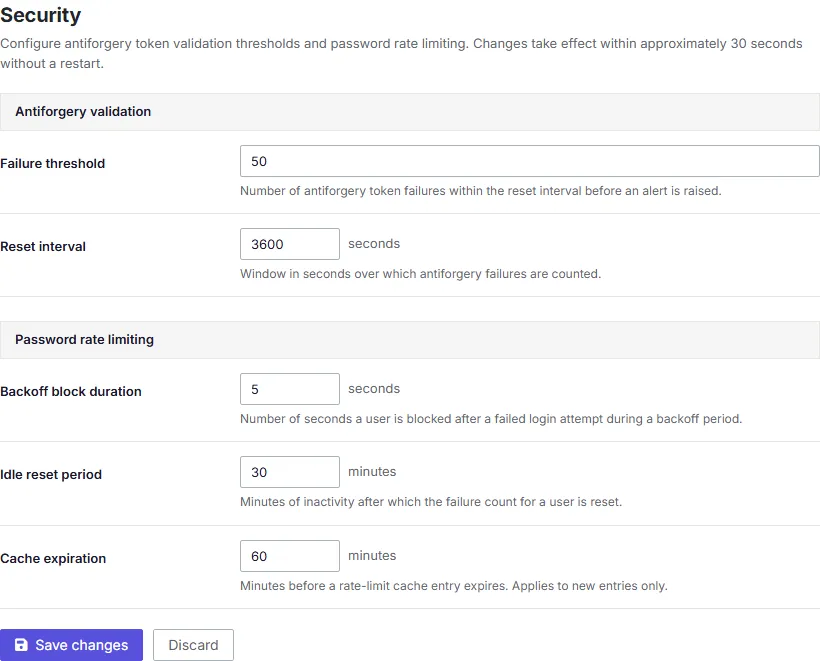
The Security screen controls two areas of PingCastle Enterprise's web application defenses: antiforgery (cross-site request forgery, or CSRF) protection and password rate limiting. Both areas work the same way: repeated failures from a client trigger a temporary block, and PingCastle Enterprise automatically lifts that block after a configurable period.
Changes to these settings take effect within about 30 seconds, without a restart.
Antiforgery protection
Every form submission in PingCastle Enterprise includes an antiforgery token that proves the request came from a legitimate session rather than a malicious site tricking a logged-in user's browser into submitting a request. When token validation fails repeatedly for the same client, PingCastle Enterprise treats it as a possible attack and temporarily blocks that client.
Two settings control this behavior:
- Antiforgery failure threshold — The number of antiforgery validation failures PingCastle Enterprise allows from a client before blocking it. For example, a threshold of 5 means the sixth consecutive failure triggers a block.
- Antiforgery reset interval (seconds) — How long PingCastle Enterprise waits, in seconds, before resetting a client's failure count back to zero. If the client doesn't fail validation again within this window, PingCastle Enterprise clears its failure history.
A low failure threshold combined with a short reset interval makes PingCastle Enterprise more sensitive to potential CSRF attacks, but it can also block legitimate users who encounter transient issues, such as an expired browser tab that resubmits an outdated form.
Password rate limiting
Password rate limiting protects the login form against brute-force password-guessing attempts. When a client fails to log in repeatedly, PingCastle Enterprise blocks further login attempts from that client for a set period.
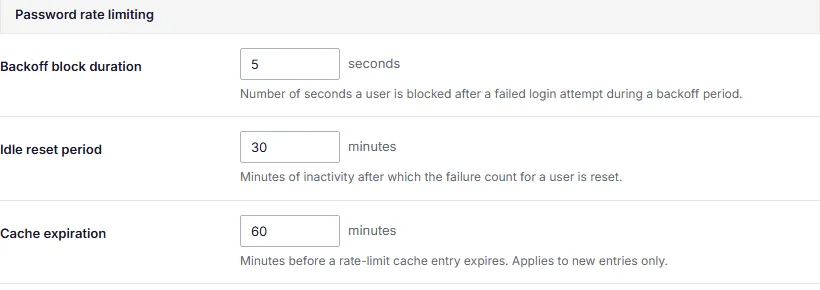
Three settings control this behavior:
- Backoff block (seconds) — How long, in seconds, PingCastle Enterprise blocks a client from attempting to log in after it exceeds the allowed number of failed attempts.
- Idle reset (minutes) — How long, in minutes, of inactivity PingCastle Enterprise waits before resetting a client's failed login count back to zero. If the client doesn't attempt another login within this window, PingCastle Enterprise clears its failure history.
- Cache expiration (minutes) — How long, in minutes, PingCastle Enterprise retains rate-limiting tracking data for a client in memory before discarding it entirely.
For example, if a client repeatedly enters the wrong password, PingCastle Enterprise blocks it for the duration of the backoff block period. If the client stays idle past the idle reset period, its failure count resets to zero and it can attempt to log in again without restriction.
Choosing values for your environment
There's a tradeoff between security and convenience when you configure these settings. Lower thresholds and longer block periods reduce the window an attacker has to guess credentials or forge requests, but they also increase the chance that a legitimate user gets temporarily locked out after a few mistyped passwords or an unstable network connection. Set values that match your organization's risk tolerance and typical user behavior, and adjust them if you see legitimate users getting blocked too often or not often enough.