Synchronization for PingCastle Enterprise
PingCastle Enterprise supports a synchronization mode that implements a security zone model, common within Defense sectors. Synchronization applies only to domains, not Entra ID.
Synchronization uses a two-tier trust model:
High-trust instance
The high-trust instance, also called the higher instance, sits in the more trusted security zone. It consolidates synchronized data from one or more low-trust instances and enforces licensing: low-trust instances retrieve their license from the high-trust instance at startup.
Low-trust instance
A low-trust instance, also called the lower instance, sits in a more restricted security zone. It performs its own audits and forwards a filtered view of its data, based on the export level you configure, to the high-trust instance.
This model lets you consolidate reports across security zones while keeping report details limited to the appropriate zone.
PingCastle Enterprise synchronizes the following data between high trust and low trust instances:
-
The status of the domain (active, removed, etc.)
-
The content of the report, based on a level filter (Full = no filter; Normal = recomputed for Full report, as-is for normal report; Light = stripped from Normal and Full, etc.)
PingCastle Enterprise doesn't synchronize exceptions, action plans, maturity changes, and other similar data.
Configuration
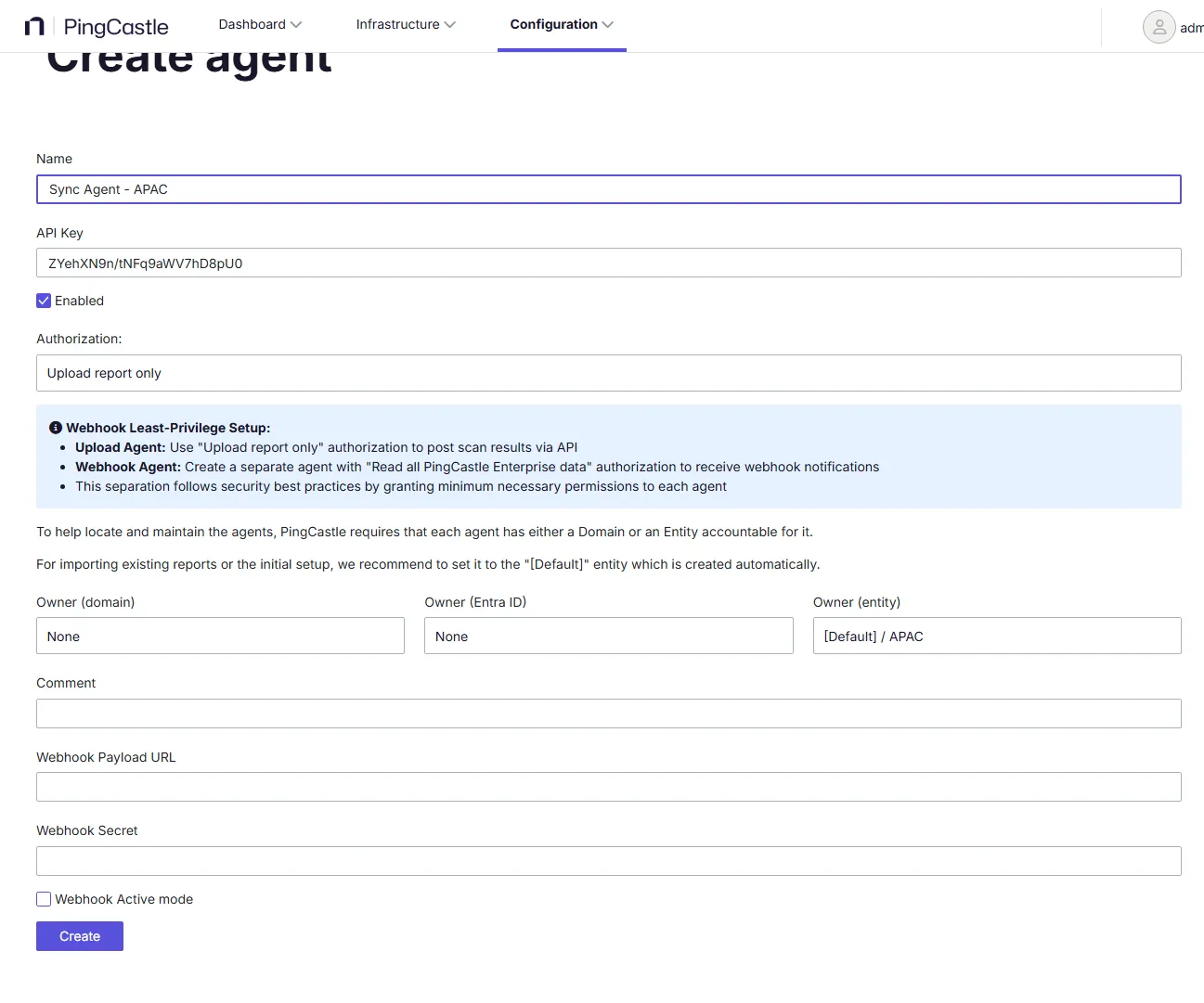
You need to configure an API key with synchronization rights on the server side.
You must assign the Agent to an entity. You can't assign it to a domain, as PingCastle Enterprise uses the entity as the root for assigning the newly forwarded domains.
On the client side, edit the appsettings file to specify the credentials and other required information.
Add a "Sync" section at the root of the file (remember to add a comma before or after this section as required for valid JSON formatting).
Specify the Uri as the FQDN of the recipient server and the API key.
{
  "Sync": {
    "Uri": "https://syncrecipient.pingcastle.com/",
    "ApiKey": "aaaaaaaa",
    "ExportLevel": "Normal"
  }
}
The export level matches the one you define in the classic PingCastle Agent configuration. If the level requires removing information, PingCastle Enterprise recomputes the data (this can result in information loss if the instance is processing a more recent report). If the level doesn't restrict the information, PingCastle Enterprise forwards it as-is. If the report version is more recent, you don't lose any information.
Available export levels:
Full- No filter applied, all data includedNormal- Standard level with moderate filteringLight- Stripped down data from Normal and FullParanoid- Most restrictive level
How synchronization works
At startup, PingCastle Enterprise attempts to retrieve the license from the higher instance. If the attempt fails, it uses the locally configured license.
PingCastle Enterprise syncs a domain when you edit the domain or click the sync button.
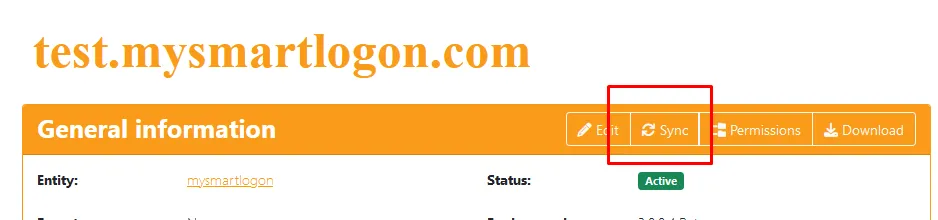
PingCastle Enterprise shows the Sync button when you configure the sync link and you have permission to edit the domain. When you perform a sync, PingCastle Enterprise synchronizes the domain properties (status, and so on) along with past reports.
To avoid loading older reports with each change, PingCastle Enterprise shares information about the latest audit with the lower instance. The lower instance can choose to upload only missing reports.
When you create a domain locally, PingCastle Enterprise synchronizes it. However, if you remove it locally (allowed only when no reports exist for it), PingCastle Enterprise attempts to remove it from the higher instance. It can't complete the removal if reports already exist, so it may deny the remove request silently.
You can also force synchronization of all domains from the Interoperability page.

License verification during report import
To enforce licensing, before importing a new report on the lower instance, the instance contacts the higher instance to verify that the report doesn't create domains beyond the license limit. If a temporary network issue occurs, the instance skips this check. If the check denies the import, the lower instance doesn't import the report and logs the error.
After this check completes, the lower instance performs the import and then synchronizes the report to the higher instance. If any network issue occurs during this step, the instance ignores the error (but logs it if you enabled logging).
Connection tests
To verify you configured the connection properly, you can sync a domain using the button described earlier.
If an error occurs, PingCastle Enterprise displays it as an exception.
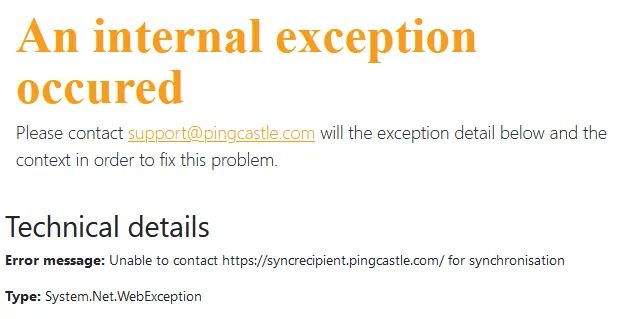
Note: An inner exception may contain the error details, as the following screenshot shows. In this example, this is a DNS issue where the host can't be found.
