Troubleshooting PingCastle Enterprise
Troubleshooting
Viewing Application Logs and Errors
When troubleshooting issues with PingCastle Enterprise, you need to view error messages and logs to diagnose problems.
Configure logging from the web portal at Configuration > Settings > Logging:
- Write log to file: Enables or disables file logging
- Logging levels: Control how much detail PingCastle Enterprise captures
- This page includes additional logging settings
See Log Files for how to download the generated logs.
Log Files
PingCastle Enterprise, CloudAPI (which handles Entra ID scanning), and PingCastleSchedulerService all use Serilog for logging, each writing to its own logs folder:
- PingCastle Enterprise:
logsin the installation directory - CloudAPI:
CloudAPI\logsin the installation directory - PingCastleSchedulerService:
Scheduler\logsin the installation directory
To download PingCastle Enterprise and CloudAPI logs from the web portal, go to Configuration > Settings > Logging and click Download Today's Logs or Download All Logs.
PingCastleSchedulerService has no web interface, so the portal download doesn't include its logs. Check Scheduler\logs directly, or the Windows Event Log on the server, to troubleshoot the scheduler.
Editing the appsettings.Production.json File
Some troubleshooting steps require editing the appsettings.Production.json file directly. This file is in the PingCastle Enterprise installation directory. The CloudAPI service has its own separate copy in its CloudAPI subfolder.
Open the file with a plain text or code editor, such as Notepad or Visual Studio Code. Don't use Word or another rich-text editor, since these can introduce hidden formatting that breaks the JSON syntax.
appsettings.Production.json uses standard JSON syntax:
- Keys and string values use double quotes:
"Key": "Value" - Colons separate a key from its value, and commas separate entries
- The last entry in an object or array doesn't have a trailing comma
- Curly braces
{}must open and close in matching pairs - Escape backslashes as
\\(for example, in connection strings or file paths)
After editing the file, check it for syntax errors before restarting the application. A single misplaced comma or brace prevents the application from starting.
- In PowerShell, run
Get-Content appsettings.Production.json | ConvertFrom-Json. This returns the parsed content if the JSON is valid, or a specific error if it isn't. - Alternatively, paste the file contents into an editor-integrated JSON validator, or an online tool such as jsonlint.com.
Before pasting file contents into any online JSON validator, redact passwords, connection strings, and API keys. Third-party sites can log pasted content.
Only restart the PingCastle Enterprise application pool or service after the file passes validation.
Common Errors and Solutions
Here are common errors, their causes, and how to fix them.
Incorrect ASP.NET Core Middleware Version
These error messages appear when you install the wrong version of ASP.NET Core:
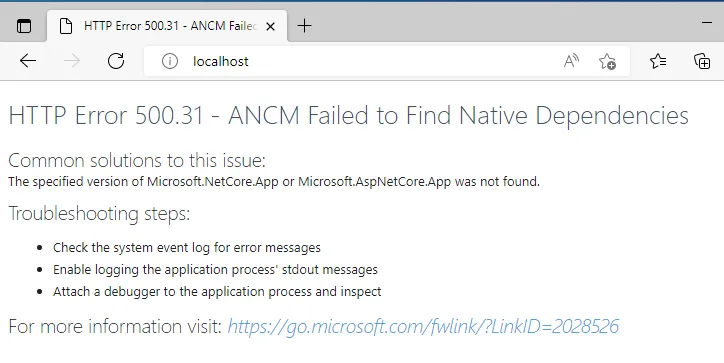
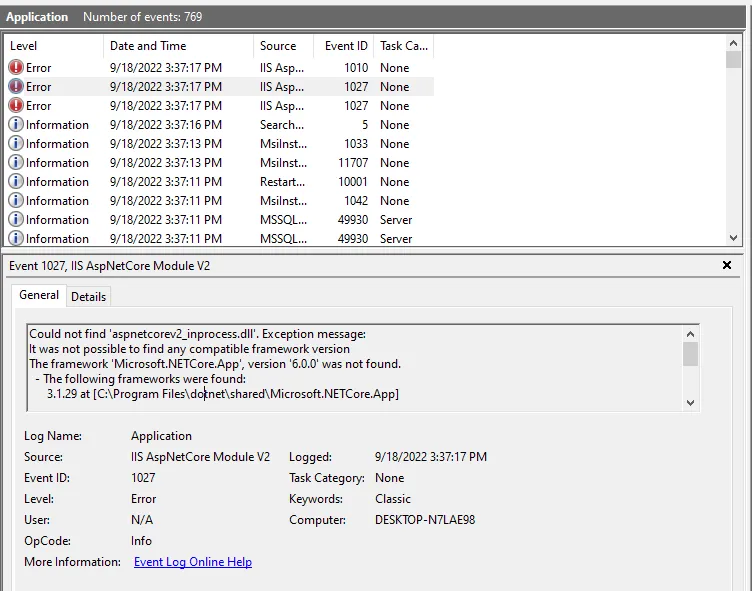
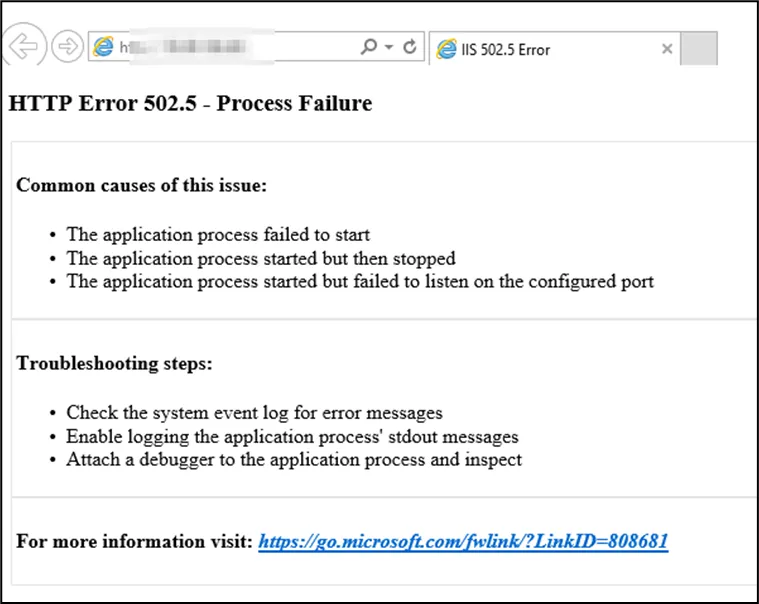
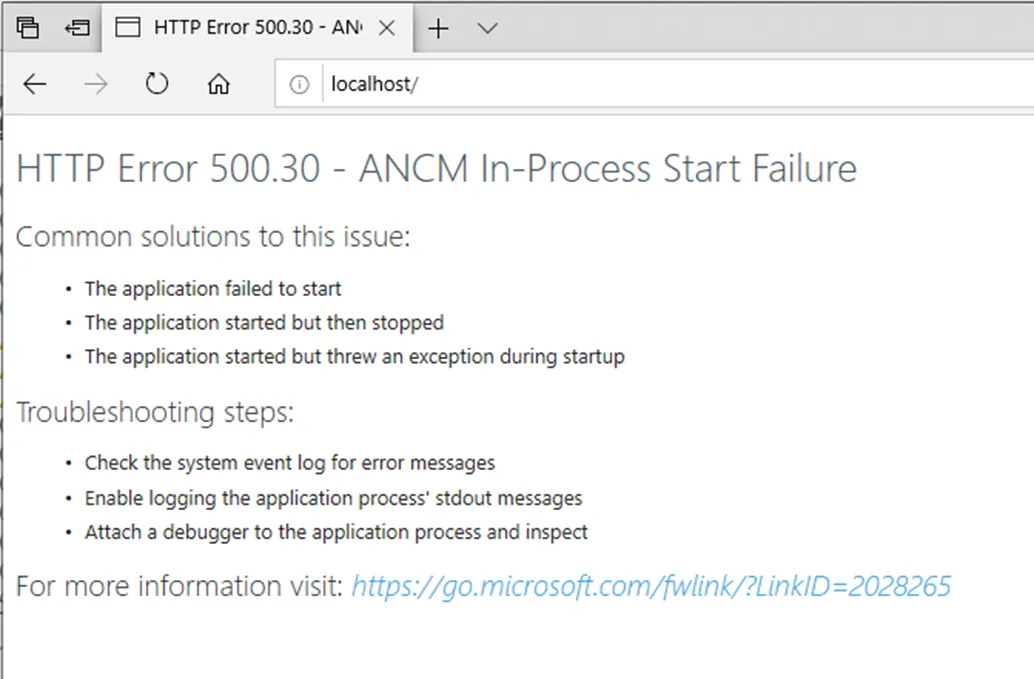
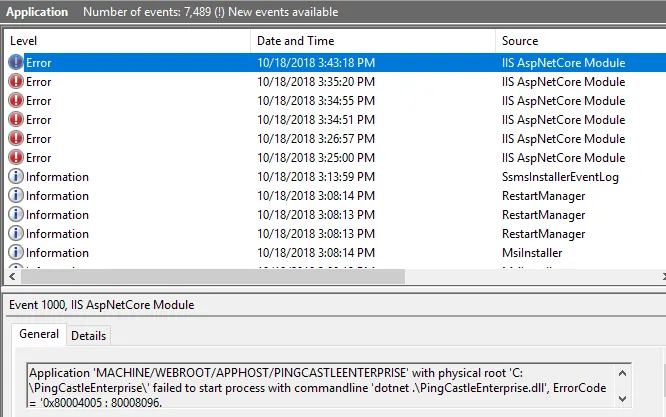
Command line error messages:
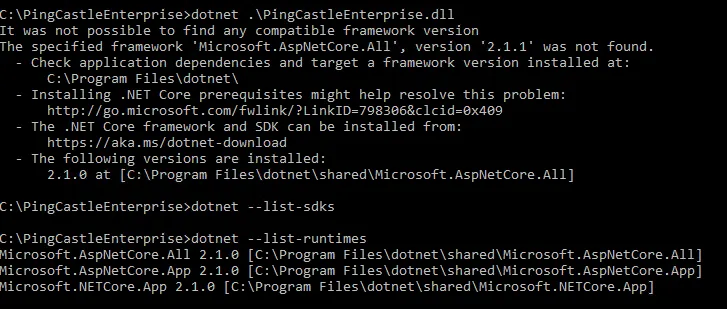

Solution:
Identify the correct version of the ASP.NET Core framework and install it. If you're deploying to IIS, install the ASP.NET Core Hosting Bundle.
The last error relates to the missing update KB2533623
Missing web.config
If the web.config file is missing or doesn't load the .NET module correctly, the web server will treat the application as a static file and return a 404 error.
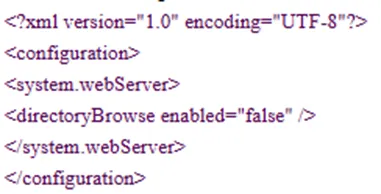

Solution:
Download the correct web.config file from the PingCastle website and replace the existing one.
Application Startup Errors
When the application fails to start, generic error messages appear in the browser and event logs:

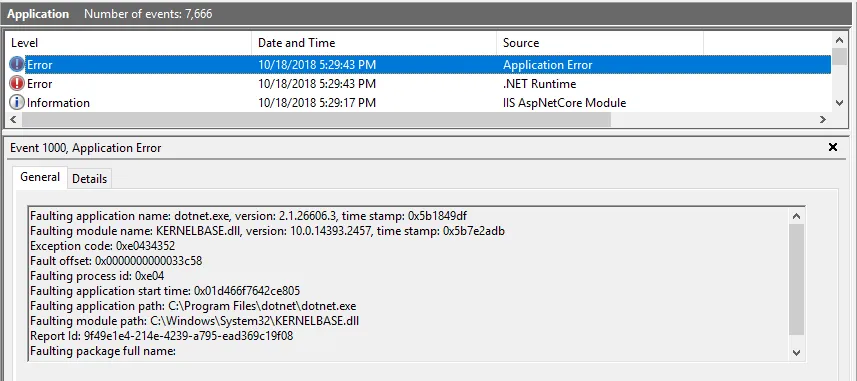
You can find more detailed error messages in the event log or by running the application manually:
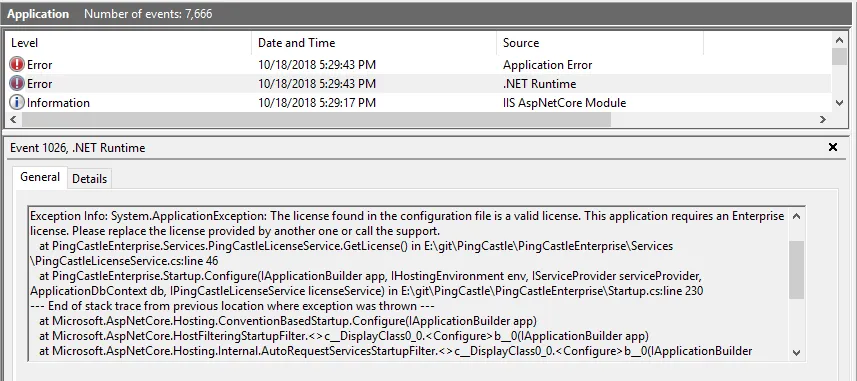
Common causes:
- Invalid license key
- Missing or misconfigured application settings
- Runtime dependencies not installed
Solution:
Check the detailed error message and correct the issue. If you see a license error, verify the license key on Configuration > Settings > Licensing and update it if needed.
Database Permissions
The application requires database permissions to create tables and modify data. If you don't grant these permissions, the application will fail to start.
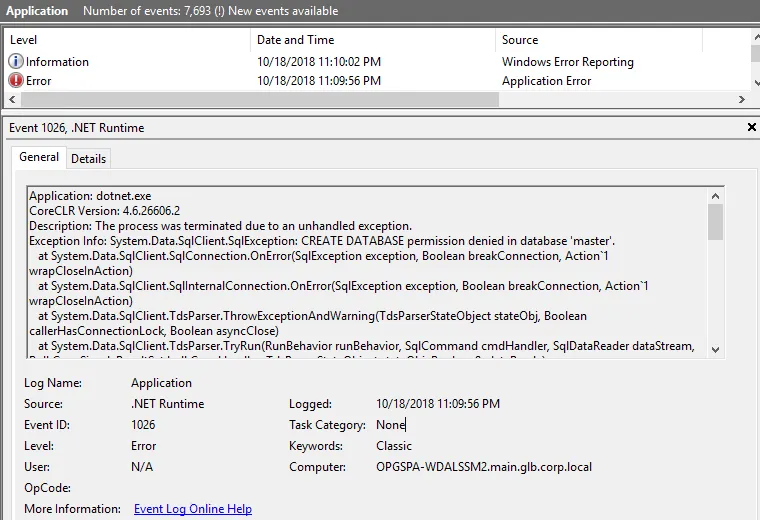
Requirements:
- Permission to create tables (required on first run)
- Permission to insert, update, and delete records
- TCP/IP connectivity enabled on SQL Server
- Firewall configured to allow remote connections (if SQL Server is on a different machine)
Important: The application pool identity needs these permissions, not your user account. When the application runs under IIS, the identity is typically IIS APPPool\AppName.
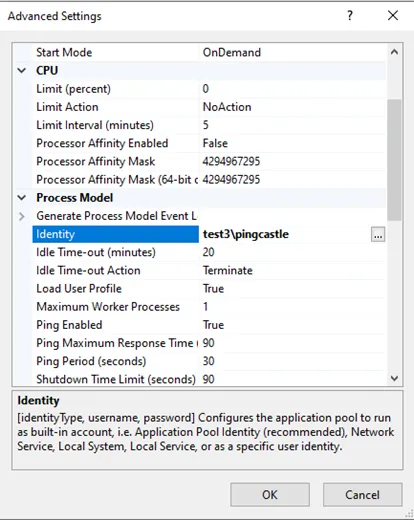
Solution 1: Change Application Pool Identity
Configure the IIS application pool to run as an Active Directory user that has database permissions:
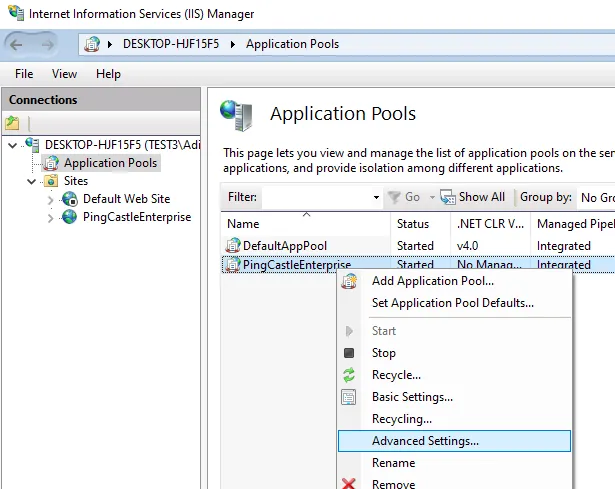
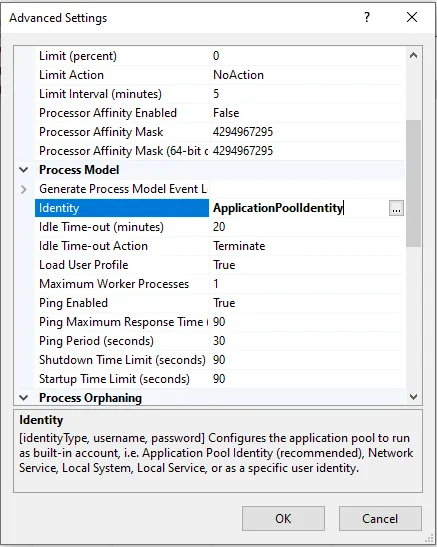
Solution 2: Use SQL Server Authentication
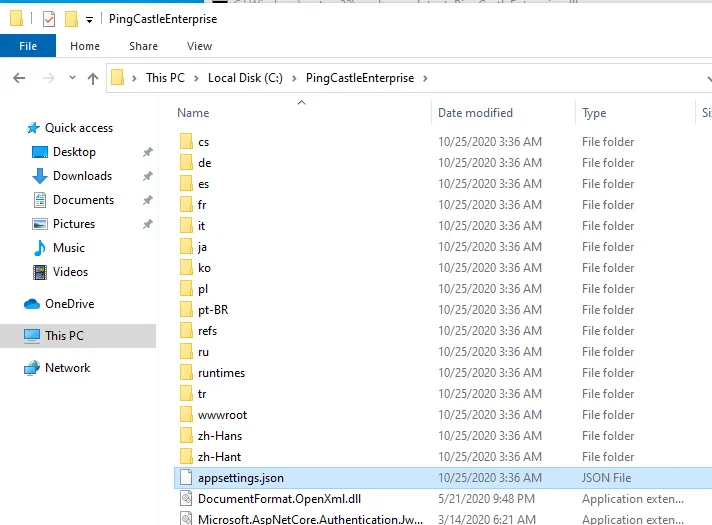
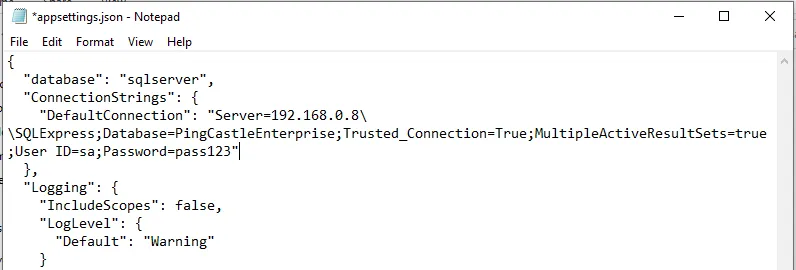
Add SQL Server credentials to the connection string in appsettings.Production.json. See Editing the appsettings.Production.json File for syntax rules and how to validate the file before restarting the application.
;User ID=sa;Password=pass123
Alternative: If you prefer not to grant table creation permissions, contact support to obtain a SQL script that creates the required tables manually.
Entra Scan Config Missing
If Entra ID scanning isn't available, Enterprise and CloudAPI aren't integrated correctly. Check for either of these signs:
- Entra Scan Config isn't available in the Configuration dropdown menu.
- Configuration > Settings doesn't show any Entra configuration settings.
This usually means Enterprise and CloudAPI are out of sync, often because the CloudServiceAPIKey doesn't match between the two services.
Step 1: Check that CloudAPI is running
Browse to <PingCastleEnterprise_URL>/cloudapi/health/live. A healthy service returns Healthy.
If the response isn't Healthy, or the page doesn't load, the CloudAPI service isn't running or isn't reachable. Check the CloudAPI application pool in IIS and its logs under the CloudAPI subfolder of the installation path.
Step 2: Restart both app pools with IISRESET
Open PowerShell as Administrator and run IISRESET. This restarts both the Enterprise and CloudAPI application pools and can resolve a sync issue between them.
Step 3: Collect logs and contact support
If the Entra Scan Config or settings are still missing after the restart, collect logs from both the Enterprise application and the CloudAPI service and send them to support for review.
Emergency Procedures
Reset Administrator Password
If no administrators are available (for example, someone forgot the password or the administrator has left the company), you can reset PingCastle to Initialization mode to create a new administrator account.
Steps:
-
Open your database management tool and navigate to the
AspNetUserstable. -
Locate the administrator account (use the email address to find it) and delete that row.

-
Restart the PingCastle Enterprise application.
-
On the next visit to the web portal, the application will detect that no administrator exists and automatically switch to initialization mode.
-
Follow the prompts to create a new administrator account.
This procedure only removes the administrator account. All other data (users, domains, reports) remains intact in the database.