PingCastle Enterprise Upgrade Guide
This guide covers upgrading PingCastle Enterprise from version 3.5.1 to version 4.0.
Before you upgrade
Check the current version
Check the installed version by clicking the user icon in the top-right corner and selecting About.
This guide applies only to upgrades from version 3.5.1. If you're running an earlier version, upgrade to 3.5.1 first.
Back up the database
Netwrix strongly recommends backing up the database before you upgrade. The database holds all PingCastle Enterprise data — PingCastle Enterprise doesn't store data anywhere else.
Test the upgrade in a non-production environment first if one is available. This lets you confirm the upgrade succeeds before you run it against your production instance.
Performing the upgrade
PingCastle Enterprise 4.0 replaces the MSI-based installer with a single installer executable, PingCastleEnterpriseInstaller.exe. Upgrading from 3.5.1 to 4.0 is an in-place upgrade: you run the new installer on top of your existing 3.5.1 installation, and it detects and upgrades that installation automatically. The installer also detects and applies any prerequisite changes 4.0 requires, such as the correct ASP.NET Hosting Bundle version, so you don't need to update prerequisites manually.
To upgrade PingCastle Enterprise from 3.5.1 to 4.0:
-
Download
PingCastleEnterpriseInstaller.exefor version 4.0. -
Run
PingCastleEnterpriseInstaller.exeon the server where PingCastle Enterprise 3.5.1 is installed. -
The installer detects the existing 3.5.1 installation, checks for and applies any required prerequisite changes, and performs an in-place upgrade. Because this is an upgrade, it skips most configuration screens, preserves your existing settings, and shows only a minimal set of prompts.
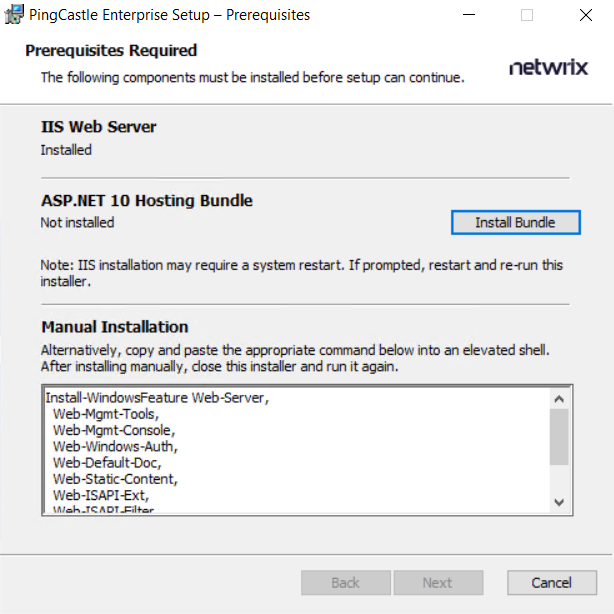
The installer bundles the required prerequisites, including the ASP.NET Hosting Bundle, directly. The upgrade doesn't need web access to download them.
Configuration migration
Starting with version 4.0, PingCastle Enterprise stores configuration settings in the database instead of appsettings.Production.json. The application migrates these settings automatically during the upgrade. See Configuration migration from appsettings.Production.json for details.
Post-upgrade verification
After the upgrade completes:
- Confirm the application starts successfully.
- Click the user icon in the top-right corner, select About, and confirm the version now shows 4.0.
- Confirm your configuration settings appear as expected, since they now come from the database instead of
appsettings.Production.json.
If a setting is missing or incorrect, check the backed-up file in config-backups/ to compare it against the current configuration.