PingCastle Enterprise User Manual
PingCastle Enterprise helps you improve and follow your overall Active Directory security level. See Architecture for a full product description.
To configure authentication methods such as local login, OpenID Connect, or SAML2, see Configuring authentication.
Main pages overview
The application has four areas:
-
Management view (Dashboard menu) — Shows the Maturity Assessment and Advanced dashboards for tracking and reporting on overall Active Directory security posture.
-
Technical view (Infrastructure menu) — Provides reports, tables, and charts with detailed technical data on domains, forests, and cartography.
-
Configuration — Contains administrative settings for the product, such as the audit log, entities, and other settings.
-
User management (top-right menu) — Lets you manage your own account, and lets administrators manage other users in the product.
Each view targets a specific audience based on the stakeholder's role.
Authorization
PingCastle Enterprise controls access through a permission model based on roles, entities, and domains. See Main pages overview for the four areas of the application these roles and permissions control access to.
User roles and views
Active Directory (AD) administrators typically need access only to the Technical view ("Infrastructure"). Organizational management may need access to both the Management and Technical views ("Dashboard" and "Infrastructure"). The PingCastle Enterprise main administrator has full access, including the Configuration view for advanced customization of the solution, and the Account / User Management view for managing user roles and permissions.
All users can access their personal account settings. Internal users can also reset their password if an administrator enables password-based authentication.
Permission levels
The product implements three main layers of permission:
-
Roles — Assign specific administrative capabilities. The "Admin" role grants full access to all system data and features.
-
Entities — Group multiple domains and are the only way to delegate access to the Dashboard. Assigning a user to an entity grants access to all domains within that entity, as well as the dashboard and associated management views.
-
Domains — Represent the lowest level of access. A user with domain-level access can only view reports for that specific domain. They don't have access to other domains or to the dashboard unless an entity or elevated role grants it.

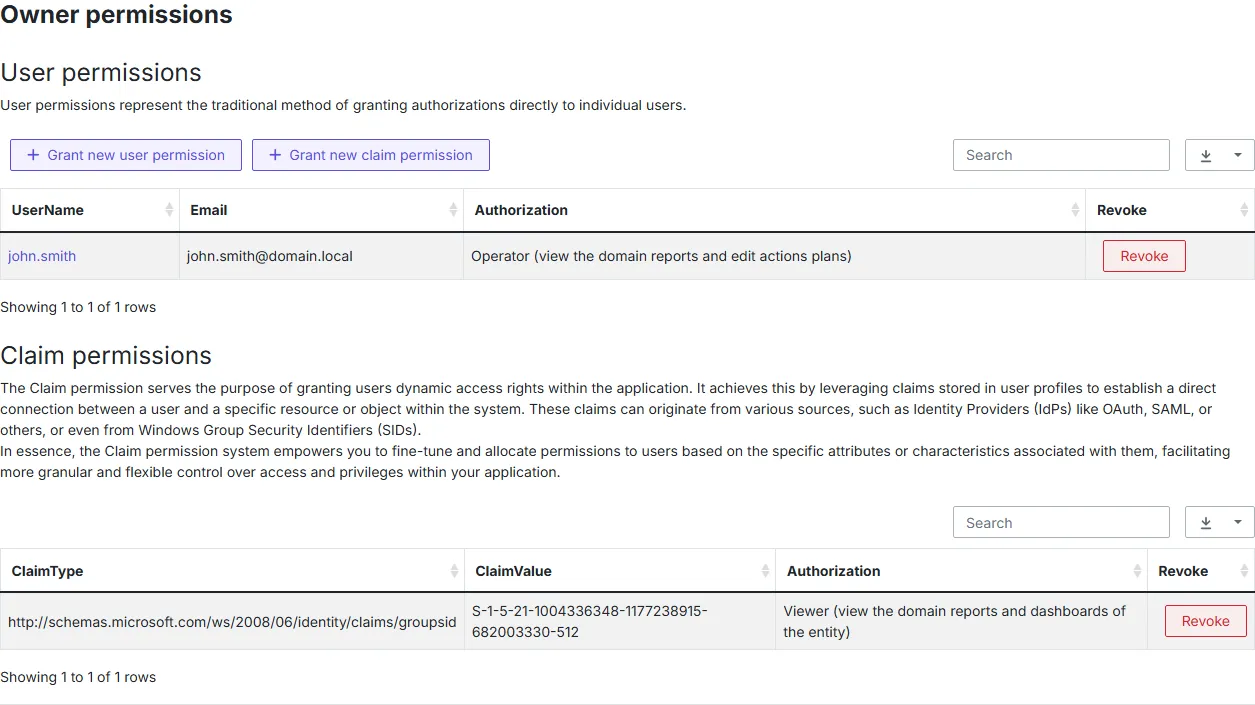
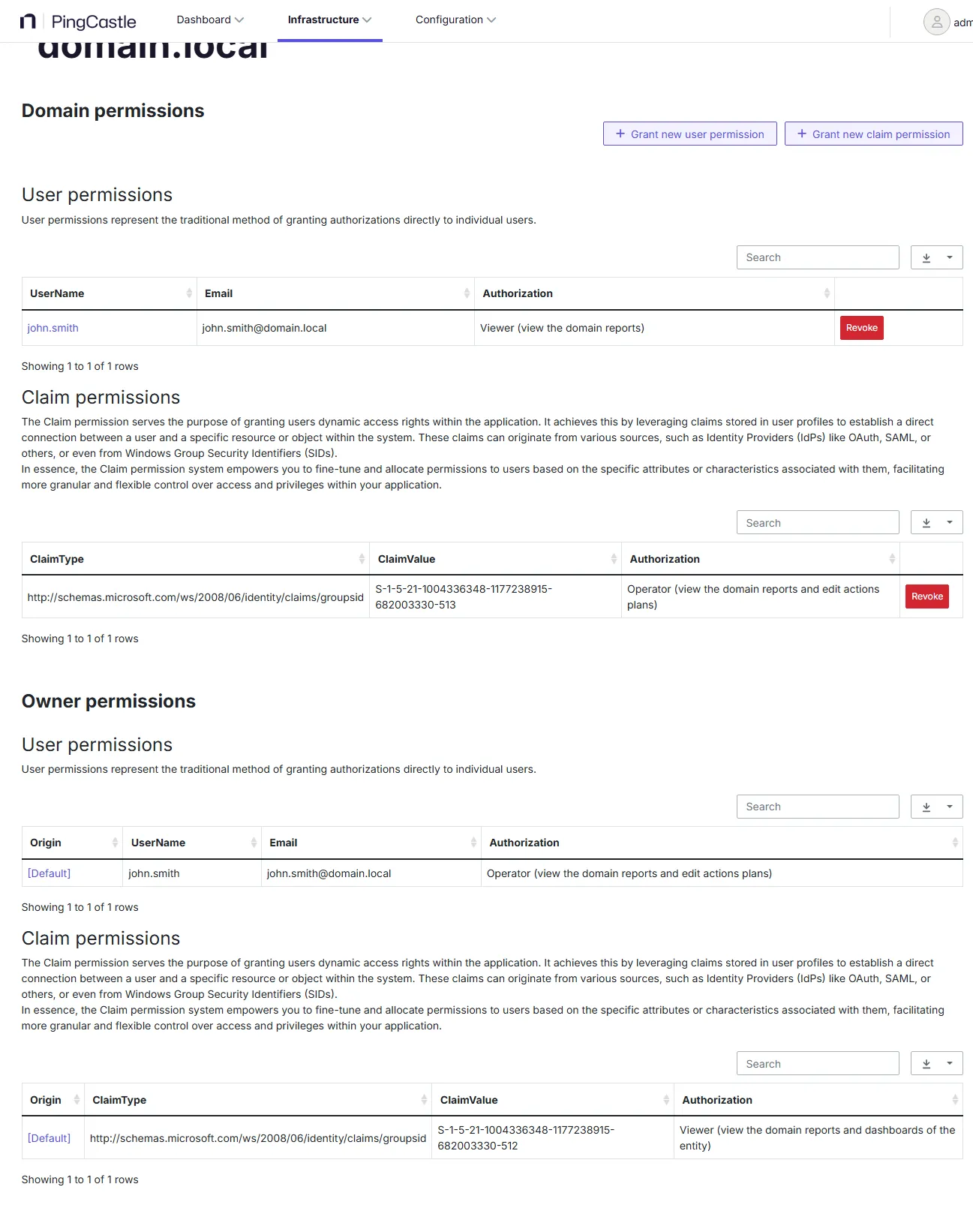
PingCastle lets you set up permissions on entities, or objects (domains or Entra ID).
You can set permissions on the detail of the entities:
And on the domain / Entra ID objects:
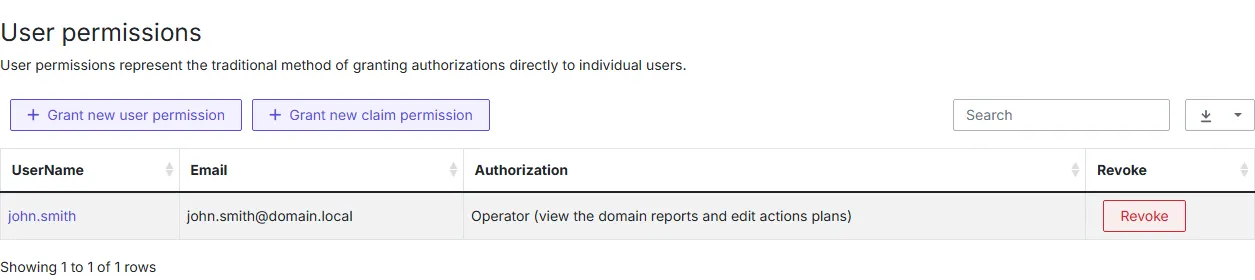
The permissions are of two types:
- Classic user assignment, where you assign users to objects.
- Claims permissions. In this case, the application manages user rights dynamically based on the claims the authentication application submits (Windows, OpenID, SAML2, etc.).
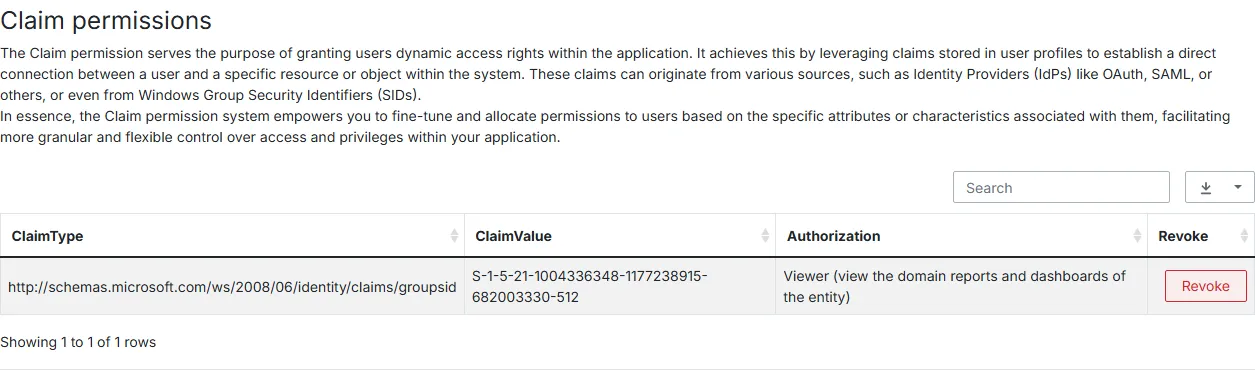
Claims permission assigns permissions dynamically based on Windows group. Claims are case sensitive. You can also open the user's claims page (available under Manage your account) to see which claims the authentication application pushed to PingCastle Enterprise.
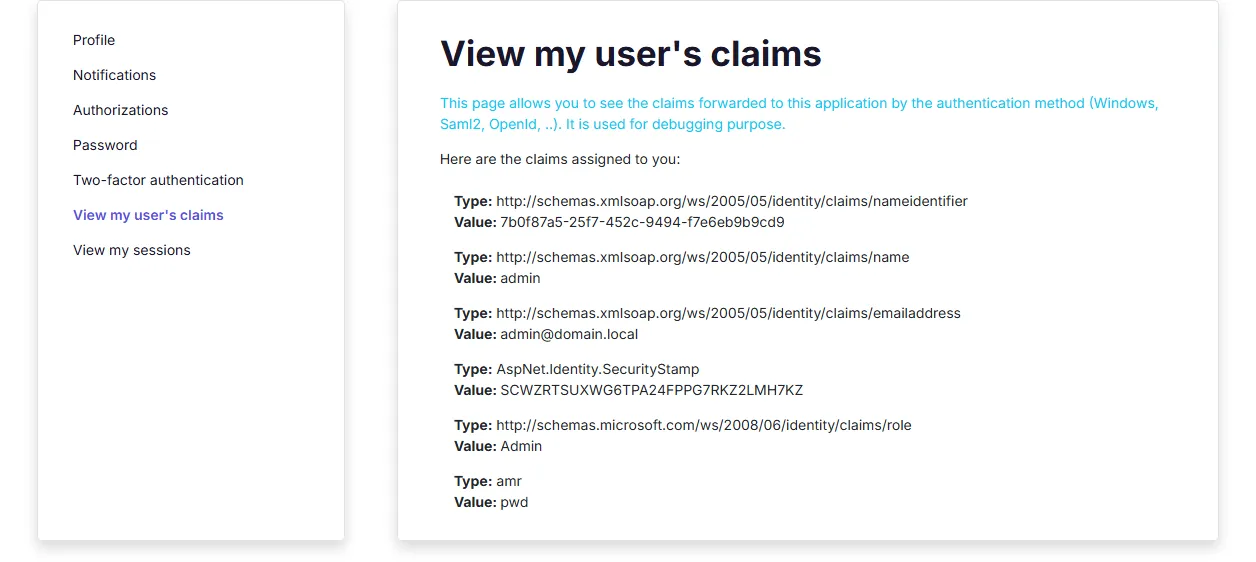
Accounts that SAML or OIDC just-in-time (JIT) provisioning creates automatically have no permissions by default. An administrator must assign claims or user permissions to these accounts before they can access domains or Entra tenants. See Provisioning settings for JIT provisioning configuration.
Page organization
The pages of the PingCastle Enterprise solution follow a consistent architecture so users can quickly get used to the solution.
For instance, most pages can show all the data available to the user, or apply a filter to show a narrower set of data.
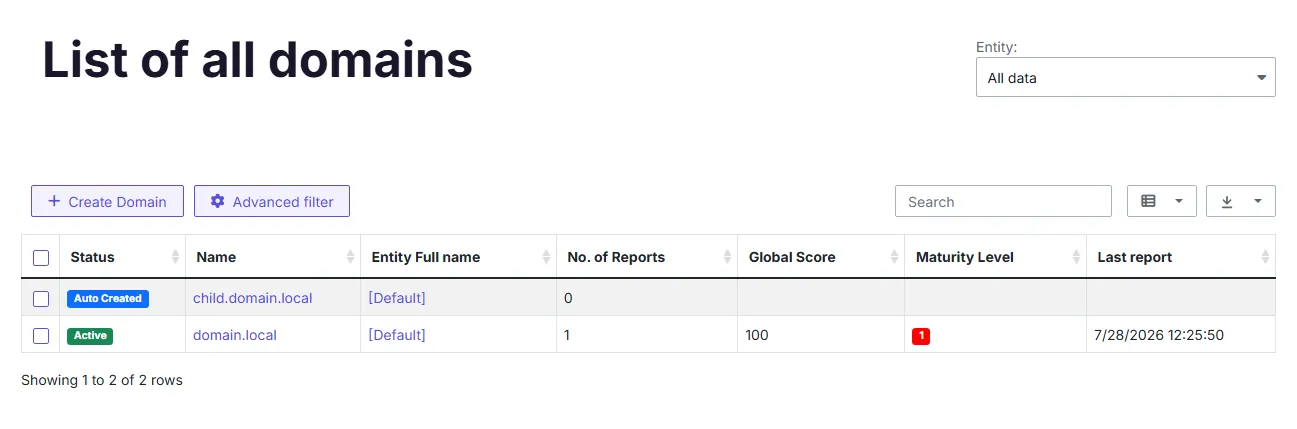
When a user doesn't have access to the root of the organization and has access to multiple areas of the organization, the application displays the first organization that the user can access by default.
Following the same idea, most pages from the "Maturity Assessment" section use a common structure, letting you visualize KPIs efficiently.
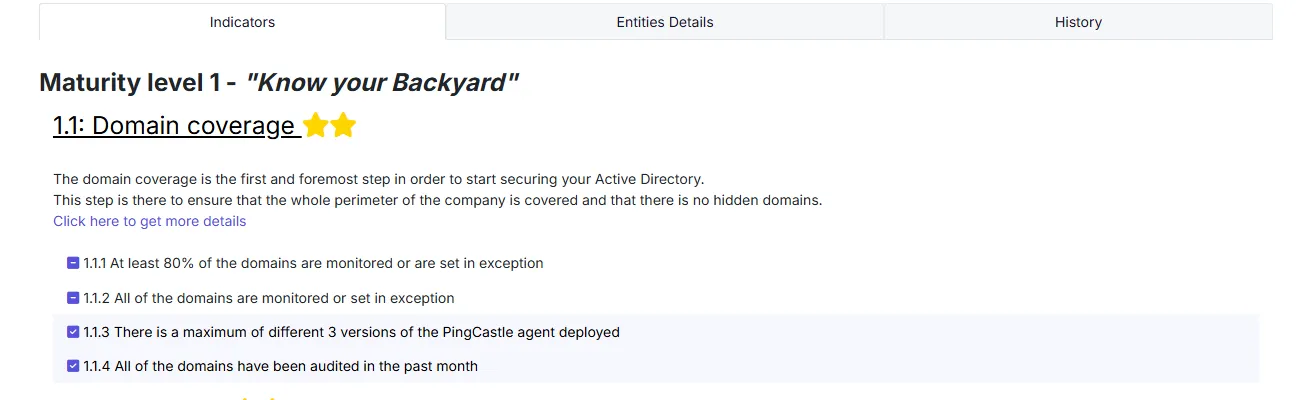
The main page contains the indicators, while you can then see a breakdown of these KPIs by entity, and a history of how the KPIs evolved since you first started monitoring them.