PingCastle Enterprise Dashboard
The dashboard view has two areas: the "Maturity Assessment" and the "Advanced views".
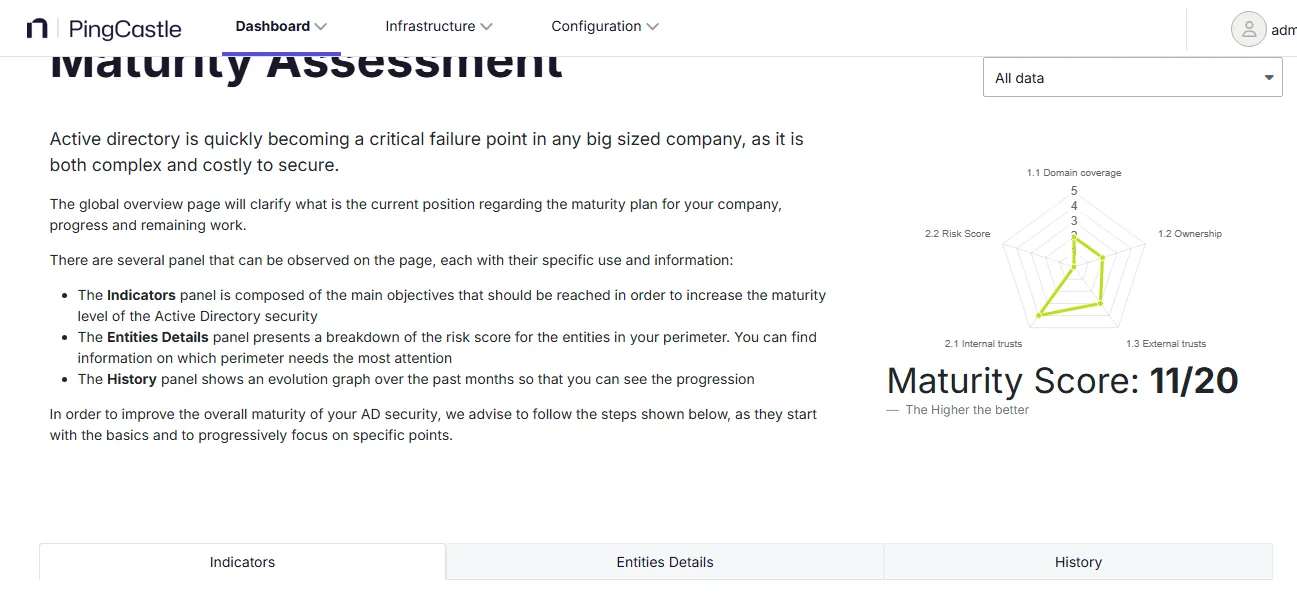
From this global page, you can access a detailed process for each step of the PingCastle maturity assessment (Domain Coverage, Ownership, etc.), while more detailed pages are available in the Advanced menu.
This view is primarily for company management, notably the "Maturity Assessment" part, which shows KPIs as well as objectives and goals to improve the overall level of Active Directory (AD) security.
Technical stakeholders such as AD administrators can also use it, since it can assist with technical remediation. You can perform detailed analysis through the "Advanced" section.
Maturity Assessment
Global view
The "Maturity Assessment" divides a maturity evaluation into two areas. Each area groups several measures, for a total of five measures across both areas. Several detailed KPIs make up each measure, for a total of 20 detailed KPIs.
Each KPI for which the company AD is compliant gives 1 point in the total, ending in a score out of 20 that you can view in a radar chart.

To go into more detail, the tool computes this score on the first two levels of the Capability Maturity Model Integration (CMMI) methodology applied to AD:
Initial
-
Domain Coverage - ensure you have reviewed all domains
-
Ownership - ensure all domains have an owner and that this owner is doing its job
-
External Trusts - ensure all domains aren't connected to external companies
Repeatable
-
Internal trusts - ensure you limit the risk of cross domain contamination
-
Risk score - ensure you limit the local risk of contamination
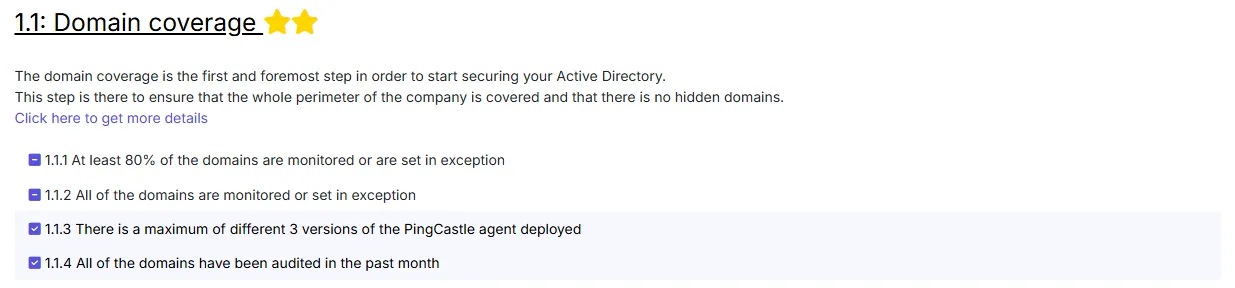
Each measure has its own detailed page, where you can find more information on how to improve the situation and how to gain the associated "star". A star indicates whether a single rule linked to a measure is raising an alert.
Detailed view of the maturity score:
Detailed view of the breakdown for a major area:
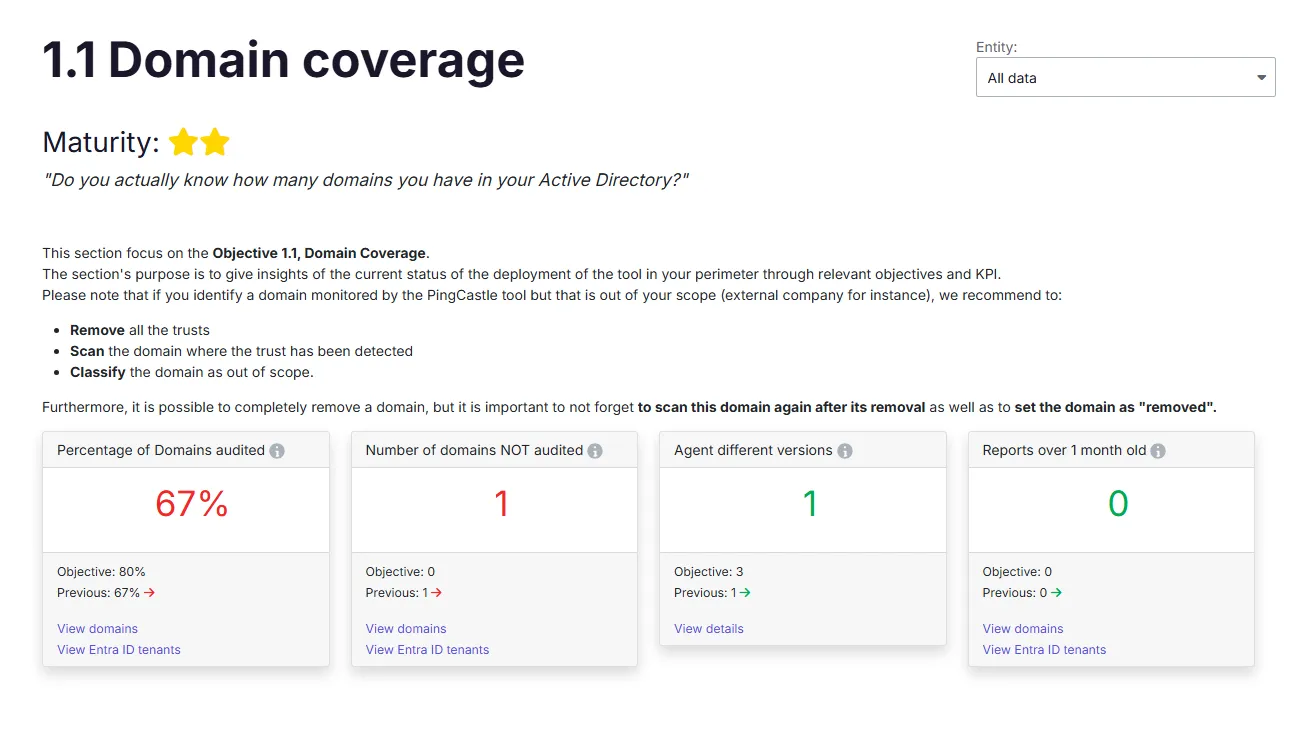
These general pages help users understand the current level of protection of the company Active Directory. Use this page to understand the work performed and the remaining work for AD security.
Click the Get more details button to switch to a more detailed dashboard.
Area maturity dashboard
This section covers the following pages:

Detailed view per area
Each area has a dedicated page with a lot of information about what you do well and what you can improve.
The first section of the page always shows a global explanation of the objective of the area.
Then, it displays a few KPIs that compose the maturity evaluation. If you reach the objective, the KPI appears in green; otherwise, it appears in red. A "Detail" button takes you directly to the technical view, with advanced information on how to remediate and improve the KPI.
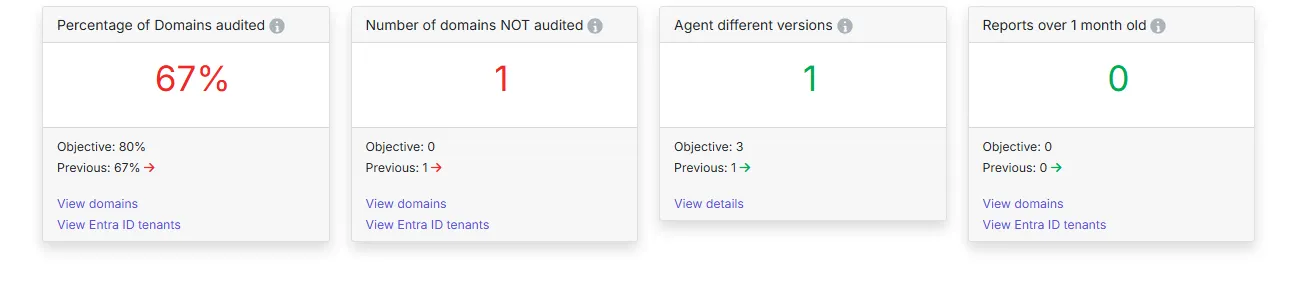
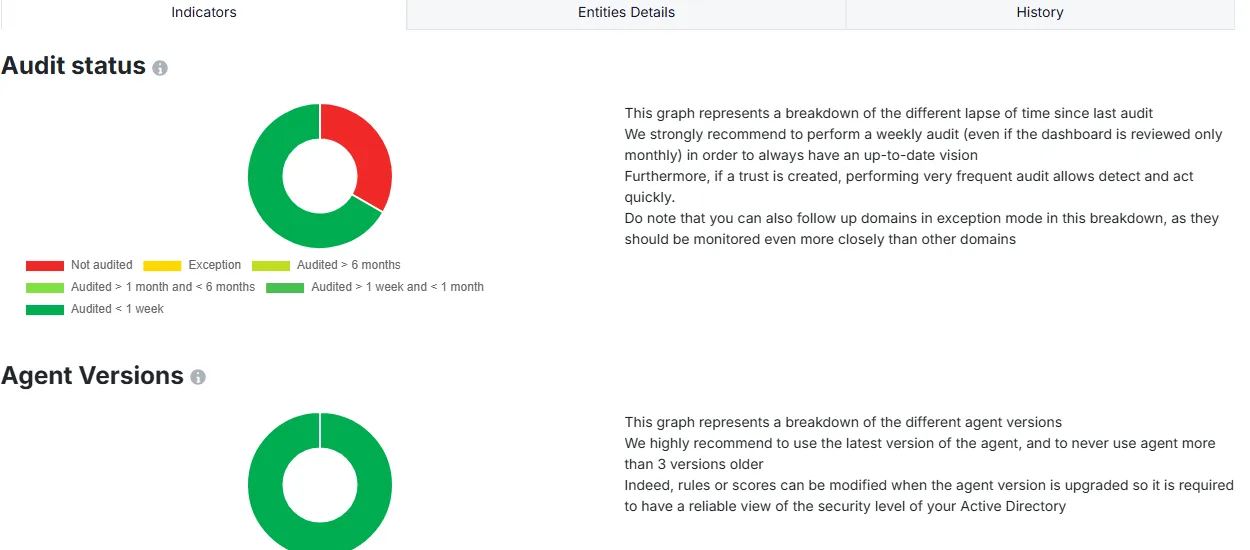
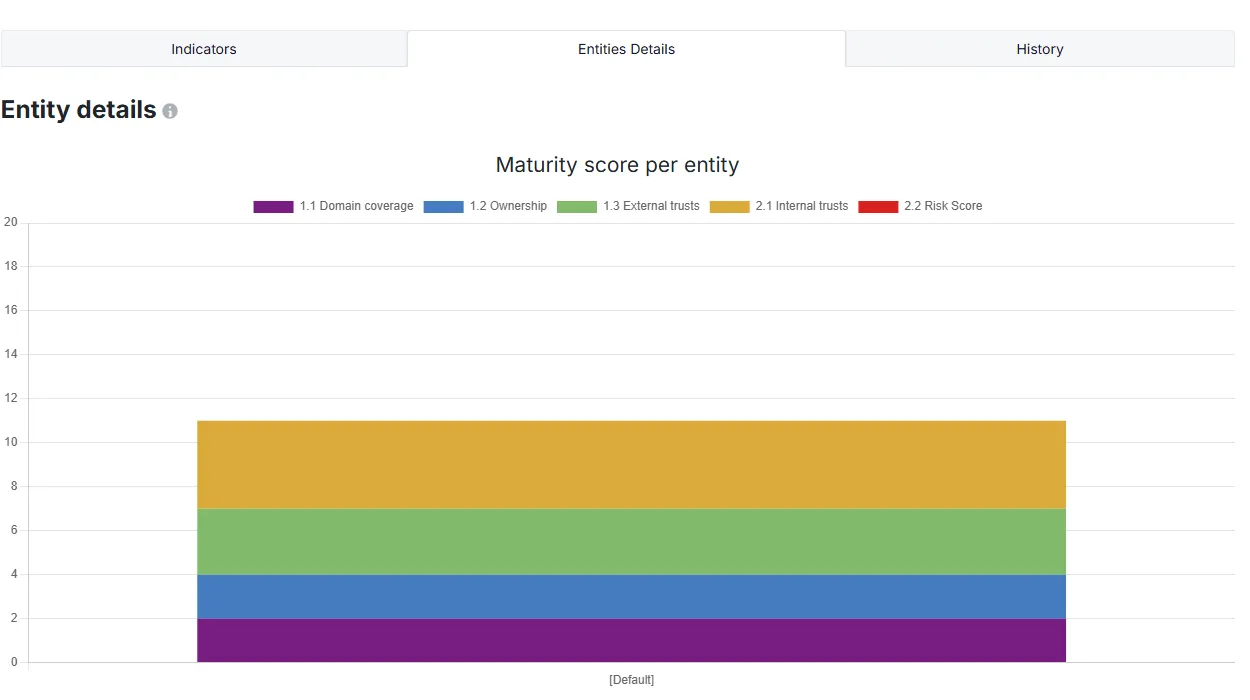
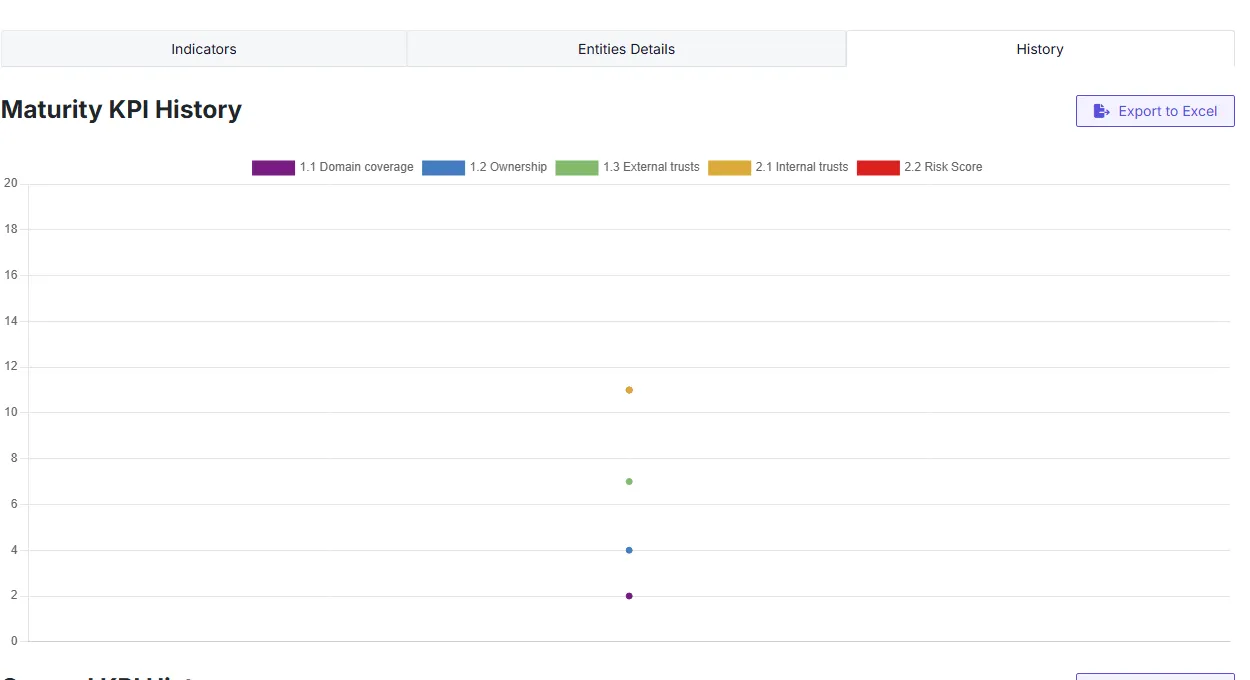
The second section offers different kinds of detailed information in different tabs. This information can be a couple of indicators that help you understand the situation better, a breakdown of the information shown by entity within the selected perimeter, or a history graph representing how the KPI evolved in the past.
Each chart is dynamic, and you can filter out a category by clicking it in the legend. You can also click certain data points to go directly to the page containing the data behind the chart.
Indicators for the related tab:
Entities Details for the related tab:
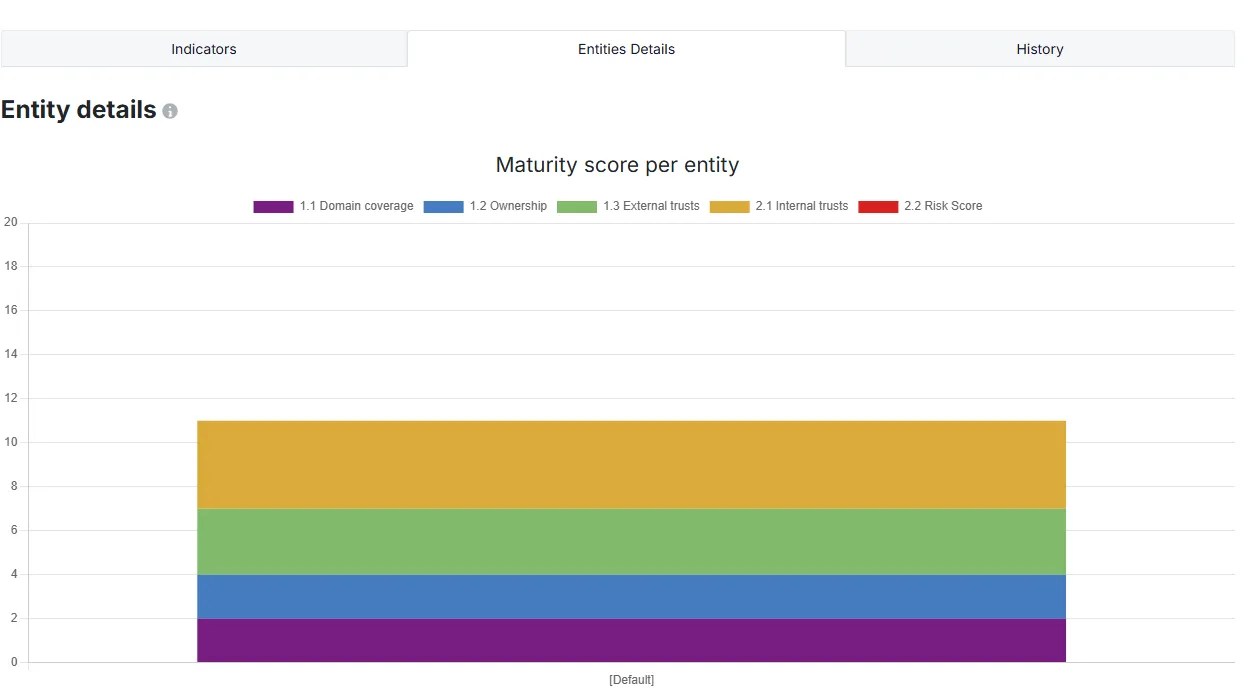
History for the related tab:

Remediation / Rule Matrix
The "Rule Matrix" view aggregates every rule used in the 4 categories to calculate the Global Risk score. With this feature, you can identify the main points of failure within your Active Directory and then implement the associated remediation plan.
It takes the form of a double entry table, with all the domains within your perimeter on one side, and all the rules and whether they're OK or not on the other. You can filter it to show only relevant information (that is, what affects your security negatively), and you can also download it in CSV format.
Use this dashboard to set up a taskforce and a remediation project.
The first view is a matrix with all the rules in columns and all the domains in lines.
Global problems appear as a vertical line (affecting a rule), and local problems appear as a horizontal line (affecting a domain).
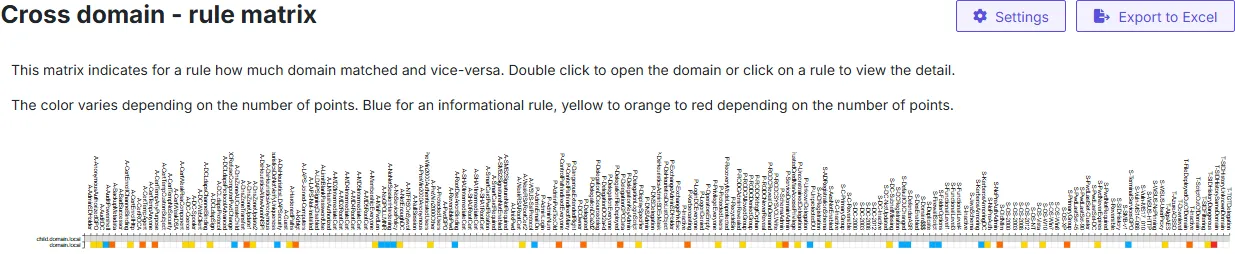
PingCastle recommends working on a unit consisting of 10 to 15 domains. After you make the selection, PingCastle recommends ordering the items by maturity level and removing the blank items.
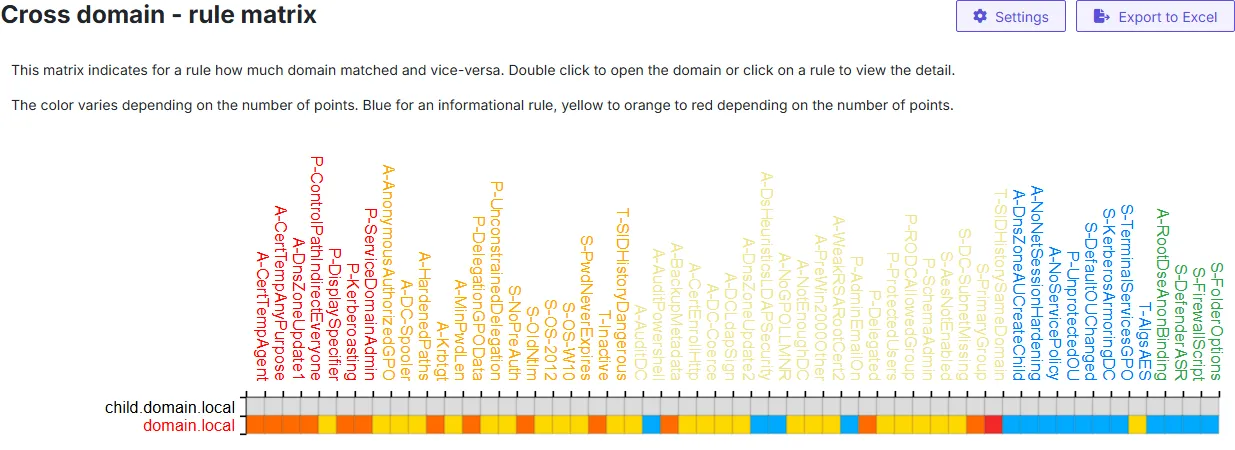
The result is a matrix of about 15 to 20 domains, where each colored cell represents a rule that matched.
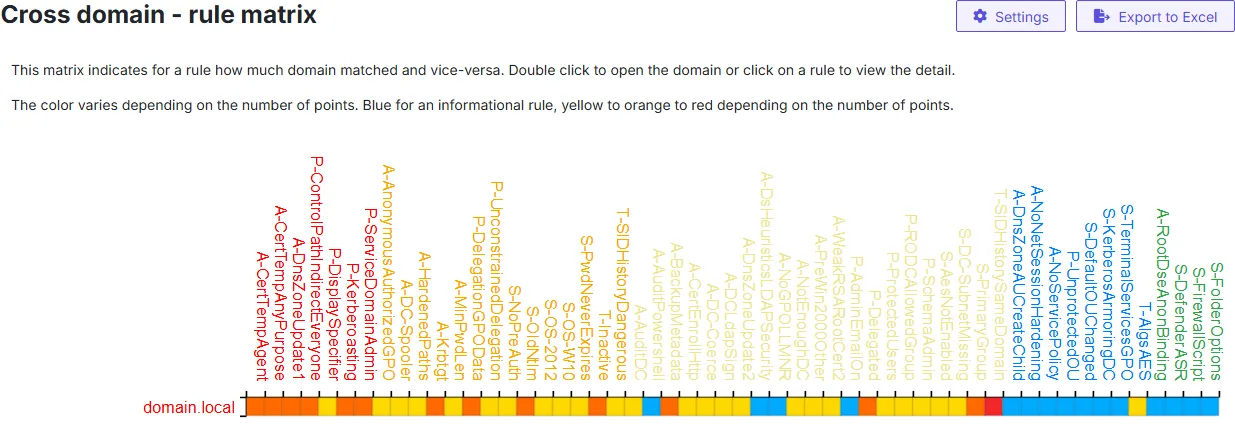
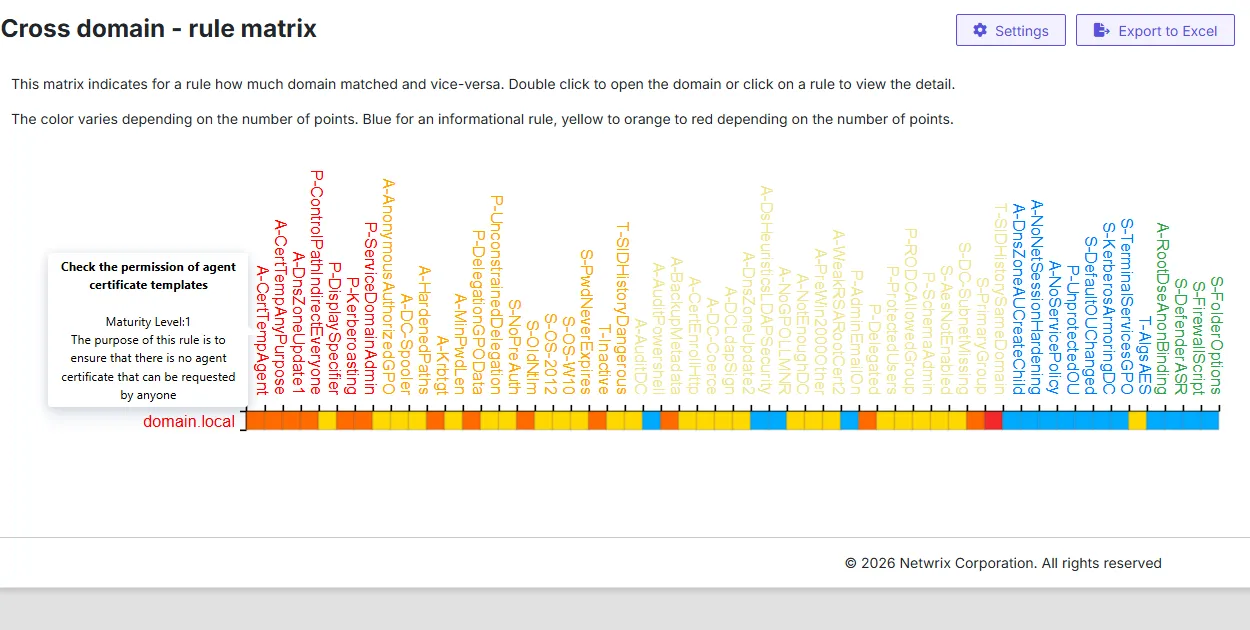
You can view the detail by pointing at the cell, and a click forwards you to the detail of the report.
The "View Action Plans" option changes the color of the items and lets you quickly see the status of the action plans.
The first step of a remediation is to request domain owners to set up an action plan without enforcing it.
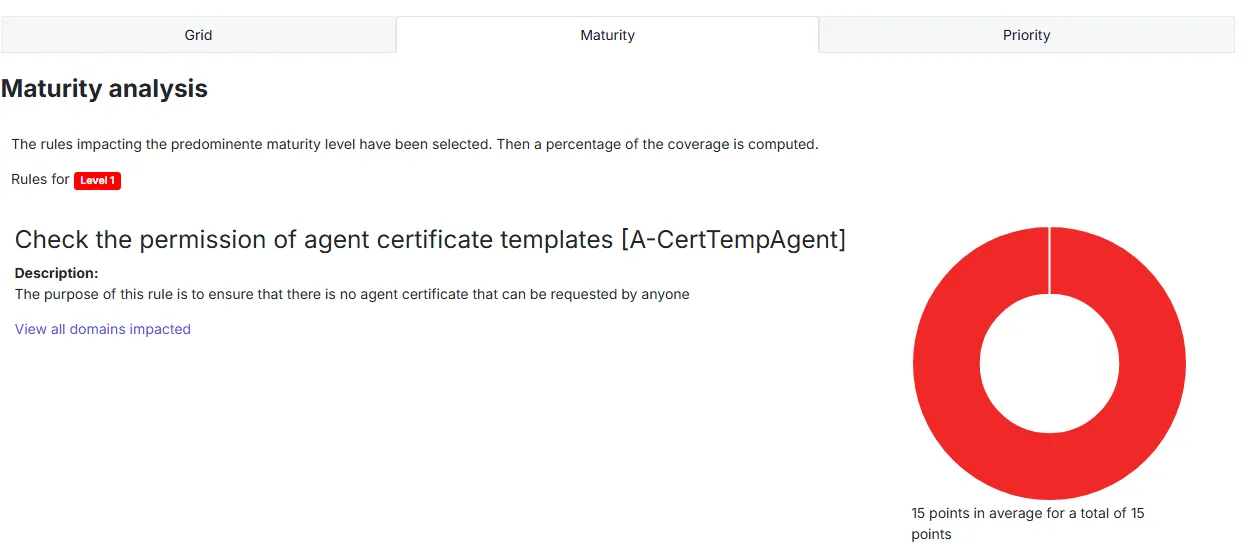
To see the top rules to fix to improve the maturity or the score, select the "Maturity" or "Priority" tab.
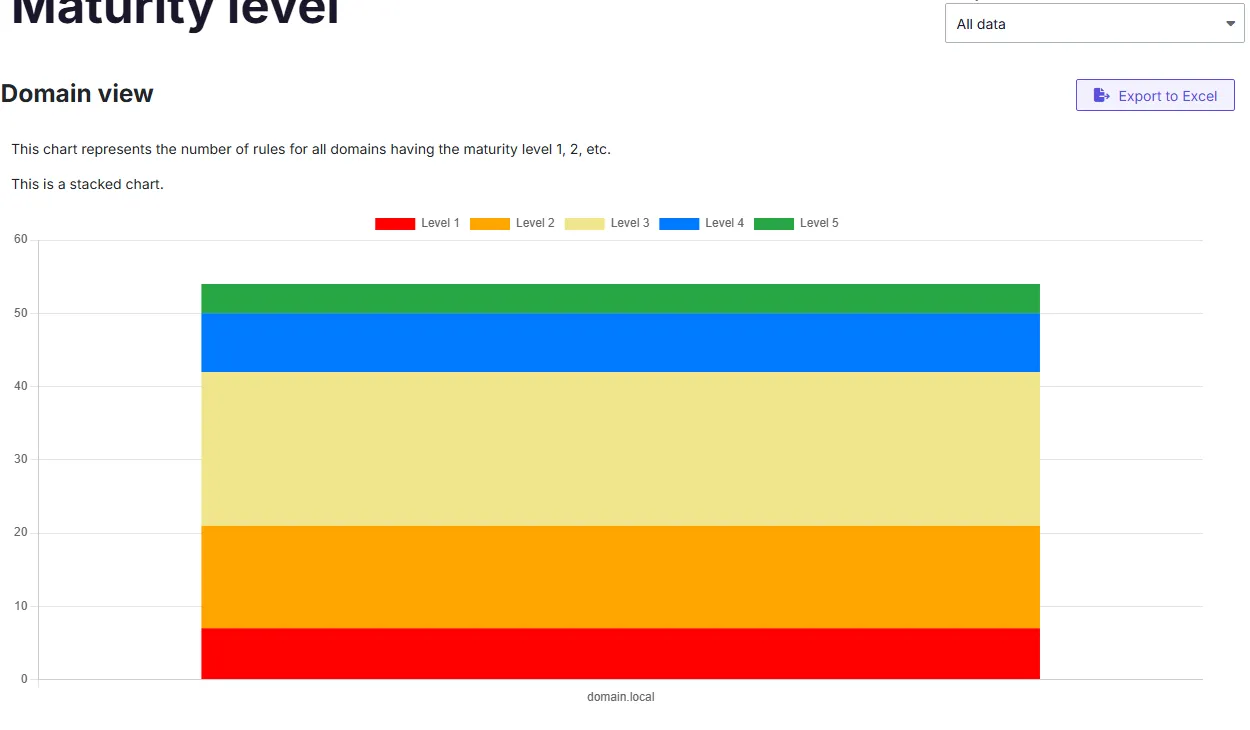
Remediation / Maturity per domain
This view lets you compare the number of rules per domain in a selected entity.
Advanced
The "Advanced" part of the Dashboard contains extra utilities that help you understand your current level of AD security and how to improve it.
It consists of the following pages:
Report Analysis
Consolidation of all the possible reports that PingCastle Enterprise can generate with the information it has in the selected perimeter. Many features let you filter the data as needed. PingCastle Enterprise may add more reports in the future or on request.
Anomalies
Covers security misconfigurations across core AD infrastructure and services outside of trusts, stale objects, and privileged accounts — such as Active Directory Certificate Services (ADCS) — along with other irregularities that deviate from AD security best practices.
Trusts
Assesses risks arising from Active Directory trust relationships, including misconfigurations that attackers can exploit for cross-domain or cross-forest privilege escalation. Covers issues such as SIDHistory abuse, weak trust configurations, and other trust-path vulnerabilities that put connected domains at risk.
Stale Objects
Identifies outdated, unused, or poorly maintained objects in Active Directory that indicate weak hygiene practices. Covers inactive user and computer accounts, expired or unused objects, and other legacy artifacts that expand the attack surface if you leave them unaddressed.
Privileged accounts
Evaluates the security posture of accounts with elevated permissions across the domain. Covers protections around privileged group membership, permission assignments, password policies, and other controls designed to limit exposure of high-value accounts.