PingCastle Enterprise Entities and Action Plans
The "Configuration" view of the PingCastle Enterprise application lets you set up the tool completely. In this view, you can also personalize settings so the tool better fits your company's needs.
Entities
On the "Entities" page, you can create and configure the entities within the company.
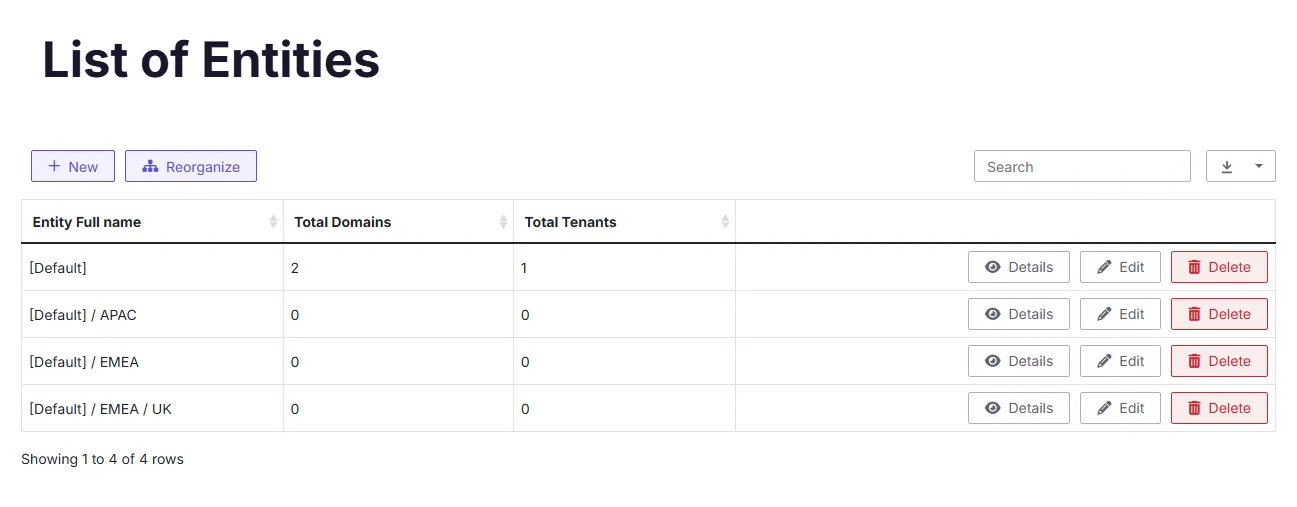
Use entities to best represent the company organization, so that the Active Directory configuration matches the company configuration.
PingCastle Enterprise configures a default entity named "Default" where it assigns auto-created domains. You can create additional entities and build a hierarchy by setting parent relationships.
You can also use entities to identify administrators for specific perimeters, meaning these administrators operate on defined domains.
Add new entity


Reorganize the tree view of entities
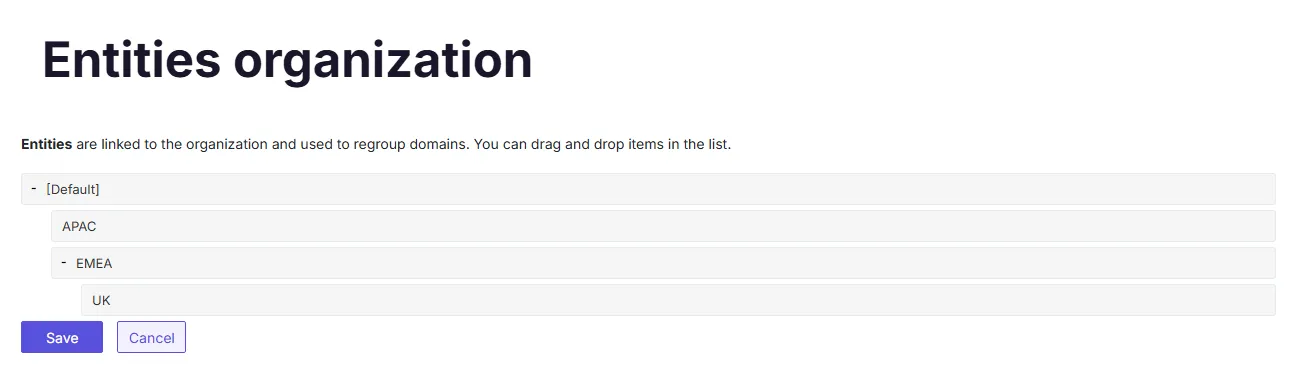
The PingCastle Enterprise solution provides an ergonomic view to reorganize the various entities that may compose your company. This view works through drag and drop to improve the user experience.
Example to show how to reorganize entities:
Details of an Entity
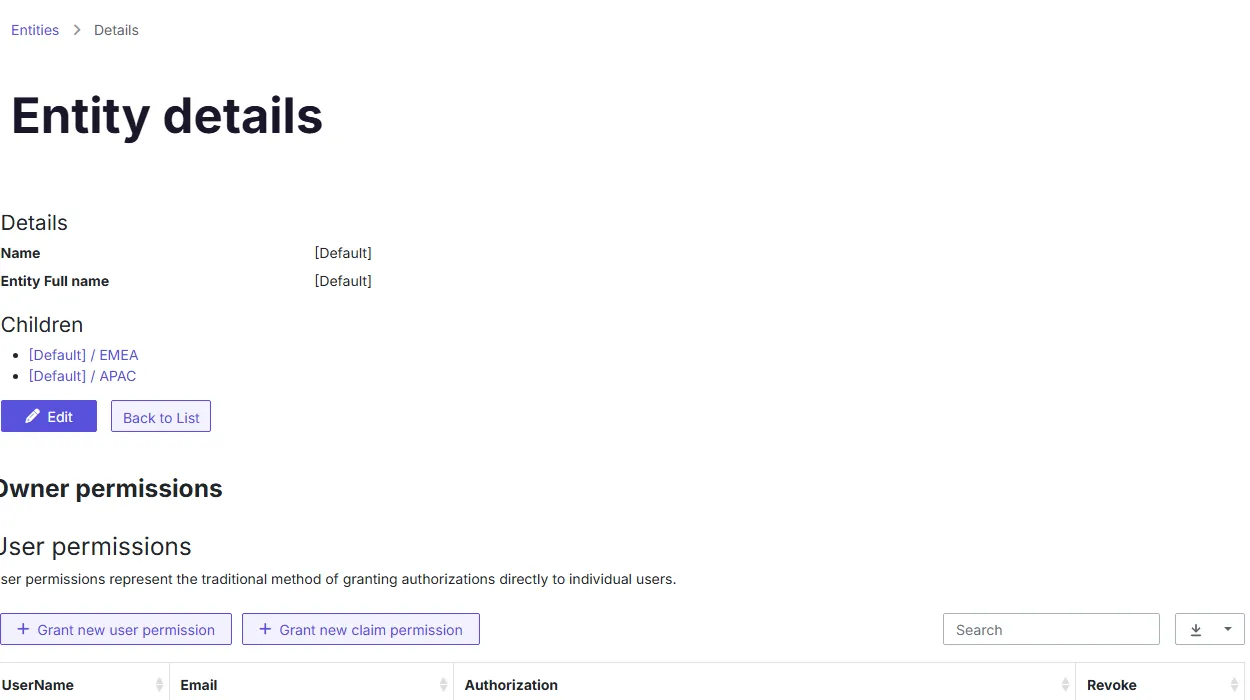
Each entity has a dedicated "Details" page that contains information. On this page, you can access all the information of the entity, including the Owner permissions. Here you can also edit these rights to establish which key people are accountable for a specified entity.
For instance, the page for the PingCastle Enterprise entity:
Action plans management
This part lets an administrator configure a remediation schedule so reports can display it.
This page covers how to manage action plans for a specific domain or entity in the UI. To configure the default due-date and comment-template settings that action plans use, see Action Plans settings.
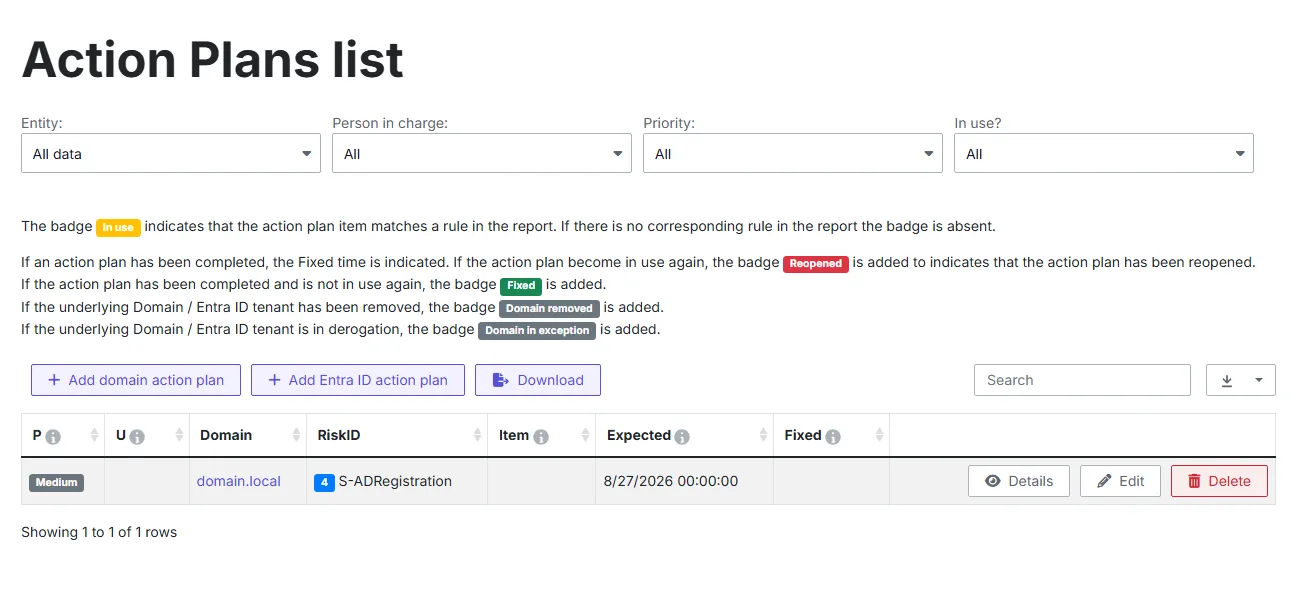
You can act on it directly in the domain details where the rules appear:
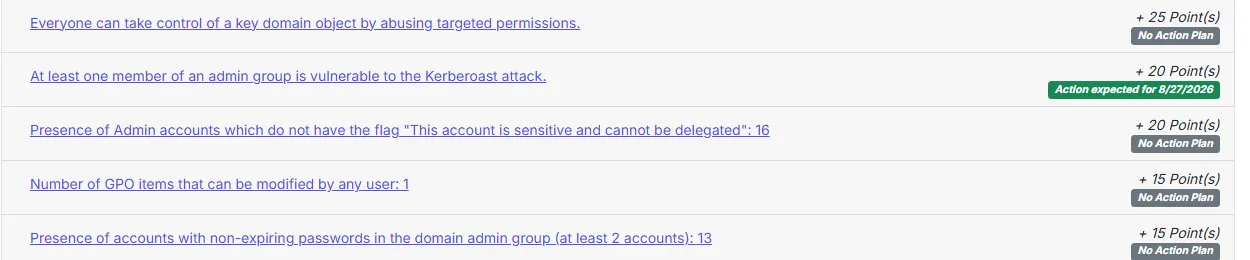
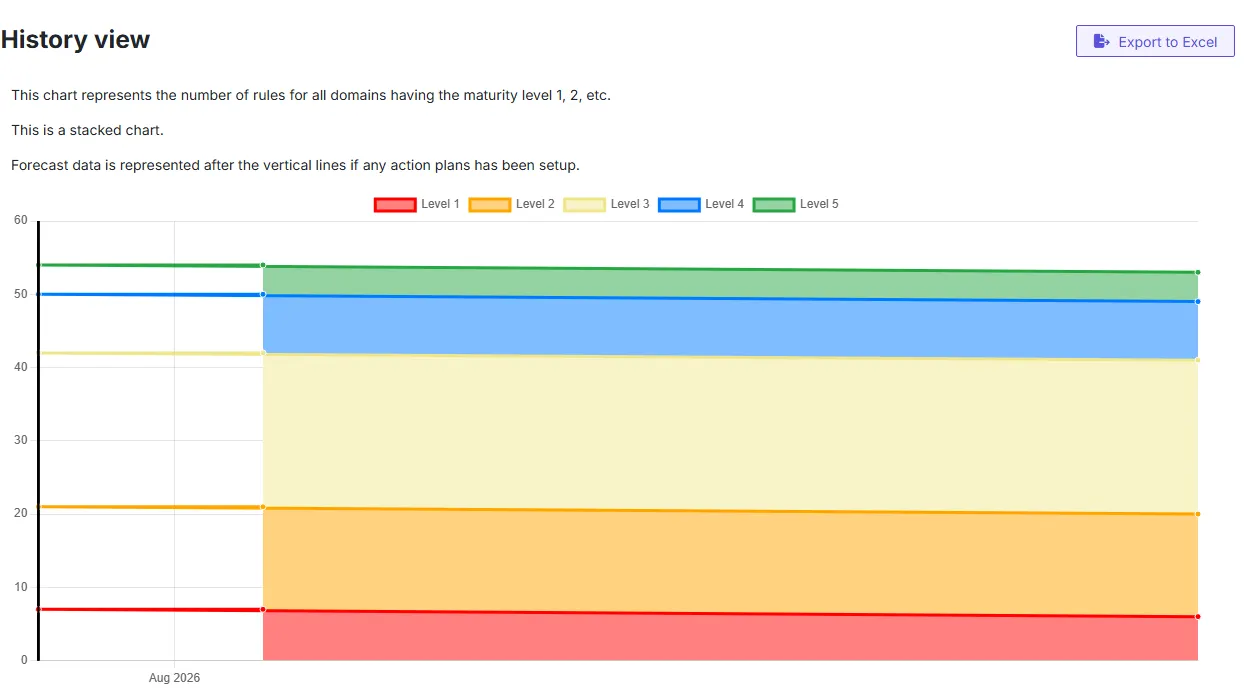
Pay attention to the following chart. It represents the evolution of the number of rules per maturity level. Because you defined an action plan, a vertical line represents today. Everything to the right is the projected evolution of the maturity level based on the action items.
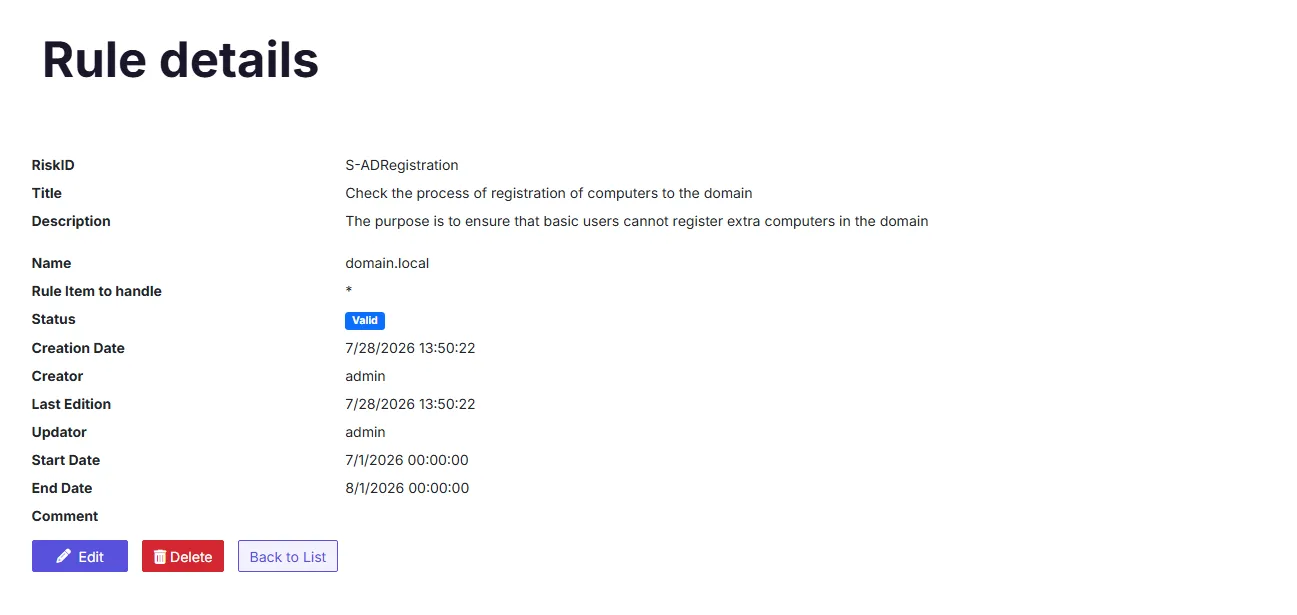
Exceptions management
This part lets an administrator configure PingCastle Enterprise so that it adapts to the company's specific context. You can configure how PingCastle Enterprise handles exceptions specific to your perimeter.
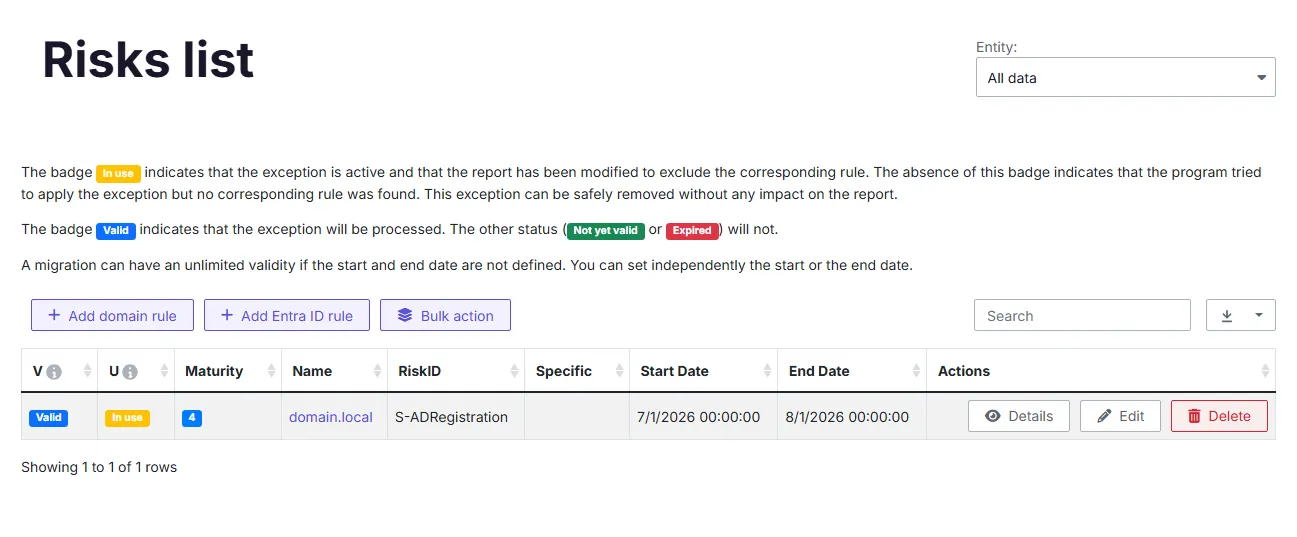
Rule exceptions
You can set "Rule exceptions" to completely disable a rule within a specific domain. It means the application doesn't apply this rule for a period that you specify.
Use this only for very specific reasons, such as when a rule doesn't apply in your organization.
Contact Netwrix support if you have doubts or need extra assistance about exception management.
For clarity: if you define no start date and no end date, the exception applies to all reports. If you define a start date but no end date, the exception applies starting from the start date. The same holds for the opposite case. When you define both start and end dates, the exception applies only during a limited period.
Migration
In the same way you can set exceptions for a specific domain, you can inform the application when one of your domains is migrating. It automatically applies a set of exceptions during the timetable of the migration.
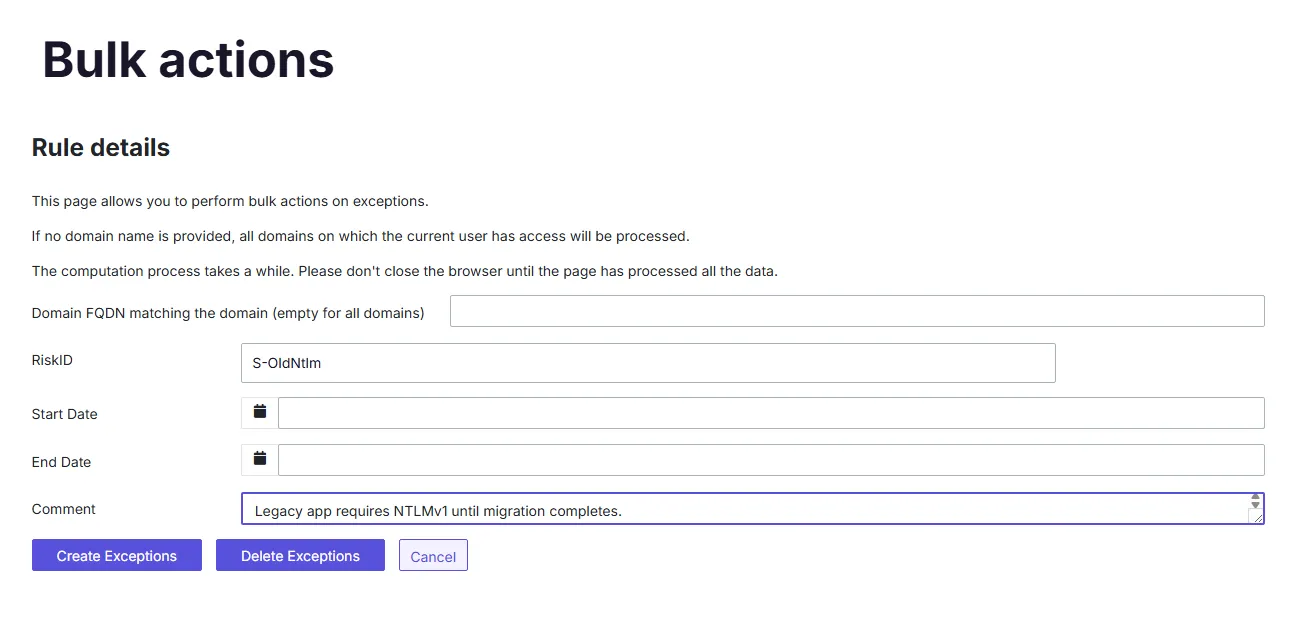
Bulk actions
If you need to create or remove many exceptions, you can do so in bulk.
If an exception already exists, the application doesn't create it again.
Since PingCastle 2.11, the application tracks all exceptions, migrations, or action plans with their creation or last modification date and the user who performed the change.