Importing Data into PingCastle Enterprise
PingCastle Enterprise allows administrators to consult all report data and make decisions. Scheduled scans run automatically through the PingCastle Scheduler Service. Import reports that PingCastle.exe produces outside that scheduled flow, such as manual runs or scans from domains the scheduler can't reach directly.
There are two ways to import reports, plus a separate option for bulk importing entities:
Option 1: Importing the file manually
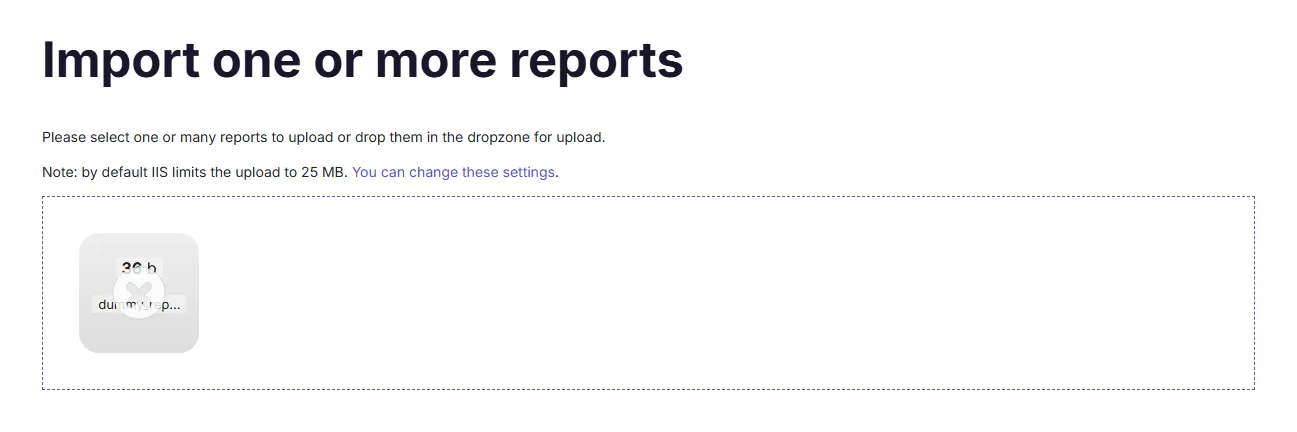
From the "Configuration" tab, open "Import one or more reports". On that page, you can drag and drop any file the PingCastle standalone executable produces, and it uploads to the PingCastle Enterprise solution.
After it's done, the application marks the file with either a success or a failure.
In case of a failure, hovering over the item displays the associated error message to help you upload the file.
Import page:

Option 2: Importing the file automatically through Agent mode
Agent mode lets PingCastle.exe upload reports to PingCastle Enterprise automatically over the API, using a scheduled task rather than a manual upload. It's the option to use for domains the PingCastle Scheduler Service can't reach directly. See Agent deployment for setup steps, including creating the API key and configuring the command line.
Option 3: Bulk import of entities
For bulk configuration, use Configuration > Interoperability to edit the entity hierarchy using an Excel file (compatible with the PingCastleReporting tool format).
Scheduler
The PingCastle Scheduler Service and credential profiles manage scan scheduling. See Active Directory scan scheduling for details on configuring credential profiles and scheduled scans.
Reports
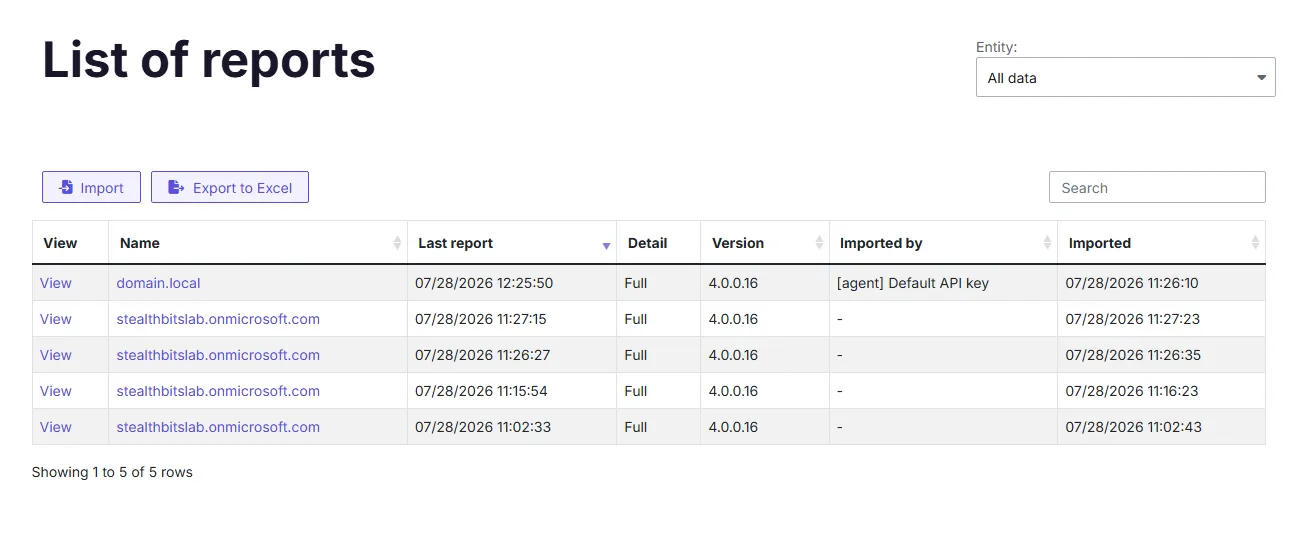
You can view all the reports imported into PingCastle Enterprise, regardless of how you imported them.
To do so, from the "Configuration" tab, click "View all reports" to reach the page: