PingCastle Enterprise Infrastructure
The technical view, also named "Infrastructure", builds on a list of domains and their data.
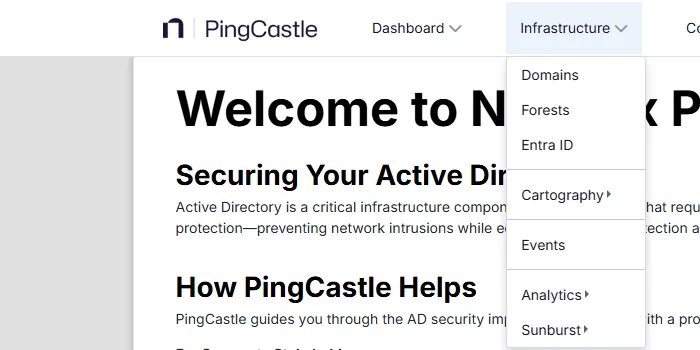
The "Domains" page shows the list of domains, and a "Forests" page lists only forests containing more than 2 domains.
You then use cartography pages to explore the topology of the monitored area. Pages with more detailed analysis, such as domain events or analytics, can show data across domains to help you investigate specific questions.
Domains
List of domains
This page displays the list of all the domains in the perimeter. You can filter this list based on parameters to switch between the management view and the technical view. You can customize this filter by clicking "Advanced Filter". Use the "Search" function to dynamically filter domains by name, SID, or entity.
The application filters out domains with status Removed or Out of scope by default.
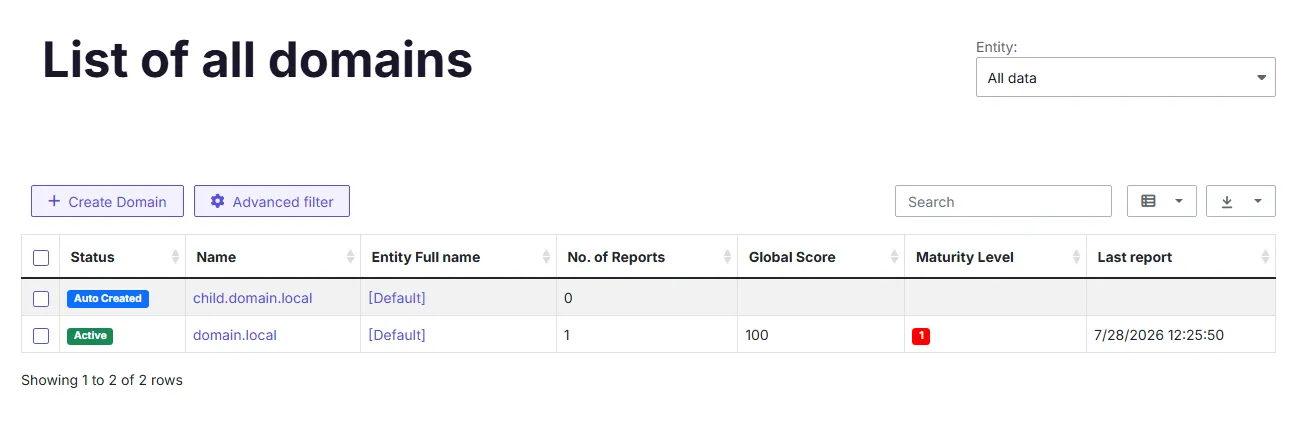
Clicking a domain opens the domain view, and clicking the entity full name opens the management view for the entity.
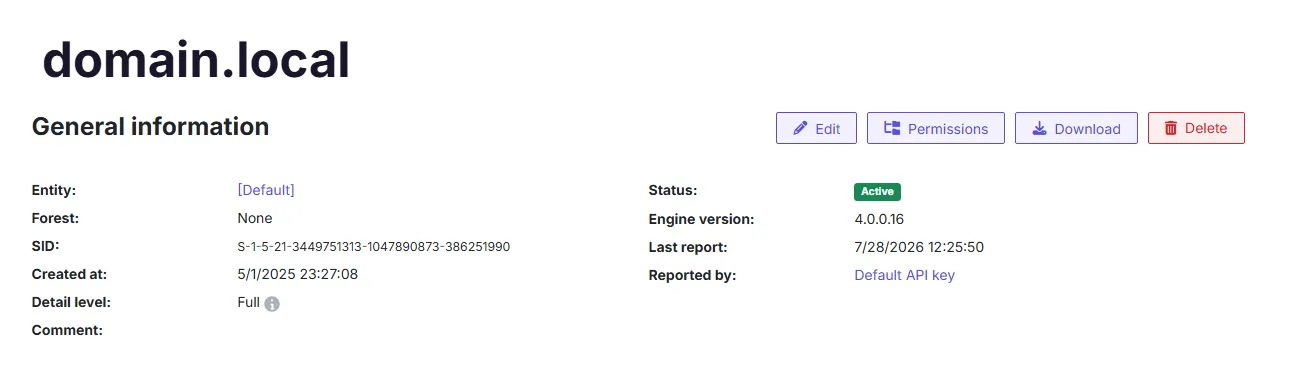
Detail information on a domain
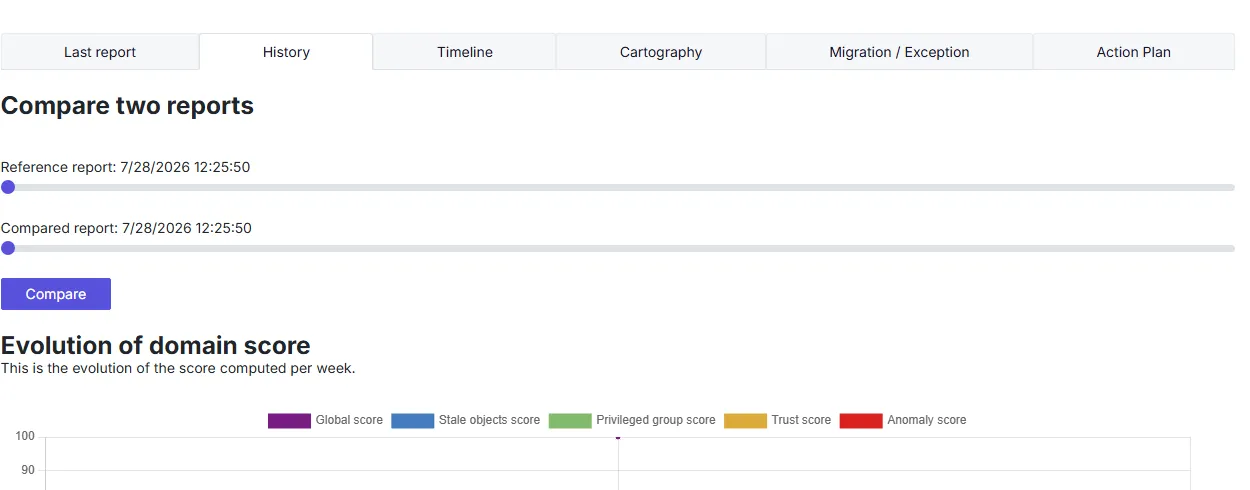
This view displays detailed information on the domain, including the results of the last report, some history, a timeline, and cartography. You can switch between this information by selecting a tab.
Last report tab:
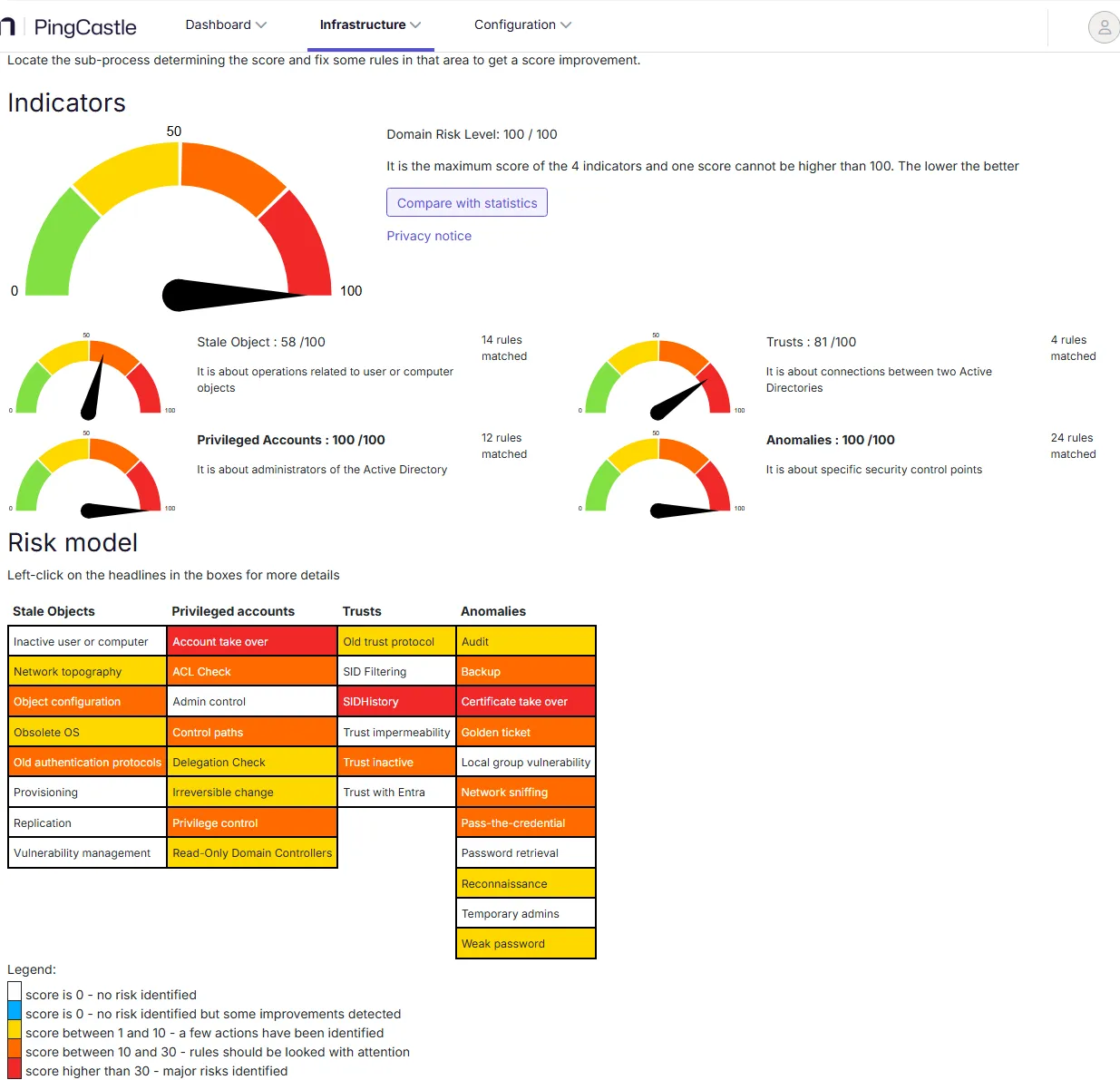
You can access the full detail of the last report in this tab, though this page doesn't show it.
By default, when there's a list of users, the application limits the output to 100 users.
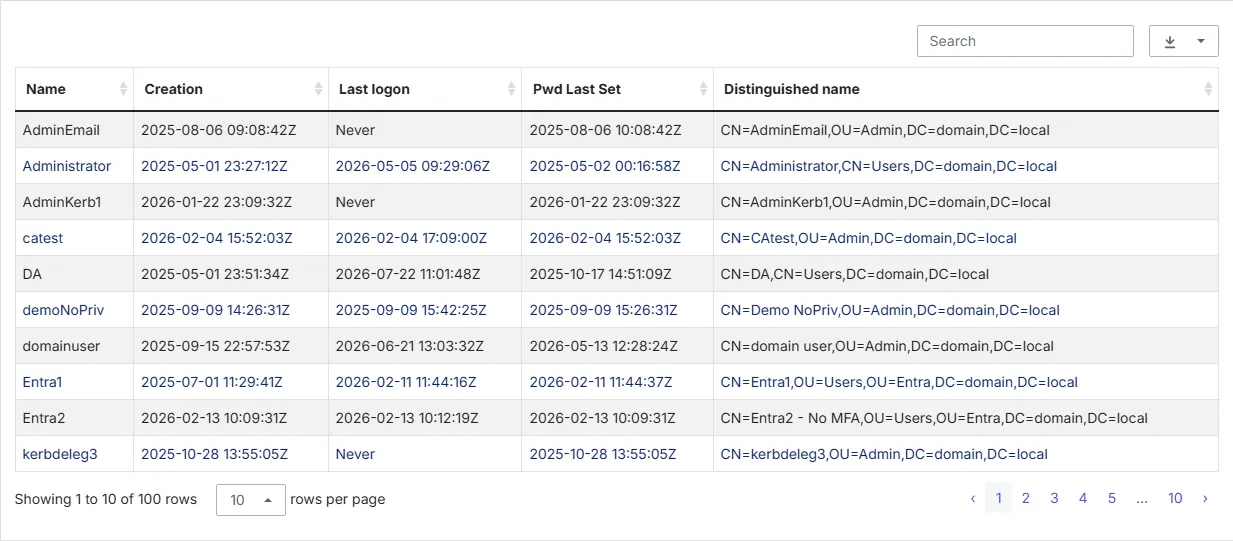
This limit prevents large HTML pages from blocking navigation.
To overcome this limit, use the local PingCastle client and export the list of accounts you need for detailed analysis.
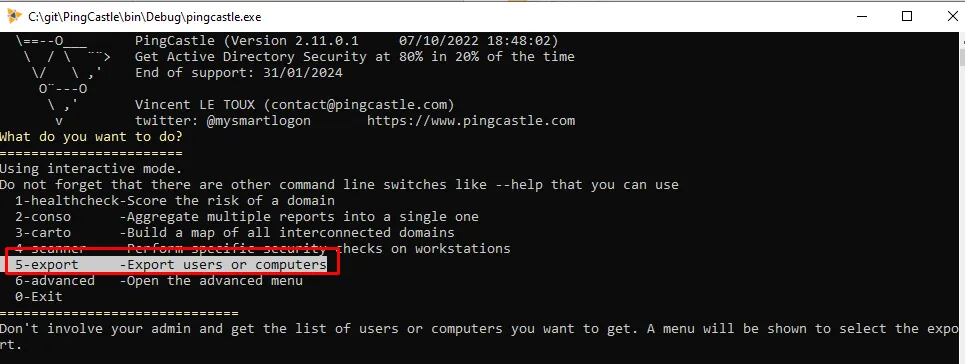
This export produces a CSV file with the user or computer name and many properties, such as the creation date or operating system as PingCastle sees them.
The other alternative is to change this limit on Configuration > Settings > Data retention, using the Limit user list output toggle. When you turn it on (the default), the cap is 100 users. When you turn it off, the cap raises to 10,000 users rather than becoming unlimited.
History tab:
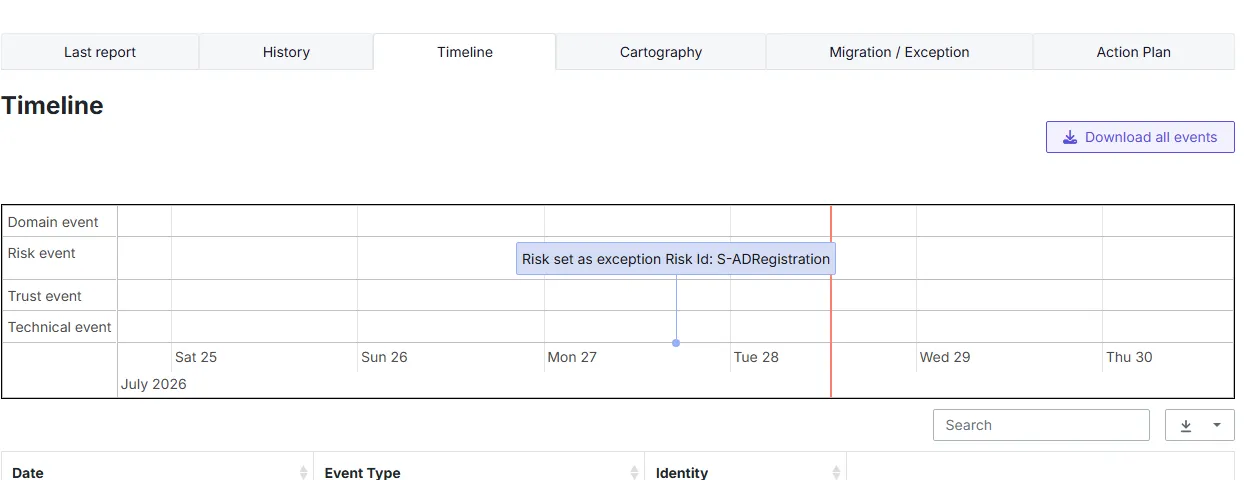
Timeline tab:
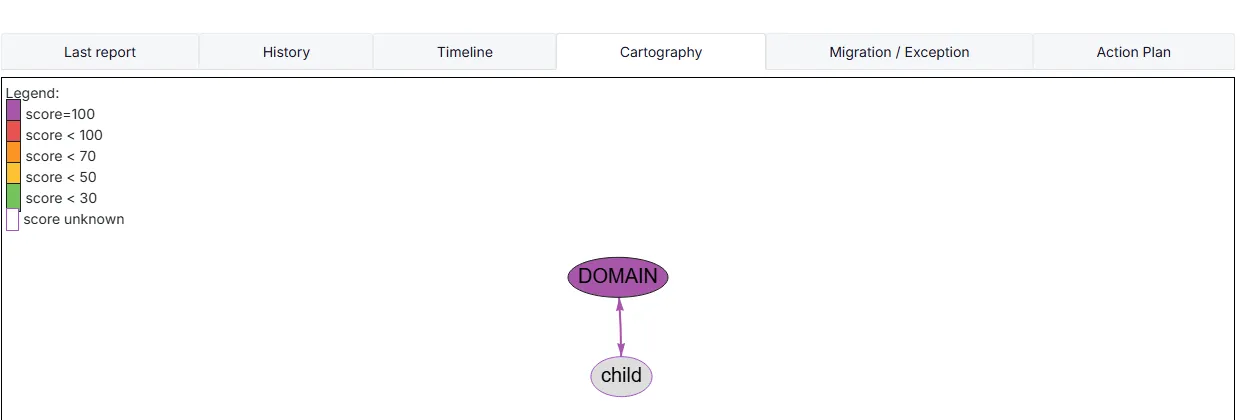
Cartography tab:
Creation and suppression of a domain
There are two ways to create a domain in PingCastle Enterprise:
-
The application creates a domain automatically when you import a report into the solution. It then sets the status to "Auto-Created", which you must change manually (see the "Status" section for more details).
-
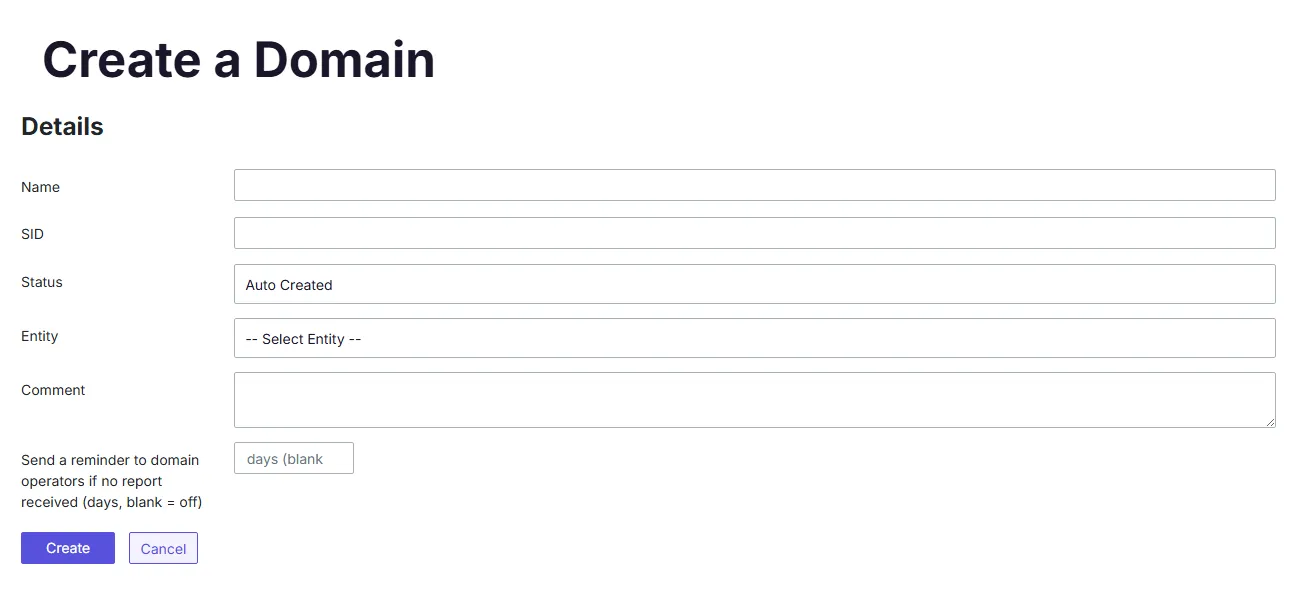
Manual creation of a domain, when you want to import a report for this domain, for instance. You do this by clicking the related button.

It brings you to a page with information to fill in:
-
Domain FQDN(*): Name of the domain. If you want to import a report related to this domain, it's best to set the same name so the application updates the information automatically.
-
Domain SID: Differentiates the rare cases where two domains have the same FQDN.
-
Status: Status of the domain, which you must modify when needed. See "Status of a domain" for a full explanation.
-
Entity: Entity to which the created domain belongs. Assigning entities to domains can help manage a very large forest of AD, especially when there are multiple actors dedicated to specific entities.
-
Comment: Possible comment to add more information on the domain.
You can't hard-delete a domain (unless you added it manually by mistake, meaning it isn't connected to any other existing domain or report). However, you can soft-delete a domain by changing its status.
Status of a domain
The domain status follows a basic lifecycle, as the following graph shows.
The default status is "Auto Created", and you must make every change manually when required.

-
Auto Created: The PingCastle Enterprise solution created the domain automatically, which means it's connected to another domain you're monitoring. You must act on this domain status, since the "Auto Created" status shouldn't remain.
-
Active: Normal status of a domain when the PingCastle Enterprise solution monitors it.
-
Derogation: Special status used to identify domains that the application ignores in the statistics and score calculation. Use this status cautiously and only in specific cases, such as while you're deleting a domain or during a migration.
-
Removed: Status that simulates a hard-deletion. Set this status when the domain no longer exists within your Active Directory.
-
Out of Scope: Status that simulates a hard-deletion. Set this status when the domain doesn't actually belong to your organization and your company shouldn't follow it.
Forest
A forest is a set of domains, containing a root and child domains. When the application discovers a child domain, it sets the root domain as a root of a forest and displays it in Domains -> Forests. It displays a list of discovered forests, along with a special view.
Use this area to understand how the domains are interconnected.
Cartography
Navigation
Use each cartography to navigate between domains. Hovering over a domain displays a tooltip containing information about the domain, like its score or its entity. A double click opens the domain if you can access it.
The cartography is domain relative, meaning the application creates one cartography for each report. This way, PingCastle Enterprise can display the list of all the domains that a specific domain can see.
How PingCastle builds the maps
PingCastle uses the data in the report from the most reliable source to the least reliable source, in the following order:
-
The most reliable source is the domain where PingCastle generated the report.
-
The tool uses direct trust data.
-
The tool uses forest trust information. This information is located in the msDS-TrustForestTrustInfo attribute of a forest trust and in the partition element of the configuration binding context.
-
The tool uses the information provided by the domain locator service when examining trusts. This information can add the Netbios name or the forest name of a trusted domain.
-
If you set the "reachable" option when producing a report, the tool uses domain SIDs found (in foreign security principals or SID history) to query the domain locator service and guess forest trusts.
Detailed Cartography
A general cartography is available. It displays all the domains and their trust relationships that you can see in your scope.

Simplified Cartography
Because the general cartography can be difficult to read, a simplified view exists. By default, the program identifies the domain with the most trust relationships and puts it at the center. It then proceeds by radius, selecting its direct neighbors.
Therefore, the view shows only domains connected directly through one trust to the main domain.
Domain events
This page lets you query any events that occurred on one or more domains and filter them by type.
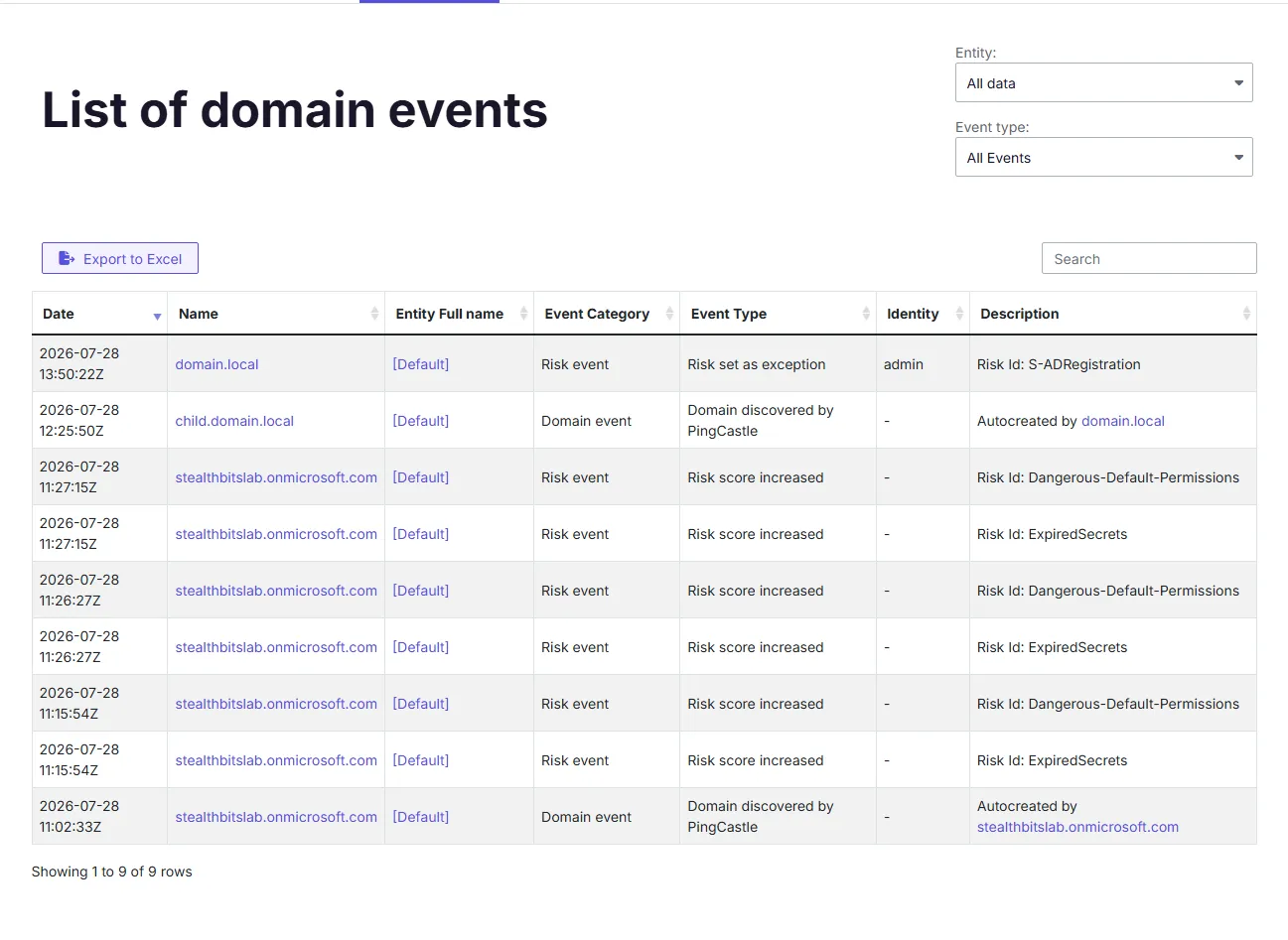
The events that you can view are the following:
Domain event:
A domain changed within a specific perimeter in the PingCastle Enterprise solution. It can be a domain that a user added, a domain discovered after importing a report, a status change, etc.
Risk event:
The risks the PingCastle Enterprise solution follows changed. It either means the application discovered a new risk that you should follow, or cleared a risk so the overall level of security improved. It can also mean that someone set a risk to an exception status.
Trust event:
The trust between several monitored domains changed. It implies that someone established a new trust between two domains, deleted an existing trust between two domains, or modified an existing trust.
Technical event:
A significant technical change modified the global level of security, but the existing rules don't yet cover it. This is a rare event, and you probably won't see this kind of event.