PingCastle Pro User Manual
Description
PingCastle Pro is a tool that helps you improve and follow your overall Active Directory security level. This software is compatible with most existing configurations and provides reliable data to present the situation to management, enabling continuous improvement over time.
PingCastle built-in security
PingCastle Pro is a tool dedicated to improving Active Directory security, so security is a major priority at every step of creation and improvement.
First, the application uses a framework that prohibits most common attacks such as cross-site scripting (XSS) or SQL injection by design.
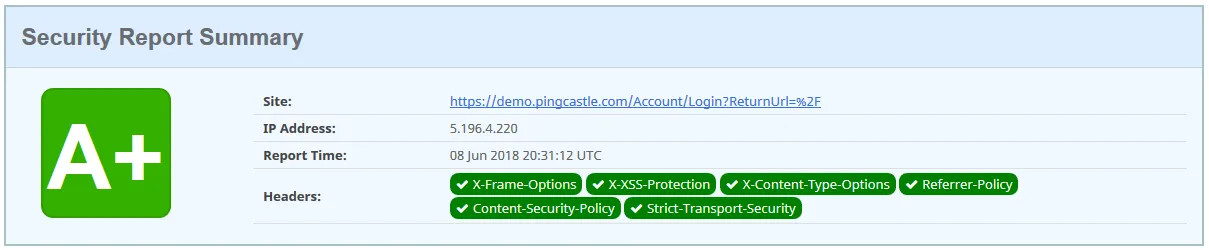
Because attackers can sometimes bypass such protections, the application has an additional layer of protection with all known HTTP security headers and including the header "Content Security Policy" in strict mode. That means the application stores all its JavaScript code in separate files, and injected JavaScript will not run in the browser. You can check this protection via a third-party service such as "security headers". The application doesn't accept "unsafe-inline" and "unsafe-eval".
The application uses enforced controls that check parameters twice against a model (in the browser then in the server application) and parameterizes all database queries. The application never builds SQL strings.
Then a filter verifies each database access by checking the query before PingCastle Pro sends it to the database. Unit tests cover this code to lower the risk of a misconception in the filter.
The application mainly uses the following frameworks:
-
asp.net core 3.1
-
bootstrap 4
-
jQuery 3
-
vis.js
-
chart.js
Authentication and user management
PingCastle Pro provides authentication through:
-
Windows Auth
-
Entra ID (formerly Azure AD)
Ping Castle Pro features
Main pages overview
The application has two areas:
-
The Audit data view
-
The configuration

Technical view ("Audit data")
The technical view, also named "Audit Data", builds on a main domain and its data.
Domains
Detail information on a domain
This view displays detailed information on the domain, including the results of the last report, some history, a timeline, and cartography. You can switch between this information by selecting a tab.
Last report tab:
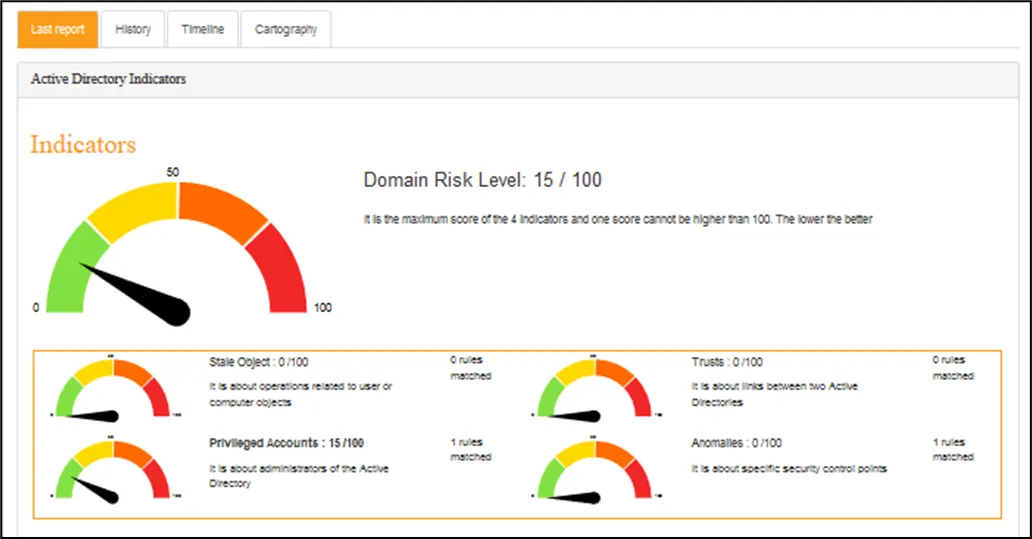
You can access the full detail of the last report in this tab, though this page doesn't show it.
History tab:
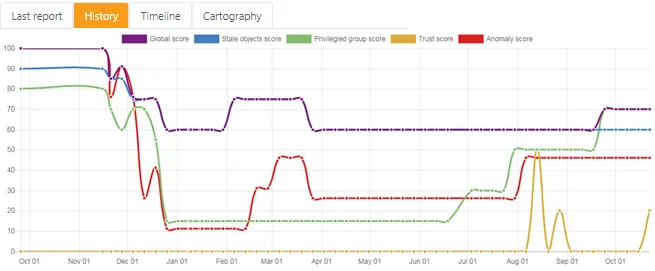
Timeline tab:
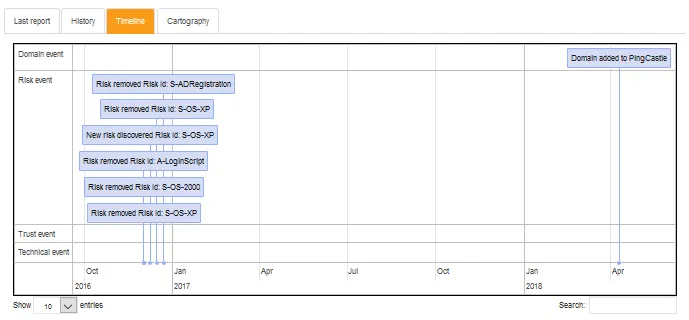
The events that you can view are the following:
Domain event:
A domain changed within a specific perimeter in the PingCastle Pro solution. It can be a domain that a user added, a domain discovered after importing a report, a status change, and so on.
Risk event:
The risks the PingCastle Pro solution follows changed. It either means that the solution discovered a new risk that the user should follow, or that a risk has cleared and that the overall level of security improved. It can also mean that someone set a risk to an exception status.
Trust event:
The trust between several monitored domains changed. It implies that someone established a new trust between two domains, deleted an existing trust between two domains, or modified an existing trust.
Technical event:
A significant technical change modified the global level of security, but the existing rules don't yet cover it. This is a very rare event, and you're unlikely to see it.
Cartography tab:

Tool configuration ("Configuration")
The "Configuration" view of the PingCastle Pro application lets the user set up the tool completely. In this view, the user can also personalize settings so the tool better fits the company's needs.
Exceptions management
This part lets an administrator configure PingCastle Pro so that it adapts to the company's specific context. You can configure how PingCastle Pro handles exceptions specific to your perimeter.

Rule exceptions
You can set "rule exceptions" to completely disable a rule within a specific domain. This means PingCastle Pro doesn't apply this rule for a period that you specify. Use this only for very specific reasons, such as when a rule doesn't apply in your organization. Contact the PingCastle editors if you have doubts or require extra assistance about exception management.
Migration
In the same way you can set exceptions for a specific domain, you can inform the application when one of your domains is migrating. It automatically applies a set of exceptions during the timetable of the migration.
Importing data
PingCastle Pro allows administrators to consult all report data and make decisions.
You can't yet launch scans directly from the application, so you must launch the PingCastle tool in standalone mode and then import the reports it produces.
There are two ways to do so:
- Option 1: Importing the file manually
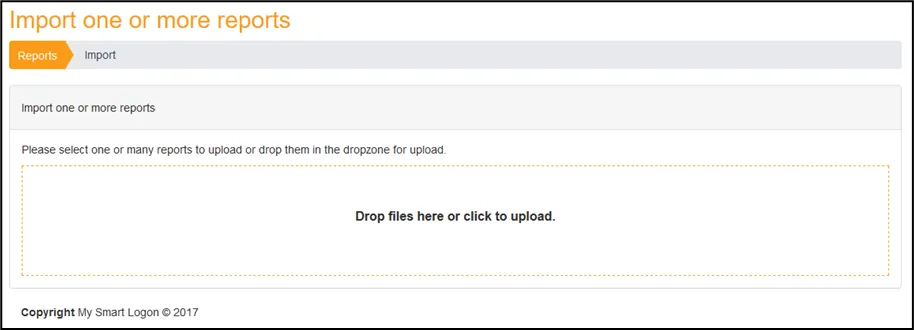
From the "Configuration" tab, open "Import one or more reports. On that page, you can drag and drop any file the PingCastle standalone executable produces, and it uploads to the PingCastle Pro solution.
After it's done, PingCastle Pro marks the file with either a success or a failure.
In case of a failure, hovering over the item displays the associated error message to help you upload the file.
Import page

- Option 2: Importing the file automatically through the Agent mode
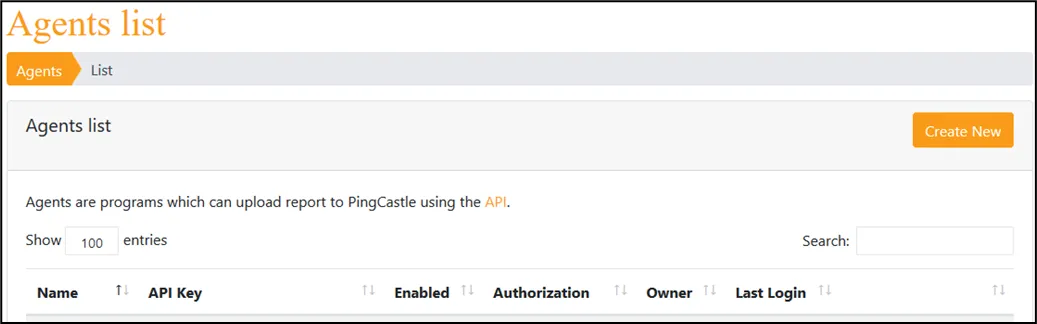
From the "Configuration" tab, you first need to get an API key using the "Agents" page and configure the PingCastle agent accordingly.
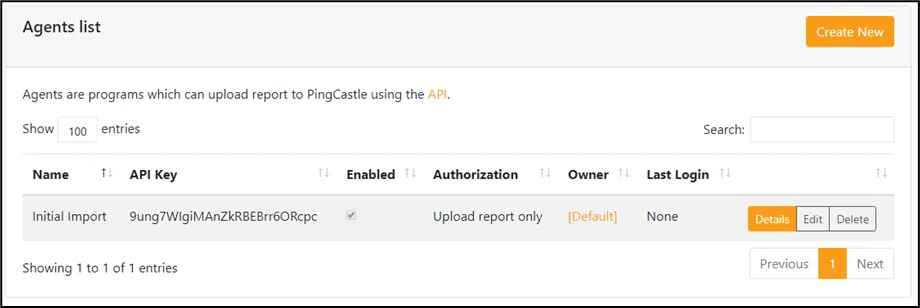
The first step is to create an Agent API key. Click the create button to reach the creation page.
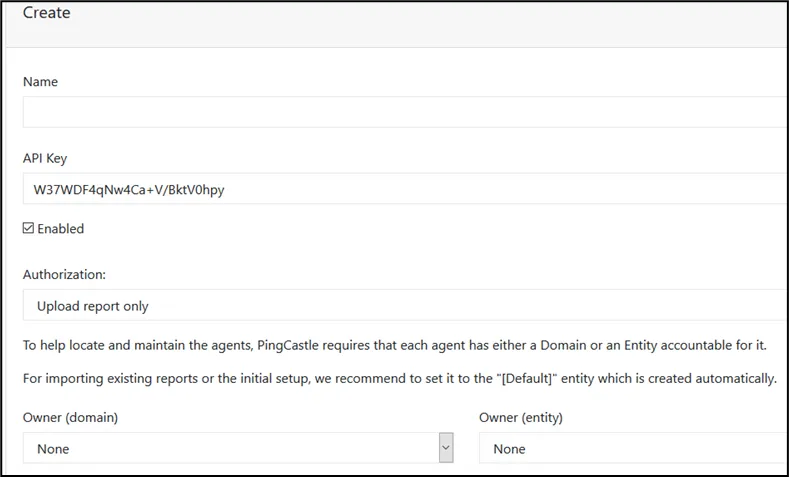
To map the agent to a responsible party, complete the Owner field. It can be an entity or a domain, such as the "default" entity.
PingCastle Pro generates the API key automatically, but you can change it if it meets the complexity requirements
After you set this up correctly, you can upload reports automatically with the following command:
pingcastle --healthcheck --api-endpoint <endpoint> --api-key <key>
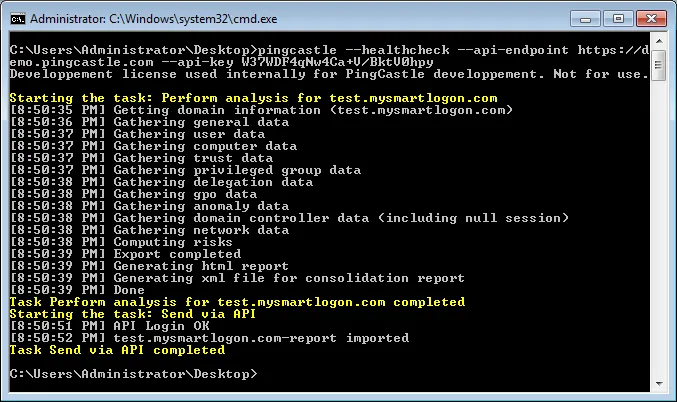
By default, PingCastle Pro filters all detailed information. To avoid this behavior, change the command line as follows.
pingcastle --healthcheck --api-endpoint <endpoint> --api-key <key> --level Full
You can browse the API using the link found on the agent page: