Scheduler
Quick installation setup
PingCastle lets the application administrator schedule scans. It is useful when you install the solution in a central forest and need to scan all child domains.
By default, PingCastle runs as a limited user. It can't access the network nor modify system settings. To use the scheduler, you must change permissions.
One approach is to change the user from Application to LocalSystem.
Open the IIS console and go to the application pools settings. Go to advanced settings.
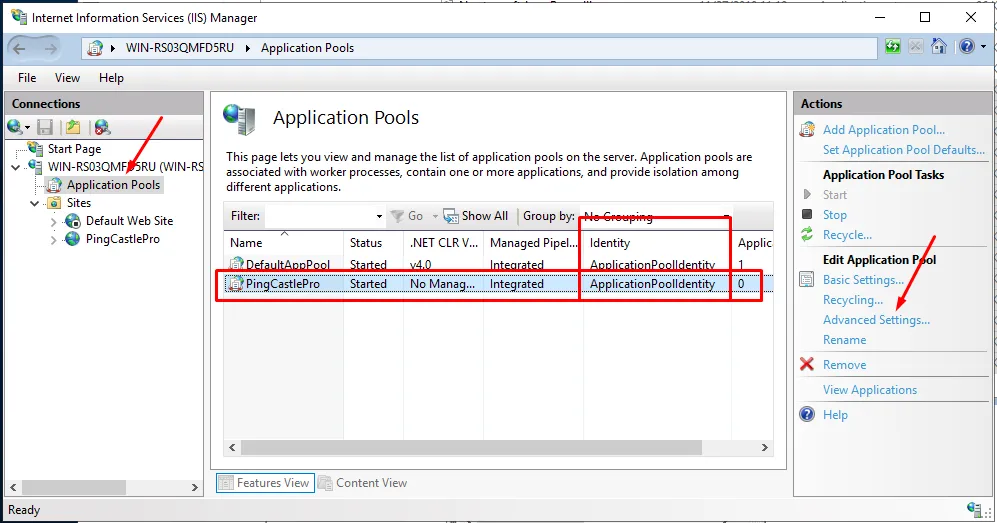
Find the Identity setting and change ApplicationPoolIdentity to LocalSystem.


Then restart the application pool.
If you are using a custom identity for the application pool (to access a database hosted in another server), you have to promote this user as local admin. This is a Windows restriction of the permission model, and you can't delegate access to the task scheduler.
Custom installation
PingCastle uses a folder named "PingCastle" in the task scheduler. The COM API exposes the security descriptor, which the native PowerShell API doesn't.
If you want PingCastle to start or stop tasks but not edit them (which requires the account to be local admin), you need to delegate the permission to start and run tasks. You can perform the following actions as admin in powershell:
# connect to the task scheduler service
$scheduleObject = New-Object -ComObject schedule.service
$scheduleObject.connect()
$rootFolder = $scheduleObject.GetFolder("")
$PingCastleFolder = $rootFolder.GetFolder("PingCastle")
$PingCastleFolder.GetTasks(1) | Foreach-Object {
    $sddl = $_.GetSecurityDescriptor(1+2+4+8)
    # add full control to the task
    $sddl += "(A;S-1-XXX-XXX-XXX;FA;;;SY)"
    $_.SetSecurityDescriptor($sddl, 0)
}
Replace S-1-XXX-XXX-XXX with the SID of the account running the PingCastle web application.
Task edition
You can modify tasks outside of the PingCastle application. For a task to appear here, the application checks that this is a weekly schedule on one selected day and that the action matches classical command line options. That means you can modify --server or add additional parameters (for example --log-console). You can also modify the identity running the scheduled task (default is system)
However, if you edit the task within the web application, it overwrites your customizations.