Azure hosting
PingCastle Pro runs in an Azure App Service. To host it in Azure, you create a web app and a database, deploy the PingCastle Pro files to the web app, and copy the application settings into the web app's Configuration page.
Create the App Service
-
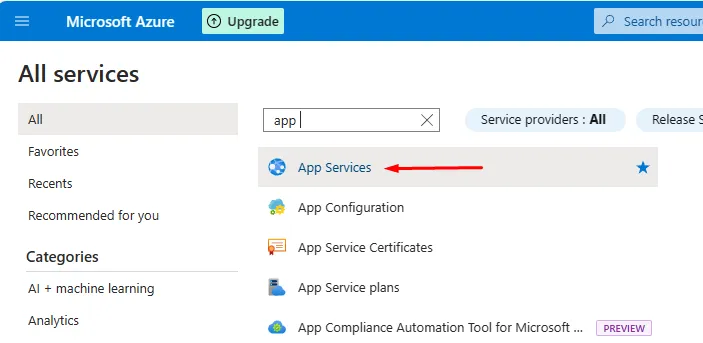
In the Azure portal, create an App Service.
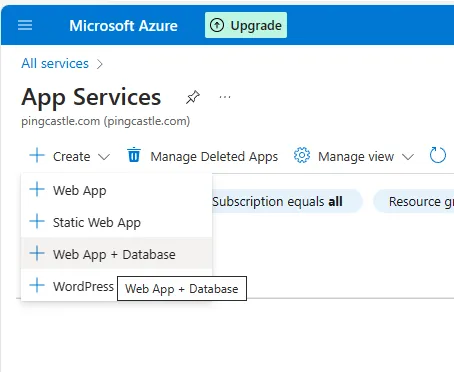
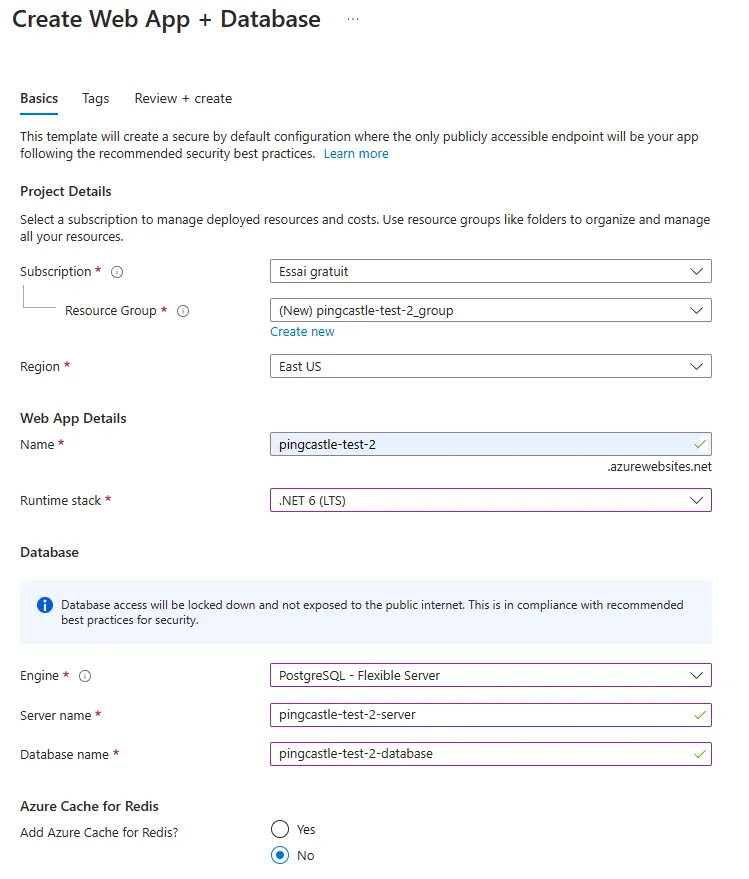
You can use an Azure template to create the web app and the database together.
-
If you create the web app as a Docker container, set the application settings on the server in the next section. Azure doesn't copy the settings from
appsettings.Production.jsoninto the image. It shows them as environment variables instead.
Deploy the files
-
Install the Azure CLI.
-
Run the following command to deploy the PingCastle Pro zip package to the web app:
az webapp deploy --resource-group <group-name> --name <app-name> --src-path <zip-package-path> -
Run
az webappcommands to view the web app you created. For deployment options, see Deploy files to App Service.
Your Azure configuration may require additional steps.
Set the application settings
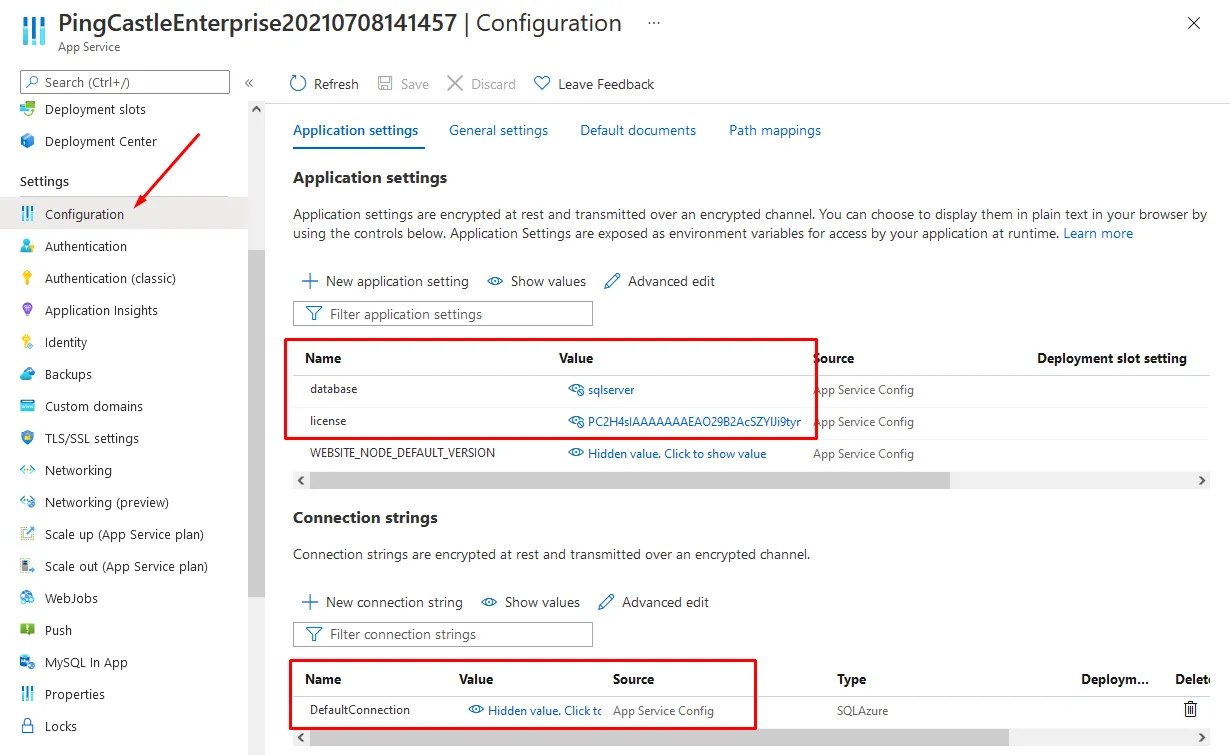
In the web app, select Configuration, then add the following settings. These replace the values you set in appsettings.Production.json for an on-premises installation. See Custom installation.
| Where | Name | Value |
|---|---|---|
| Application settings | database | sqlserver or postgres |
| Application settings | license | The license key |
| Connection strings | DefaultConnection | The database connection string. For Azure SQL, set Type to SQLAzure. |
To send email notifications, add the email settings as application settings. Azure uses a double underscore (__) for each level of a nested setting:
| Name | Value |
|---|---|
Email__Email | The address PingCastle Pro sends email from |
Email__Host | The SMTP server address |
Email__Port | The SMTP server port |
Email__Login | The SMTP user name. Optional. |
Email__Password | The SMTP password. Optional. |
Select Save, then restart the web app.
Debug startup issues
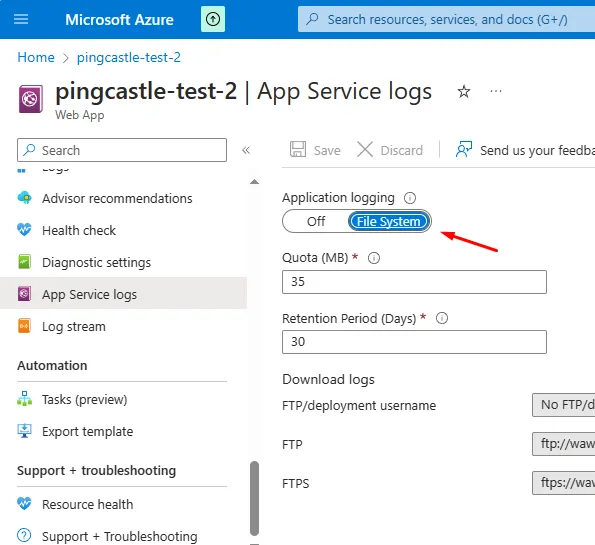
If the web app doesn't start, turn on App Service logs and read the log stream.
-
In the web app, enable App Service Logs.
-
Open the log stream.
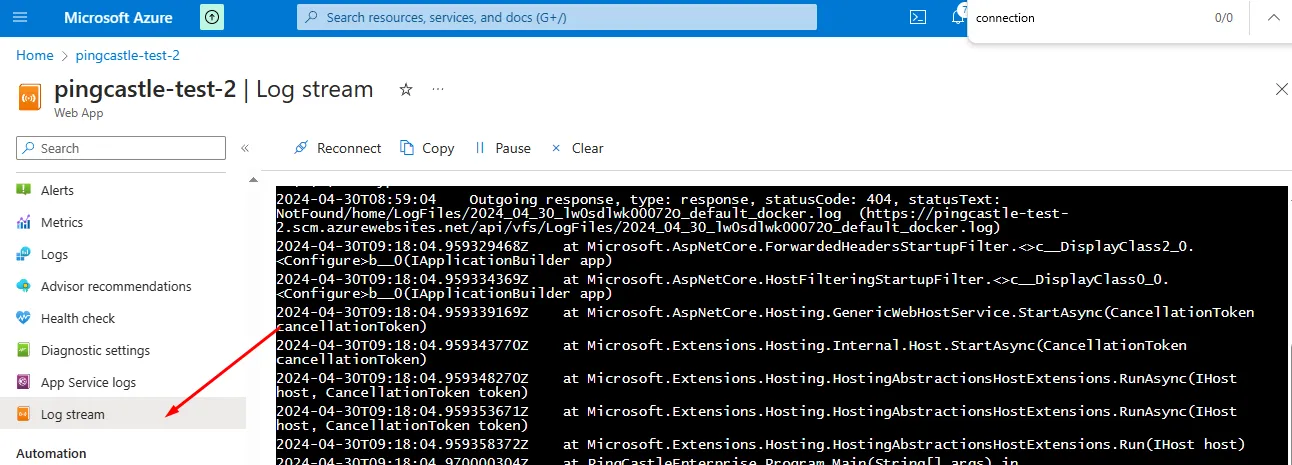
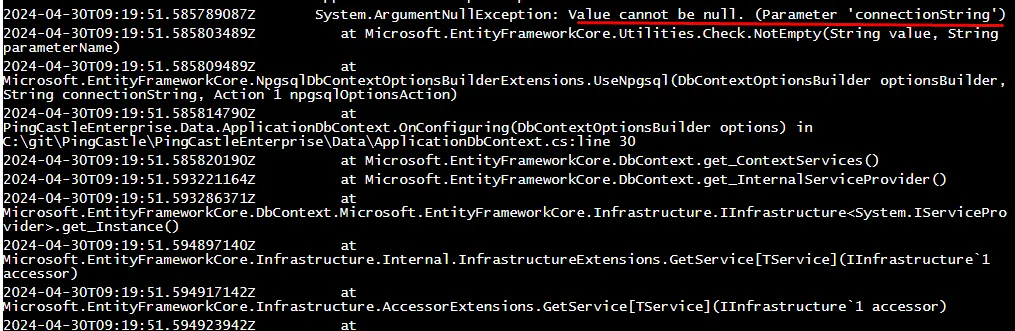
A common cause is a missing connection string. In the following example, the application couldn't find the connection string because Docker doesn't forward it. Add DefaultConnection in Configuration before the application can start.